


If you’ve ever checked your child’s screen time on a Samsung phone and thought, “That doesn’t look right”, you’re probably not imagining it.
Samsung phones don’t have one screen time system. They have two.
And if you’re using the wrong one for a child’s device (or accidentally mixing them together), limits can feel inconsistent, easy to bypass, or just plain confusing. I see this trip parents up all the time, especially when screen time rules seem to work one day and fall apart the next.
So in this guide, I’m going to clear up the biggest source of confusion, show you exactly how to check screen time on Samsung devices, and share some honest advice on how to set realistic screen time limits for your child (that you won’t have to walk back later).
Samsung Screen Time Explained
The confusion often begins with the fact that Samsung phones include two different ways to track screen time, and they’re designed for very different people.
Here’s a quick look at each.
Samsung Digital Wellbeing (Built-in, Adult-Focused)
Samsung’s built-in screen time feature lives inside Digital Wellbeing.
It’s useful for:
- Seeing total daily phone usage
- Checking which apps are used most
- Getting a rough idea of habits
But it has some big limitations for kids. For example:
- Limits are easy to change on the device itself.
- There’s no proper parent approval system.
- It doesn’t manage app installs or spending.
- It doesn’t scale well across multiple devices.
Digital Wellbeing is designed for you managing your own phone, not for managing a child’s phone or tablet.
So if this is the tool you’ve been relying on to manage your child’s screen time, it explains why some limits may feel unreliable.
Google Family Link (What You Actually Want for Kids)
For children, the system you should be using is Google Family Link.
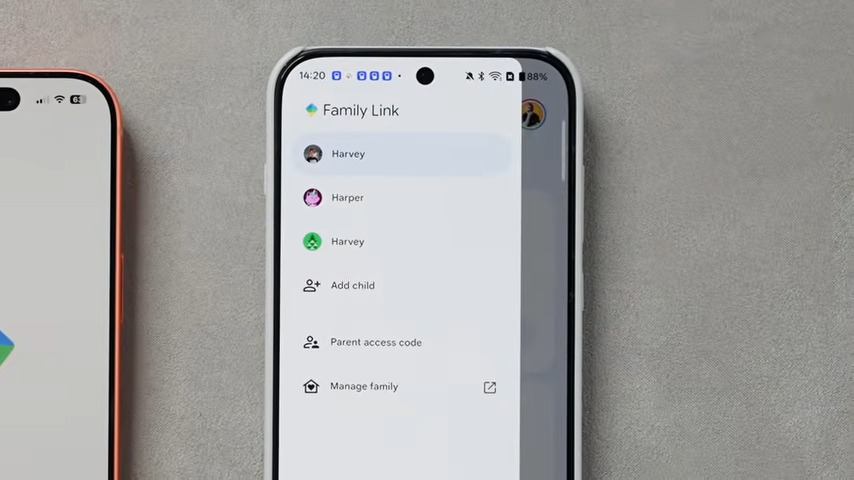
Family Link lets you:
- Check your child’s screen time from your phone.
- Set daily limits and bedtime schedules.
- Limit or block specific apps.
- Approve app installs and purchases.
- Apply rules across phones and tablets.
Most importantly, your child can’t just change the rules themselves. So if the Samsung phone or tablet belongs to a child, Family Link (not Digital Wellbeing) should be your primary tool for managing screen time.
How to Check Screen Time on a Samsung Phone or Tablet
Once everything is set up properly, checking your child’s screen time is relatively straightforward.
For a child’s device, that place is usually your phone, not theirs.
Check Screen Time From the Parent’s Phone (Recommended)
This is the best way to see what’s really going on.
- Open the Family Link app on your phone.
- Tap your child’s name.
- You’ll see:
- Today’s total screen time.
- A breakdown by app.
- A weekly view you can scroll back through.
This view is powerful because it shows patterns, not just totals.
Instead of focusing on one high day, look for things like:
- Is usage creeping up week by week?
- Are the same apps dominating every day?
- Does screen time spike on certain days?
That information tells you where you should be adjusting limits, so you can make targeted changes instead of tightening everything at once.
Check Screen Time Directly on the Samsung Device (Occasionally Useful)
You can also check screen time on the Samsung phone or tablet itself:
- Open Settings.
- Tap Digital Wellbeing and parental controls.
- View daily usage and app breakdown.
This can be useful:
- If you’re sitting with your child.
- As part of a conversation about habits.
- To help them understand their own usage.
But it shouldn’t be your main control method.
Anything set directly on the device is easier to bypass and easier to change, which defeats the point of parental controls completely.
Setting Screen Time Limits That Actually Work
This is the point where a lot of parents go wrong. Not because they’re careless, but because it’s very tempting to be too strict.

Overly tight limits feel like they should work. In practice, though, they usually lead to arguments, device-hopping, or kids staring at the clock waiting for time to run out.
So here’s a more realistic approach, based on my own experience as a parent.
Daily Limits vs App Limits (Use Both)
Family Link gives you two main ways to control time, and they work best together.
Daily screen time limit:
- Sets a hard boundary for the whole device.
- Good for stopping endless use.
- Best kept realistic rather than aggressive.
App limits:
- Target the apps that actually cause problems.
- Let you be stricter where it matters.
- Avoid punishing everything else.
A sensible setup is:
- One overall daily limit.
- Tighter limits (or blocks) on specific apps.
How to Set a Daily Screen Time Limit
From the Family Link app on your phone:
- Tap your child’s name.
- Go to Screen time.
- Turn on Daily limit.
- Set a time that fits your routine.
- Adjust individual days if needed.
Weekends almost always need more flexibility. Building that in early helps avoid the constant renegotiation.
If you’re not sure where to start, it’s better to set a limit that feels slightly too generous and tighten it later than to start strict and walk it back.
App Limits: Where Most of the Real Control Lives
App limits are where you can be firm but fair.
Inside Family Link:
- Scroll through the app list.
- Decide which apps:
- Need a time limit
- Should be blocked entirely
- Can be left unlimited
Common examples:
- Games and video apps → limited
- Phone, contacts, maps → unlimited
- Random system apps → blocked
Blocking apps your child doesn’t need reduces clutter and temptation.
What Happens When Time Runs Out
When a limit is reached:
- The screen locks.
- Only apps marked as “always allowed” work.
- Emergency calls still function.
This is why it’s important to:
- Set “always allowed” apps intentionally.
- Explain ahead of time what will happen.
Surprises create arguments. Predictability reduces them.
Adjusting Limits Without Undermining Yourself
You will need to override limits occasionally for long journeys, sick days, and special occasions.
That’s fine. The key is being clear with your child that this is an exception, not the new normal. Remember: if exceptions start happening all the time, the rules and limits stop meaning anything.
Read More: How to Reduce Screen Time For Kids and Keep Their Online World Safer
Bedtime and Downtime
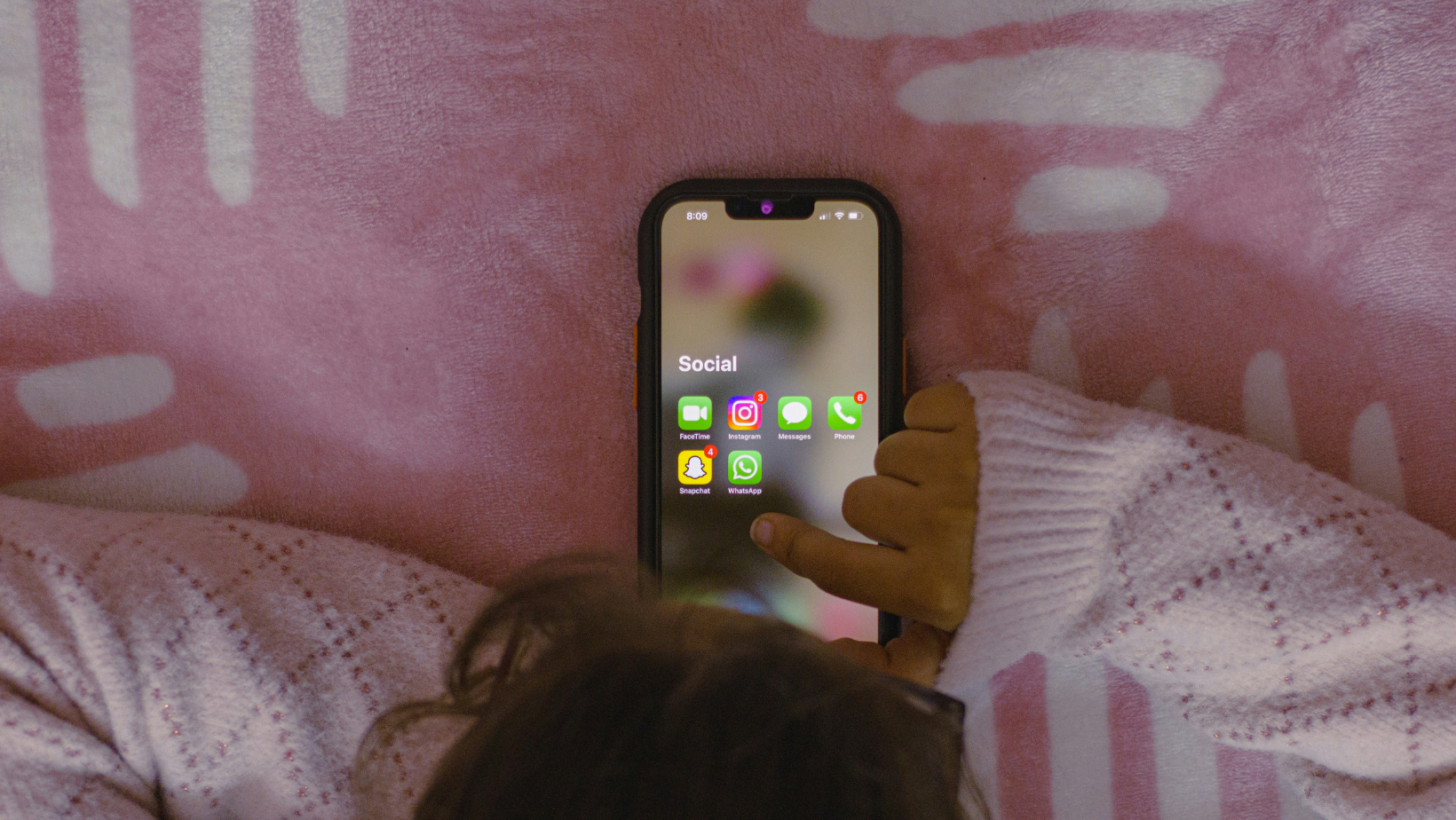
If screen time limits stop working anywhere, it’s usually at night.
Either the device still lights up, notifications keep coming through, or your child insists they “weren’t actually using it”. This is where downtime matters more than setting daily limits.
Setting a Proper Bedtime With Downtime
Downtime is different from a daily limit. Instead of counting minutes, it automatically locks the device during the hours you choose.
To set downtime rules in Family Link:
- Open Family Link on your phone.
- Tap your child.
- Go to Screen time.
- Select Bedtime (or Downtime, depending on device).
- Set start and end times.
Most parents use this for:
- Evenings before bed
- Overnight
- Early mornings before school
Once downtime starts, the device locks automatically. No negotiation required.
What Still Works During Downtime (This Is Important)
When downtime is active, the screen locks, most apps are inaccessible, and notifications are muted.
However:
- Emergency calls still work.
- Apps marked as always allowed still open.
This is why it’s worth double-checking that phone and contacts are allowed, and that anything you don’t want accessible isn’t. Otherwise, it’s very easy to leave small loopholes open without realising it.
Common Downtime Problems and What You Can Do
If the downtime feature in Family Link doesn’t behave as you expect, it’s usually for one of the following reasons.
Family Link: Common Downtime Problems
Final Thoughts on Checking Screen Time
If you find yourself arguing about screen time every day, that’s not a sign you’ve failed; it’s just a sign that something in the setup needs adjusting.
Usually, that means limits are either too strict, too loose, or trying to do the job of boundaries that really belong outside the phone.
Remember:
- Kids grow
- Habits change
- Devices multiply
So it’s normal to have to revisit these settings every few months and tweak the rules as your child gets older.
Screen time settings are only part of the picture, though. If you need help with devices, apps, internet access, and all the stuff that usually causes problems later, my Definitive Guide to Protecting Your Kids Online pulls it all together.
Prefer to see everything step by step? Check out my full video walkthrough below.
