


Every time I open YouTube to watch a single video, I end up watching a parade of short videos (i.e., YouTube Shorts) I didn’t ask for, didn’t search for, and definitely didn’t plan to watch.
All served up by the YouTube algorithm like it knows me better than I know myself.
The worst part? They're impossible to avoid. Shorts sit literally everywhere. On the Home page, Shorts tab, and search results; hijacking your feed and destroying your attention span.
So if you (like me) have searched and searched for things like how to hide shorts on YouTube or how to disable YouTube Shorts, you're in the right place. I've tested a few workarounds and tools, and I think I’ve finally landed on what actually works.
Intrigued? Read on for my full guide on disabling YouTube shorts, plus a special shoutout to Superpower YouTube, the Chrome extension that finally made YouTube usable again for me.
Why YouTube Shorts Are Wrecking Your Attention Span
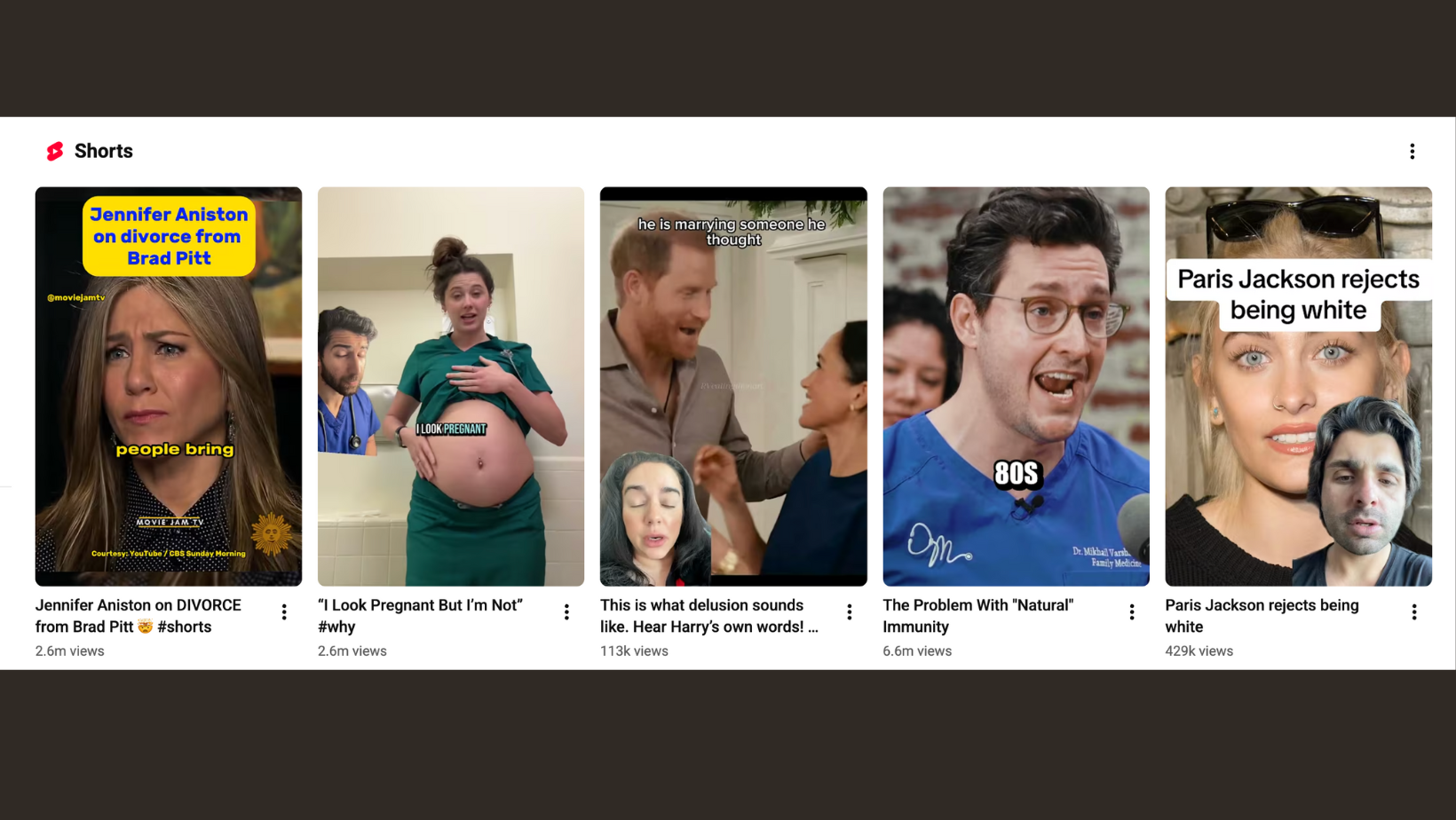
YouTube Shorts are not designed to be watched one at a time. They’re designed to be watched in bulk, with each clip interesting enough to keep you scrolling and short enough that your brain never gets a chance to stop and ask why.
For anyone with an addictive personality (or just a tired brain), this is a perfect storm.
The Shorts section keeps refreshing, the algorithm keeps guessing, and suddenly you’re watching videos you never searched for from channels you don’t follow, with nothing pulling you out.
This isn't a flaw in YouTube, it's just how short duration videos work.
Is There a Way to Disable YouTube Shorts in YouTube?
The short answer? No, at least not inside YouTube itself.
There’s no setting in your YouTube account that lets you completely disable YouTube Shorts. Nothing hidden in the app settings, nothing under advanced options, and nothing you can toggle off on desktop or mobile. Shorts are enabled by default for every user, and YouTube clearly wants them that way.
YouTube does give you a few soft controls, though.
For example, you can:
- Tap the three dots on a Shorts post.
- Select Not interested.
- Hide a specific Shorts section on the home page (temporarily).
- Leave feedback on individual videos.
What you can’t do is:
- Remove the Shorts tab.
- Block Shorts from search results.
- Stop Shorts from appearing in your feed.
- Disable Shorts across your account.
Those options simply aren’t there. Because from YouTube’s perspective, Shorts aren’t a "feature" you can opt into, they’re a key part of the platform.
Blocking YouTube Shorts: Common Methods People Try First (And Why They Don’t Work)
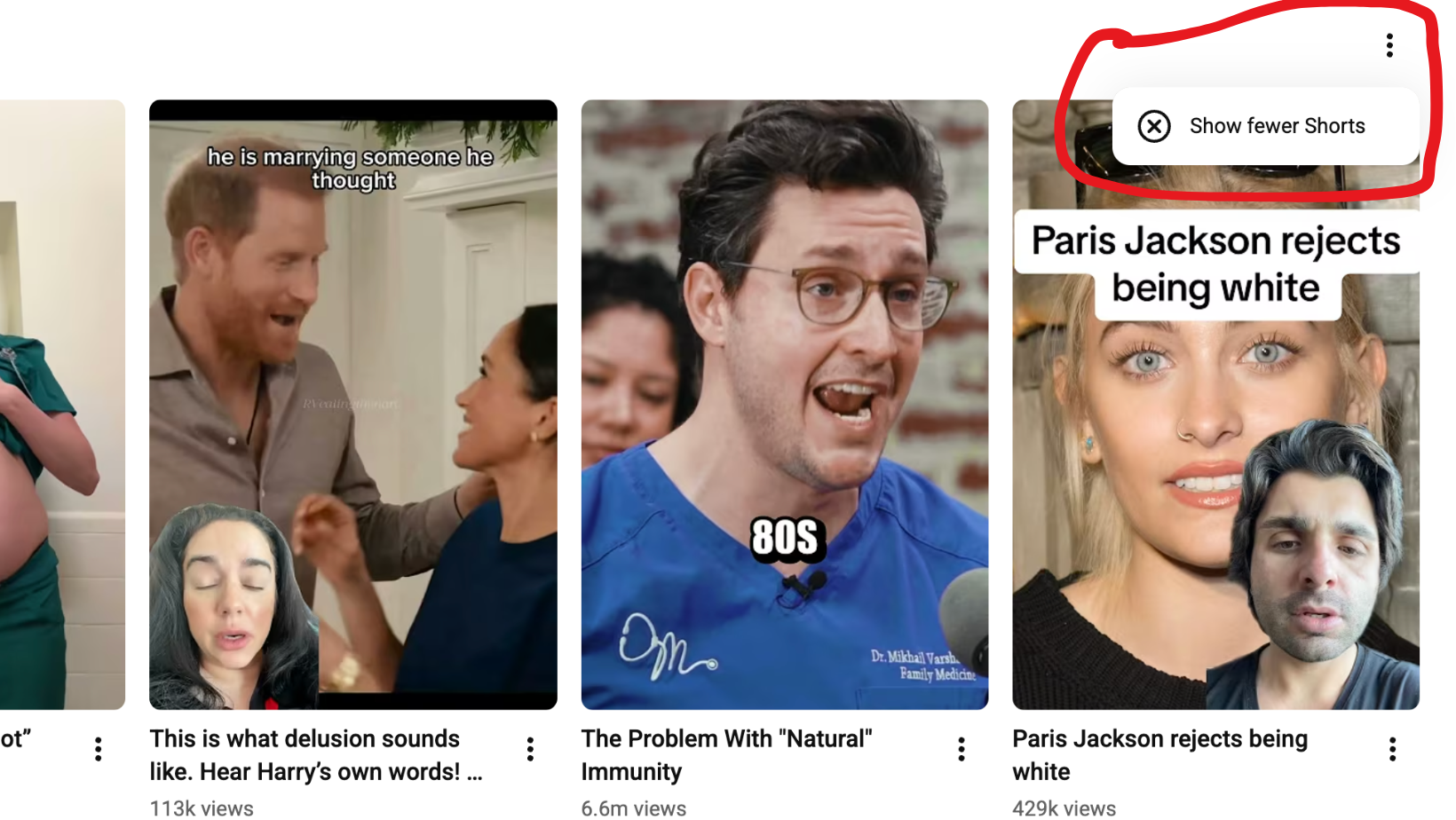
Before installing an extension or changing how they use YouTube, most people usually try to fix Shorts directly in YouTube.
It feels reasonable. YouTube gives you a few options, so surely one of them must disable Shorts… right?
Not quite.
The Three Dots, “Not Interested,” and False Hope
On the home page or inside the Shorts section, you’ll see the familiar three dots in the top right corner of a post. Tap that and you can:
- Mark a Short as Not interested.
- Hide a specific Shorts section.
- Leave feedback on a particular video.
This does remove that Short. Sometimes it even removes the Shorts section for the rest of the session.
Then you refresh, come back later, or search for something new.
And then, lo and behold, Shorts are back.
Why? Because this type of feedback only applies to individual videos, not the Shorts format itself. So essentially, you're training the algorithm about your content preferences, not telling YouTube you don’t want short videos at all.
Why Feedback Doesn’t Stop Shorts Showing Up
The YouTube algorithm treats Shorts as a core content type, not a preference.
So even if you:
- Mark dozens of Shorts as not interested.
- Avoid tapping the Shorts tab.
- Scroll past them every time.
Shorts are still:
- Enabled on your account
- Promoted in the feed
- Mixed into search results
- Tested repeatedly on your homepage
YouTube assumes that if you’re still using the app or site, Shorts are fair game.
Why Hiding Shorts Inside YouTube Never Sticks
This is the part most users find frustrating.
You might hide the Shorts section on the home page and think you’ve “fixed” it, until:
- The Shorts tab still exists.
- Shorts appear in search results.
- Shorts show up on channel pages.
- A new layout update resets everything.
That’s not a bug. It’s by design.
YouTube gives you just enough control to feel heard, but not enough to actually remove Shorts from your experience.
Which is why, if you genuinely want to remove YouTube Shorts, you'll have to find an external solution.
How to Turn Off YouTube Shorts on Desktop
If you watch YouTube on a PC or Mac, this is where things finally stop being so frustrating.
Desktop browsers give you far more control than the YouTube app ever will. You can’t flip a switch inside YouTube to disable Shorts, but you can stop them from appearing entirely by controlling how YouTube is displayed in your browser.
This is where browser extensions come in.
Browser Extensions: The Only Reliable Way to Block Shorts
A proper extension doesn’t “tell” YouTube to stop showing Shorts. It simply removes them from view.
The best ones can:
- Remove the Shorts tab completely.
- Hide the Shorts section on the home page.
- Block YouTube Shorts from search results.
- Remove Shorts from channel pages and feeds.
- Hide Shorts icons and labels so they don’t come back later.
Once enabled, YouTube behaves as if Shorts were never created.
Chrome, Firefox, and Safari: What Actually Works
It's worth making a little note here about browsers, because not all browsers give you the same level of control over YouTube.
Chrome has the strongest support for YouTube-focused extensions and tends to keep up best when YouTube changes its layout. Firefox isn’t far behind and works well if you prefer it. Safari, unfortunately, still lags; there are fewer extensions, and most of them don’t fully remove Shorts in a reliable way.
If disabling YouTube Shorts actually matters to you, using Chrome or Firefox on desktop is the path of least resistance.
Superpower YouTube: The Cleanest Way to Block Shorts (Review)
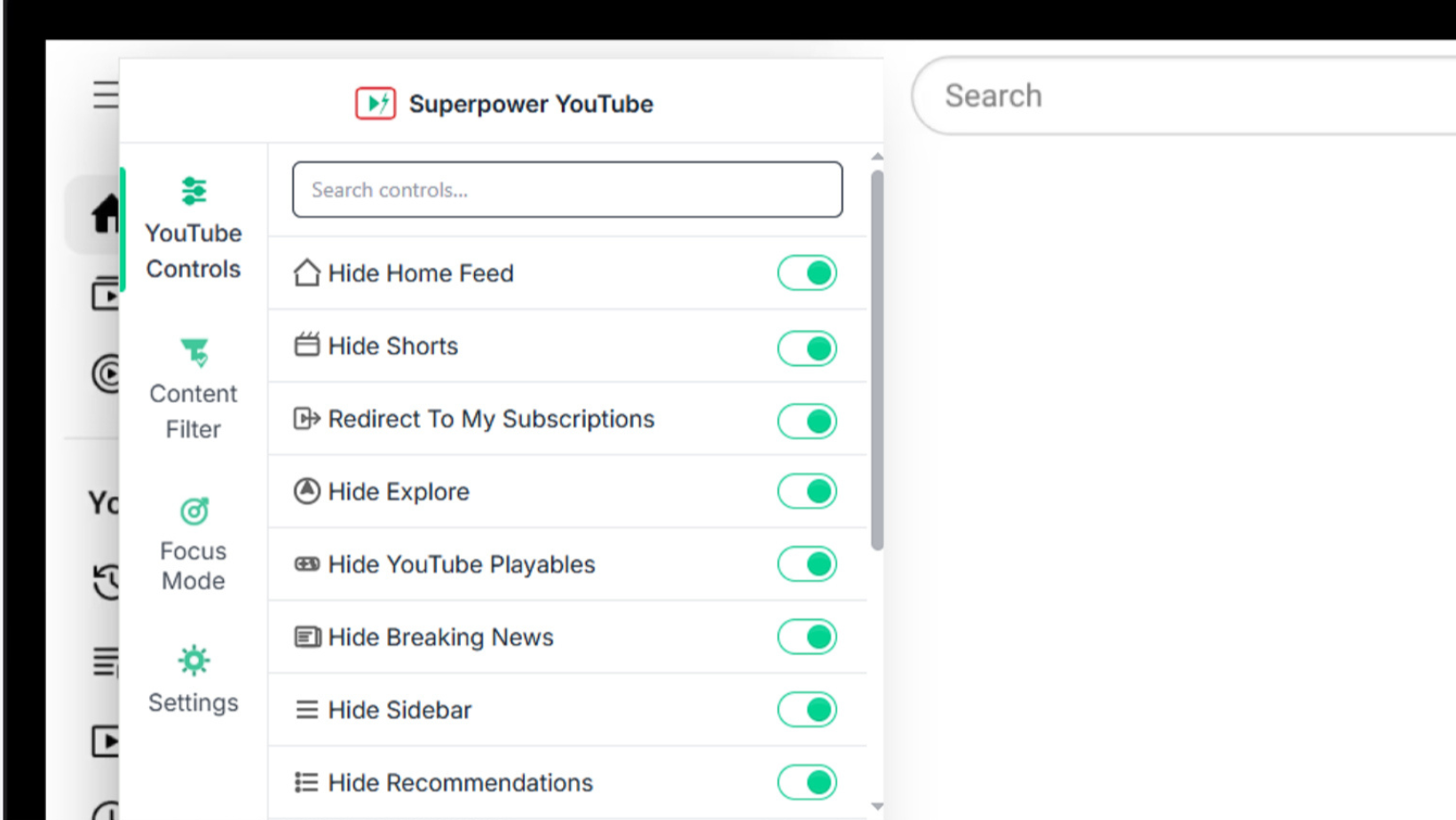
Most tools that claim to “disable YouTube Shorts” do one thing: they hide a single Shorts section and call it a day.
But Superpower YouTube takes a different approach. Instead of playing whack-a-mole with individual elements, it lets you decide what YouTube is allowed to show you at all.
What Superpower YouTube Actually Does
Once downloaded, Superpower YouTube gives you a set of simple toggles that allow you to control YouTube’s layout and behavior.
For example, you can:
- Remove the Shorts section from the homepage.
- Hide the Shorts tab entirely.
- Block Shorts from search results.
- Remove Shorts from feeds and channel pages.
Enable any of these, and Shorts aren’t just hidden once; they stay gone.
Blocking Shorts Without Disabling YouTube
This is the part I like the most. Superpower YouTube doesn’t force you to disable YouTube entirely. You can still:
- Watch regular videos
- Read comments
- Visit channels you’re subscribed to
- Use YouTube for learning or work
You just stop seeing the short videos you didn’t ask for.
Features That Actually Matter
Beyond removing Shorts, Superpower YouTube also helps you get a wrangle on the rest of YouTube’s noise.
For example, you can:
- Redirect the homepage to Subscriptions only.
- Hide recommendations and sidebar suggestions.
- Disable Autoplay so one video doesn’t turn into ten.
- Hide or blur thumbnails to reduce clickbait.
- Block channels or keywords with filters.
- Hide comments if they pull you off track.
- Start focus sessions to hide distractions.
- Schedule distraction-free YouTube during specific hours or days.
- Lock settings so you can’t undo them on impulse.
You can turn each feature on or off individually. Nothing is forced, and you're in full control the whole time.
How this Helps You Watch Fewer Shorts
Once Shorts are removed from your Homepage, Shorts tab, Search results, and Feed, you simply stop watching them.
Over time, your YouTube usage shifts back toward longer-form content. The algorithm adapts. Your feed gets calmer. And watching YouTube becomes intentional again.
It’s not magic, but it does help remove the constant triggers and temptations that keep pulling you back into the endless short video loops.
What Happens After You Remove YouTube Shorts
This is the part people don’t expect. Once Shorts are gone, YouTube feels a whole lot quieter.
You open the homepage, and there’s no Shorts section pulling your eye. You search for something, and the results are actual videos, not a mix of short videos and half-relevant clips. You finish watching a video and… nothing else starts automatically.
For the first time in a while, YouTube has an ending.
Your Feed Changes (Quickly)
Without Shorts in the mix:
- Your homepage shows fewer distractions.
- Subscriptions become more prominent.
- Longer form content resurfaces.
- Clickbait loses its power without thumbnails screaming for attention.
Even the YouTube algorithm adapts. When you stop watching Shorts, it stops prioritising them. Your feed gradually fills with videos you’re more likely to finish, not just tap on.
Watching Becomes Intentional Again
This is the biggest shift.
You start using YouTube the way you probably intended to all along:
- You open it to watch something specific.
- You watch it.
- You close the tab.
Comments are still there if you want them. Channels still exist. Viewers and creators haven’t gone anywhere. What’s missing is the endless chain of “other short videos” trying to keep you hooked.
For a lot of users, this is when their attention span starts to feel normal again. Not because YouTube changed, but because the triggers are gone.
How to Remove YouTube Shorts on Mobile (Android & iPhone)
Desktop is the easy win. But mobile is where things get a little messy.
The YouTube app on both Android and iPhone is designed around Shorts; there’s no setting to disable Shorts, no way to remove the Shorts tab, and no built-in option to block short videos completely on your phone.
So if you want fewer Shorts on mobile, you have to get a little creative.
Android: More Control, Still Compromises
On Android, you have a few workable paths:
- Use a browser instead of the YouTube app: Watching YouTube in Chrome or Firefox gives you access to browser-based tools and fewer forced UI elements.
- Use an app blocker: Limit YouTube usage during work hours or block the app entirely when focus matters.
Android does give you a bit more flexibility compared to iPhone, but there’s still no perfect solution.
iPhone: Fewer Options, More Discipline
On iOS, the rules are stricter:
- Safari extensions are limited.
- The YouTube app can’t be modified.
- Shorts are deeply integrated into the interface.
Your realistic options are:
- Watch YouTube in Safari instead of the app.
- Use Screen Time or an app blocker.
It’s not ideal, but it works if Shorts are genuinely having a negative impact on your ability to focus.
So… What’s the Best Way to Actually Get Rid of YouTube Shorts?
In all honesty, I don’t hate YouTube Shorts. I just don’t necessarily want to see them everywhere, especially when I open YouTube with an actual purpose in mind.
The reality is that we can’t truly disable or hide YouTube Shorts from inside YouTube itself. But we can remove them from your experience.
Here are the best ways to disable YouTube Shorts:
- On Desktop: Use YouTube in Chrome or Firefox and install a browser extension (like my personal recommendation, Superpower YouTube) to remove Shorts everywhere.
- On mobile: Use a browser where possible, limit the YouTube app using Screen Time or an app blocker, or manually block it during your high-focus hours.
Once Shorts are out of the way, YouTube feels a lot different.
Almost (dare I say), like you've got the old YouTube back.
