


Not a week goes by that I don’t see another headline, WhatsApp message, or school email warning parents about something that’s gone wrong online. Sometimes it’s fairly harmless. Other times, it’s a lot more uncomfortable.
And here’s the most frustrating bit: a huge amount of this is preventable.
The problem isn’t that parents don’t care. It’s that most of us were never taught how any of this actually works. Phones, tablets, games, apps, accounts, settings buried five menus deep, it’s a lot. And unless you live and breathe tech, it’s very easy to miss something important.
That’s why this guide exists.

For context, I used to run an IT business responsible for cybersecurity for companies here in the UK. Now I review tech on YouTube. I’m also a dad of two. Both of my kids use tablets, and my son recently got his first phone. Putting all of that together, I decided to sit down with my team and build what I wish I’d had from day one: one calm, practical place that shows parents how to protect their kids online, step by step.
If you want to watch the full walkthrough instead, there’s also a long, timestamped video version where I demo everything in real time (below).
But if you’re here because you just want a clear, easy-to-read plan you can bookmark and keep coming back to, you’re in the right place.
The 10-Minute Safety Checklist (Do This First)
If you don’t have time for everything in this guide, start here. You can do most of this in around ten minutes, and it will stop a lot of the usual problems before they start.
10-Minute Online Safety Checklist for Parents
Why One Layer of Protection Is Never Enough
One of the biggest mistakes I see parents make (and I’ve even made this myself) is assuming there’s a single switch you can flip that magically makes everything safe.
There isn’t.
Protecting your kids online works much more like home security. You don’t rely on just a front door lock. You’ve got doors, windows, alarms, habits, and the occasional glance out the window to make sure nothing weird is going on.
Online safety works the same way. It’s all about layers.
With that in mind, let’s start at the beginning: the device.
Choosing the Right Device for Your Child
Before we talk about settings, apps, or screen time battles, we need to talk about the thing your child is actually holding.

A lot of parents either hand down an old phone, buy the cheapest tablet available, or assume their child needs the same device they use. None of these approaches is automatically wrong, but they can make online safety much harder than it needs to be.
Here’s how I think about it.
First Phones: New vs Old, Android vs iPhone
Just because you have an iPhone doesn’t mean your child needs one too.
In fact, for a first phone, Android can often be the more sensible option.
Why?
- New Android phones tend to be cheaper.
- Trade-in deals are usually much better.
- You often get longer guaranteed software support.
- Parental controls work just as well, even if you use an iPhone.
When my son got his first phone, I went with a Google Pixel 9a. It wasn’t the cheapest option on paper, but it came with:
- A full warranty
- Accidental damage, loss, and theft cover
- Seven years of software and security updates
That last point matters more than most people realise. Security updates are what protect devices from newly discovered issues. If a phone stops getting them, it’s slowly becoming less safe, even if it still “works”.
On the iPhone side, the good news is you don’t need the latest model. Older iPhones (like the iPhone 11 or even an iPhone SE) can still perform really well, and many continue to receive iOS updates for years. A used iPhone in good condition can be a perfectly sensible choice, just avoid buying the very oldest model that still technically works, as it’s likely to fall off the support list sooner rather than later.
Read More: Best First Phone for Kids: What Parents Should Know Before Buying.
Not Ready for a Phone Yet? Smartwatches and Tablets Are a Legit Middle Ground
If a full phone feels like too much, you’ve still got sensible middle-ground options.
Kids’ smartwatches are a great compromise if you mainly want your child to be contactable. Apple and Samsung both offer kids modes that allow calls, texts, and location sharing, without opening the door to social media or app overload.
Read More: My Picks for the Best Kids Smart Watch (For Safety, Features & Value).
Tablets are often a child’s first real device, and this is where I see the most regret. Ultra-cheap tablets (especially those marketed directly at kids) tend to slow down within a year and end up getting replaced anyway. A used iPad in good condition or a reputable entry-level Android tablet (like Samsung’s Galaxy Tab A series) usually costs more upfront, but lasts longer, performs better, and keeps getting security updates.
As a general rule of thumb, you don’t need the most expensive device. But you do want ongoing updates, proper parental controls, and something that won’t be unusable in a year.
Read More: The Best Tablet For Kids (If You Care About Online Safety).
Setting Up the Right Accounts
This is the least exciting part of the whole process, but probably the most important. Without a solid setup, every other step can become a lot more frustrating than it needs to be.
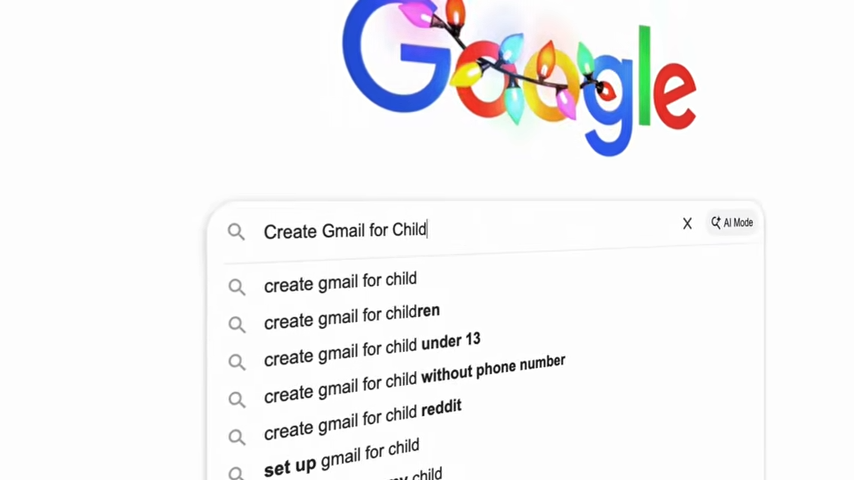
Create a Proper Child Account (Don’t Reuse Yours)
Your child should never be using your personal email or account on their device.
It might feel quicker in the moment, but it causes problems later:
- Screen time reports don’t make sense.
- App approvals don’t behave properly.
- Settings don’t follow them across devices.
- Untangling it later is a pain.
What you want instead is:
- A child Google account if they’re using Android, tablets, YouTube, or games.
- A child Apple ID if they’re using an iPhone, iPad, or Apple services.
Both systems are designed so you stay in control while they’re younger, and gradually hand things over as they get older.
Add Their Account to Your Phone (Trust Me on This One)
Once you’ve created your child’s account, I’d strongly recommend adding it to your own phone as well.
This makes life a whole lot easier for things like:
- Signing into games and apps.
- Approving downloads or purchases.
- Recovering accounts if something breaks.
- Seeing what services they’re actually using.
It also means you’re not constantly borrowing their device just to approve an app, reset a password, or figure out why something isn’t working.
A Quick Word on Email (Especially for Younger Kids)
Email is one of the weakest links in all of this.
Even with good filters, kids can still:
- Receive inappropriate messages.
- Click phishing emails.
- Accidentally hand over passwords or personal info.
If your child is quite young, my advice is:
- Create the email account so you can manage everything.
- Avoid letting them actively use email until they’re old enough to understand spam, fake messages, and scams.
This is a judgment call. Some parents are comfortable earlier, some later. There’s no single “correct” age; just be aware of the risks.
Device Controls (Where Most of the Heavy Lifting Happens)

This is the security layer most parents jump to straight away (think screen time, app limits, blocking things, etc.), and for good reason. When device controls are set up properly, they can actually do a lot of the work for you in the background.
One common mistake I do see, though, is trying to tweak everything at once.
You don’t need to. You just need to focus on the controls that actually reduce risk. Here are the ones I recommend focusing on for both Android and Apple devices.
Android: Family Link (Even If You Use an iPhone)
If your child is using an Android phone or tablet, Google’s Family Link is like a control center for everything.
The nice thing is that it doesn’t matter what phone you use, because you can manage everything from either Android or iPhone.
With Family Link, you can:
- Invite another adult: Useful if you co-parent and don’t want one person doing all the approvals.
- See all of your child’s devices: Phones, tablets, anything signed in with their account.
- Set screen time limits and schedules: Daily limits, different rules for weekends, and proper downtime.
- Block or limit specific apps: Including system apps your child doesn’t actually need.
- Control web access: For example, you can block explicit content or only allow approved sites.
- Restrict calls, texts, and contacts: This is a big one. Without this, strangers can contact your child.
- Enable location tracking and alerts: Including notifications when they arrive at or leave places like home or school.
Read More: How to Check Screen Time on Samsung and Set (Realistic) Limits.
Apple: Screen Time (Powerful, but a Bit Hidden)
On Apple devices, everything lives inside Screen Time, which you manage from your device, not theirs.
It’s very capable, but some of the most important settings are buried a few layers deep.
The core things to configure are:
- Ask to Buy: Stops surprise spending and subscriptions.
- Downtime: Automatically locks the device at certain times (bedtime is the obvious one).
- App Limits: Either by category (games, entertainment) or individual apps.
- Always Allowed: Make sure emergency calls and navigation still work.
- Communication Limits: Decide who they can contact during normal use and during downtime.
- Communication Safety: Helps warn about inappropriate images being sent or received.
- Content & Privacy Restrictions: This is where you control web content, app age ratings, and built-in apps.
- Location Sharing: Enable it, and consider blocking changes so it can’t be quietly turned off.
Again, you don’t need to make it perfect. Get the basics in place, then refine as you go.
Apple doesn’t make these settings obvious, but once you know where everything is, it’s manageable.
Read More: Guide for Parents: How to Check Screen Time on iPhone & Apple Devices.
Connectivity & Filtering (Home Wi-Fi, Mobile Data, and Why This Matters)
Once device controls are in place, the next question is how your child actually gets online.
This is easy to overlook, but it’s important. A phone with great parental controls behaves very differently depending on whether it’s connected to your home Wi-Fi, a school network, or mobile data out in the wild.
Home Internet: One Set of Rules for Every Device
Many broadband providers and modern routers let you:
- Create profiles for each child.
- Group multiple devices under one profile.
- Apply web filtering by category.
- Set schedules (for example, no internet after a certain time).
- Pause the internet entirely for a specific device.
This is especially useful if your child has:
- A tablet and a console.
- A phone and a laptop.
Instead of setting limits five times, you set them once.
If your broadband provider offers parental controls, it’s worth enabling them, even if you already have device-level filtering switched on. They catch different things, and overlap is a good thing here.
Mobile Data: Why “Wi-Fi Only” Isn’t Always Safer
When my son got his first phone, my original plan was simple: “No SIM card. Wi-Fi only.”
It sounded sensible… until I thought it through properly.
A SIM card actually adds some important safety benefits:
- You can contact each other if they’re out.
- You can track the device location.
- They can call you in an emergency.
- Many networks block adult content by default.
That last point is often missed. SIM-level filtering works even when they’re not on your home Wi-Fi.
You don’t need an expensive plan either. A small amount of data is usually enough, and you can always increase it later if needed.
Read More: The Kids SIM Card Guide: Cheap, Safe, Easy to Manage
Apps, Games & Platforms (Where Things Get Risky Fast)
This is the layer that causes the most anxiety.
Why? Because even with solid device controls in place, apps and games bring their own rules, chats, currencies, and grey areas. A phone can be locked down perfectly and still expose a child to things you didn’t expect, once the wrong app is installed.

The goal here isn’t to ban everything. It’s to slow things down, add friction, and make sure nothing happens without you at least having a say.
App Installs: Approval Beats Regret
If there’s one rule I’d suggest sticking to, it’s this: Nothing gets installed without approval.
When app approvals are set up properly:
- Your child can’t download apps on their own.
- In-app purchases need permission.
- You get a chance to check age ratings and reviews.
This extra step keeps you involved without hovering, helping to stop a lot of issues before they start.
Messaging & Social Apps: Know What You’re Saying Yes To
Many messaging and social apps:
- Have very limited parental controls.
- Allow contact from strangers.
- Rely on you manually checking activity.
If you allow them, it’s worth:
- Tightening privacy settings inside the app.
- Speaking with your child about what’s OK and what isn’t.
- Accepting that occasional manual checks are part of the deal.
As kids get older, this becomes more about trust and conversations than settings. But early on, clear limits are important.
Roblox: The One Game Every Parent Asks About
Roblox is huge. It’s also complicated.
The biggest issue isn’t just the chat feature; it’s that Roblox is a platform of games made by other people, often designed to encourage spending time and money. Moderation exists, but at the scale Roblox operates, it’s far from perfect.
You can do a lot inside Roblox’s parental settings, but it does require effort, and it does require checking in from time to time.
Read More: Roblox Parental Controls: The Settings Every Parent Should Switch On
Reducing Screen Time (Without Turning Into the Bad Guy)
The important thing to say up front is this: screen time limits on their own don’t fix screen time.
They help. They add friction. But they work best when they support habits, not replace them. Here’s what works best for my family.
Limits Work Best When They’re Predictable
Kids cope better with rules they can rely on.
Instead of constantly negotiating:
- Set clear daily limits.
- Use downtime at consistent times.
- Avoid changing the rules on the fly unless you really need to.
When limits are predictable, arguments tend to drop off.
Use Friction, Not Force
You don’t always need a hard ban. Sometimes small bits of friction are enough:
- No screens upstairs.
- Devices charge overnight in one place.
- Wi-Fi pauses after a certain time.
- Homework and chores before gaming.
These rules sound basic, but they work surprisingly well, especially when they’re applied consistently.
Manual Checks Still Matter
No setting replaces awareness.
That doesn’t mean spying or reading every message. It means:
- Knowing which apps they actually use.
- Seeing what kind of content they’re watching.
- Being curious, not confrontational.
As kids get older, this naturally changes. But when they’re younger, occasional checks are just part of responsible supervision.
Read More: How to Reduce Screen Time For Kids and Keep Their Online World Safer
My Final Thoughts on Online Safety
If there’s one thing I hope this guide has made clear, it’s this: Protecting your kids online isn’t about finding the perfect app, the strictest rules, or a single setting that fixes everything. It’s about putting sensible, reliable measures in place and staying actively involved in your child’s online life.
I’d also like to mention that online safety also isn’t a one-and-done job. Kids grow, apps change, and devices get replaced. The goal is to check in occasionally and adjust as needed, and most importantly, keep the conversation going so your child knows they can come to you if something feels off.
