


After publishing my full review of the 52" Dell UltraSharp, a lot of you had follow-up questions. Most of them focused on Mac compatibility, Thunderbolt daisy chaining, ghosting, KVM switching, and whether this monitor makes sense at this price.
You also pointed out a few things I did not test properly the first time.
So this is the complete written breakdown answering those questions clearly, based on the additional testing we have done. I am still using the 52 inch as my main display every day.
If you are considering buying one, there is an affiliate link below. It costs you nothing and helps support the channel.
Does The Dell 52 UltraSharp Support Thunderbolt Daisy Chaining?
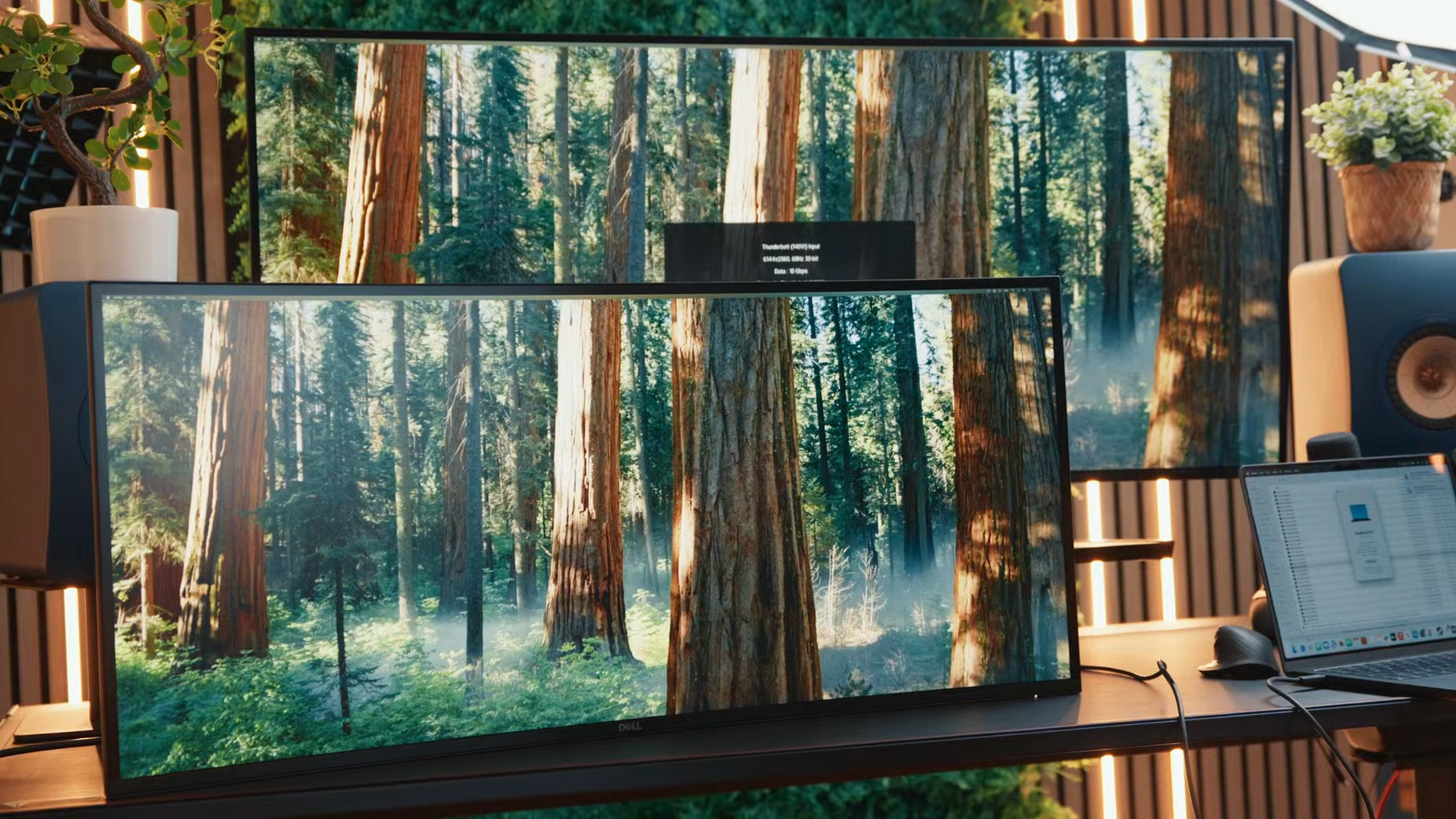
Short answer: no, not directly.
Dell’s product page makes it look like Thunderbolt daisy chaining should work, but the 52 inch model does not have a downstream Thunderbolt port. The USB ports on the back do not carry video output.
That means you cannot plug another Thunderbolt monitor into the back of the 52 inch and continue the chain.
The only way to daisy chain is to place the 52 inch at the end of the chain. For example, you can connect your computer to the 40 inch Dell Thunderbolt monitor, which does have a downstream port, and then run the 52 inch from that.
Even then, your computer may introduce limitations, especially on Mac.
Mac Compatibility And Apple Display Limits
Dell advertises this monitor as compatible with Mac. That is technically true, but the experience depends heavily on which Apple chip you are using.
The main issue is DisplayPort Multi Stream Transport, also known as MST. MST allows multiple monitors to run over a single cable. Most Windows machines support this. Apple does not implement MST in the same way.
As soon as you try to run multiple high resolution displays over Thunderbolt on a Mac, you start to see restrictions.
M3 Max, M4 Pro And 6K 120Hz Support
Here is what we tested.
- M4 MacBook Air: would not run more than one high resolution external display at these resolutions.
- M4 Pro MacBook Pro: only output to a single display in our tests.
- M3 Max MacBook Pro: supported multiple displays, but not without compromise.
On the M3 Max:
- The 40 inch Dell ran at full native resolution at 120Hz.
- The 52 inch Dell ran at full resolution, but only at 60Hz.
- We could not get the 52 inch to run at 120Hz in a dual monitor Thunderbolt setup, regardless of the resolution combinations we tried.
macOS clearly detected both displays in System Information, including firmware versions. The bandwidth appears to be available, but Apple limits multi display support based on chip tier.
When we connected a Windows machine, specifically the ASUS Zenbook Duo, both displays ran at full resolution and 120Hz without issue.
If you are on Windows, this is straightforward. On Mac, your exact chip matters.
Ghosting And Response Time Test
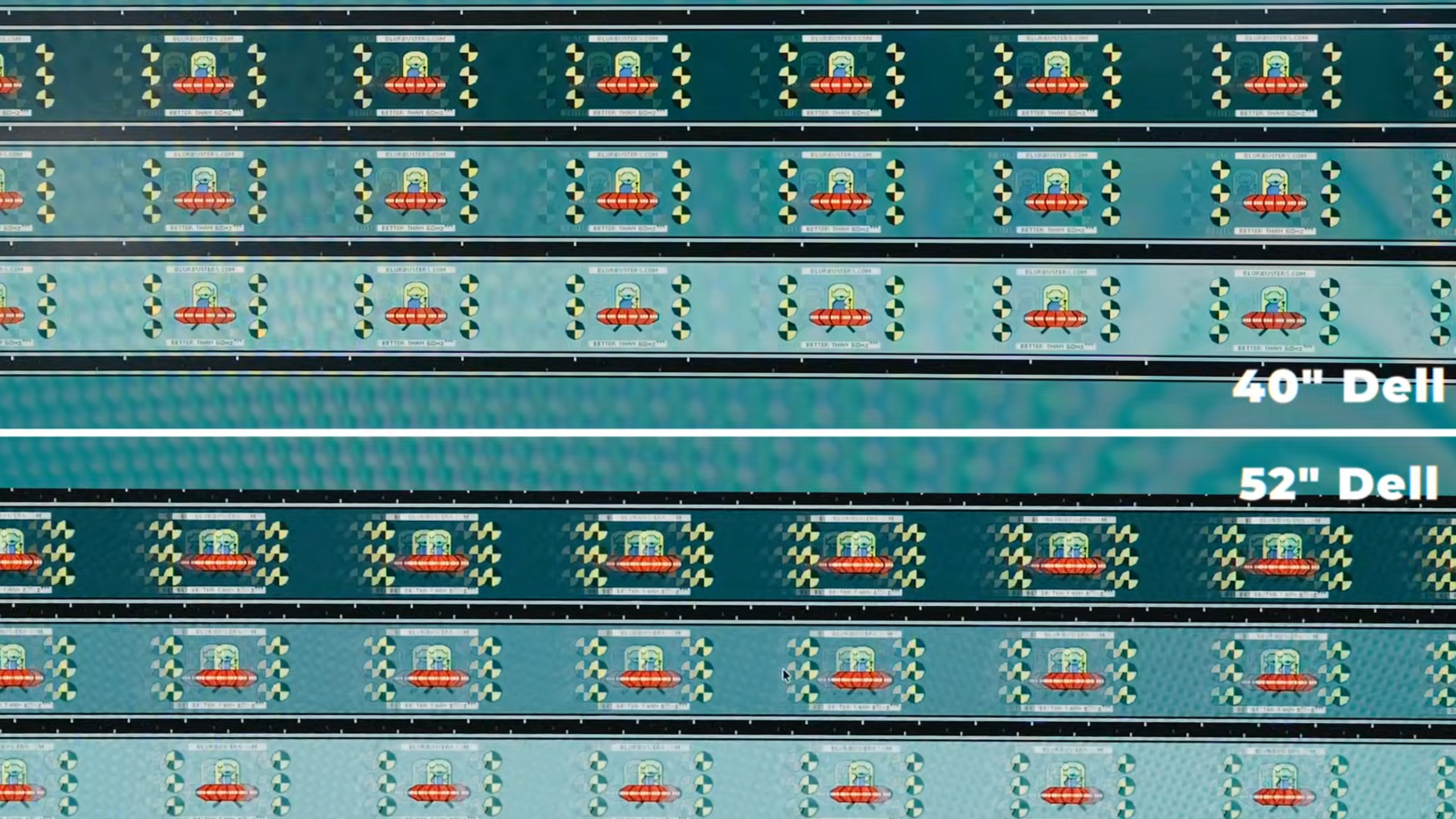
We ran the UFO motion test across the Dell 52 inch, the Dell 40 inch, the Samsung 57 inch, and the LG 45 inch OLED.
Both Dell monitors behaved similarly on Normal and Fast response settings.
There is clear ghosting. Fine details blur in motion and the small test dots are not rendered cleanly.
The Samsung 57 inch still shows some ghosting, but it is noticeably clearer than the Dell panels.
The LG 45 inch OLED is in a different league for motion clarity. The image stays sharp and clean in motion.
If gaming performance is your priority, the OLED panel is the stronger choice. The Dell is built more for productivity than for fast paced gaming.
Dell 52 UltraSharp Vs Samsung 57
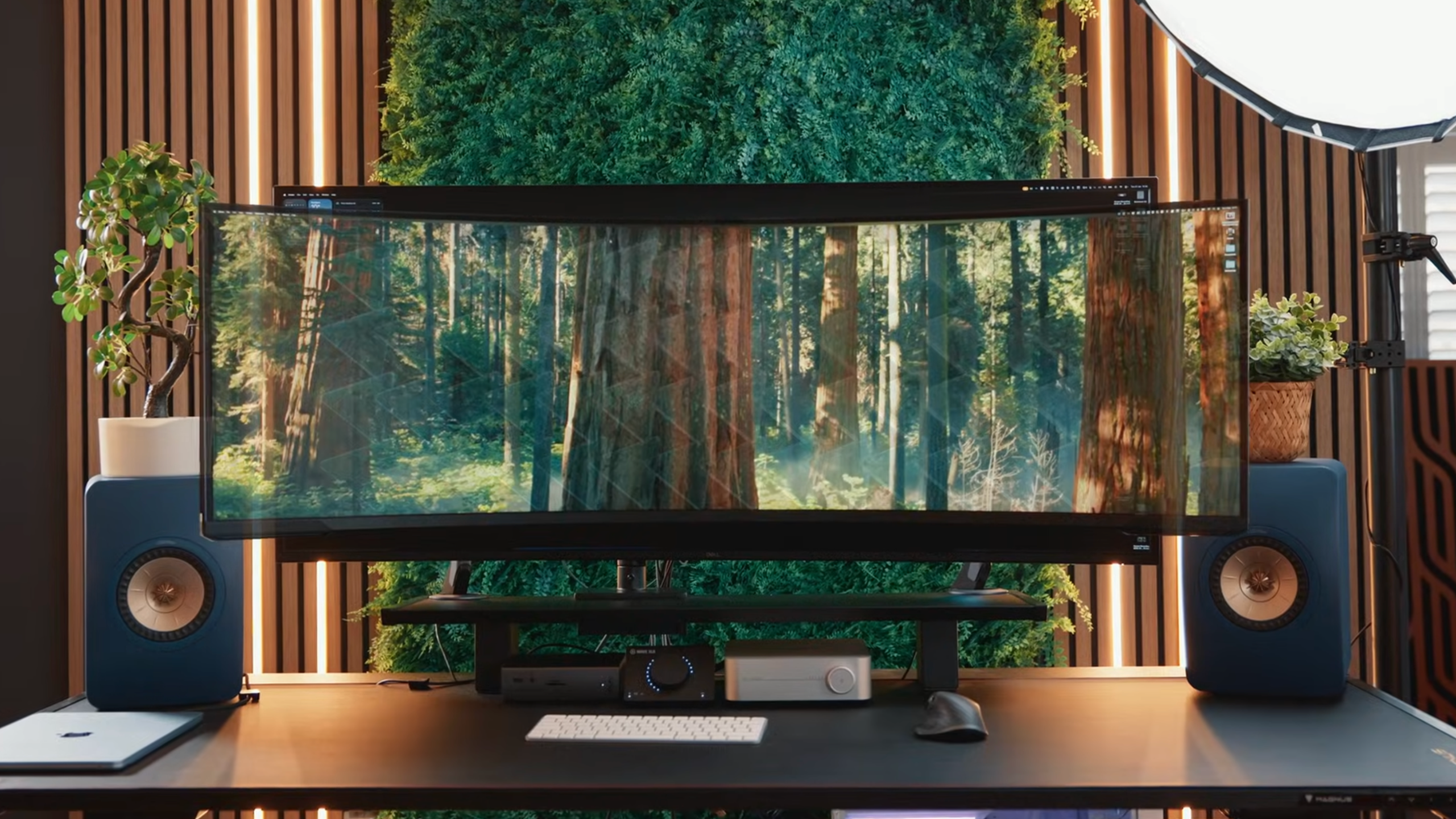
This comparison comes down to layout preference and workflow.
The Samsung 57 inch gives you extreme width. I have used it for over two years, so I am very used to that format. If it had IPS Black and built in Thunderbolt docking, it would be close to ideal for my setup.
The Dell 52 inch gives you more vertical space and integrates a Thunderbolt dock and KVM into the display itself.
If you care most about integrated connectivity and a single cable desk setup, the Dell has the edge. If you prefer ultra wide width for window management, the Samsung still makes a strong case.
Dell 52 UltraSharp Vs LG 45 OLED
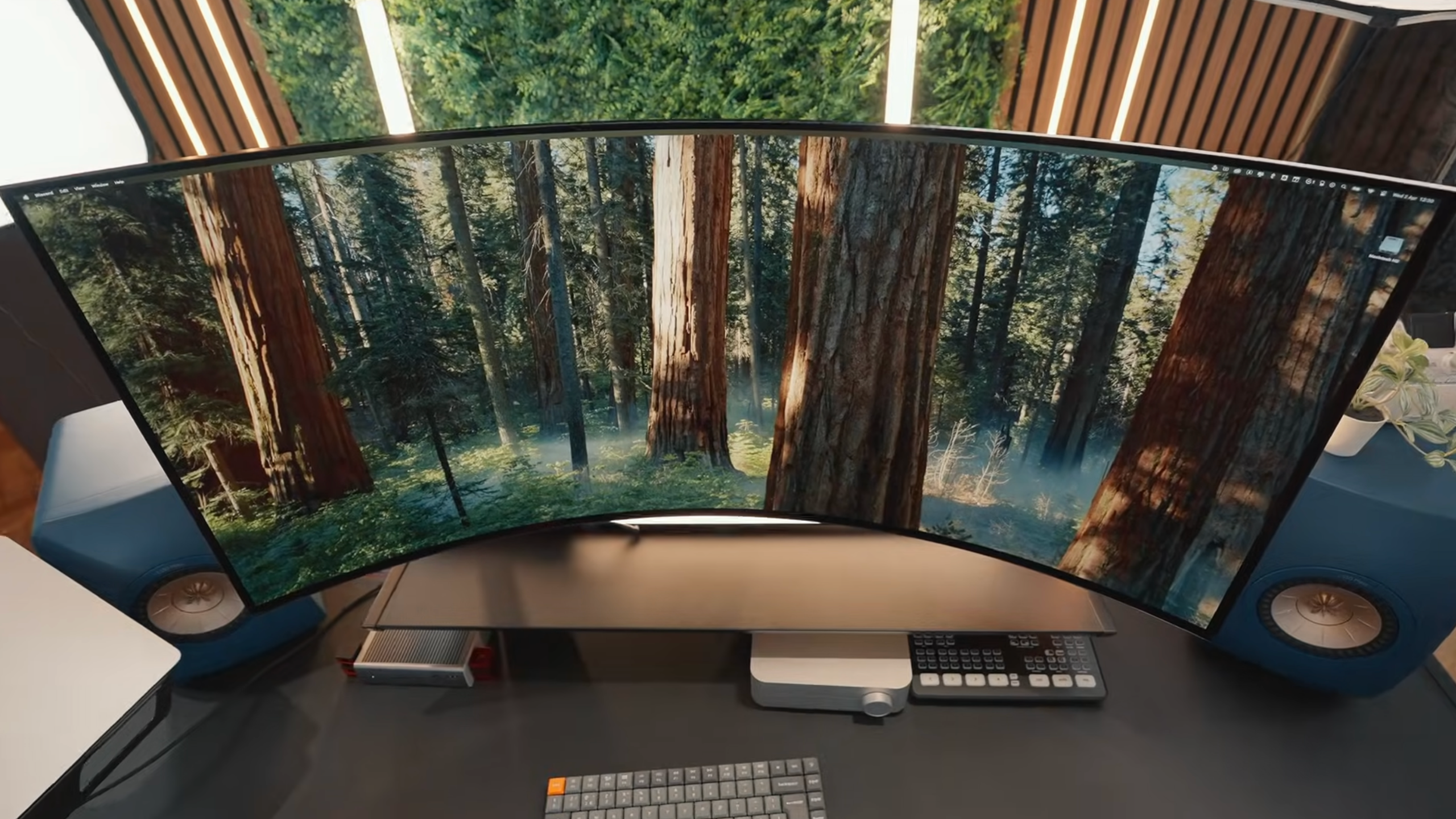
This is IPS versus OLED.
For gaming and media consumption, the LG 45 OLED delivers better contrast, deeper blacks, and far cleaner motion.
For day to day productivity, I notice screen real estate and resolution more than I notice OLED contrast. The Dell’s size and built-in dock make it a very practical work display.
If your setup is work first, the Dell makes sense. If you game regularly and care about motion clarity, the LG is the better fit.
How The KVM Works: USB Vs Network
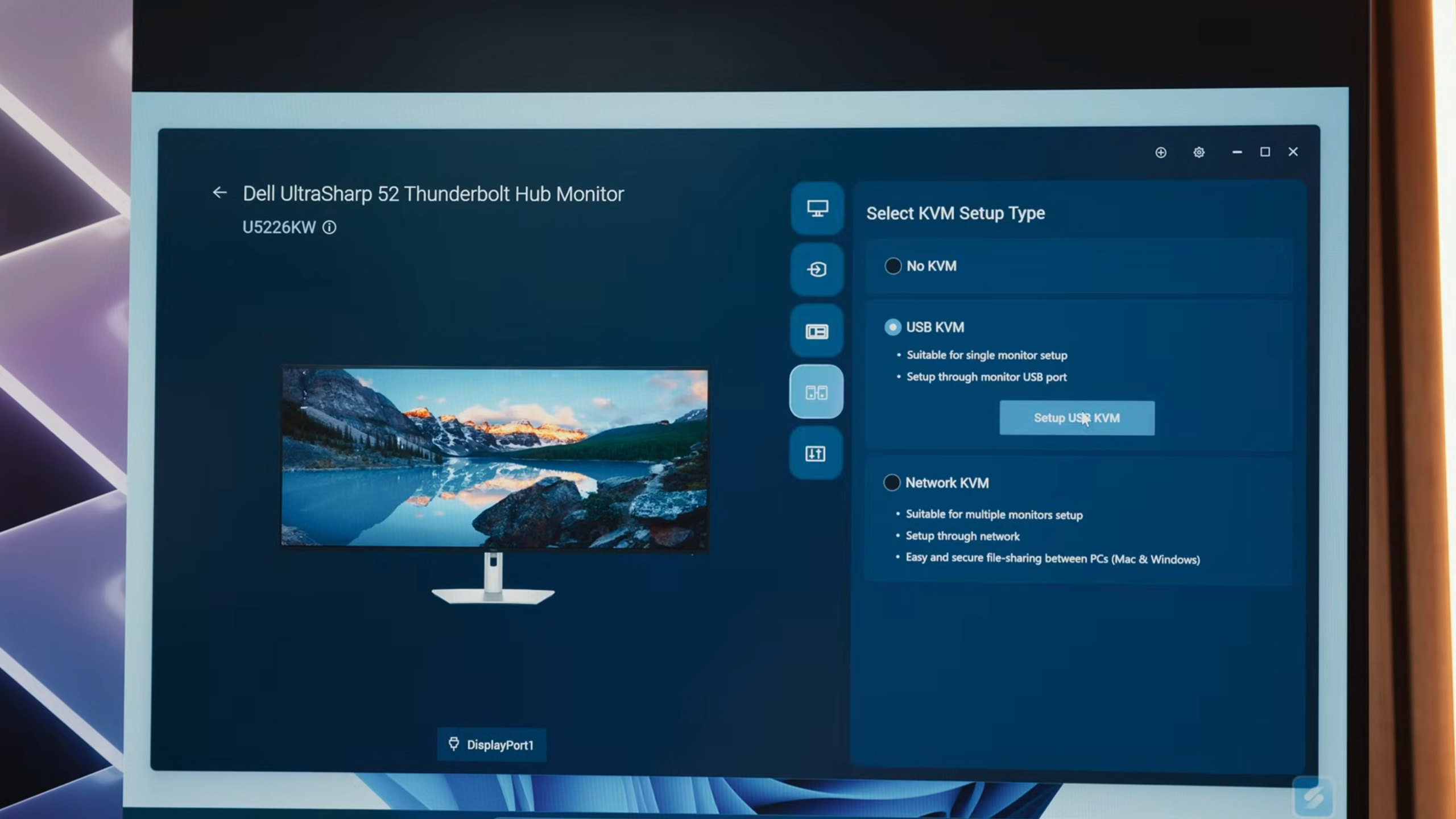
The 52 inch includes KVM functionality, but how you use it matters.
Using Dell Display Manager with USB uplink switching works, but in our testing it was slow. It took around five seconds to move keyboard and mouse control between machines. We also experienced inconsistent behavior, including unexpected input switching.
Network KVM, on the other hand, worked reliably. Switching was effectively instant and we were able to drag and drop files between devices.
If you plan to run multiple machines from one keyboard and mouse, the network based KVM is the better option.
2.5Gb Ethernet And Switching Behavior
The built in 2.5Gb Ethernet port is useful, especially if your laptop does not have faster networking built in.
Be aware that when you switch KVM between machines, the Ethernet connection switches as well. The inactive machine loses network access through the monitor.
Also remember that to benefit from 2.5Gb speeds, your wider network infrastructure must support it.
Linux Support
We did not have a Linux machine available for testing.
There is no full Dell Display Manager support for Linux beyond firmware updates. Most behavior will depend on your graphics card and driver support.
Hardware features such as screen partitioning should still function, but software features may be limited.
RTX 3090 And 6K 120Hz
An RTX 3090 is capable of outputting 6K at 120Hz for desktop use.
For gaming at that resolution and refresh rate, performance will depend heavily on the title and settings. For productivity workloads, it is not an issue.
Is It Better Than An Apple Studio Display?
The Apple Studio Display is still a solid monitor, but it serves a different purpose.
If you prefer a single large canvas with integrated docking and KVM, the 52 inch offers more flexibility.
I personally prefer one large continuous display over multiple smaller monitors with bezels in between. It simplifies the desk and reduces cable clutter.
Should You Just Buy A TV?
At this price, that is a fair question.
A TV can offer strong picture quality, especially with OLED panels. However, most televisions do not integrate Thunderbolt docking, KVM functionality, or productivity focused ergonomics in the same way.
We will be testing an 8K TV as a monitor in a separate experiment, but for now the 52 inch is designed as a workstation display rather than a living room screen.Watch The Full Q&A
If you would prefer to see the tests, comparisons, and demos in action, you can watch the full video here.
Now let’s go through everything properly.
Final Thoughts on the Dell 52 inch UltraSharp
The Dell 52 inch UltraSharp is designed around productivity. It delivers a large workspace, built in Thunderbolt docking, and multi device control in a single unit.
There are trade offs. Motion performance is not class leading, and Mac display limitations can complicate multi monitor setups depending on your chip.
If your priority is maximum screen space with integrated connectivity, this monitor fits that role well.
If you game frequently and care about response times, an OLED panel will suit you better.
If you are on Mac, check your exact chip specifications before committing.
Frequently Asked Questions
Does the Dell 52 UltraSharp support Thunderbolt daisy chaining?
No. It does not include a downstream Thunderbolt port.
Can it run 6K at 120Hz?
Yes, depending on your graphics card and system limitations.
Does macOS support MST?
Apple does not implement DisplayPort Multi Stream Transport in the same way as most Windows systems, which affects daisy chaining behavior.
Is ghosting noticeable?
Yes. Motion clarity is weaker than on comparable OLED panels.
Is it better than the Samsung 57?
It depends on whether you prefer extreme width or integrated docking and KVM features.
More From Pete Matheson
If you want more hands on tech breakdowns, you can subscribe to the YouTube channel or sign up to the newsletter where I share what we are testing each week.
