


Apple’s Screen Time sounds simple, but it’s often buried behind menus, toggles, and settings that don’t always behave the way you’d expect.
So if you’ve ever looked at your child’s iPhone or iPad and wondered:
- Where is Screen Time actually shown?
- Why does the total look so high?
- Why does it work on one device but not another?
You’re in the right place.
Read on for my full guide on how to check Screen Time on iPhone and iPad properly, plus how to make the settings actually stick across devices (without the daily drama).
Before You Check Anything: Make Sure Family Sharing Is Set Up
Apple Screen Time works best (and honestly, only really works) when it’s managed from the parent’s device using Family Sharing.
When Screen Time is set up only on your child’s iPhone or iPad, it’s much easier for them to change or reset the settings, and it’s also harder for you to see what’s actually going on.
Create or Add a Child Account (If You Haven’t Already)
If your child doesn’t already have their own Apple ID under Family Sharing, this is the step to do first.
From your iPhone:
- Open Settings
- Tap Family
- Tap the + in the top corner
- Choose Create Child Account
- Follow the prompts
This sets the foundation for everything that follows: limits, approvals, communication controls, and visibility.
How to Check Screen Time on iPhone or iPad (The Right Way)
Once Family Sharing is set up properly, checking screen time is relatively straightforward, as long as you’re looking in the right place.
For a child’s Apple device, that place is your iPhone, not theirs.
Check Screen Time from the Parent’s iPhone (Recommended)
This is the most accurate (and least frustrating) way to see what’s going on.
- Open Settings on your iPhone
- Tap Family
- Tap your child’s name
- Tap Screen Time
Here you’ll see:
- Today’s total screen time
- A breakdown by app and category
- A weekly overview you can scroll through
This view matters because it shows patterns, not just time totals, so you can spot which apps are soaking up the most time and when usage spikes.
Check Screen Time on the Child’s Device (Use Sparingly)
You can also check screen time directly on your child’s iPhone or iPad:
- Open Settings
- Tap Screen Time
- View usage and app breakdown
This is useful when you’re sitting together and chatting through healthy screen time habits. However, this shouldn’t be your main control method, because you’re looking at a version of Screen Time your child can easily influence.
Why Screen Time Numbers Sometimes Look Wrong
If the numbers seem shockingly high, it’s usually because background audio (like X or X), navigation apps, and educational apps still count towards that overall screen time figure.
Apple doesn’t tell you what’s “good” or “bad”, it’s just adding up minutes. That’s why the number alone can be misleading, and why it’s more useful to look at what was used and when, instead of reacting to the total and panicking.
Setting Screen Time Limits That Actually Work on Apple Devices
This is where Screen Time either becomes genuinely helpful… or the source of endless frustration.
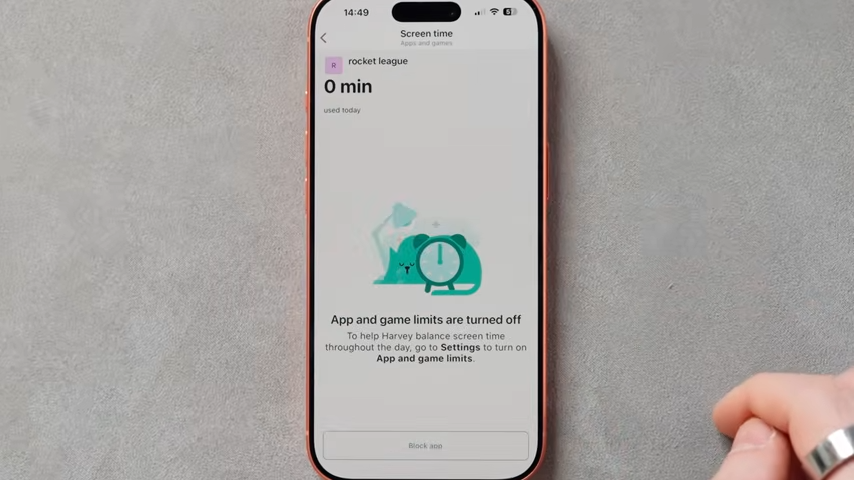
The biggest mistake parents make here is going too hard, too fast. Here’s what (in my experience) tends to work best.
Downtime vs App Limits (Use Both)
Apple gives you two main tools, and they do different jobs.
Downtime
- Sets hours when the device is locked.
- Best for evenings, nights, and mornings.
- Protects sleep and routines.
App Limits
- Restrict specific apps or categories.
- Ideal for games, video, and social apps.
- Allows you to be firm where it matters.
The sweet spot is using both. I recommend using Downtime for when the device can be used and App limits for how it’s used.
How to Set a Daily Screen Time Structure
This can be done from your iPhone:
- Go to Settings → Family → Your child → Screen Time
- Tap Downtime
- Enable Scheduled
- Set start and end times.
- Adjust for weekdays vs weekends if needed.
Downtime works best when it’s boring and predictable. No daily changes, no debates.
App Limits: Where Most Control Actually Lives
This is where you can start reducing screen time without having to ban everything completely.
- Go to App Limits.
- Tap Add Limit.
- Choose a whole category (Games, Entertainment) or specific apps.
- Set a time limit.
- Enable Block at End of Limit.
For most families, games and video apps are usually the most restricted, while messaging and phone access tend to stay more flexible. Maps and emergency tools are typically left as always allowed, since they’re about safety, not entertainment.
Downtime and Notification Issues
This is one of the most common points of confusion with Screen Time, and the one that makes parents think it’s broken. Limits are technically enabled with Downtime, but the phone still lights up, buzzes, or seems active long after it should be asleep.
Here’s what you can do to make sure the downtime feature is set up correctly.
Setting Downtime Properly for Bedtime
From your iPhone:
- Go to Settings → Family → Your child → Screen Time
- Tap Downtime
- Turn on Scheduled
- Set a clear start and end time.
Once Downtime kicks in, the device locks automatically (no reminders, no extra steps, and no nightly negotiations). This can be helpful for locking devices before bed and stopping early-morning scrolling before the day even starts.
What Still Works During Downtime (By Design)
Even during Downtime, emergency calls still work, and any apps marked Always Allowed can still open.
This is intentional, but it also means you should double-check what’s allowed. If something is still accessible at night, it’s usually because it’s been marked as Always Allowed by mistake.
Why Screens Still Light Up at Night
If your child’s device is still glowing after bedtime, it usually comes down to one of the following.
Downtime Troubleshooting: Why Screens Can Still Light Up at Night
The Single Most Reliable Sleep Rule: Physical Separation
Screen Time can lock apps and block access, but it can’t compete with a glowing screen on a nightstand within arm’s reach.
In my experience, what works best is this: devices charge overnight in one shared place, and screens don’t come into bedrooms after Downtime starts. It’s not a “punishment”, it’s just about removing the temptation so my kids can focus on getting some rest.
Final Thoughts: Predictable Beats Perfect
Screen Time works best when it’s boring, predictable, and working quietly in the background, doing exactly what you told it to do. When the system is steady, you spend less time tweaking settings and more time actually parenting, without the rules changing based on the day or your patience level.
My advice? You don’t need to micromanage every minute of your child’s life online. You just need something consistent enough that expectations are clear and the rules don’t change depending on the day.
Reducing screen time is only part of the story, though. If you need help thinking through devices, apps, internet access, and the settings that tend to cause issues later on, my Definitive Guide to Protecting Your Kids Online pulls it all together in one place.
And if you’d rather see everything set up step by step, including all the menus and safety settings in real time, you can also watch the full video walkthrough below.
