


If you have a school-aged child, chances are Roblox has already come up in conversation. And suddenly, you’re expected to make a decision about a game you’ve never played.
It usually starts innocently enough. A friend at school is playing it. Your child asks to download it. You see the blocky characters and think, “How bad can it be?”
Then the headlines start appearing. Stories about inappropriate content, strangers in chats, and eye-watering amounts of money spent inside a game you barely understand.
Roblox does give parents tools to reduce these risks. Unfortunately, though, the default settings are far too relaxed.
So in this guide, I’m walking you through the specific Roblox parental controls every parent should switch on, explaining why they matter and how to configure them properly.
Why Roblox Is High-Risk by Design
It’s important to say this upfront, because extremes don’t help anyone.
Roblox isn’t inherently evil. Millions of kids use it every day without incident. But it is built in a way that increases risk compared to traditional games.
Here’s why.
It’s User-Generated Content at Massive Scale
Anyone can create and publish a Roblox game.
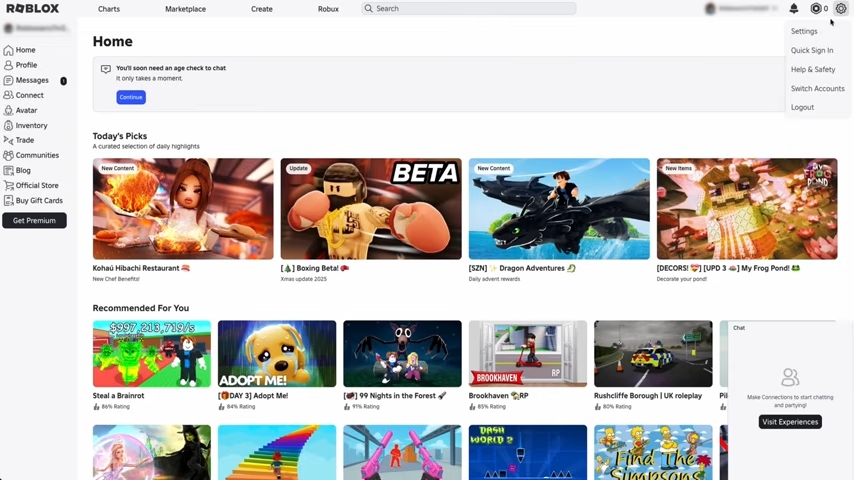
That means:
- Content quality varies wildly.
- Moderation struggles to keep up.
- Age ratings are often unreliable.
So with Roblox, your child doesn’t have access to a single game. They have access to an entire ecosystem of games created by people across the world.
Communication Is Built In
Roblox also includes features such as text chat, friend requests, and party systems. Even if chat is restricted, kids can still interact with each other (and with adults) in ways that need supervision.
Spending Is a Core Mechanic
Spending is a core mechanic in Roblox. Robux, Roblox’s in-game currency, is central to how the platform works. Many games are designed to encourage spending, create urgency, and push cosmetic upgrades or perks. Without spending limits in place, money can disappear very quickly.
Parental Controls Help (But They’re Limited)
Roblox’s parental controls are useful, but here’s the thing:
- They need to be configured manually.
- They can be misunderstood.
- They don’t replace device-level controls or parental awareness.
Think of them as risk reducers, not a guarantee that everything is automatically safe.
Setting Up Your Roblox Account (Do This First)
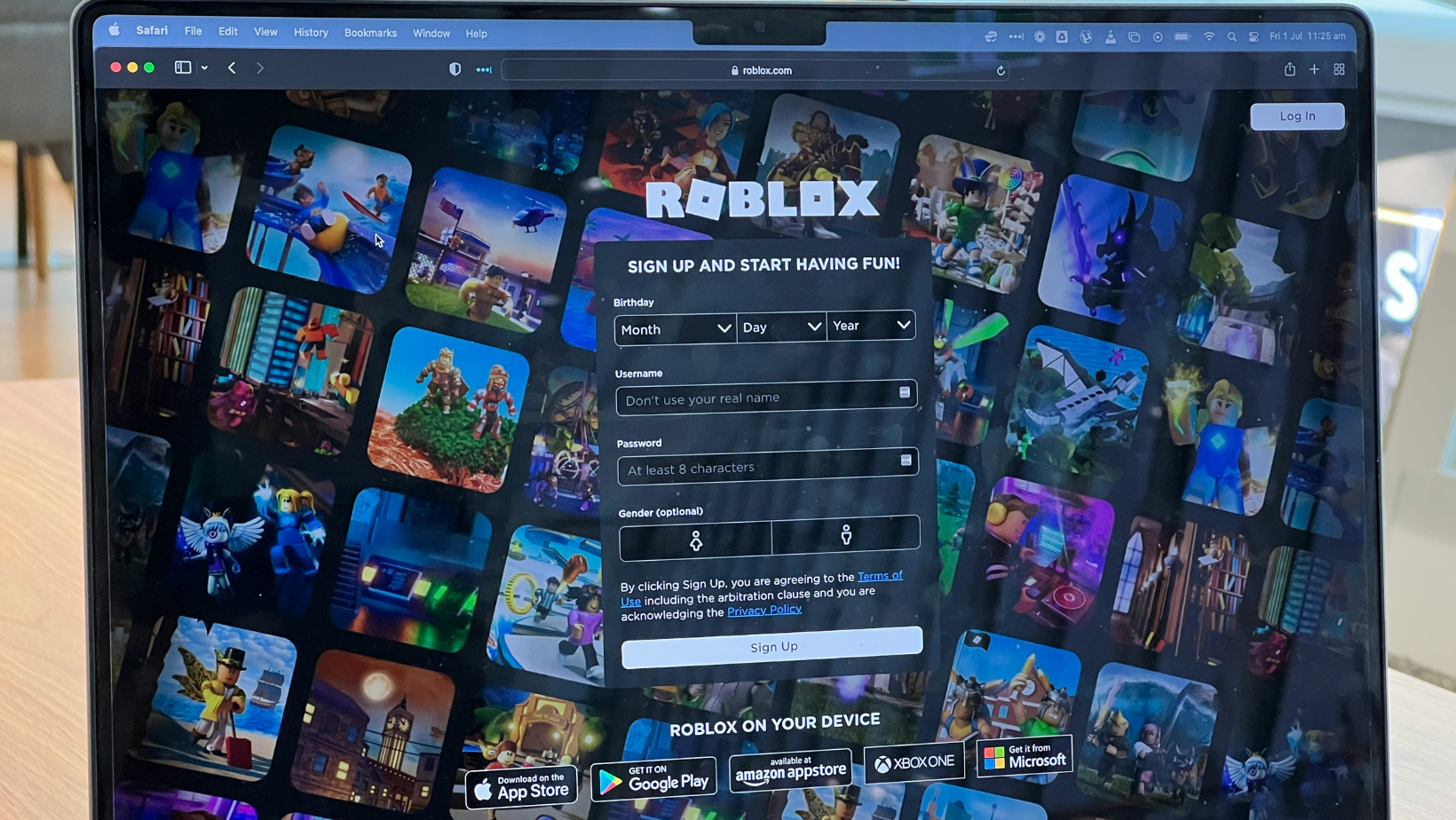
This is the bit a lot of parents skip, and it’s the reason settings either don’t stick, get changed back, or never quite behave how you expect.
Before you start toggling things on and off, make sure Roblox is set up from the parent side, not just the child’s account. Here’s a breakdown of how you can do this in three easy steps.
Step #1: Create Your Own Parent Roblox Account
Creating a separate Roblox account for yourself makes life much easier and unlocks features that are awkward (or impossible) to manage otherwise.
Here’s how to get started:
- Go to Roblox and tap “Sign Up” (use the website if you can, it’s clearer than the app).
- Create an account for you, using your own email address and a strong password.
- Verify your email so you don’t get locked out later.
- Do not use this account for playing; treat it as your “admin” account for parental controls only.
Why this matters:
- You can manage settings from a web browser (much clearer than the app).
- You’re less likely to accidentally undo something.
- Your child can’t “helpfully” change settings while you’re logged in.
Step #2: Add Yourself as a Parent on Your Child’s Account
Once your parent account exists, you need to link it properly.
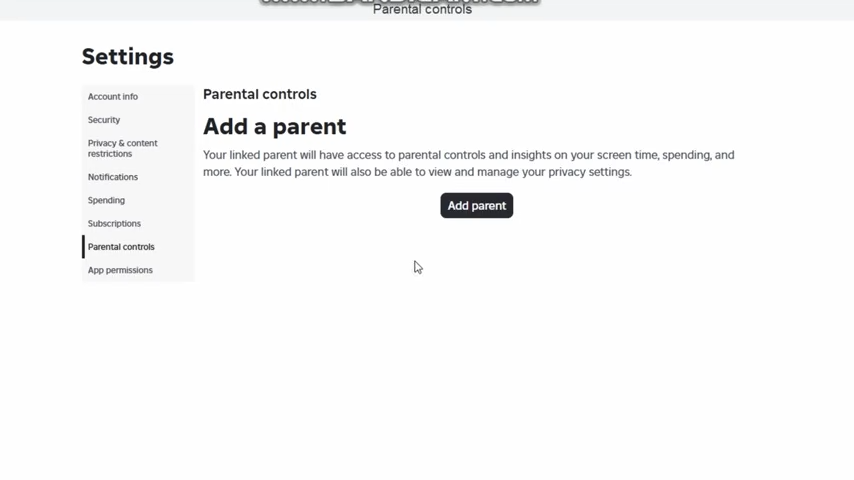
From a browser:
- Log in to your child’s Roblox account.
- Go to Settings → Parental Controls.
- Add your email address as a parent.
- Accept the invitation from your parent account.
This step is important because:
- It ties your account to theirs.
- It enables stronger controls.
- It makes future changes quicker and harder to undo.
Step #3: Set a Parental PIN Immediately
Before changing anything else, set up a Parental PIN:
- Log in to your parent Roblox account on a web browser.
- Go to Settings → Parental Controls.
- Toggle Parental PIN on.
- Create a 4-digit PIN and confirm it.
Once this is enabled, Roblox will require that PIN before:
- Changing privacy or communication settings
- Adjusting spending controls
- Modifying parental restrictions
This is helpful for making sure the settings you choose actually stay set.
The Roblox Parental Controls Every Parent Should Switch On
With the parent account linked and a PIN set, this is where you actually reduce risk. These are the Roblox settings that (in my opinion) matter most, and the ones I’d prioritize for every child account.
Roblox Parental Controls
Final Checklist: Roblox Safety in 10-15 Minutes
If all of this feels like a lot, don’t worry, you don’t need to perfect everything today.
The following checklist is designed to cover the highest-risk areas first, in an order that actually makes sense. If you work through it once, slowly and calmly, you’ll have switched on the settings that prevent most of the problems parents run into with Roblox.

One Last Note on Roblox
Roblox isn’t something you need to panic about or ban outright, but it does require active parenting.
The key to managing Roblox is staying involved, layering your controls, and having open, honest conversations with your child. This is the best way to reduce unnecessary risk and avoid misunderstandings down the road.
When it comes to your child’s online safety, Roblox settings are only part of the puzzle. If you want help with devices, apps, internet access, and the things that tend to cause issues later on, my Definitive Guide to Protecting Your Kids Online pulls it all together in one place.
And if you’d rather see everything set up step by step, including the menus and settings in real time, the full video walkthrough is below.
