


I've been testing the Samsung TV Gaming Hub on and off since it launched in 2022, and it's one of those features that sounds a lot better on paper than it actually is.
The pitch is simple: Turn on your Samsung TV, grab a controller, and start playing Xbox, PlayStation, or PC games without actually having to own a console or gaming PC. The promise is that everything streams from the cloud, but the reality is far more complicated.
So if you’re curious about how the Samsung TV Gaming Hub works, I'm going to walk you through exactly what the Samsung TV Gaming Hub is, which devices support it, what gaming services actually work, and the best settings for cloud gaming.
Let’s go!
What Is the Samsung TV Gaming Hub?
The Samsung TV Gaming Hub is a built-in platform on 2022 and newer Samsung Smart TVs that gives you access to cloud gaming services without a console. It's basically a launcher that connects you to things like Xbox Cloud Gaming, NVIDIA GeForce NOW, Amazon Luna, and other game streaming platforms.
You don't download games to your TV. You stream them from remote servers (similar to how Netflix streams movies). Your controller inputs get sent to the server, the game runs there, and the video feed streams back to your TV. When it works well, it feels responsive. But when it doesn't, the lag is obvious.
The Samsung TV Gaming Hub itself is free. You don't pay Samsung anything to access it. But you do need subscriptions to the individual gaming services. For example, Xbox Cloud Gaming requires Xbox Game Pass Ultimate at $29.99 per month, GeForce NOW has free and paid tiers, and Amazon Luna requires Prime or a Luna premium subscription. The costs add up quickly if you want access to multiple services.
Which Devices Support the Samsung TV Gaming Hub?
The Samsung Gaming Hub is available on most Samsung Smart TVs from 2022 onward, along with select Smart Monitors and the Freestyle projector.
Older TVs from 2020 and 2021 have limited support. For example, you can access some game streaming services, but you don't get the full Gaming Hub interface. For that, you'll need to download individual apps for Xbox, GeForce NOW, or Luna instead of accessing them through a unified hub.
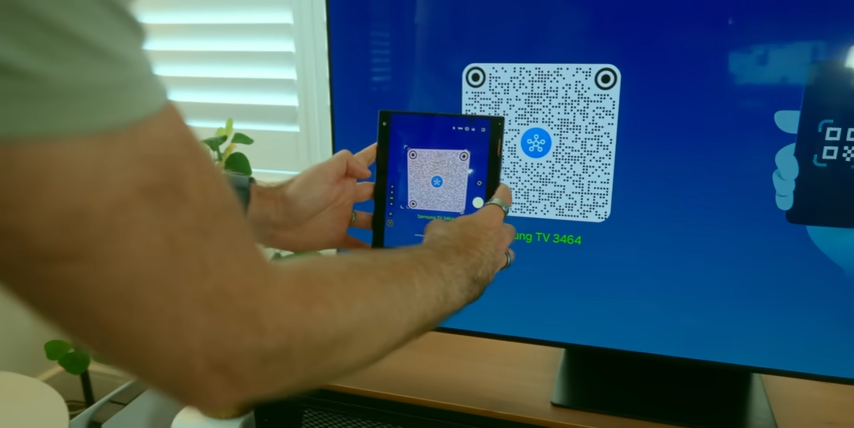
If you have a 2019 or older Samsung TV, you're out of luck. The Gaming Hub isn't available, and most cloud gaming apps won't run on older Tizen versions. Your best option is to buy a separate streaming device like an Amazon Fire TV Stick 4K Max or use a console.
Controller Compatibility
When it comes to controllers, you can use almost any Bluetooth game controller, like Xbox controllers, PlayStation controllers, Nintendo Switch Pro controllers, and most third-party Bluetooth controllers.
Samsung also partnered with PDP to create the REPLAY Wireless Controller, which was designed specifically for the Gaming Hub and is compatible with 2022-2024 Samsung Smart TVs and monitors. I haven't tested the REPLAY controller personally, but the specs look solid.
Latency: The Biggest Problem with Cloud Gaming
Here's the uncomfortable truth about the Samsung TV Gaming Hub. Latency is a problem, and there's only so much you can do about it.
When you press a button on your controller, that input has to travel from your TV to Samsung's servers, then to the cloud gaming service's servers, then back to your TV as a video stream. That round trip takes time. Even with a perfect internet connection, you're adding 30-80 milliseconds of latency compared to playing on local hardware.
For slow-paced games like turn-based strategy, puzzle games, or story-driven adventures, that latency is barely noticeable. But for fast-paced games like first-person shooters, fighting games, or competitive multiplayer, it is (in all honesty) a dealbreaker.
I personally tested Halo Infinite through Xbox Cloud Gaming on my Samsung S95B OLED. My internet connection is 1 gig fiber with a wired Ethernet connection to the TV. Game Mode was enabled, ALLM was active, and everything (within my power) was optimized. The game was playable, but I could definitely feel the lag.
Best Settings for Reducing Latency
While you can't eliminate latency completely, you can minimize it. Here's what works (in my experience).
Use a Wired Ethernet Connection
WiFi adds latency. Even with WiFi 6, a wired Ethernet connection is faster and more stable. If your TV is near your router, plug in an Ethernet cable. It makes a noticeable difference.
Enable Game Mode
Game Mode is Samsung's low-latency mode for gaming. It reduces input lag by turning off image processing features that add delay. When you connect a game console to your Samsung TV, Game Mode activates automatically. For cloud gaming through the Gaming Hub, you might need to enable it manually.
Game Mode does disable some picture enhancements, so your image might look slightly less polished. But the reduction in input lag is worth it.
Turn On Auto Low Latency Mode (ALLM)
ALLM automatically switches your TV to the lowest latency settings when it detects a gaming signal. Most Samsung TVs from 2022 onward support ALLM, and it works with cloud gaming services.
You don't need to manually enable ALLM. It should activate automatically when you launch a game through the Gaming Hub. If it doesn't, check your TV settings and make sure ALLM is turned on.
Enable Input Signal Plus
Input Signal Plus enhances picture quality for 4K gaming by enabling full bandwidth on HDMI inputs. This setting is mainly for consoles, but it can improve cloud gaming performance on some TVs. If you’re not quite sure how to do this, go to Settings > All Settings > Connection > External Device Manager > Input Signal Plus and turn it on for the HDMI input you're using (or for the Gaming Hub if there's a specific option).
Close Background Apps
Samsung Smart TVs run multiple apps in the background, and they can slow down performance.
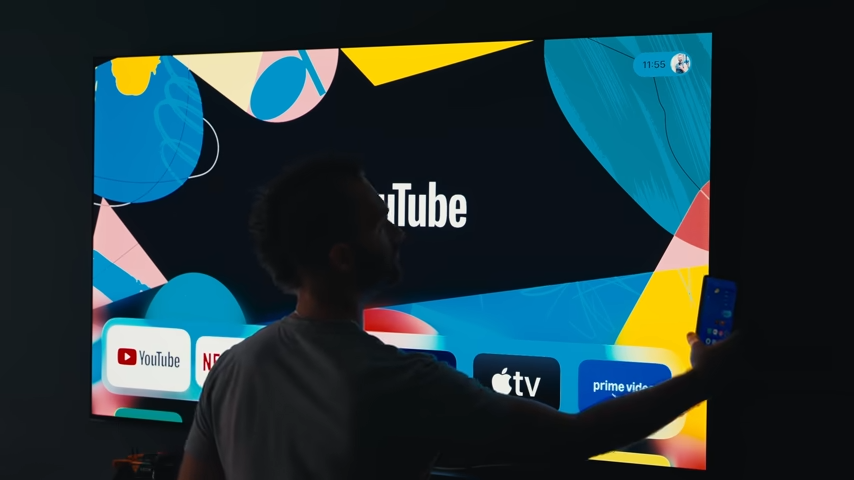
Before launching the Gaming Hub, always make sure to close any apps you're not using by pressing the Home button, navigating to the app you want to close, and selecting Close or Exit.
Check Your Internet Speed
Cloud gaming requires at least 15-20 Mbps for 720p streaming, 25-35 Mbps for 1080p, and 50+ Mbps for 4K. Run a speed test on your TV or another device connected to the same network. If your speeds are lower than recommended, you'll experience stuttering and lag.
When the Samsung TV Gaming Hub Makes Sense (And When It Doesn’t)
The Samsung TV Gaming Hub isn’t meant to completely replace a console or gaming PC, but it does fill a specific need for some players. Here’s a quick look at when it makes the most sense, and when you’re better off sticking with dedicated gaming hardware.
Quick Comparison: When the Samsung TV Gaming Hub Makes Sense (And When to Skip It)
The Reality of Cloud Gaming on Samsung TVs
After spending the last couple of years testing the Samsung TV Gaming Hub, here’s my honest take: It’s impressive… but it’s also very limited.
The technology absolutely works. You can sit on your couch, open an app on your TV, and play Halo Infinite or Starfield without owning an Xbox. That itself feels slightly futuristic. Not to mention, it’s super convenient for travelling, casual gaming, and testing games before downloading them elsewhere.
However, no amount of marketing changes the fact that your button press is taking a road trip to a data center before you see the result on screen. So if you’re sensitive to input lag (especially in competitive shooters or fighting games), you’ll feel it.
For me, the Samsung TV Gaming Hub falls into a very specific category:
- It’s great as a supplement to real hardware.
- It’s fine for casual play.
- It’s convenient in situations where bringing a console doesn’t make sense.
But it’s not a replacement for a PS5, Xbox Series X, or gaming PC.
