


I've watched people spend $300 on a SteelSeries headset, install SteelSeries GG, and then never open the software again. The headset sounds okay; they figure that's what they paid for, and they move on. That's a real shame because the software is doing almost nothing for them at that point.
SteelSeries GG is where a lot of the actual value lives. The Sonar audio mixer alone can completely change how your headset performs. The microphone tuning tools can make you sound dramatically better to your teammates. The EQ profiles can sharpen the audio in ways that give you a genuine edge in competitive games. None of that happens automatically when you plug in the headset. You have to go in and set it up.
The good news is that it doesn't take long. I've been through this setup process more times than I can count, and there are really only a handful of settings that make a meaningful difference. I'm going to walk you through exactly which ones to change first, what they do, and what to avoid along the way.
What the Software Actually Does
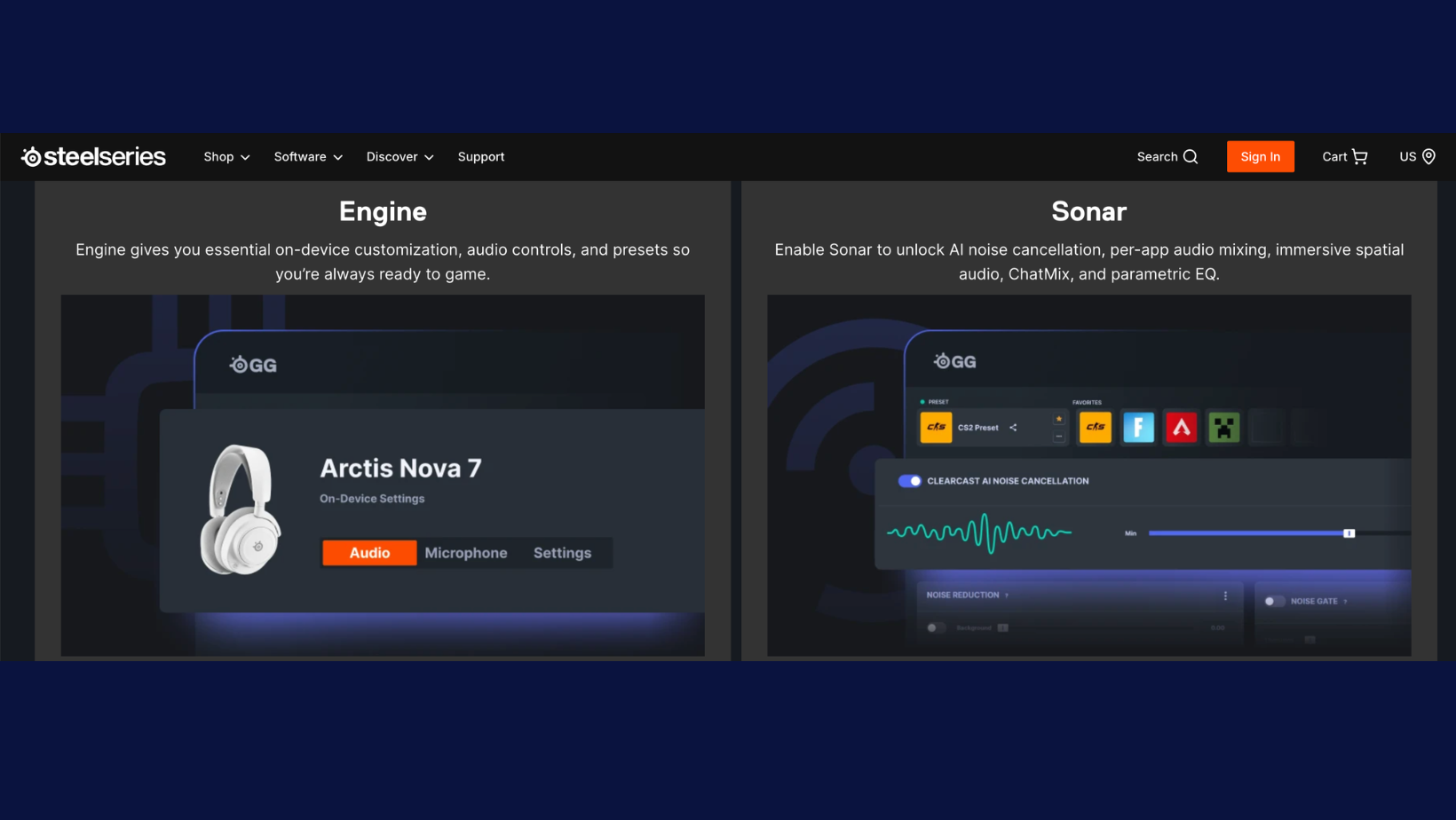
The software is the hub for all SteelSeries peripherals. It brings together four main tools under one roof.
Sonar
Sonar is the audio mixer. It's the most important part of the software and where most of the useful customization happens. It lets you create separate volume controls for your game, your chat, your media, and your microphone, all independently.
Engine
Engine handles device management. This is where you update firmware, customize RGB lighting, and manage hardware profiles for your headset, mouse, and keyboard.
Moments
Moments is a gameplay clipping tool. It automatically captures highlights and lets you save clips without needing a separate recording app.
GG
GG also acts as the launcher for all three. You can access everything from a single interface rather than hunting through multiple programs.
The Most Important SteelSeries GG Settings
The most important SteelSeries GG adjustment is configuring Sonar's device routing before changing EQ, spatial audio, or microphone processing. If the routing is wrong, nothing else will work correctly.
Setting 1: Configure Sonar Before Anything Else
This is the step that trips up almost everyone. When you first install SteelSeries GG and enable Sonar, it creates several new audio devices in Windows. If you don't set these up correctly, you'll either hear nothing, or everything will come out of the wrong channel.
Set Your Windows Audio Output to Sonar
Open Windows Sound Settings and set your default output device to "SteelSeries Sonar - Gaming."
This is the virtual device that Sonar uses to process your game audio. If Windows is still sending audio to your headset directly, Sonar isn't doing anything.
For communication apps like Discord, set the default communication device to "SteelSeries Sonar - Chat."
This is what creates the separate chat channel that you can control independently from your game audio.
Separate Your Audio Channels
Inside Sonar, you'll see a mixer with separate faders for Game, Chat, Media, Aux, and Mic. This is the whole point of the software. You can have your game audio at full volume while keeping Discord slightly quieter, or you can mute your media channel entirely without touching anything else.
One mistake I see people make is assuming that's all they have to do. You also need to check the audio settings inside each game. Fortnite is a good example. I set Game Audio to Sonar Gaming, Voice Chat Input to Sonar Microphone, and Voice Chat Output to Sonar Chat.
Once everything is set up properly, Sonar does exactly what it's supposed to and gives you independent control over each audio channel.
The most common setup I use is:
- Game at 100%
- Chat at 70%
- Media at 60%.
That keeps game audio front and center while still being able to hear teammates clearly.
Choose the Right Audio Preset
Sonar comes with a library of presets. For competitive FPS games, I start with the "FPS" preset and then make small adjustments. For single-player story games, the "Immersive" preset is a better starting point. These presets aren't perfect out of the box, but they're a much better starting point than the flat default.
Setting 2: Improve Your Microphone Quality
Most players never touch the microphone settings in SteelSeries GG. Their teammates hear them through whatever the headset mic captures by default. Spending two minutes here makes a noticeable difference.
Enable ClearCast AI Noise Cancellation
SteelSeries headsets with ClearCast mics have an AI noise cancellation feature inside Sonar. It filters out background noise like keyboard clicks, fans, and ambient room sound. Go to the Microphone section in Sonar and enable it.
I've found that a little noise suppression goes a long way, especially if you're gaming in a room with a fan running, a mechanical keyboard, or other background noise. NVIDIA explains that modern noise suppression tools are designed to reduce unwanted sounds while keeping your voice clear, which is exactly what I want when I'm talking to teammates.
One thing to watch out for
If the noise cancellation threshold is set too aggressively, it can cut out your voice during quieter moments. I keep mine at around 60-70% rather than maxing it out. Test it by talking at your normal volume and checking the input meter.
Adjust Microphone EQ
The default mic EQ is flat, which isn't always ideal. If your voice sounds muddy or muffled to teammates, try boosting the 2-4kHz range slightly. This is where voice clarity lives. Pulling down the low end below 150Hz can also help if your mic is picking up a lot of room rumble or keyboard noise.
Turn On Mic Monitoring
Mic monitoring lets you hear your own voice through the headset at a low level. This stops you from shouting because you can't hear yourself. It's a feature I always enable. You'll find it in the Microphone section. Set it to around 30-40% so it's audible without being distracting.
Setting 3: Customize Your EQ Profiles
The default EQ profile in Sonar is flat. That's fine for a starting point, but it's not optimized for any specific type of gaming. Here's how I approach it depending on what I'm playing.
EQ for FPS Games
For competitive shooters like Valorant or CS2, I pull back the bass slightly and boost the upper midrange around 3-5kHz. This makes footsteps and environmental cues clearer without making the audio sound harsh.
I also reduce the sub-bass below 80Hz because it doesn't add useful information in a competitive context.
EQ for Story-Driven Games
For single-player games like Elden Ring or The Last of Us, I want a fuller, more cinematic sound. I keep the bass at a natural level and add a gentle boost around 8-10kHz to bring out the detail in environmental sounds and music. The goal is immersion, not precision.
EQ for Music
If I'm using the headset for music, I use a more balanced profile. A gentle V-shape with a small bass boost and a slight high-frequency lift works well for most genres. The key is keeping the adjustments subtle. Large EQ changes usually make things sound worse, not better.
Setting 4: Create Game-Specific Profiles
The software lets you save different profiles and assign them to specific games. When you launch that game, the profile loads automatically. This is one of those features that sounds like a gimmick but actually saves a lot of time.
I have three profiles:
- One for competitive FPS games, like the best PS5 headsets
- One for single-player games
- One for when I'm streaming
The streaming profile has a more conservative mic EQ and a balanced game audio mix so my stream audio sounds good without me having to manually adjust anything mid-session.
Setting 5: Keep Firmware Updated
This one is easy to forget. Open the Engine section of the app and check for firmware updates on your headset. SteelSeries releases updates that fix audio bugs, improve mic performance, and add new features. I've had headsets where a firmware update noticeably improved the mic clarity.
Set a reminder to check every month or so. It takes about two minutes and occasionally makes a real difference.
Common Problems and How to Fix Them
No Sound After Enabling Sonar
This is the most common issue. The fix is almost always the same. Go to Windows Sound Settings and confirm your default output is set to "SteelSeries Sonar - Gaming."
Then open Sonar and confirm the physical headset is selected as the playback device inside the mixer.
Check the Game, Chat, and Media channels separately because each one can point to a different output.
Audio Sounds Worse After Installing Sonar
This usually means a preset or EQ profile is doing something unexpected. Go into Sonar and reset the EQ to flat.
Then check that Spatial Audio isn't enabled if you weren't expecting it. Some spatial processing can make audio sound strange on certain headsets. Start from a flat EQ and build up from there.
Microphone Settings Keep Resetting
This happens when the software doesn't have the right permissions to save settings. Try running the app as administrator.
Also check that your profile is saved correctly in the Engine section. If you have multiple profiles, make sure the right one is set as the default.
Most of the Value Is Hidden in the Software
Most people install SteelSeries GG, leave everything on the default settings, and never touch it again. That's a mistake because a lot of the value sits inside the software rather than the headset itself.
If you only do a few things, start with Sonar routing, microphone tuning, and a basic EQ adjustment. Those changes take a couple of minutes and usually have a bigger impact than people expect.
Want more tips like this? I share the gear I'm testing, the setups I'm experimenting with, and the lessons I learn along the way in my newsletter at experimentsinprogress.com.
Frequently Asked Questions About SteelSeries GG
What is SteelSeries Sonar?
SteelSeries Sonar is a PC audio-routing and customization tool inside the software. It creates separate channels for games, chat, media, auxiliary audio, and microphones. Users can control each channel independently, apply EQ and spatial processing, and route programs like Discord to the correct output without changing the volume of the entire system.
Does the software actually improve sound quality?
The app can improve perceived sound quality by applying EQ profiles, game-specific presets, microphone processing, and channel controls. It cannot replace weak headset hardware or improve a poor recording at its source. The best results usually come from moderate adjustments that make important frequencies clearer without heavily distorting the original sound.
What are the best SteelSeries Sonar settings for FPS games?
The best Sonar settings for FPS games use a relevant game preset as the starting point, with restrained bass and enough upper-midrange presence to clarify movement and environmental cues. Spatial Audio should be compared directly with stereo because results vary by game. Large EQ boosts can make footsteps louder while reducing overall positioning accuracy.
Is the software worth it for casual gamers?
Casual gamers can benefit from the software without configuring every feature. Setting the correct audio devices, choosing a balanced preset, adjusting microphone level, and installing firmware updates covers the most useful functions. Sonar's separate game and chat controls are particularly helpful for anyone who regularly plays while using Discord or another voice service.
Why is there no sound after enabling SteelSeries Sonar?
There is usually no sound after enabling Sonar because Windows or Sonar is sending audio to the wrong device. Set SteelSeries Sonar Gaming as the Windows output, then choose the physical headset as the playback device inside Sonar's Mixer. Check the game, chat, and media routes separately because each channel can point to a different output.
