


A new Apple Watch always starts the same way for me. I pair it, reach the watch face, and find several defaults I want to change. Apps are still installing, every notification wants my wrist, and the face isn't showing the information I care about. I've done this enough times to know the default setup rarely survives its first day. My first Apple Watch setup job is getting those basics under control.
You may have bought an Apple Watch Series 12, Apple Watch Ultra 4, Apple Watch SE 3, or Apple Certified Refurbished Apple Watch. My Apple Watch buyer's guide compares the current options.
Pairing gets the watch running, but the useful work comes next. You need to decide what reaches your wrist, which information appears first, and what works without your phone.
In this blog, I'm sharing the 33 tricks I use to build an Apple Watch setup that's quicker and less distracting.
What should your Apple Watch setup include?
A useful setup should cover software, connectivity, watch faces, notifications, battery life, health tools, security, and offline features. Most changes take less than a minute once you know where Apple put them.
The video below walks through every setting on screen if you want to follow along with your watch and iPhone.
1. Start your Apple Watch setup
Skip the tiny on-watch menus and do this from the Watch app on your iPhone. Go to General, then Software Update. Apple's official pairing instructions can help if something's not connecting. I always check Apps too, since a new watch can spend its whole first hour quietly installing things nobody asked for.
2. Fix the watch orientation
Your wrist and your Digital Crown position are separate choices. Open General, then Watch Orientation, and try both. I switched mine after months of accidentally triggering the crown; small change, immediate difference.
3. Set up cellular service
If you skipped cellular activation, return to Mobile Service in the Watch app. The current cellular lineup supports 5G with a compatible carrier and plan. Moving service from an older watch may require its IMEI, found under General and About.
Build watch faces around your day
The watch face is the screen you'll see most, so it should earn its place on your wrist.
4. Choose a useful watch face
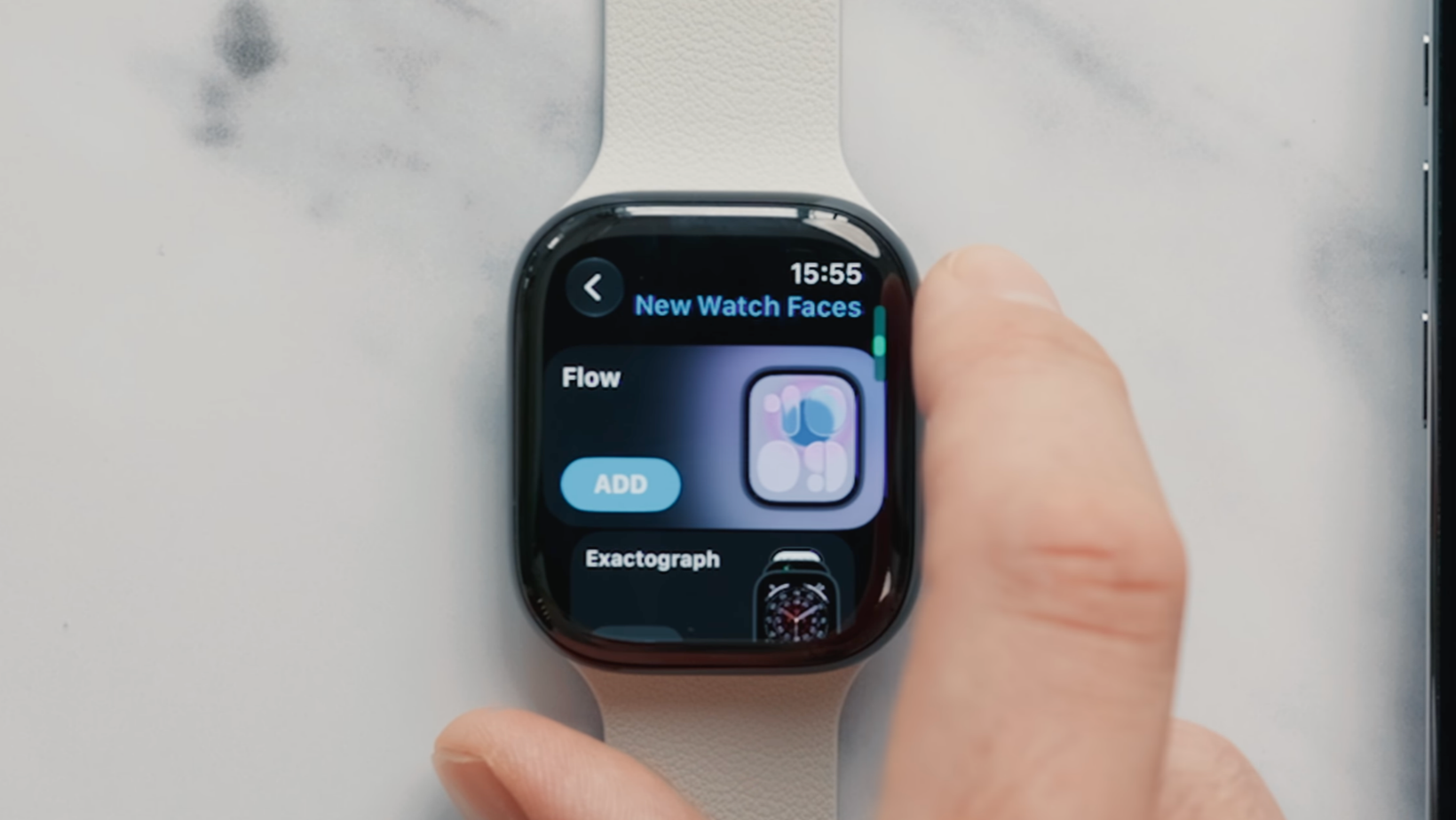
Press and hold the current face, then swipe to New. Siri Modular puts Smart Stack and Siri info front and center. Flow gives you that Liquid Glass look, and Exactograph is the one for people who like their hours, minutes, and seconds kept separate. I did most of my comparing in the iPhone's Face Gallery before committing.
5. Customize complications and photos
Pick a face in the Watch app and change its typeface, color, background, and data. I prefer data-rich faces because I don't want to open an app for every small thing. Pedometer++ adds steps, Fantastical adds calendar data, and CARROT Weather adds forecasts. Try the Photos face too.
6. Swipe between saved faces
Go to Clock and turn on Swipe to Switch Watch Face for faster changes. I keep a few faces for different parts of the day. Parents of grabby children may prefer leaving this off.
7. Match faces to Focus modes
Open Focus in the iPhone Settings app, choose a mode, and select Customize Screens. You can attach a watch face to Work, Fitness, Travel, or Sleep. Mine switches to heart rate and rings the second a workout starts, and Sleep Focus keeps the display dark at night instead of lighting up my whole nightstand.
Control sounds and interruptions
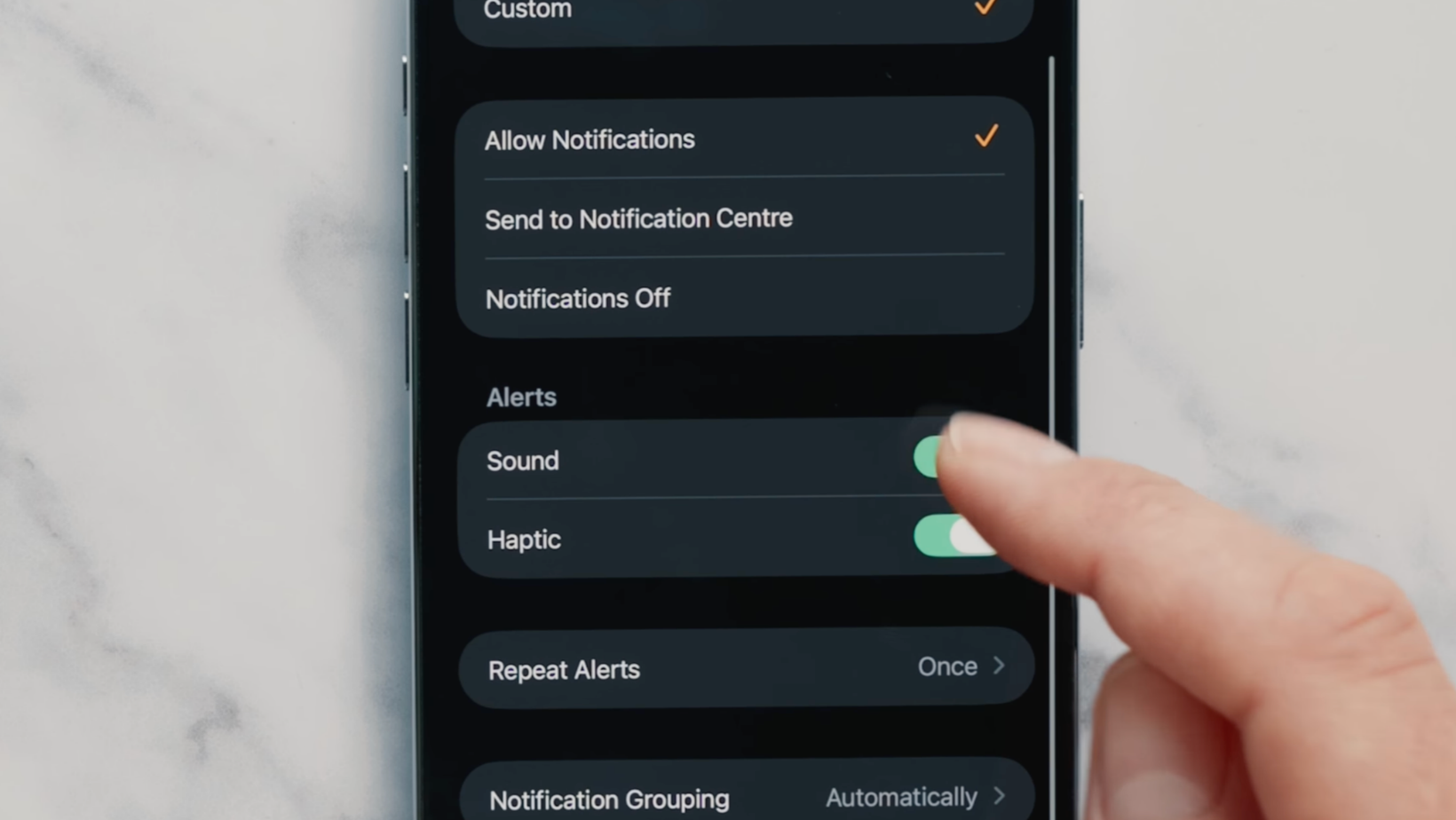
Apple gives you several ways to calm the watch down, but each mode behaves differently.
8. Pick the right sound mode
Silent Mode kills the sounds but keeps the haptic taps. Do Not Disturb limits alerts based on your Focus setup. Theater Mode stops the screen from waking when you raise your wrist and switches on Silent Mode, though you'll still feel the taps. I toggle between all three depending on where I am instead of just muting everything and forgetting about it.
Use the gestures worth remembering
These controls are handy when your other hand is holding a coffee, a bag, or a small child who has decided your watch belongs to them.
9. Use Double Tap
Tap your index finger and thumb together twice. Double Tap can answer calls, open notifications, and move through Smart Stack. It works on Series 9 and later, Ultra 2 and later, and SE 3. My earlier Apple Watch tips and tricks cover more shortcuts.
10. Try Single Tap
watchOS 27 adds Single Tap on supported models. After Double Tap opens Smart Stack, tap your finger and thumb together once to select a widget or use one of its buttons.
11. Dismiss alerts with Wrist Flick
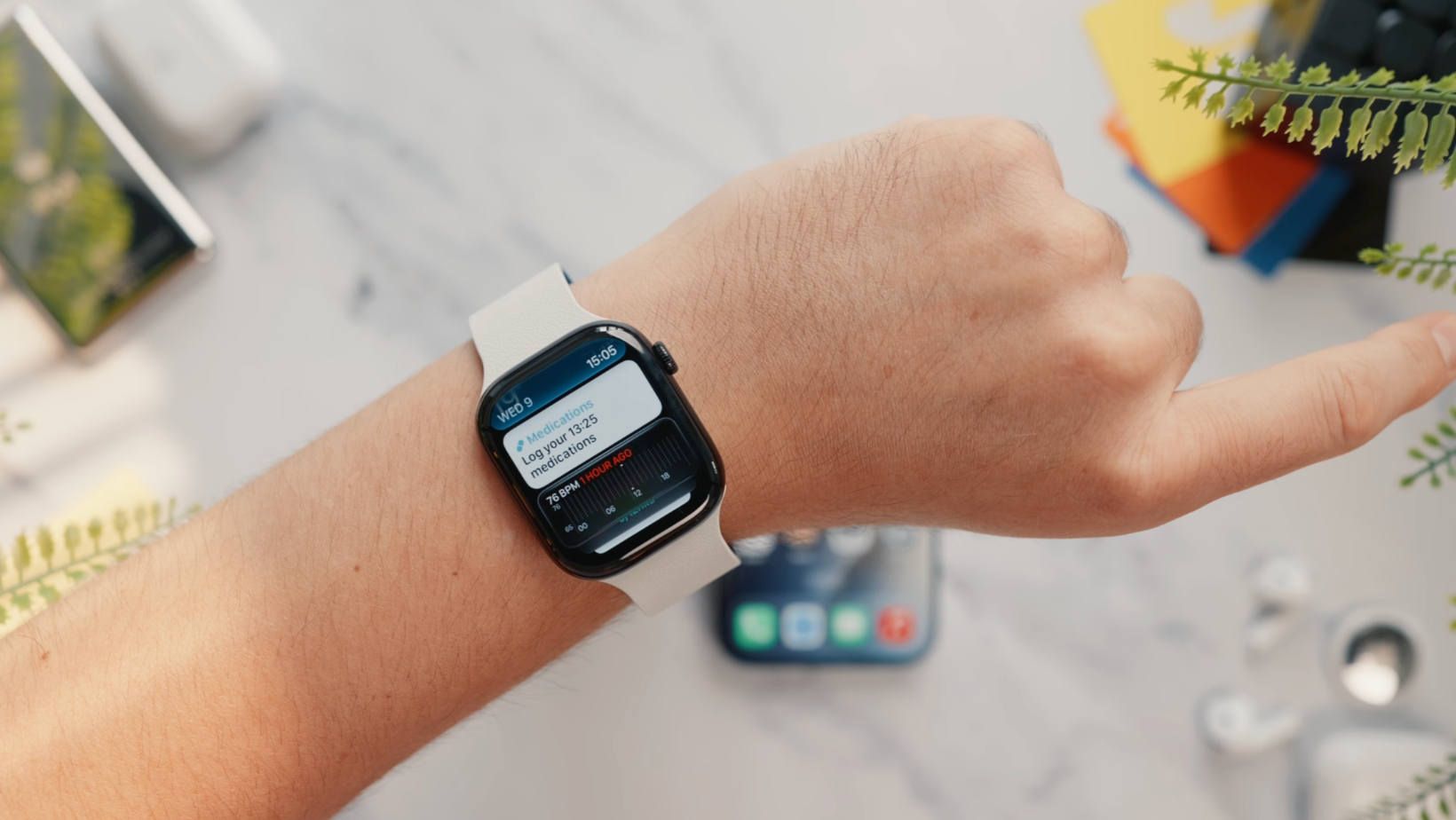
Turn your wrist away and back, like you're shaking water from your hand. Wrist Flick can dismiss a notification, mute a call, stop an alarm, or return to the watch face. I use this one without thinking now.
12. Cover the watch to mute it
Place your palm over the display when the watch makes noise. Cover to Mute silences it and drops you back to the watch face. Way better than frantically stabbing the screen mid-meeting, trust me.
Cut the notifications you don't need
A watch becomes tiring fast when it copies every alert from your phone.
13. Audit mirrored iPhone alerts
Open Notifications in the Watch app and review Mirror iPhone Alerts From. Be brutal. Messages, calendars, banking alerts, health updates, and navigation may deserve wrist access. Shopping apps, games, and social alerts can wait.
14. Hide full notification details
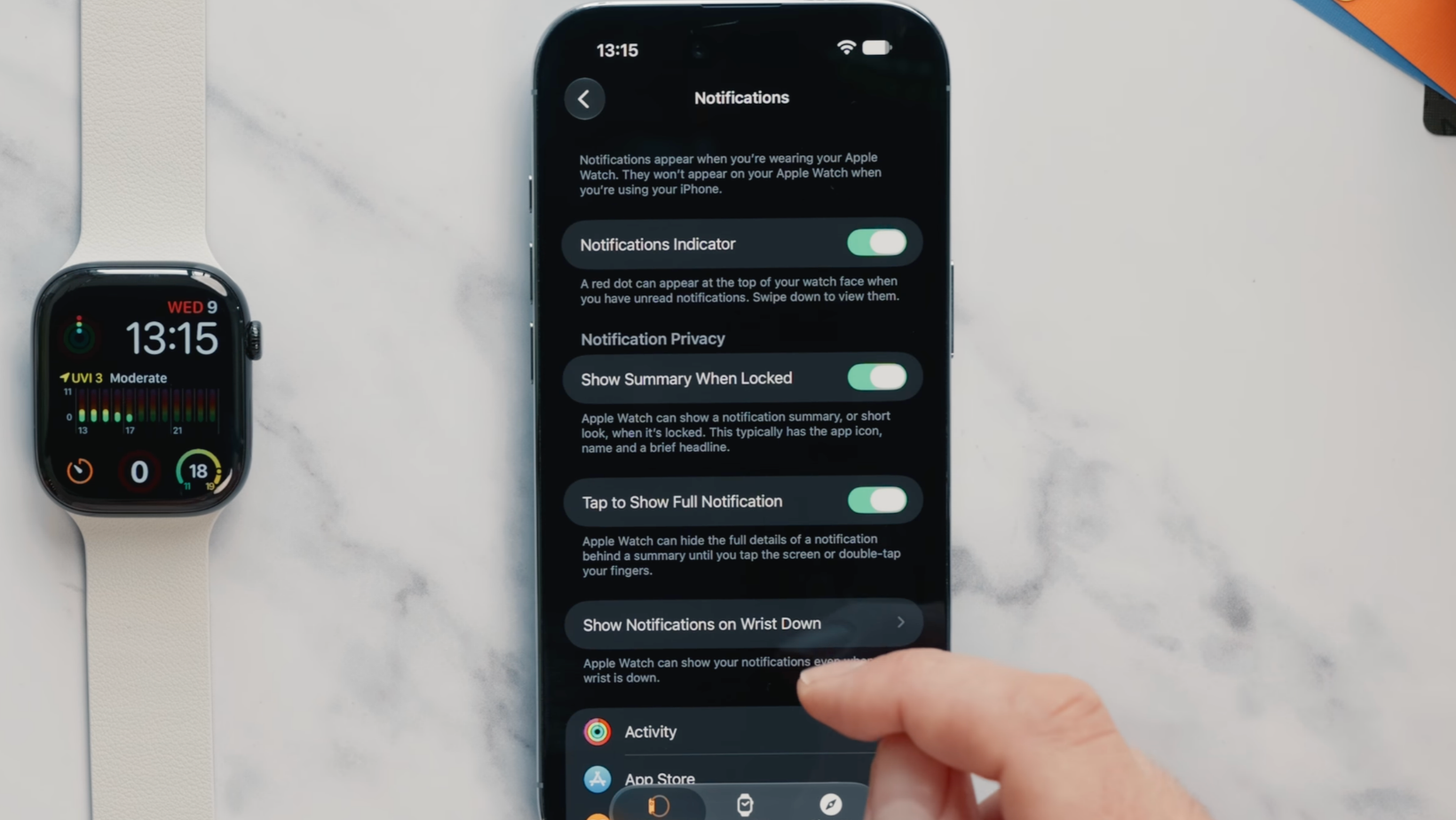
Turn on Tap to Show Full Notification. Your watch will show who sent an alert but hide the actual message until you tap it. I turned this on after one too many people glancing at my wrist on the subway.
15. Control wrist-down alerts
Show Notifications on Wrist Down decides what appears when your arm isn't raised. You can set it watch-wide or app by app. Worth a look if your screen keeps lighting up at the worst possible moments; mine used to go off constantly at the dinner table.
16. Mute noisy apps temporarily
Swipe left on a notification and tap the three dots to mute its app for an hour, the day, or longer. It's useful when a group chat is having a minor breakdown.
Help the battery last longer
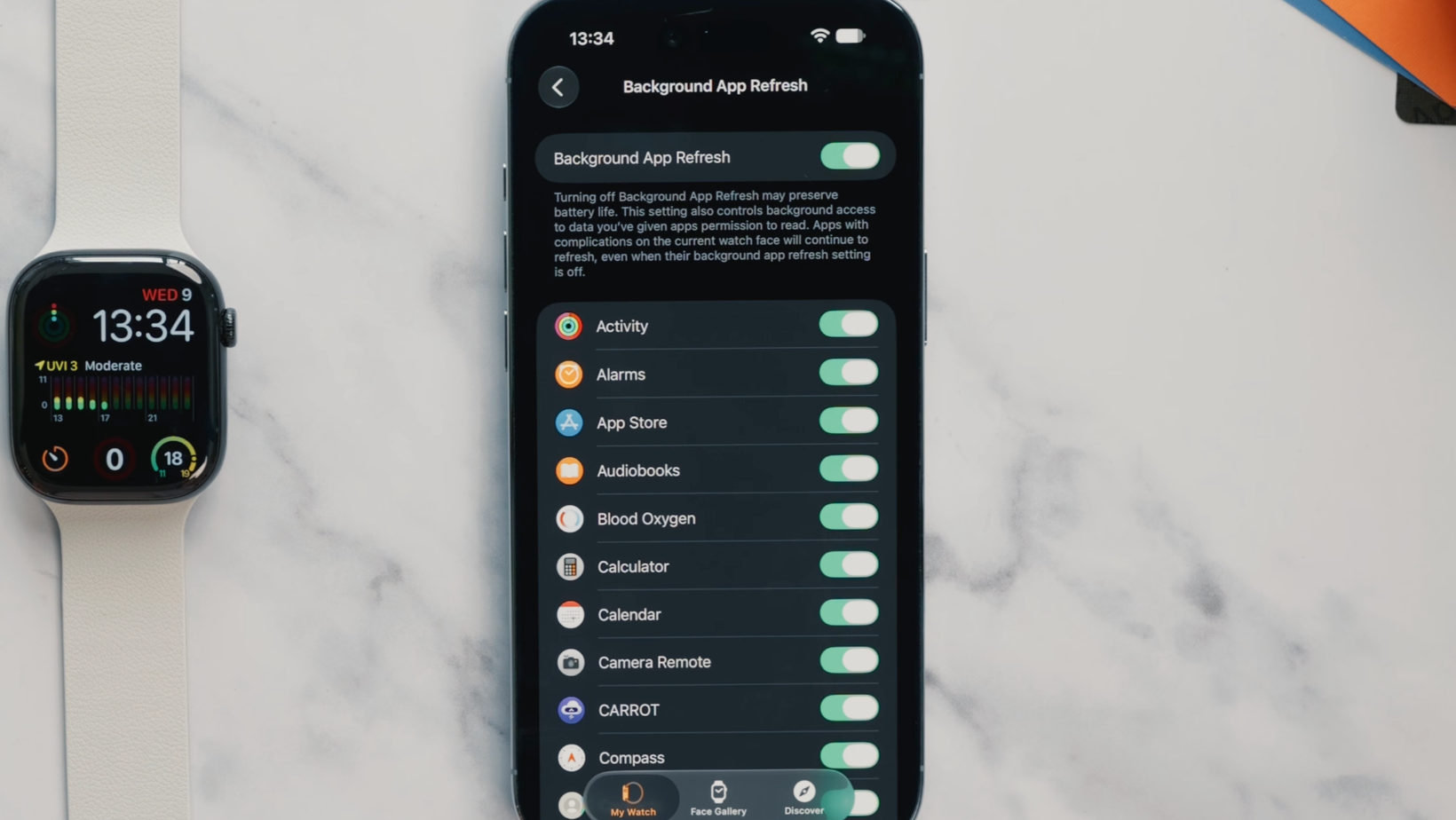
These Apple Watch settings cover two different goals: getting through a long day and reducing battery wear over the years.
17. Check Optimized Charge Limit
Go to Battery, then Battery Health. Optimized Charge Limit is on by default and adapts to your routine. It may stop below 100 percent on some days. Tap Charge to Full Now before travel or a long day.
18. Limit Background App Refresh
Open General and Background App Refresh. Keep it for apps that need current data, such as weather, workouts, calendars, or mail. Social apps, games, and my washing machine app can come off the list.
19. Turn off Listen for Siri
If your iPhone or HomePod is nearby, the watch may not need to listen for Siri. Turn off "Listen for" under Siri settings. The battery difference is small, but it stops the wrong device from answering. The crown still activates Siri.
20. Use Low Power Mode carefully
Press the side button, tap the battery percentage, and turn on Low Power Mode when needed. It limits the Always On display, gestures, and some background health readings. I save it for long days when time and key alerts take priority.
21. Change the wake duration
Display and Brightness includes Wake Duration. Fifteen seconds uses less power, while 70 seconds gives you more time on screen. Pick the shorter option unless it feels rushed.
22. Add charging reminders
Open Apps, then Sleep, and turn on Charging Reminders. Your watch can warn you if it may not last through the night. I keep a portable Apple Watch charger in my travel bag because a dead watch tracks very little sleep.
Make apps and controls easier
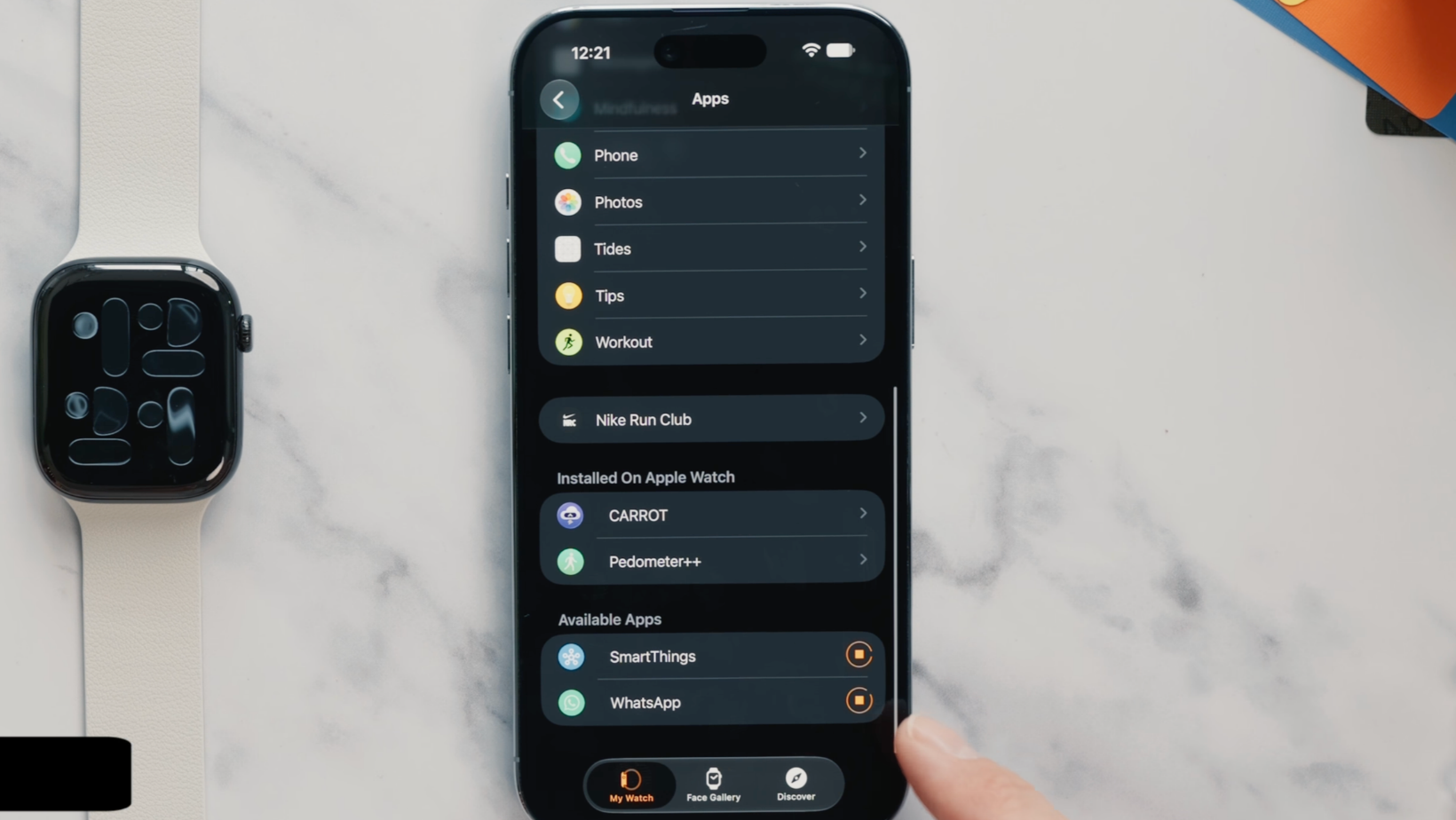
This part of my Apple Watch setup cuts down the time spent hunting for an app or control.
23. Pick grid or list view
Press the Digital Crown to open the Dynamic App Grid, which suggests apps near the top. Scroll down for the full honeycomb grid or List View. The grid is faster once you know the icons. The list is easier when you don't.
24. Stop automatic app installs
Turn off Automatic App Install if every compatible iPhone app appears on your watch. I prefer choosing them myself. It saves storage and stops old apps from filling the install queue.
25. Disable automatic media controls
Go to General, Auto-Launch, Live Activity Settings, then Media Apps. Turn Auto-Launch off if playback controls take over your face. Now Playing remains available through Smart Stack.
26. Change the Depth behavior
Ultra models and Series 10 or later can open Depth when submerged. In General and Auto-Launch, choose if the app opens, the face remains visible, or nothing happens. I don't need Depth during every swim.
27. Rebuild Control Center
Press the side button and choose Edit. I move Battery and Ping iPhone near the top, followed by Water Lock and Focus. Ping plays a sound on your phone, and supported models show its direction and distance. Add Home for wrist-based device controls.
28. Clean up the Smart Stack
Swipe up, reach the bottom of Smart Stack, and tap Edit. Pin useful widgets and remove the rest. Live Activities may stay at the top, but the regular stack should work for you.
Set up health tracking carefully
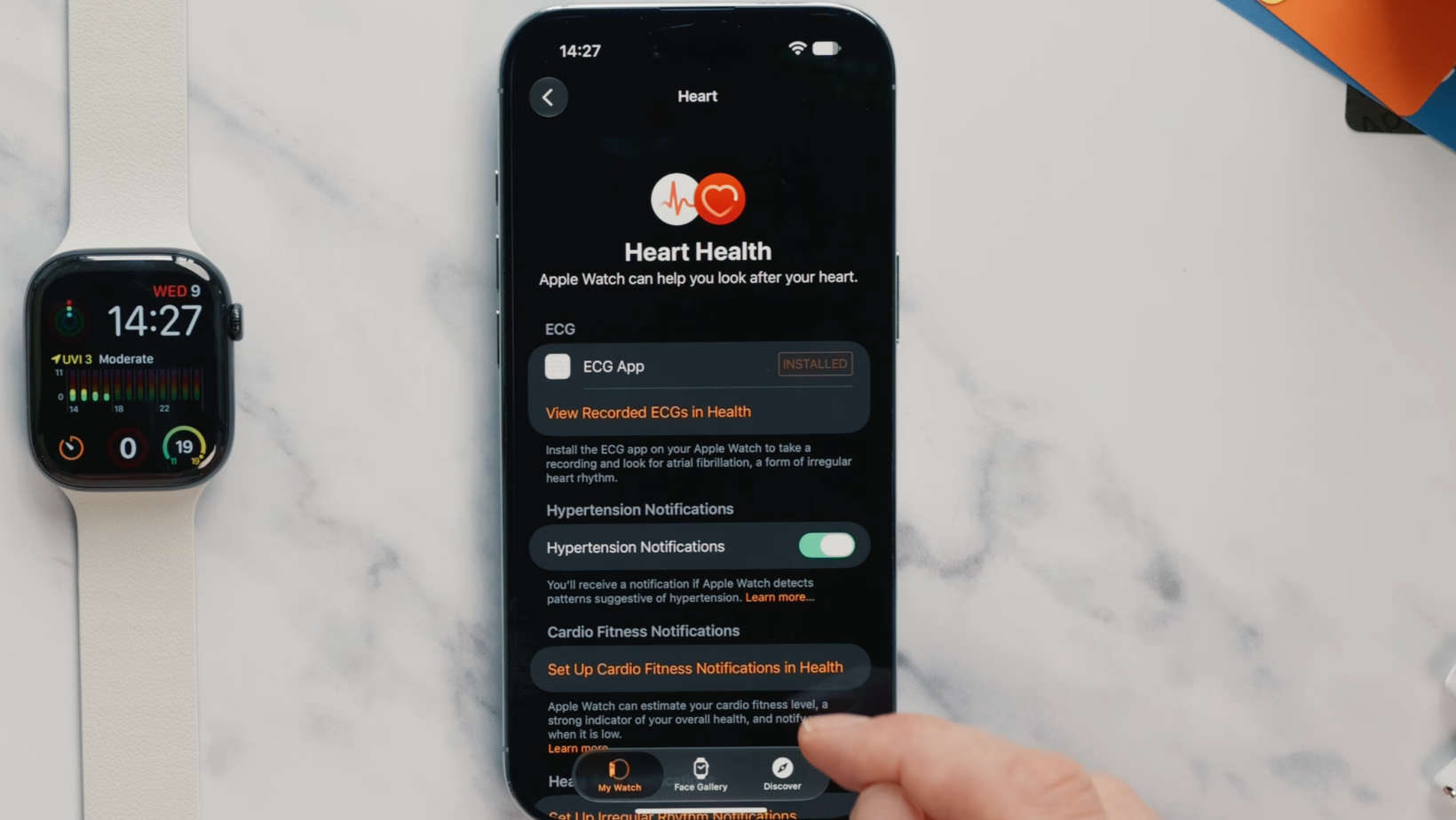
Health features depend on the model, your age, and your region. Some need several nights of data before they can provide a result.
29. Choose your health and sleep tools
Open the Health and Watch apps on your iPhone and check which features your model supports:
- Hypertension and irregular rhythm notifications
- Cardio Fitness notifications
- Sleep tracking, Sleep Focus, and Sleep Score
- Sleep apnea notifications
- Medication reminders and Cycle Tracking
- Mindfulness and Vitals notifications
An irregular rhythm notification can provide information to share with a doctor. The American Heart Association's atrial fibrillation guidance explains the condition and common signs. Apple says these alerts aren't intended for people already diagnosed with atrial fibrillation.
Sleep scores are better for following patterns than treating every number as a medical result. The Sleep Foundation's review of sleep tracker accuracy explains why wearables can detect sleep more reliably than wakefulness. Use the data as a prompt, not a diagnosis.
Finish the useful everyday features
The last four tricks help the watch handle logins, payments, travel, and time away from your phone.
30. Unlock your devices faster
On your Mac, open System Settings, then Touch ID and Password, and allow your watch to unlock it. In the Watch app, open Passcode and turn on Unlock with iPhone. Your phone can unlock the watch, which can then unlock your Mac.
31. Add cards and travel passes
Open Wallet and Apple Pay in the Watch app and add your cards. Double-click the side button to pull them up. If your city supports Express Mode transit cards, set one up; I tap through the gate without even opening Wallet.
32. Create custom Wallet passes
iOS 27 lets you create a custom pass in Wallet using a barcode and a few details. Supported passes can appear on the watch. It's handy for membership cards and codes normally buried in an app or screenshot.
33. Download maps and music
In Apple Maps, choose Offline Maps, download an area, and turn on Sync with Apple Watch. In the Watch app, download a workout playlist or recent albums through Apple Music. Finish the downloads before leaving Wi-Fi.
Your AirPods Pro 3 should appear on the watch if they're paired with your iPhone. Check Bluetooth before heading out.
This video is sponsored by dbrand. Its Tank Case for AirPods Pro 3 uses textured ridges and includes a braided lanyard. It supports wireless charging and lets you use the capacitive pairing control with the case fitted. The link is in the video description.
Keep tuning the watch after day one
After 33 tricks, here’s the real test: are you reaching for your iPhone less? A good Apple Watch setup should put useful information on your wrist without bringing every phone distraction with it.
These settings give you a strong starting point, but don’t treat them as permanent. Use the watch for a week and change anything that still gets in the way. If a feature never earns a place in your routine, turn it off. Ruthless, but fair.
Your setup will keep changing as your routine, apps, and watchOS change. For more ways to make your tech work harder, join the Experiments in Progress newsletter.
Frequently asked questions
How do I set up a new Apple Watch?
For a new Apple Watch setup, turn on the watch, hold it near your unlocked iPhone, and follow the prompts. Install the latest software, then use the Watch app to manage apps, alerts, faces, cellular service, and health features.
Which Apple Watch settings should I change first?
Start with notifications because copying every phone alert gets annoying fast. Choose a useful face, review Automatic App Install, and check Optimized Charge Limit. Health feature availability depends on your model, age, and region.
How can I improve Apple Watch battery life?
Limit Background App Refresh, use the 15-second wake duration, and turn on Low Power Mode during long days. Optimized Charge Limit supports long-term battery health, and charging reminders can prepare the watch for sleep tracking.
Can I use an Apple Watch without my iPhone?
Yes, but features depend on the model and connection. A cellular watch can call, message, stream, and use supported apps with an active plan. GPS models can still use downloaded maps, music, Wallet cards, and workouts without the paired iPhone nearby.
Which Apple Watch health features should I enable?
Start with tools that fit your needs, such as heart notifications, Cardio Fitness, sleep tracking, medications, Cycle Tracking, or Vitals. Check Apple's eligibility rules. Alerts can flag a pattern, but they can't diagnose a condition.
