


If you spend half your week staring at a grid of faces on a screen, finding the best webcam for Zoom is probably on your mind.
Most of us have been making do with the built-in cameras on our laptops for years. They are fine for a quick catch-up, but if you are presenting to clients, recording content, or tired of looking like a grainy shadow in every meeting, it is time for an upgrade. The problem is that the market is flooded with options, and it is hard to know which ones actually deliver on their promises.
I have spent a lot of time testing different setups for my own videos and calls. Some cameras are overpriced and overcomplicated. Others are cheap but somehow worse than what came with your laptop.
That is exactly what this guide is here to help you with. I am going to break down the options that genuinely make a difference, so you can find the right fit for your desk and your budget.
Why Your Laptop Camera Is Not Enough
Let's be honest about built-in laptop cameras. They are an afterthought.
Manufacturers have to cram them into incredibly thin bezels, which means the sensors are tiny. A tiny sensor cannot capture much light, and without light, you get that familiar grainy, washed-out look. Even on premium laptops, the built-in camera often struggles if you are not sitting in a perfectly lit room.
A dedicated webcam solves this problem. The sensors are larger, the lenses are better, and the software processing is designed specifically to make you look good on video calls. When you are looking for the best webcam for Zoom, you are really looking for something that handles lighting well, keeps you in focus, and provides a sharp enough image that people can actually read your facial expressions.
If you are trying to build trust with a client or keep a team engaged, the quality of your video feed matters. A blurry, poorly lit image is distracting. A clear, well-lit image shows you are professional and prepared.
The Top Contenders for Your Desk
I have narrowed down the field to a few standout options that cover different needs and budgets. Here is how they stack up.
Insta360 Link 2: The Overall Winner
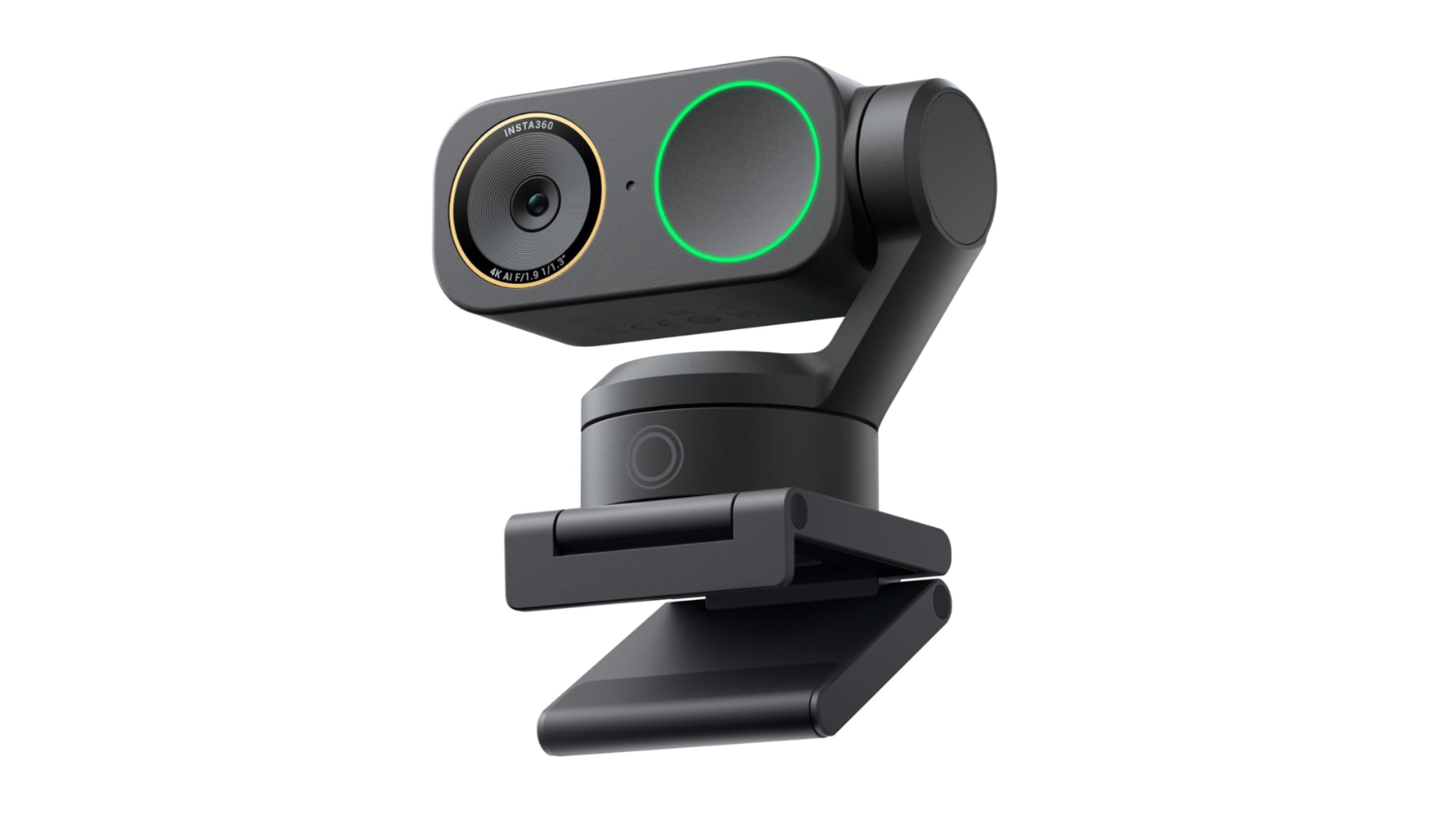
If you want incredible picture quality without spending a fortune, the Insta360 Link 2 is the one to watch.
This camera delivers 4K resolution at 30 frames per second, and the clarity is phenomenal. It uses a 1/2" sensor, which is larger than what you'll find in most webcams. That means it handles low light brilliantly, so you do not need a professional lighting setup to look professional. The color reproduction is accurate, and the companion software gives you a lot of control if you want to tweak the image.
At around $200, it is not the cheapest option, but it offers the best balance of premium features and sensible pricing. The only downside is the built-in microphone. It is okay in a pinch, but if you are serious about your audio, you will want to pair this with a dedicated mic.
For most people working from home, this is the sweet spot. It is a massive upgrade over any laptop camera, and it will not require a second mortgage to afford.
Anker PowerConf C200: The Budget Champion
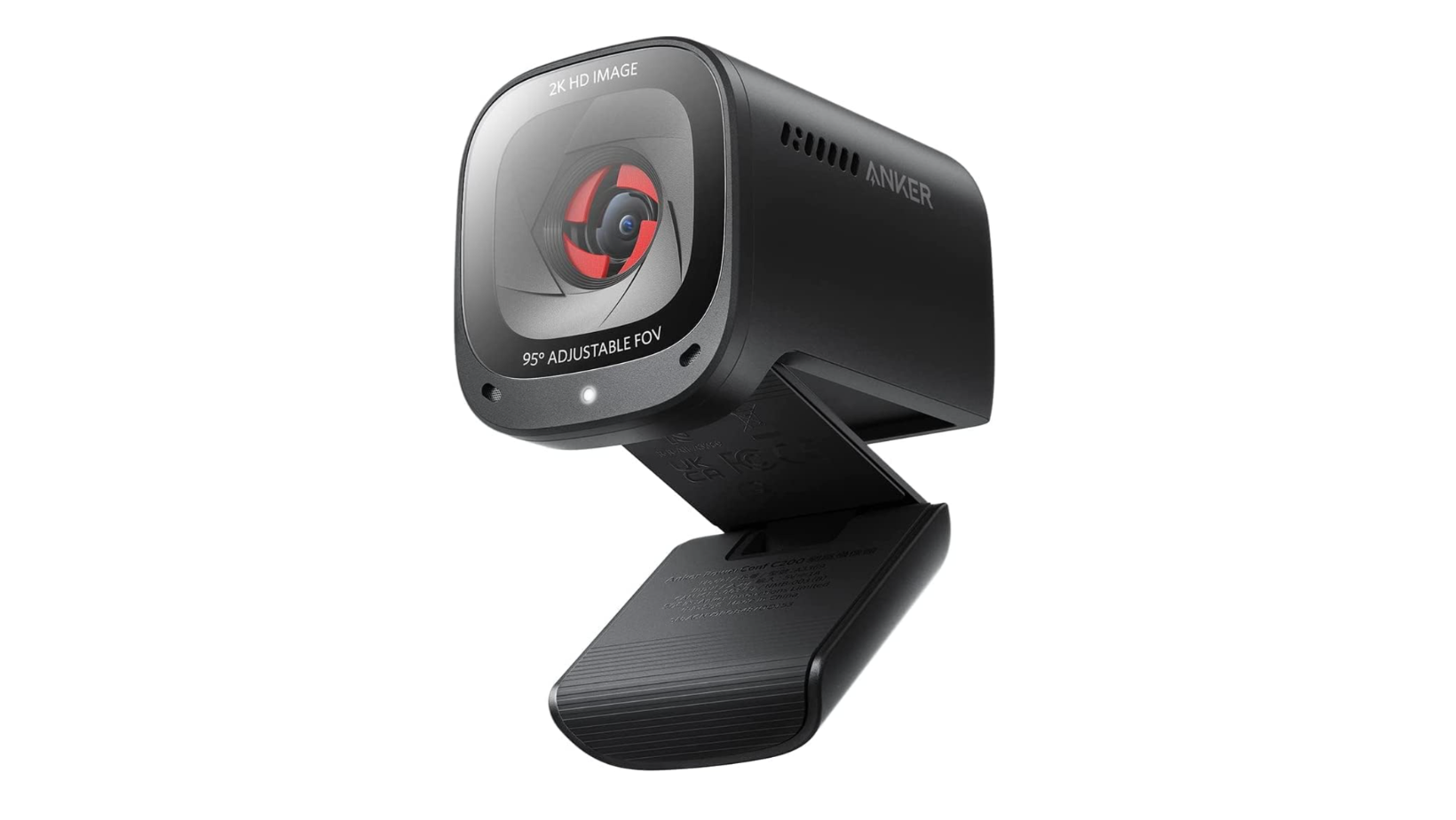
You do not have to spend over $100 to get a solid upgrade. The Anker PowerConf C200 proves that.
For about $60, you get a 2K resolution camera that performs surprisingly well in low light. It also features an adjustable field of view, so you can decide how much of your messy home office you want to show the world. The integrated privacy shutter is a nice touch for peace of mind when you are off a call.
It does not have a swivel mount, which can make framing a bit awkward depending on your monitor setup. But for the price, it is a massive step up from any built-in laptop camera.
If you are outfitting a home office on a strict budget, this is the camera I recommend. It gets the job done without any unnecessary fuss.
Obsbot Tiny 3: The Premium Choice
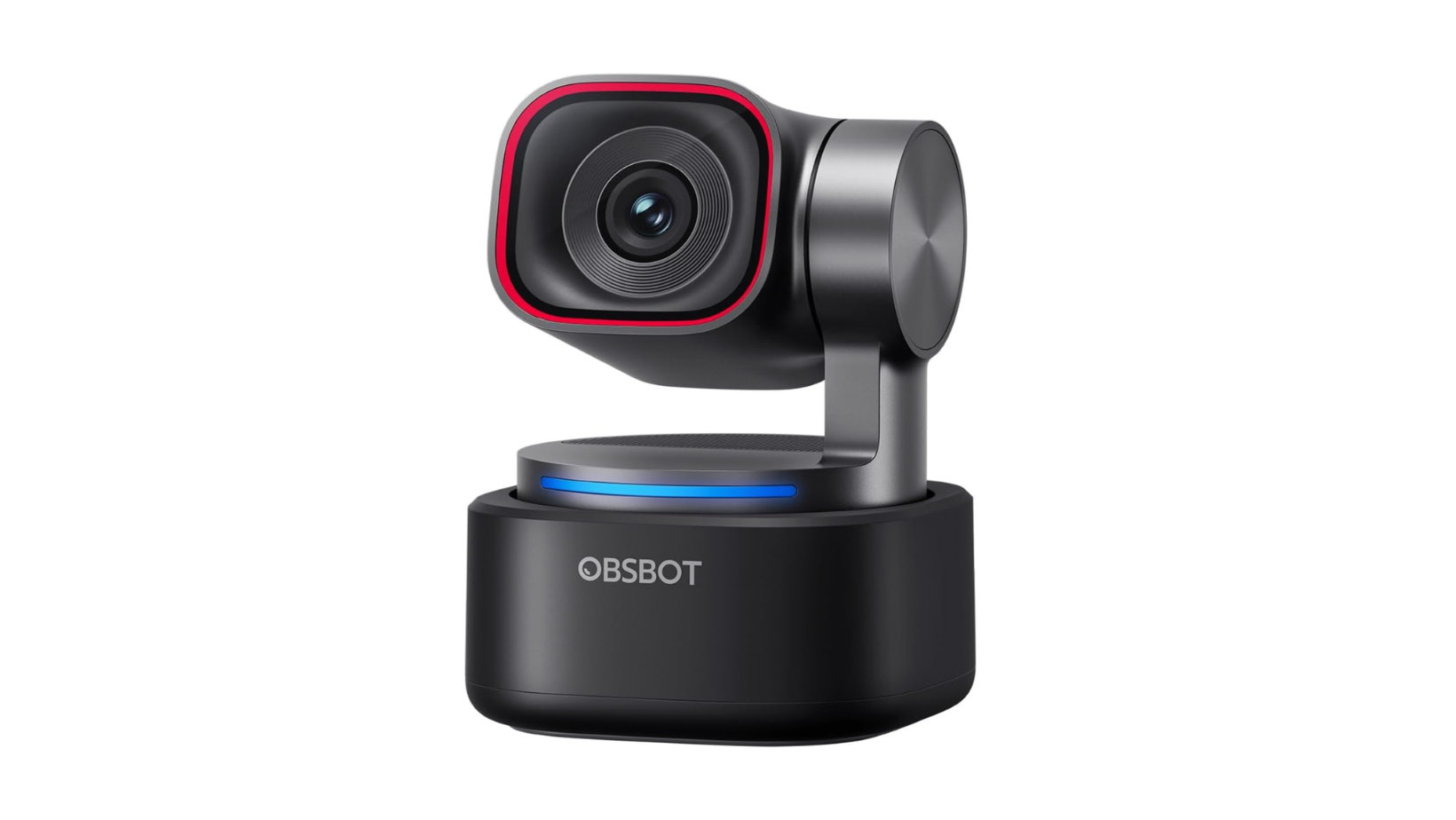
If you have the budget and want all the smart features, the Obsbot Tiny 3 is a serious piece of kit.
This is a 4K PTZ (pan-tilt-zoom) camera, which means it can physically move to track you. The AI tracking is incredibly accurate, following you smoothly if you tend to move around while presenting. It also features a pro-level microphone array, so you might not even need an external mic.
The catch is the price. At $349, it is a significant investment. It is overkill for casual Zoom calls, but if you are presenting webinars, teaching, or creating content, the tracking features are genuinely useful.
I have used tracking cameras before, and they can sometimes feel a bit jerky or slow to respond. The Obsbot Tiny 3 handles movement naturally, keeping you centered without making your viewers feel seasick.
Elgato Facecam MK.2: The Streamer Favorite
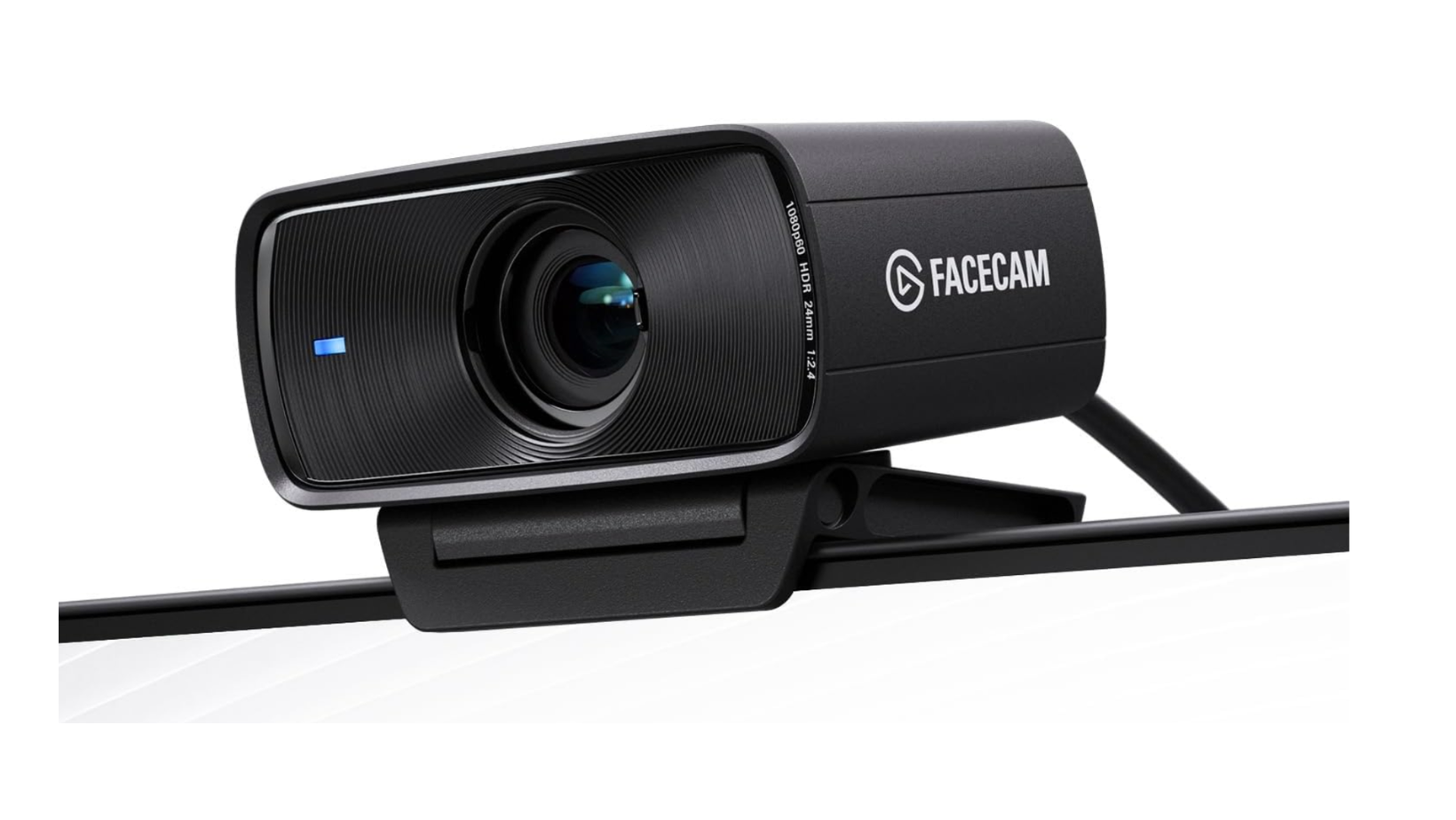
Elgato knows how to make gear for people who care about video quality. The Elgato Facecam MK.2 is designed with streamers in mind, but it is fantastic for Zoom calls too.
It is a 1080p camera, but do not let that put you off. The large Sony sensor and excellent optics mean the 1080p image here looks better than many cheap 4K cameras. It handles low light exceptionally well and offers DSLR-level controls through its software. You can even save your settings directly to the camera.
Priced around $149, it is a solid choice. Just keep in mind that it does not have a built-in microphone at all, so an external audio setup is mandatory.
If you like to tinker with settings to get the perfect look, the Elgato software is the best in the business. It gives you granular control over exposure, white balance, and contrast.
Logitech MX Brio 705: The Reliable Workhorse
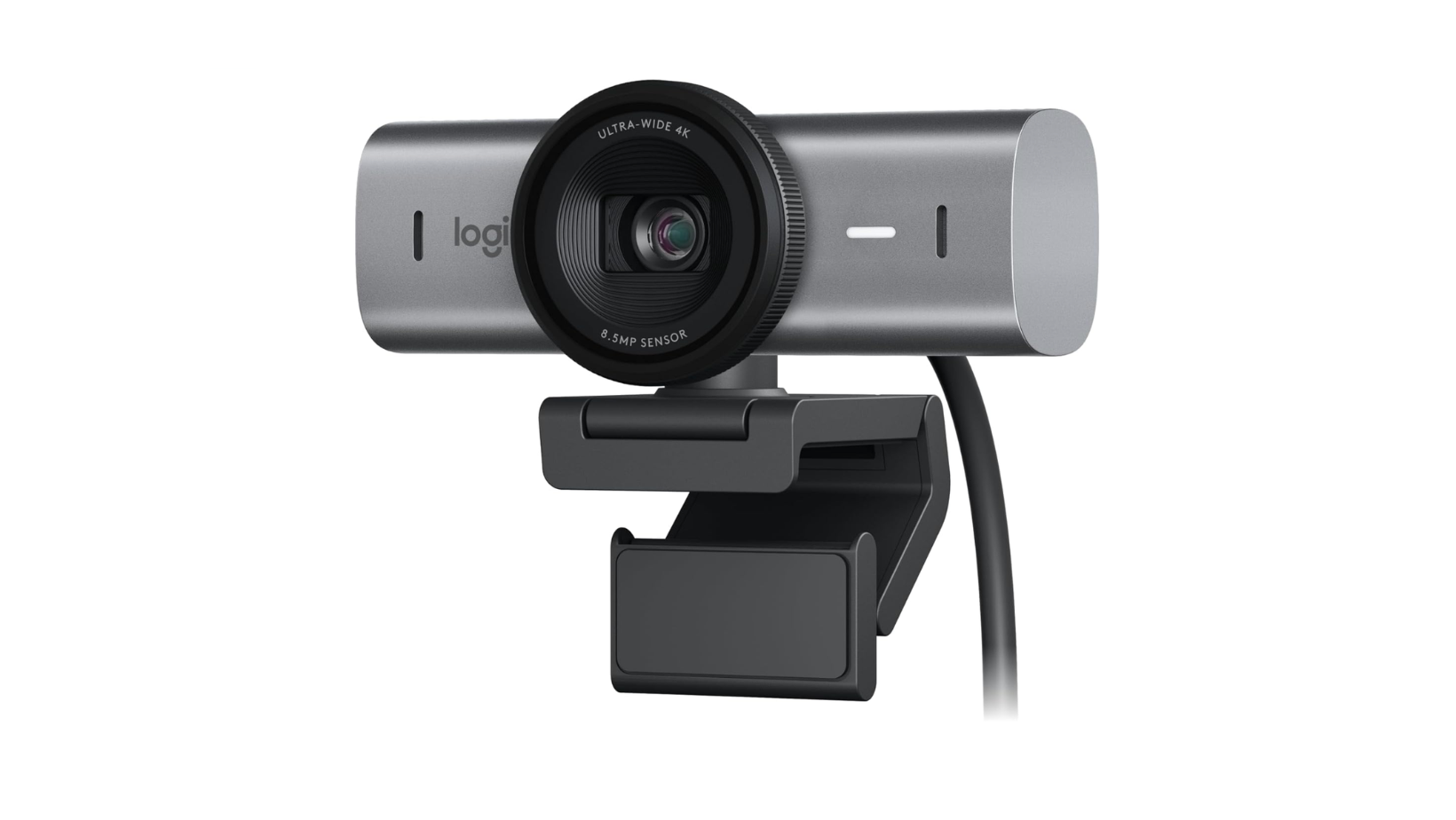
Logitech has been the default choice for webcams for years, and the Logitech MX Brio 705 shows why they are still relevant.
This is a premium 4K camera designed specifically for professional environments. It uses AI to enhance the image, ensuring you are evenly lit even in challenging conditions. The build quality is excellent, and it feels like a premium piece of hardware.
At $199, it is a bit more expensive than the Insta360 Link 2C, and it is quite heavy, which might be an issue if you plan to travel with it. But for a permanent desk setup, it is incredibly reliable.
The Logi Tune software is also very user-friendly, making it easy to adjust your settings without needing a degree in video production.
Comparing the Best Webcams
To make things a lot simpler, here is a quick breakdown of how these cameras compare on the key specs.
What About Audio?
A great picture is only half the battle. If you sound like you are calling from the bottom of a well, people are still going to tune out.
While cameras like the Obsbot Tiny 3 have excellent built-in microphones, most webcams treat audio as an afterthought. If you are investing in the best webcam for Zoom, I highly recommend picking up a dedicated USB microphone as well. Even a budget external mic will sound significantly better than the one built into your camera or laptop.
I have tested dozens of microphones over the years, and the difference they make to how you are perceived on a call is massive. Good audio makes you sound more authoritative and easier to understand.
Lighting Matters More Than You Think
You can buy the most expensive camera on the market, but if your lighting is terrible, you will still look terrible.
Webcam sensors are small, which means they need a lot of light to produce a clean image. If you are sitting in a dark room with only the light from your monitor illuminating your face, your camera will struggle. It will boost the ISO to compensate, which introduces digital noise and makes the image look grainy.
The easiest fix is to position yourself facing a window. Natural light is flattering and free. If that is not an option, consider investing in a simple ring light or a pair of LED panels. You do not need a studio setup, just enough light to help your camera do its job properly.
If you are looking to upgrade your entire setup, I have covered the best monitors for gaming and productivity that pair perfectly with these webcams.
Making the Right Choice for Your Setup
Upgrading your video setup does not have to be complicated. The built-in camera on your laptop is holding you back, and almost any dedicated option will be an improvement.
If you want the best all-around performer, the Insta360 Link 2C is hard to beat for the price. If you are on a strict budget, the Anker PowerConf C200 delivers excellent value. And if you need smart tracking for dynamic presentations, the Obsbot Tiny 3 is the premium choice.
Finding the best webcam for Zoom is about matching the tool to your specific needs. Pick the one that fits your workflow, and enjoy never having to apologize for your video quality again.
If you want to see more of my tech recommendations and reviews, check out the rest of the blog for practical advice on building your ideal setup.
Frequently Asked Questions
Do I really need a 4K webcam for Zoom?
Zoom actually caps most calls at 720p or 1080p to save bandwidth. However, a 4K camera still matters because it starts with a much higher quality image before compression. The larger sensors on 4K cameras also handle lighting much better, resulting in a cleaner, sharper image even at lower resolutions.
Where should I position my webcam?
The most flattering angle is slightly above eye level, pointing slightly down. Positioning it directly on top of your main monitor usually works best. Avoid having a bright window directly behind you, as it will turn you into a silhouette.
Are built-in privacy shutters important?
They offer peace of mind. Software can be glitchy, and knowing there is a physical barrier over your lens guarantees you are not broadcasting when you do not want to be. If a camera does not have one built-in, you can usually buy a cheap stick-on cover.
Can I use my smartphone as a webcam?
Yes, you can. Both Apple and Android offer ways to use your phone's excellent cameras for video calls. It is a great free alternative, but it can be fiddly to set up and drains your phone battery quickly during long meetings.
Will a new webcam work with my older laptop?
Most modern webcams connect via USB-C or USB-A and are plug-and-play. As long as your laptop has a compatible port and meets the basic system requirements for the camera's software, you should be fine. However, processing 4K video can be demanding, so very old laptops might struggle with the highest resolution settings.
