


I keep getting asked whether an iPad can replace a MacBook. A few years ago, the answer was obvious. You bought a laptop for work and a tablet for watching Netflix on the sofa. Now, both machines use the same M-series chips, both have excellent keyboards, and both cost serious money. The line between them is completely blurred.
The iPad vs MacBook decision comes down to the operating system and how you prefer to work, travel, and manage your files. The hardware is already more than powerful enough for most people. Your daily habits decide which one will feel great and which one will slowly drive you mad.
Here is exactly which device handles specific daily workflows better, without relying on Apple's marketing claims.
A fast breakdown of iPad and MacBook differences
Here’s a quick look at how the iPad and MacBook stack up.
Prices, configurations, and promotions change regularly. Check Apple's current Store pricing in your region before buying.
Everyday productivity and work
Let's start with the most common use case: emails, Slack, documents, and browser tabs. If you work in an office, the iPad vs MacBook debate usually ends right here.
The iPad experience

The iPad is brilliant for focused, single-task work. iPadOS 26's windowed apps make multitasking much better than it used to be, but it still feels clunky. If you need to juggle six different apps at once, drag files between folders, or run complex Excel sheets, the iPad will slow you down. You also have to remember the hidden cost. To type comfortably on a high-end model, you need to buy the Apple Magic Keyboard for iPad Pro separately.
For replying to messages, marking up a PDF, joining a call, and writing a short document, the iPad feels focused in a way a laptop rarely does. The frustrating bit comes when an app doesn't behave like its desktop version. That is usually when a quick task turns into twenty minutes of workarounds.
The MacBook experience
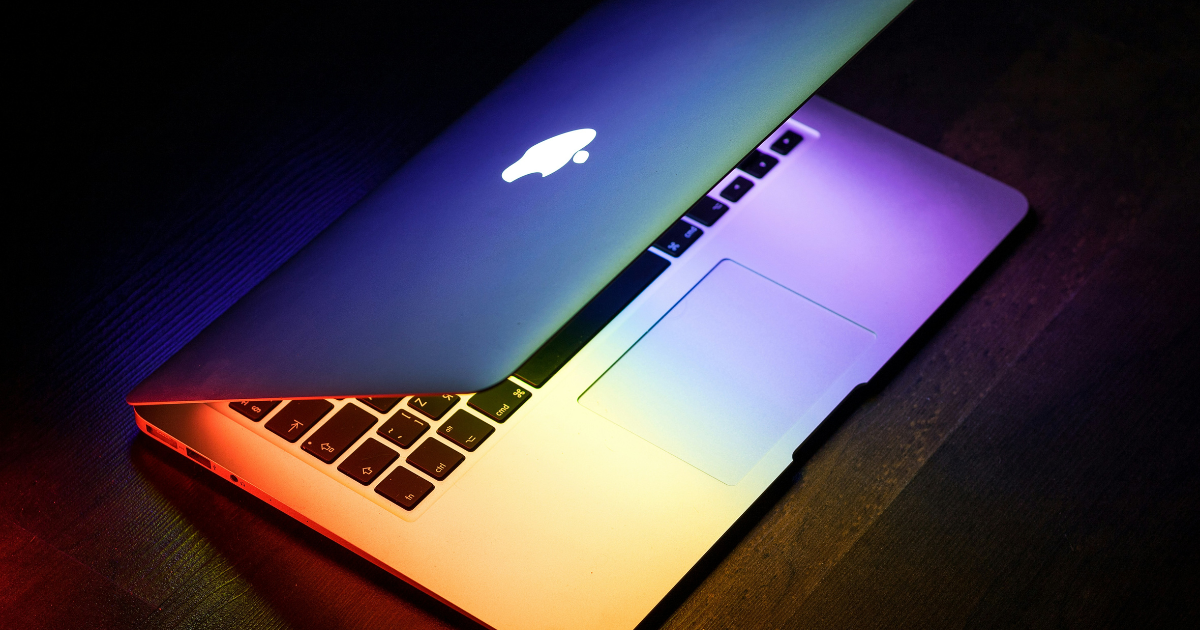
The MacBook is built for messy multitasking. macOS lets you keep multiple windows visible at all times, manage files easily, and run full desktop applications. If your job involves jumping between spreadsheets, web apps, and local files constantly, the 13-inch MacBook Air M5 is the best fit for most people.
It also gives you a proper desktop for the boring jobs that eat up your day. Downloading attachments, renaming a batch of files, checking a shared-drive folder, and keeping a Zoom call open beside a document all take fewer steps. That is where macOS earns its place.
Video editing and creative workflows
Modern Apple silicon means both product lines are incredibly fast. But the software, not the processor, dictates the winner in the iPad vs MacBook creative comparison.

The iPad experience
The top-tier iPads have stunning OLED screens and can handle 4K video editing in Final Cut Pro for iPad. They are also fantastic for drawing directly on the screen with the Apple Pencil Pro. I use the iPad Pro M5 for photo editing because the display is incredible. The updated window controls in iPadOS 26 make creative workflows feel much faster.
It is a brilliant second screen for a camera, an easy way to cull photos on the train, and a far nicer place to sketch a video idea than a trackpad. The ceiling appears when your project relies on desktop plug-ins, a giant folder of source files, or a specific app that never made the jump to iPadOS.
The MacBook experience
Laptops like the 14-inch MacBook Pro M5 Pro give you the full desktop versions of Premiere Pro, DaVinci Resolve, and Final Cut, along with the performance needed for larger creative projects. It also lets you plug in multiple external drives easily, which is crucial for large video projects. You can't draw on the screen, but you get the professional software tools that many creators rely on.
That makes it dependable, not glamorous. When a client sends you a project folder with dozens of clips, fonts, audio files, and revisions, a proper Finder window and full desktop app save an enormous amount of friction.
Travel and remote work
If you spend half your life in airports, portability changes everything. The mobility comparison isn't only about weight.
The iPad experience
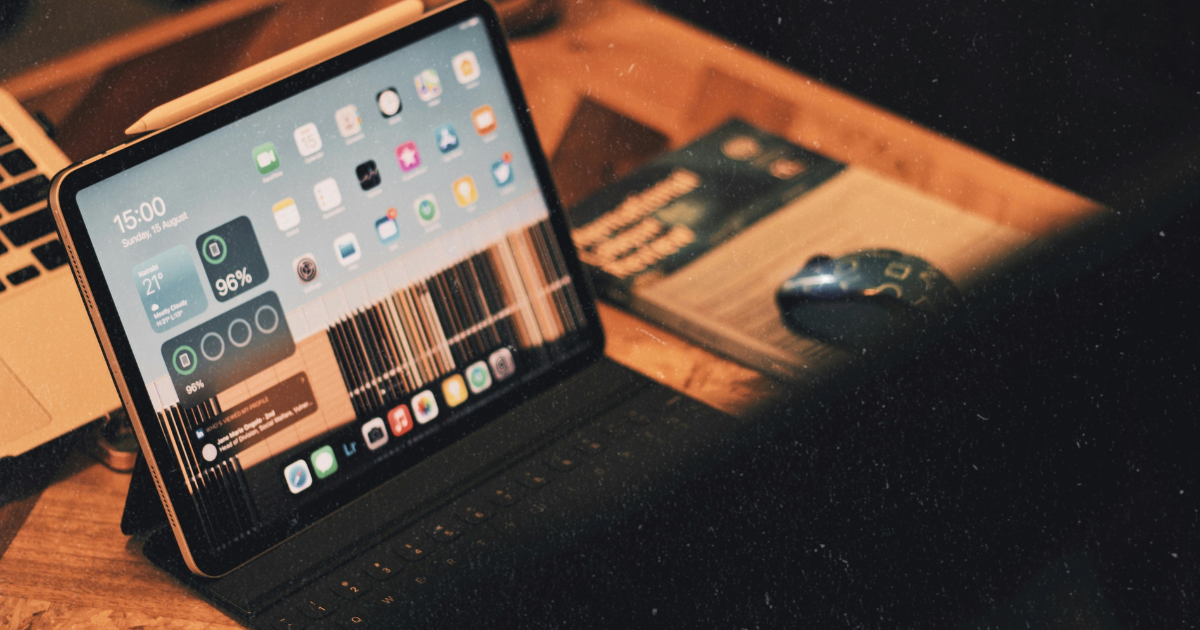
The iPad is the ultimate airplane machine. It's lighter, and you can detach the keyboard to watch a film comfortably in a cramped economy seat. I've taken work trips where the iPad Pro replaced my laptop entirely. You can also buy it with built-in cellular connectivity, so you aren't hunting for awful airport Wi-Fi to send an email.
A tablet slips into a small bag, works while you are standing up, and does not need a table to make sense. For travel days built around messages, notes, entertainment, and light admin, it is hard to beat.
The MacBook experience
The 13-inch MacBook Air M5 is the most practical MacBook for frequent travel, but it is still a traditional clamshell. It's much better for working in a hotel room or a coffee shop where you have a proper table. But when the person in front of you reclines their seat on a flight, typing on the MacBook becomes a miserable experience.
The trade-off pays off once you get to the hotel. You can open it, connect a drive, finish a presentation, and move files around without having to think about the device at all. For a work trip with real deadlines, that is valuable.
Note-taking and studying
If you are heading into a lecture hall or a meeting room, the iPad vs MacBook experience is completely different.
The iPad experience
The iPad wins this category effortlessly. You can handwrite notes with the Pencil, record audio, read PDFs like a physical book, and scan documents with the camera. It adapts to whatever the class or meeting requires.
It is also easier to hand someone an iPad and point at a diagram than it is to spin a laptop around. For people who think through a page with sketches, arrows, and highlights, that difference is huge.
The MacBook experience
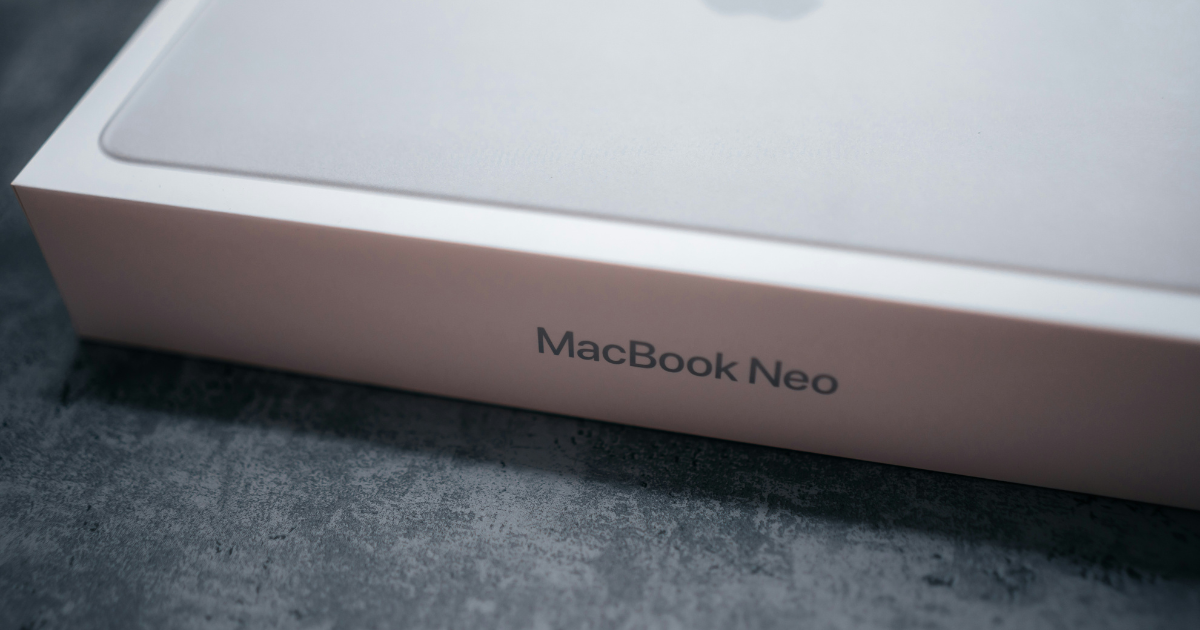
The MacBook is strictly for typing. If you mainly type notes, write essays, and work in browser-based tools, the more affordable MacBook Neo may be all you need. The keyboard is excellent for sustained writing. But if you need to sketch diagrams, annotate slides, or highlight a PDF quickly, the MacBook Air can't help you.
Pick the right tool for your day
Don't buy an iPad if you need complex file management or full desktop software. Don't buy a MacBook if you want to draw, take handwritten notes, and read on the sofa. Choosing the winner in the iPad vs MacBook comparison is about picking the device that matches your daily habits.
If you need one machine for a degree, a job, and a stack of unpredictable tasks, buy a MacBook. If you already have access to a computer and want the best companion for notes, travel, reading, and hands-on creative work, an iPad is the smarter buy.
I share the tech decisions, setups, and accessories that make day-to-day work less annoying every week.
Subscribe to Experiments in Progress for practical tech setups.
FAQs
Can an iPad completely replace a MacBook?
An iPad can replace a MacBook if your work mostly happens in web apps, email, notes, video calls, streaming, and light writing. The problem starts when you need full desktop software, messy file management, multiple browser windows, advanced spreadsheets, coding tools, or plug-ins. In the iPad vs MacBook debate, the iPad is powerful enough. iPadOS is usually the limit.
Do I need the newest chip in an iPad?
Most people do not need the newest chip in an iPad. Even cheaper iPads are fast enough for browsing, streaming, note-taking, drawing, video calls, and basic editing. A high-end chip only makes sense if you edit large creative projects, use demanding apps, or want the longest possible software support. For most people, the processor is not the real buying decision.
Which has better battery life, iPad or MacBook?
A MacBook is usually the better choice for full-day battery life, especially if you are typing, browsing, taking calls, and switching between apps for hours. An iPad still lasts a long time for reading, notes, streaming, and travel days. But if you need one device to survive a full workday without thinking about the charger, buy the MacBook.
Is an iPad or MacBook better for students?
An iPad is better for students who handwrite notes, mark up PDFs, sketch diagrams, or want something lighter for class. A MacBook is better for students who write long papers, manage files, use desktop software, or need one machine for unpredictable assignments. Most students should buy a MacBook unless handwritten notes are the main reason they want an iPad.
Is an iPad or MacBook better for travel?
An iPad is better for light travel because it is smaller, easier to use on a plane, and more comfortable for reading, streaming, notes, and quick messages. A MacBook is better once real work starts. If your trip includes deadlines, client files, presentations, or anything that could turn into a desktop task, the MacBook is the safer travel machine.
