


I've helped a lot of people set up their home theater gear over the years. And the Samsung soundbar situation is one I see constantly. Someone spends a few hundred dollars on a soundbar, plugs it in, and then tells me it doesn't sound much better than their TV speakers. Nine times out of ten, the problem isn't the hardware. It's the setup.
The default settings on most Samsung soundbars are not optimized for your room, your TV, or the content you're watching. The cable you use matters. The TV settings you enable matter. Even where you physically place the soundbar matters more than most people realize. I've seen the same soundbar go from sounding flat and underwhelming to sounding so much better by changing a few things that take no more than five minutes.
This is the Samsung soundbar setup process I walk through every time I help someone get their audio sorted. If you've already plugged yours in and it's not sounding the way you expected, start here.
Some of the products mentioned here have come through brand partnerships, but my recommendations are based on my own experience.
Quick Setup Checklist
Before you change any settings, run through this list. A proper Samsung soundbar setup starts with the right connection method and a few TV settings that are easy to miss. HDMI eARC is the preferred Samsung soundbar connection because it supports advanced audio formats and lets the television send high-quality sound through one cable.
- Use HDMI eARC if your TV has it (it will be labeled on the port)
- Enable eARC in your TV's audio settings
- Set your TV's digital audio output to "Auto" or "Pass-Through"
- Turn off your TV's built-in speakers once the soundbar is connected
- Run SpaceFit Sound calibration if your model supports it
- Check that Night Mode is off
Step 1: Connect Your Samsung Soundbar the Right Way
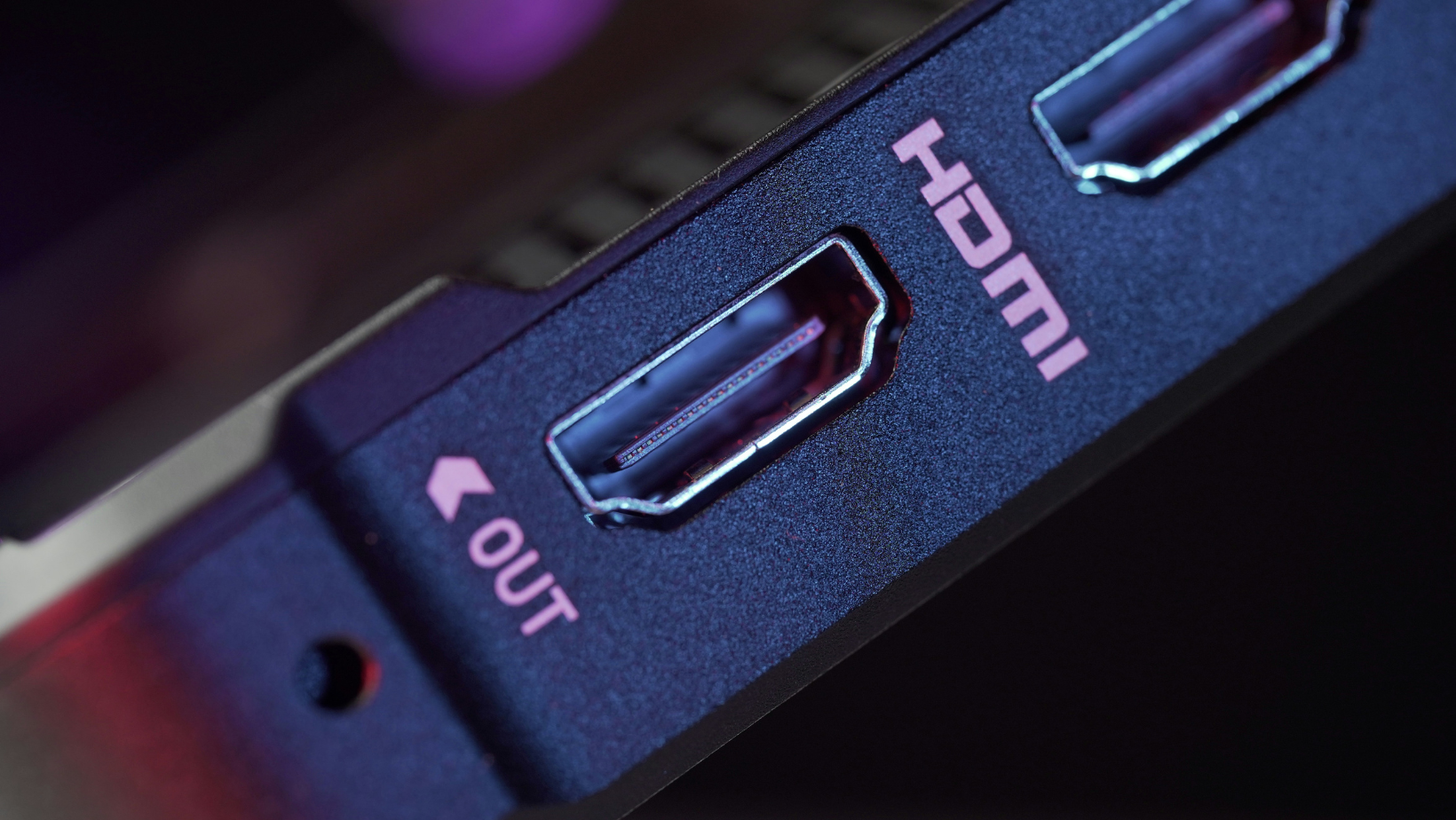
The cable you use is the single biggest factor in audio quality. I see people using optical cables all the time because it's what they're familiar with. Optical is fine, but it's not the best option if your TV supports something better.
Use HDMI eARC Whenever Possible
If your TV has an HDMI port labeled "eARC," use it. HDMI eARC supports Dolby Atmos and DTS:X in their full lossless formats. It also lets you control the soundbar volume with your TV remote without any extra setup. The cable runs from the eARC port on your TV to the HDMI port on the soundbar. That's it.
Most Samsung TVs from 2019 onwards have eARC. If your TV supports eARC, use it. Samsung’s site says that eARC can transmit the original full-resolution audio signal over HDMI and offers significantly more bandwidth than older ARC connections, which is exactly why I recommend it whenever it's available.
When Standard ARC Is Acceptable
If your TV only has a standard ARC port (not eARC), you'll still get a solid connection. ARC supports most streaming audio formats, including Dolby Digital 5.1. You won't get full lossless Atmos, but for Netflix, Disney+, and regular TV content, it's more than capable.
When to Use Optical Audio
Optical is the fallback option for older TVs that don't have any HDMI ARC support. It works fine for stereo and basic surround formats. The limitation is that it can't carry Dolby Atmos or DTS:X, so if you're watching content that supports those formats, you're leaving some quality on the table.
Step 2: Configure Your TV Audio Settings
This is the step most people skip entirely, even though it's one of the most important parts of a proper Samsung soundbar setup. You can have the best cable in the world and still get bad audio if your TV is sending the wrong signal.
Enable eARC in Your TV Settings
On a Samsung TV, go to Settings, then Sound, then Expert Settings. You'll find the HDMI-eARC Mode toggle there. Turn it on. Without this, your TV won't send audio through the eARC port even if you've connected the cable correctly.
Set Audio Output to the Soundbar
Still in the Sound settings, go to Sound Output and select your soundbar. The TV should detect it automatically once the cable is connected, but it's worth double-checking. If your TV speakers are still playing alongside the soundbar, that's usually why the audio sounds muddy.
Check Your Digital Audio Format
Under Expert Settings, look for Digital Output Audio Format. Set this to "Auto" or "Pass-Through." This tells your TV to send the audio signal in its original format rather than converting it to something simpler. If you're watching Dolby Atmos content and this is set to PCM, you're not getting Atmos.
Step 3: Place the Soundbar for Better Performance
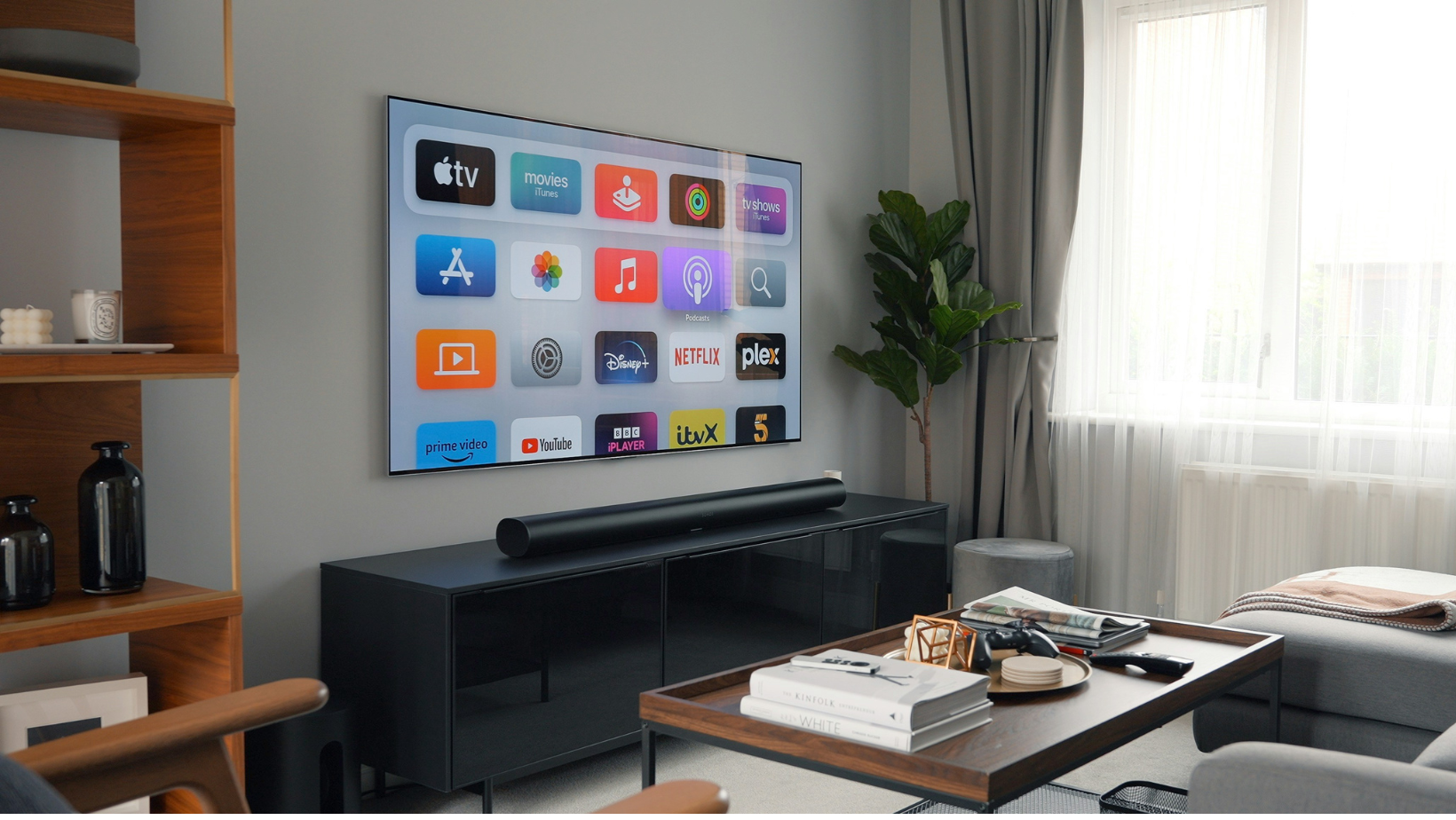
Even a well-connected soundbar will sound disappointing if it's in the wrong position. Speaker placement is a bigger part of a successful Samsung soundbar setup than most people realize. I've seen people put soundbars inside TV cabinets with the doors closed, or pushed so far back on a shelf that the upward-firing Atmos speakers are completely blocked.
Ideal Soundbar Placement
The soundbar should sit directly below your TV, centered, with nothing in front of it. The front of the soundbar should be flush with or slightly in front of the TV stand surface. If you have a model with upward-firing height channels for Atmos, the top of the soundbar needs clear space above it. A low ceiling or a shelf directly overhead will kill the height effect.
The listening position also matters. Soundbars are designed to be heard at roughly ear height when you're seated. If your soundbar is sitting much lower than your ears, the dialogue clarity will suffer.
Placement Mistakes to Avoid
Putting the soundbar inside a closed cabinet is the most common mistake I see. It muffles everything and blocks the surround effects completely. Similarly, if you have a soundbar with side-firing speakers for wide surround, don't push it right up against a wall on either side.
Step 4: Adjust Samsung Sound Modes
Samsung soundbars have several preset sound modes. Most people leave it on whatever it defaulted to when they first turned it on. Spending two minutes on this makes a real difference.
Adaptive Sound
This is the mode I leave mine on most of the time. Adaptive Sound uses the soundbar's microphone to analyze what you're watching and automatically adjusts the audio. It boosts dialogue during quiet scenes and pulls back the bass during loud action sequences. For everyday TV watching, it's the most practical setting.
Standard Mode
Standard is the most accurate representation of the original audio mix. If you're watching a film and you want to hear it the way the director intended, this is the right choice. No processing, no enhancement, the audio exactly as it was mixed.
Surround Mode
Surround creates a wider soundstage by pushing audio effects further out to the sides. It works well for movies and sports. I find it can make dialogue slightly less focused, so I don't use it for anything dialogue-heavy.
Game Mode
If you're using your soundbar with a gaming console, switch to Game Mode. It reduces the audio processing delay significantly, which stops the audio from lagging behind the action on screen. It also sharpens positional audio cues, which helps in competitive games.
Step 5: Fine-Tune Your Soundbar Settings
Once you've got the basics right, these small adjustments can take the audio from good to great. This is the stage of the Samsung soundbar setup where you can really tailor the sound to your room.
Improve Dialogue Clarity
If voices are getting lost in the mix, go into the soundbar's settings and increase the center channel level. On most Samsung models, this is labeled "Center" in the channel levels menu. Bumping it up by two or three points usually fixes the problem without making the audio sound unnatural.
Optimize Bass Performance
The subwoofer level is often set too high by default. A booming, one-note bass isn't the same as tight, accurate bass. I usually drop the subwoofer level by a few points and then bring it back up gradually until the bass sounds full without overpowering the rest of the audio. Also check that the subwoofer isn't sitting in a corner. Corner placement amplifies bass in a way that often sounds muddy.
Use SpaceFit Sound If Available
If your Samsung soundbar supports SpaceFit Sound, run it. It uses the soundbar's built-in microphone to measure your room's acoustics and automatically adjust the EQ and channel levels to suit the space. It takes about 30 seconds, and the improvement is usually noticeable immediately.
Common Samsung Soundbar Problems and Fixes
Most Samsung soundbar setup issues come down to one of three things.
No Sound from the Soundbar
Check that your TV's audio output is set to the soundbar and not the TV speakers. Also confirm the correct input is selected on the soundbar itself. If you're using HDMI, try unplugging and replugging the cable. A lot of HDMI handshake issues resolve themselves with a reconnection.
Audio Delay or Lip Sync Issues
This almost always happens when the TV is doing extra video processing that adds latency. Go into your TV's picture settings and look for a "Game Mode" or "PC Mode" option. Enabling either of these usually disables the extra processing and fixes the sync. You can also adjust the audio delay manually in the soundbar's settings.
Dolby Atmos Isn't Working
Three things to check. First, confirm eARC is enabled in your TV settings. Second, set your digital audio output to Auto or Pass-Through. Third, check that the content you're watching actually has an Atmos track. Not every title on Netflix or Disney+ is mixed in Atmos, and even those that are sometimes require a specific subscription tier.
My Final Samsung Soundbar Setup Advice
Most soundbar complaints I hear aren't actually caused by the soundbar. They're caused by a setting that was missed during setup, a poor connection choice, or simple placement issues.
The good news is that a proper Samsung soundbar setup usually takes less than ten minutes. Once you've enabled eARC, checked your audio settings, positioned the soundbar correctly, and run any available calibration tools, you're getting much closer to what the hardware is actually capable of.
Spend a few minutes getting the setup right now, and you'll enjoy the results every time you sit down to watch something.
Want more tips like this? I share the gear I'm testing, the setups I'm experimenting with, and the lessons I learn along the way in my newsletter at experimentsinprogress.com.
Frequently Asked Questions About Samsung Soundbar Setup
Should you use HDMI ARC or eARC with a Samsung soundbar?
HDMI eARC is the better connection when both the television and soundbar support it. It offers more bandwidth for advanced audio formats and can improve compatibility with Dolby Atmos sources. Standard ARC remains suitable for many streaming services and older televisions. Optical audio should usually be reserved for devices without a working HDMI audio connection.
What is the best sound mode for a Samsung soundbar?
Adaptive Sound is the most practical Samsung soundbar mode for everyday television because it adjusts the presentation according to the content. Standard mode is better for listeners who want to preserve the original channel mix. Surround mode can create a wider presentation, while Game mode is designed to improve spatial cues and responsiveness during gaming.
Why does my Samsung soundbar sound quiet?
A Samsung soundbar may sound quiet because the television is using the wrong audio output, the source has a low-volume mix, or the center channel needs adjustment. Confirm the soundbar is selected as the output, set the digital audio format to Auto or Pass-Through, and test Adaptive Sound or voice enhancement. Also check that Night Mode is disabled.
Does soundbar placement really matter?
Soundbar placement has a major effect on clarity, bass balance, and surround performance. The soundbar should be centered near the television with its front, side, and upward-firing drivers unobstructed. Placing it inside a closed cabinet or too far behind the front edge of a stand can block effects and make dialogue sound less direct.
Why is Dolby Atmos not working on my Samsung soundbar?
Dolby Atmos may fail when eARC is disabled, the digital audio format is incorrect, or the source content does not include an Atmos track. Confirm Atmos support across the soundbar, television, streaming app, subscription plan, and selected program. External players and consoles may also need their own audio output set to Dolby Atmos or bitstream.
