


If your WiFi sucks, you’re definitely not the only one dealing with it. A 2026 Guardian report found that 27% of the people surveyed get frustrated with their home WiFi at least once a week.
I’ve worked in IT for more than 20 years, but most of that time was spent fixing everyone else’s problems. I didn’t make time to fix my own slow home WiFi until recently.
Most home WiFi problems come back to a small group of issues. Your router may be in the wrong place, nearby networks could be crowding the same channel, or older equipment might be slowing everything down.
Some fixes are completely free. The more expensive options only make sense once you know what’s causing the problem.
The first step is figuring out where the slowdown starts.
Why your WiFi sucks even with a fast internet plan

WiFi speed and internet speed measure different parts of your connection, but people usually treat them as the same thing.
Your internet speed is what your provider delivers to the house. Your WiFi speed is how quickly that connection reaches your phone, laptop, TV, and other devices through the router.
You could be paying for gigabit internet and still get terrible speeds upstairs because the signal has to pass through several walls. You might also have strong WiFi coverage while the internet connection entering the house is slower than expected.
Start with an Ethernet test
The easiest way to separate these problems is to connect a laptop directly to the router with an Ethernet cable. Run a speed test, reconnect over WiFi, and repeat the test in the same room.
Here’s what the results usually mean:
- Ethernet is fast, but WiFi is slow: The problem is somewhere inside your wireless setup.
- Both connections are slow: Check your internet service, router, cables, and other network equipment.
- One device is slow: That device’s WiFi hardware, software, or connection settings may be responsible.
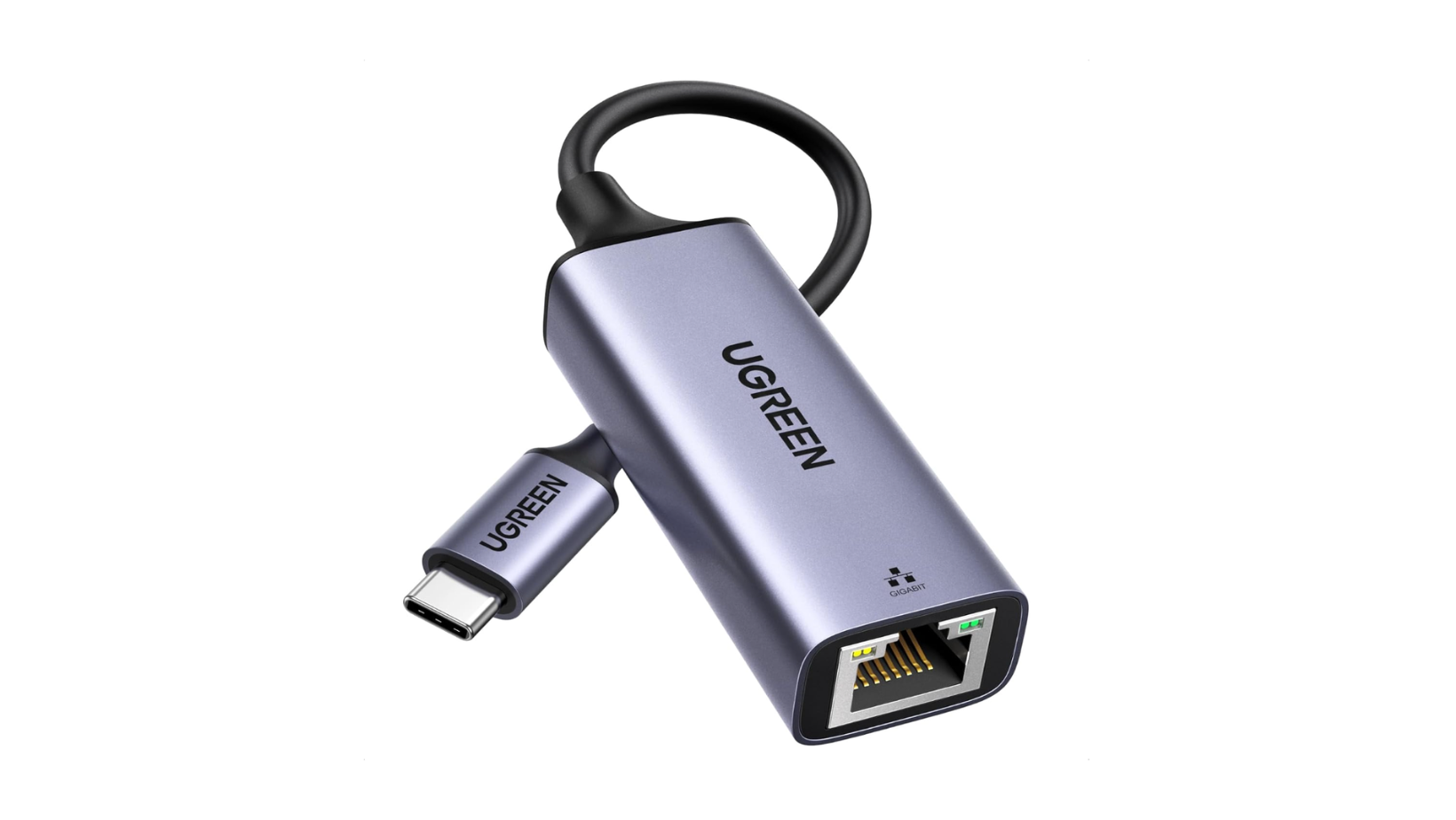
Many laptops no longer include Ethernet, but you can add it with a USB-C Ethernet adapter, like UGREEN, a hub, or a dock. Some phones can connect this way too. If you’re unsure which connection your device supports, I’ve broken it down in my Thunderbolt vs USB-C guide.
Check what’s using your connection
Sometimes the WiFi is working properly, but another device or app is using a huge part of your available speed.
Windows Update may be downloading in the background. Google Drive, Dropbox, or iCloud could be syncing thousands of files. Someone else in the house may be downloading a game or uploading a large video project.
- On Windows, open Task Manager and check the Network column
- On a Mac, Activity Monitor shows which apps are sending or receiving the most data
Your router’s dashboard may also show how much bandwidth each connected device is using.
Map your home WiFi before changing anything
Once you know the wireless connection is causing the problem, you need to find the rooms where the signal starts getting weaker. A WiFi survey can show where coverage is strong, where it drops, and where devices may struggle to stay connected.
Use a WiFi survey app
Finding one app that works reliably across iPhone, Android, Mac, and Windows is more difficult than it should be. When I did my troubleshooting, WiFiman was the most reliable option we tested.
The free mobile app supports speed testing, while its more advanced signal features depend on your network hardware. The official WiFiman documentation says real-time signal monitoring and floor-plan mapping require compatible UniFi equipment and a supported mobile device.
On a compatible iPhone with LiDAR, the floor-plan mapper can identify walls and doorways as you move around. That gives you a clearer picture of where the signal begins to struggle.
Walk through each room where you typically use WiFi. If you have several access points, give the device a moment to move onto the one with the stronger signal.
Understand the dBm reading
WiFi signal strength is measured in dBm. The number will usually be negative, and a reading closer to zero means a stronger signal.
Current Ubiquiti guidance gives these general ranges:
Signal strength doesn’t give you the full picture. Walls, interference, channel congestion, and the device’s antenna can still affect performance.
Look for crowded channels
Nearby routers all use WiFi channels. In an apartment building or tightly packed neighborhood, several networks may compete for airtime on the same channel.
A compatible WiFi analyzer can show which channels nearby networks are using. If your router sits on a crowded channel, its automatic channel selection may be able to move it. You can also select a cleaner channel through the router settings.
Available channels and recommended settings can vary by country, so check the options provided by your router.
Why is my internet so slow when the signal looks good?
A strong signal only tells you that your device can communicate with the router. It doesn’t tell you which WiFi band you’re using, what standard the device supports, or what speed the cables and network ports can handle.
Check the WiFi band
Most current routers use at least two WiFi bands.
The 2.4GHz band usually reaches farther and passes through walls more easily, but it offers lower speeds and deals with more congestion. The 5GHz band can be much faster, although performance drops more quickly with distance.
Newer WiFi 6E and WiFi 7 equipment can also use 6GHz. This gives compatible devices more available spectrum, but it has a shorter range.
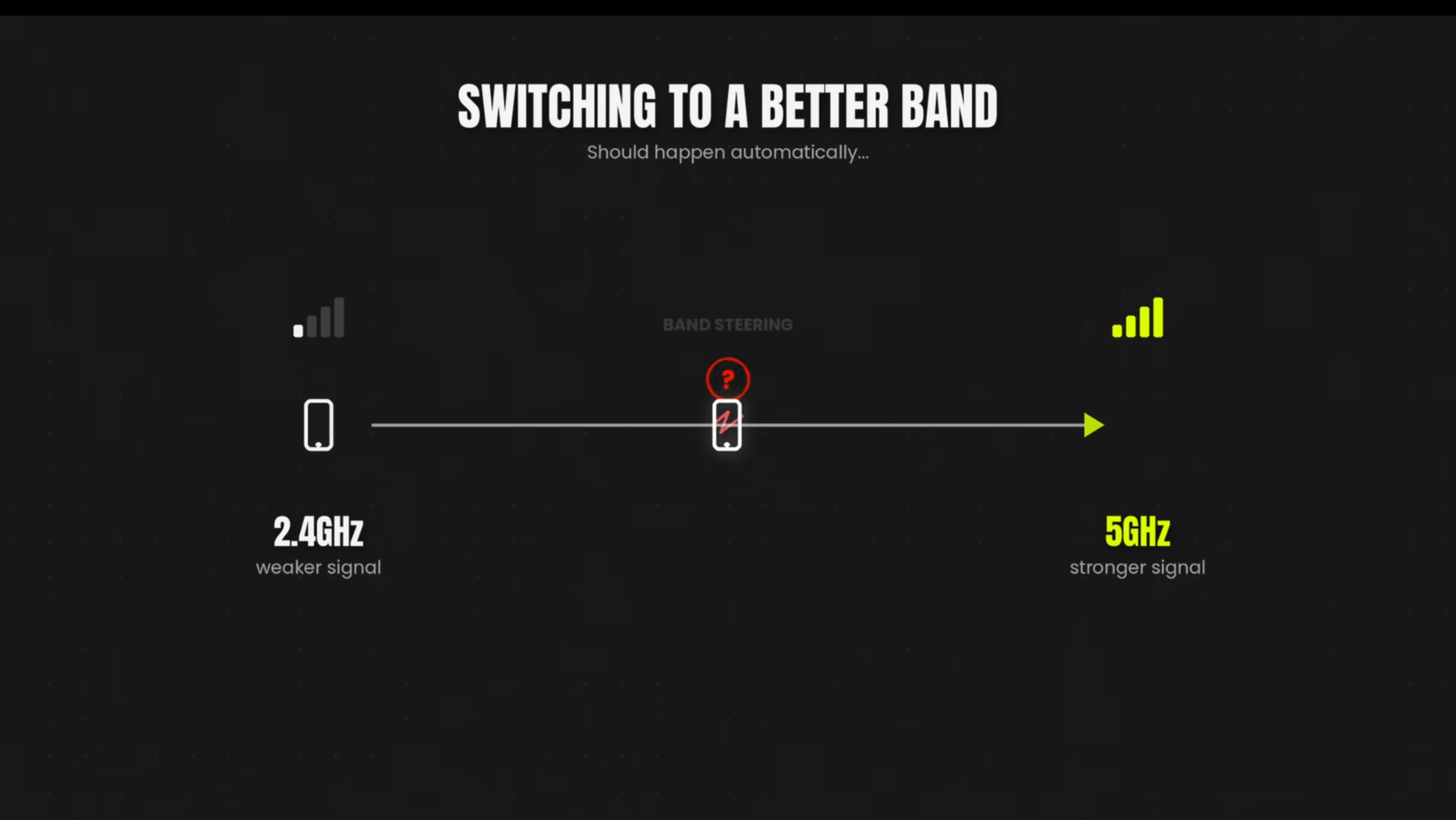
Some routers give each band a separate network name. Others use band steering to move devices automatically. Band steering can favor a slower but more stable connection, so it’s worth checking which band your device selected.
Check your device, cable, and network port
Your router and device need to support the same WiFi features. A WiFi 6 router can connect to a WiFi 5 laptop, but the connection will work within the laptop’s limits.
Test another phone or computer in the same location. If one performs well and the other doesn’t, the slower device may need a driver update or may have older WiFi hardware. An adapter like the TP-Link Archer TX30U Plus WiFi 6 USB Adapter or the NETGEAR Nighthawk A9000 WiFi 7 USB Adapter can upgrade some laptops without replacing the whole machine.
Cables can cause similar problems with wired access points. Log in to your router and check the connection speed. A connection showing 100Mbps may have a damaged cable or could be plugged into an older router or switch port.
Replacing the Ethernet cable may fix it. If the speed stays at 100Mbps, check the router or network switch to see what that port supports.
Try the free WiFi fixes first
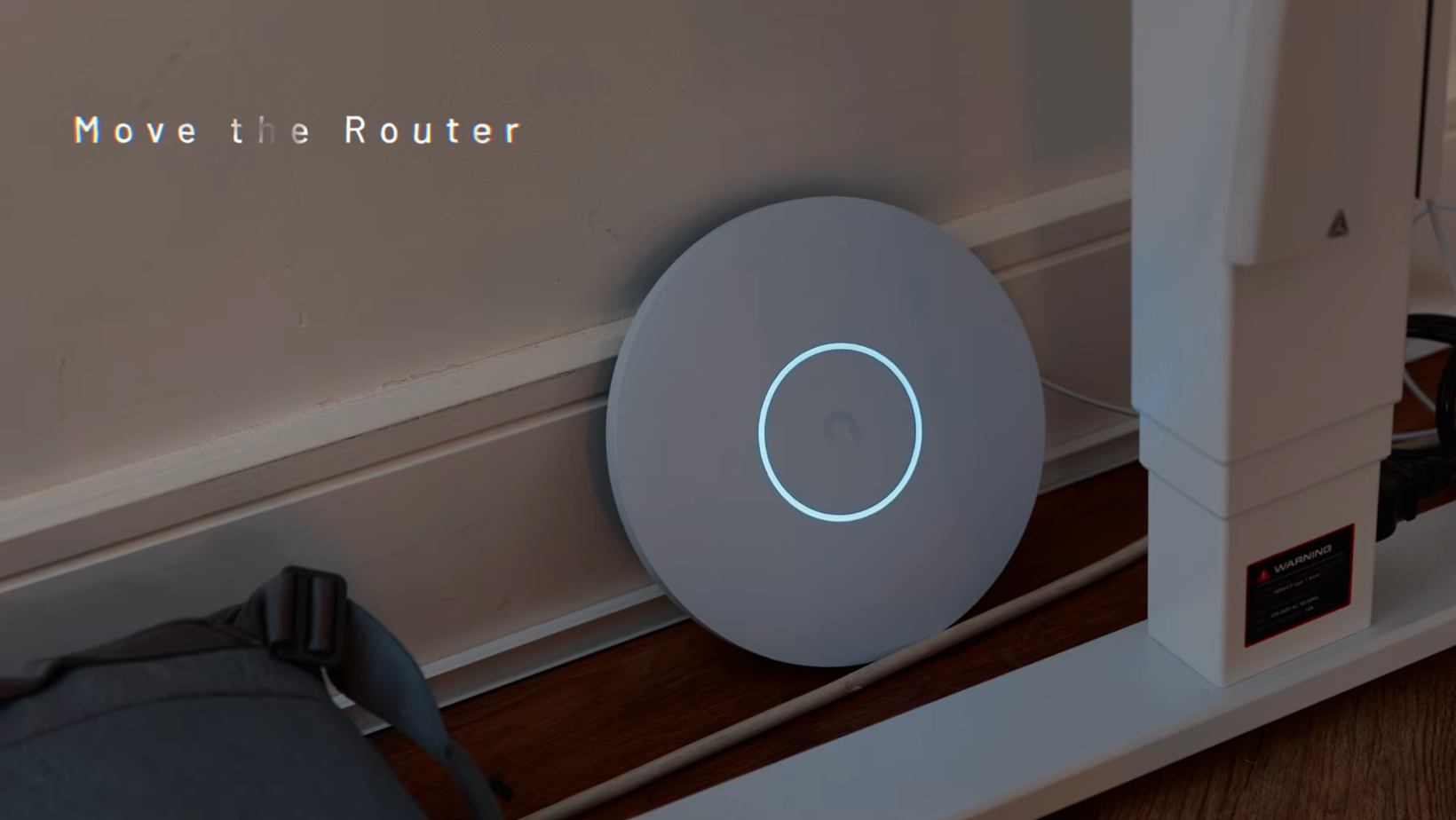
New hardware may help, but it can’t make up for poor router placement.
Move the router
A lot of routers end up behind a TV, on the floor, inside a cabinet, or in a far corner of the house. Those locations can block or waste a large part of the signal.
Try moving the router somewhere central, open, and elevated. Keep it away from thick concrete or brick walls when possible. Microwaves, baby monitors, cordless phones, and other electronics can also create interference.
This simple change can make a noticeable difference without costing anything.
Restart and update everything
Restart your internet equipment, then check for router firmware updates. You should also update the affected phone, computer, or TV and install the latest network drivers available for a Windows laptop.
If you’re having trouble with a television, my Samsung TV setup guide covers the network and software checks that can help.
When WiFi sucks because you need more coverage

If moving the router doesn’t fix the weak areas, you may need another way to reach them.
Powerline adapters
Powerline adapters, like the TP-Link AV1000, send network data through the electrical wiring in your home. One adapter connects to the router, and another goes into the room where you need a connection.
They’re relatively affordable and can provide WiFi, Ethernet, or a connection for another access point. Their performance varies a lot between homes because the wiring, outlet location, electrical noise, and circuit layout can all affect the results.
I’d treat them as a last option when moving the router, installing a mesh system, or running Ethernet isn’t practical.
Mesh WiFi
A mesh WiFi system uses several access points around the house under one network name. Your devices can move between them as you walk around.
Some mesh systems use the same wireless radio to communicate with your devices and the other mesh units. Others include a separate wireless band for that communication, which is called dedicated backhaul. Ethernet backhaul connects the mesh units with cables instead.
Current Ubiquiti guidance warns that every wireless hop can reduce throughput by around 50% in high-interference conditions. When comparing TP-Link Deco XE75 Pro Mesh WiFi System, Ubiquiti UniFi U6 Mesh Access Point, or similar products, check for tri-band support, dedicated backhaul, or Ethernet backhaul.
The WiFi number alone doesn’t confirm what kind of backhaul the system uses. You still need to check the specifications.
Wired access points
The most reliable option is to connect additional wireless access points with Ethernet.
I recently had my driveway dug up and used the opportunity to run around 20 cables outside the house and into different rooms. One cable even reaches the end of the garden. That setup now gives me wired connections capable of reaching up to 10Gbps throughout the property.
You don’t need to go that far. A cable through an internal wall or around the outside of the house can connect a TP-Link access point or UniFi access point without relying on wireless backhaul.
A wired access point still lets your devices move around the house and connect to the strongest access point. It also avoids the speed loss that can happen when mesh units communicate wirelessly.
Watch the full WiFi troubleshooting video
The video walks through the survey process, speed tests, mesh systems, access points, and the changes I made to my home network.
Disclosure: This video is sponsored by UGREEN.
Fix the problem you have
If your WiFi sucks, buying a faster internet plan or the newest router may not fix it.
Start with an Ethernet test and map the signal around the house. Check the band, device, cables, and router placement before buying more equipment. If you still have weak areas, compare a mesh system with a wired access point before relying on Powerline adapters.
That order helps you spend money on the part of the network causing the problem.
For more honest tech experiments, practical buying advice, and the fixes I use when my WiFi sucks, join Experiments in Progress.
WiFi troubleshooting FAQs
Why is my internet so slow even though I have a fast plan?
The speed advertised by your provider describes the connection delivered to your home. Weak WiFi, interference, older hardware, or another device using the available bandwidth can still slow down your phone or laptop.
How can I tell if WiFi is causing the problem?
Connect a computer directly to the router with Ethernet and run a speed test. Fast speeds over Ethernet and slow speeds over WiFi point toward the wireless setup, while slow speeds on both connections call for a closer look at the service, router, and cables.
What’s a good WiFi signal strength?
A signal above -60 dBm is generally excellent, while -60 to -70 dBm is usually acceptable. Connections below -80 dBm are more likely to become unstable or drop completely.
Will mesh WiFi make my internet faster?
Mesh WiFi can improve coverage by placing additional access points around the house. Final speeds depend on node placement, backhaul, interference, and the hardware inside each device.
