


I get some version of this message every week. Someone buys a dock, plugs it in, and nothing works. Or the monitor runs at the wrong resolution, or the laptop charges at a trickle instead of full speed.
They ask me what went wrong, and almost every time, the answer is the same: the Thunderbolt vs USB-C mix-up. They didn't check which one they had before buying. I don't blame them. The ports and cables look identical.
Nobody explains the difference before you spend money, and most of the time it’s hard to figure out which is which. In this article, I’ll cover what you need to check before you buy so you don’t waste your time or money on the wrong product.
The Thunderbolt vs USB-C Problem Explained
Thunderbolt vs USB-C refers to two different connectivity standards sharing the same physical connector. USB-C is the connector shape. Thunderbolt is a protocol running through that connector with guaranteed performance minimums that standard USB-C doesn't require.
As HP's connectivity guide explains, a USB-C port on a budget laptop might only support USB 2.0 speeds, while a Thunderbolt 4 port guarantees 40Gbps data transfer, dual 4K display support, and charging on at least one port.
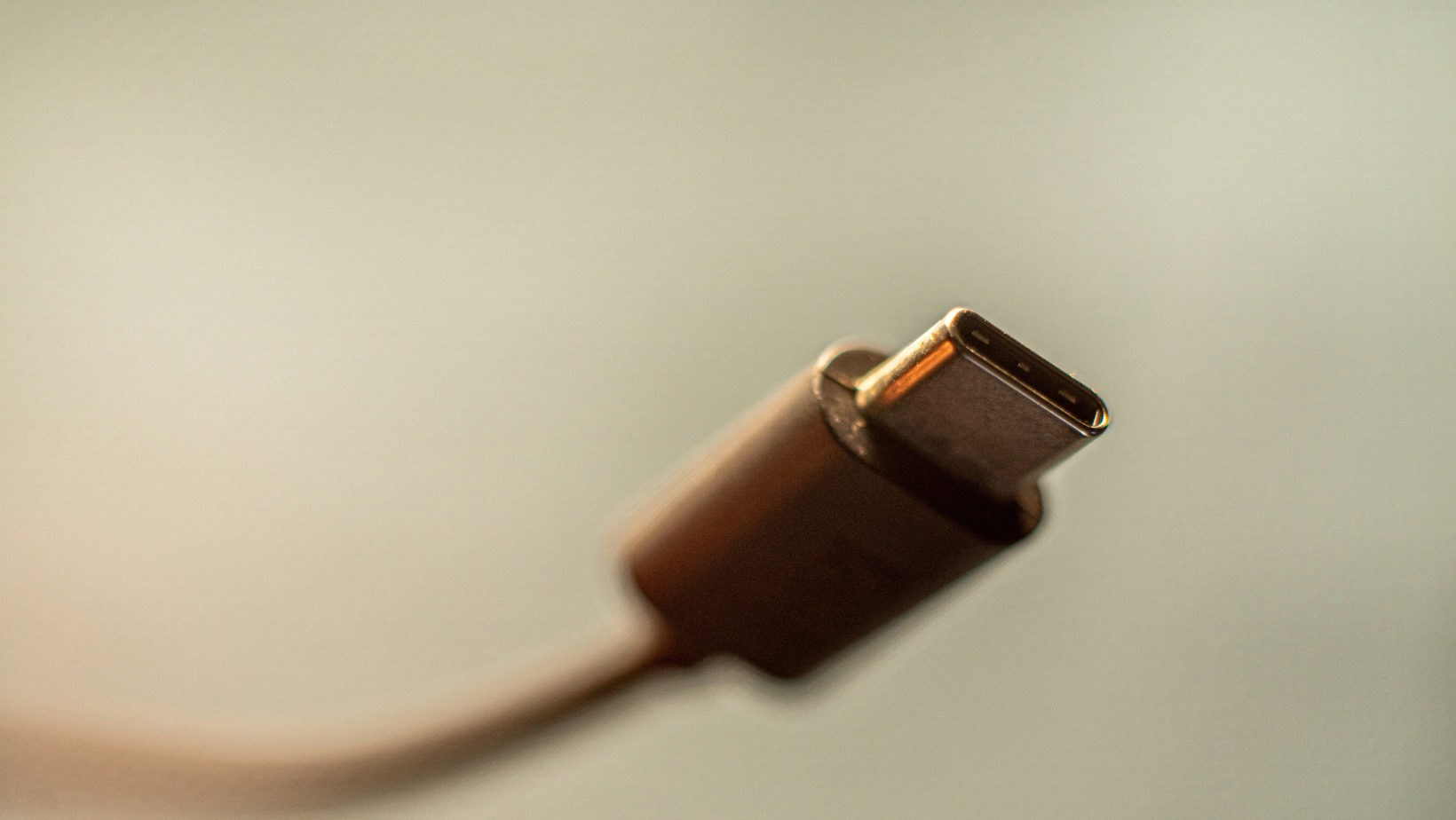
The Thunderbolt vs USB-C problem in one sentence is: you can't tell which one you have by looking at it.
5 Things to Check Before Buying a New Dock
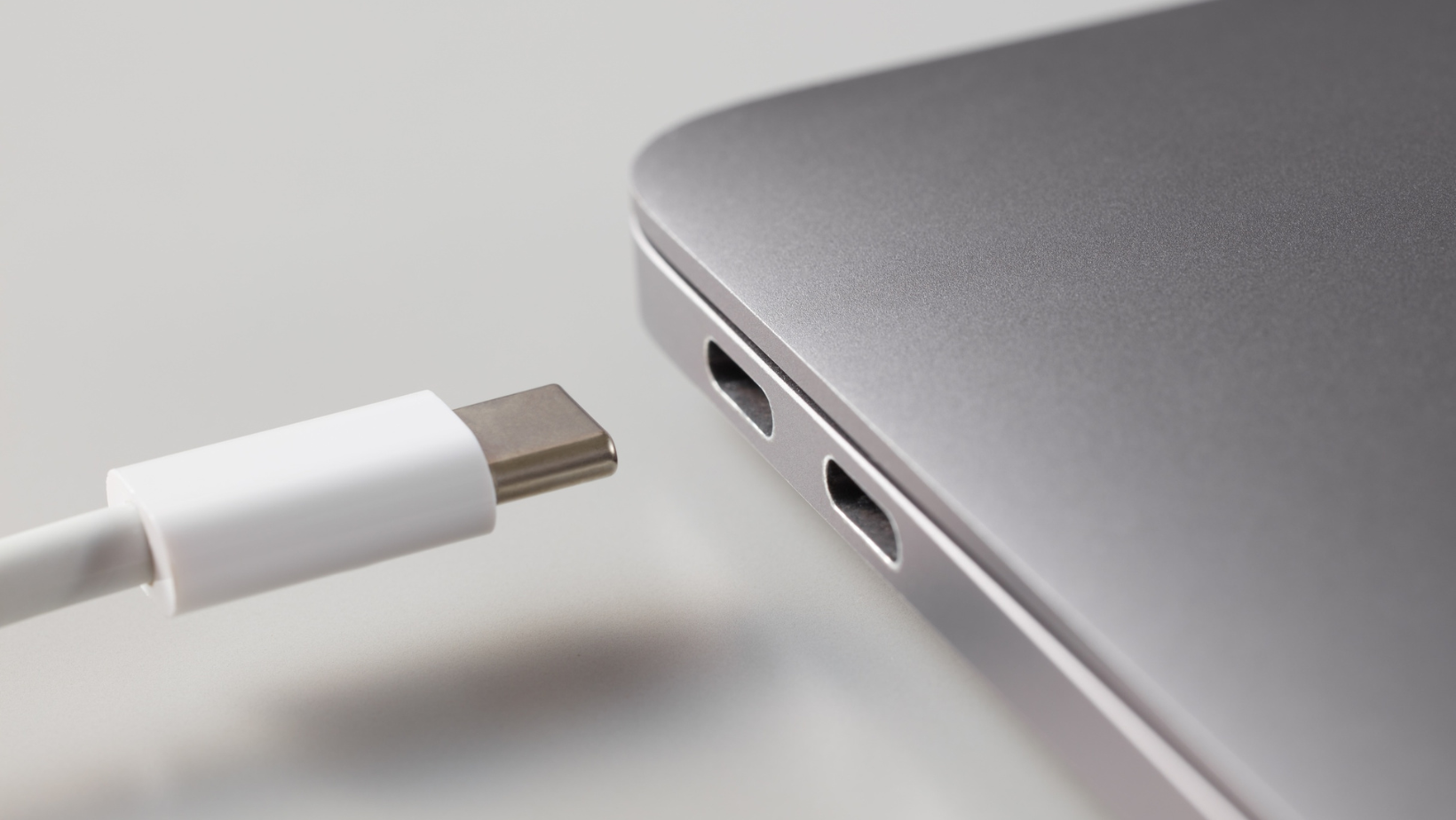
It takes five minutes to run through this check list and saves you a lot of frustration.
1. Check What Port You Have
Look for a small lightning bolt symbol next to the port. That's the Thunderbolt logo. If it's there, you have Thunderbolt. If you only see the USB-C symbol, dig into your laptop's spec sheet before assuming anything.
Standard USB-C varies wildly by implementation. Depending on the laptop, you might have:
- USB 2.0 (480Mbps)
- USB 3.2 (up to 20Gbps on Gen 2x2)
- USB4 (up to 40Gbps)
You might have DisplayPort Alt Mode for video output, or you might not. You just have to check.
2. Check What Your Dock Needs
A Thunderbolt 4 dock, like the CalDigit TS4 or Anker 777, needs a Thunderbolt 4 port to deliver its full feature set. Plugging one into a standard USB-C port will work in a basic sense, but you'll lose the guaranteed bandwidth, display support, and power delivery that make a Thunderbolt dock worth buying.
Cheaper USB-C hubs, such as the Anker 555, are less demanding but also less predictable. The same hub can work perfectly on one laptop and deliver half the expected performance on another, because the USB-C implementation on that second laptop is different. Check the dock's requirements against your port spec before you buy.
3. Check Your Cable
This is probably the most overlooked part of the Thunderbolt vs USB-C setup process. Even with a Thunderbolt 4 port and a Thunderbolt 4 dock, a standard USB-C cable between them limits you to USB-C speeds.
Thunderbolt cables look physically identical to USB-C cables but are certified for higher bandwidth. For a Thunderbolt 4 setup, you want a cable rated for at least 40Gbps. The Anker Thunderbolt 4 and Cable Matters Thunderbolt 4 are solid options. For Thunderbolt 5, which supports 80Gbps bidirectional bandwidth and up to 120Gbps in Bandwidth Boost mode for displays, the Anker Prime Thunderbolt 5 and Silkland Thunderbolt 5 are worth looking at.
If your setup isn't performing as expected, the cable is the first thing I'd check.
4. Check Your Display Requirements
Display support through USB-C is where things get genuinely confusing. Whether a port can drive one or two external monitors depends on the specific DisplayPort Alt Mode, USB4 support, MST (Multi-Stream Transport) capability, your GPU, and the dock itself. There's no single answer.
Thunderbolt 4 guarantees support for two 4K displays or one 8K display. If you're running a dual monitor setup and want predictable results, Thunderbolt 4 makes it a no-brainer. If you're on standard USB-C, check the specific display support in your laptop's spec sheet rather than assuming.
5. Check Your Power Delivery Needs
Thunderbolt 4 requires charging support on at least one port, though the specific wattage varies by implementation. Standard USB-C charging is optional and varies even more. Some budget laptops have USB-C ports that support data and video but only accept charging through a dedicated port.
If you're planning to charge your laptop through the dock, confirm both the dock's output wattage and your laptop's charging requirements before buying. A dock that delivers 65W to a laptop that needs 100W will charge, but slowly.
A Quick Five Minutes Saves You Hours
The Thunderbolt vs USB-C confusion costs people money and time every day, and almost all of it is avoidable. Check your port type, check the dock requirements, check the cable spec, check your display needs, and check the power delivery numbers.
If you're setting up a proper desk with a Dell UltraSharp or a similar high-end display running through a single cable, Thunderbolt 4 is what makes that work cleanly. For lighter setups with one screen and basic peripherals, a good USB-C hub will do the job.
Either way, five minutes of checking before you buy beats an afternoon of troubleshooting after.
FAQs
What is the difference between Thunderbolt and USB-C?
Thunderbolt vs USB-C refers to two different things using the same physical connector. USB-C is the port shape. Thunderbolt is a protocol with guaranteed performance minimums including 40Gbps data transfer, dual 4K display support, and mandatory charging support on at least one port. Standard USB-C ports vary widely and guarantee none of those minimums.
How do I know if my laptop has Thunderbolt?
Look for a small lightning bolt symbol next to the port. If it's there, you have Thunderbolt. If you only see the USB-C symbol, check your laptop's spec sheet. The port will be listed as Thunderbolt 3, 4, or 5, or as USB4, or as a specific USB 3.x generation, each with different capabilities.
Why isn't my USB-C dock working properly?
The most common causes are a mismatched port, a standard USB-C cable limiting bandwidth, or a dock that requires Thunderbolt connected to a port that doesn't support it. Check your laptop's spec sheet to confirm what your port supports, and check the cable is rated for the bandwidth your setup needs.
Can I use a Thunderbolt dock with a USB-C port?
Yes, but you'll get USB-C performance rather than Thunderbolt performance. The dock will function, but features that require Thunderbolt bandwidth, like dual 4K display output or full PCIe speeds, won't be available unless the port supports Thunderbolt.
What is Thunderbolt 5 and do I need it?
Thunderbolt 5 supports 80Gbps bidirectional bandwidth, rising to 120Gbps in Bandwidth Boost mode for high-resolution displays. It's backward compatible with Thunderbolt 4 devices. For most users in 2026, Thunderbolt 4 covers every practical use case. Thunderbolt 5 is worth considering if you're buying a new machine now and want headroom for higher-bandwidth displays.
