


The best monitors for productivity can make a measurable difference to how quickly you work. In one set of office tasks, Georgia Tech research found that people completed the work 12% faster on a large display.
I’ve spent decades working in front of screens of almost every shape and size. I’ve gone through laptops, larger monitors, multiple-monitor setups, and the huge ultrawides I use now. The question I’m usually asked is simple: which monitor would I recommend?
There isn’t one answer for everyone. Your work, desk, computer, budget, and preferred window layout all shape the decision. Here are the monitors I’d consider in 2026 and who each one suits.
Best monitors for productivity at a glance
This table matches each monitor to the setup where it makes the most sense. Some are based on my experience, while the others use verified specifications and intended use cases.
How to choose the best monitors for productivity
Screen size is the obvious starting point, but resolution, panel type, ports, and warranty can matter more day to day.
Screen size, shape, and curve
A standard 16:9 monitor works well on a typical desk. A 21:9 ultrawide adds room for side-by-side windows, while a 32:9 model resembles two screens without a center bezel.
Curvature becomes more useful as the display gets wider. I found the 1000R curve on an older Samsung Odyssey G9 more comfortable than a later 1800R version because its edges were easier to see. Designers may prefer a flatter screen for judging straight lines.
Resolution, pixel density, and text clarity
Large screens need enough pixels to keep text sharp. Stretching 4K across a bigger panel can make documents and email look rough at desk distance. Pixels per inch, or PPI, is therefore more useful than resolution alone.
Mac users should check scaling because macOS can show one apparent size while the panel runs at its native resolution. Newer RGB-stripe OLED panels also produce cleaner text than older layouts. IPS and IPS Black remain reliable for text-heavy work.
IPS, Mini LED, and OLED
IPS provides wide viewing angles and consistent color, while IPS Black improves contrast. Mini LED uses multiple backlight zones for brighter HDR, although bright objects can create a faint halo.
OLED controls each pixel separately for excellent contrast and fast response. Newer panels improve brightness, lifespan, and text clarity, but static controls make burn-in coverage worth checking. Color-sensitive work also benefits from broad gamut coverage, a Delta E below 2, and factory calibration.
Refresh rate, ports, and work features
A jump from 60Hz to 120Hz makes scrolling smoother, but resolution usually matters more for documents. Check that your computer supports both specifications.
Thunderbolt and USB-C can both carry video, data, and laptop power, but they don’t always provide the same bandwidth or charging wattage. The differences covered in my Thunderbolt comparison can determine which resolutions, hubs, and accessories a single cable can handle.
KVM, picture-by-picture, Ethernet, and USB hub features can also simplify your desk.
The best monitors for productivity by use case
Dell UltraSharp 52 U5226KW
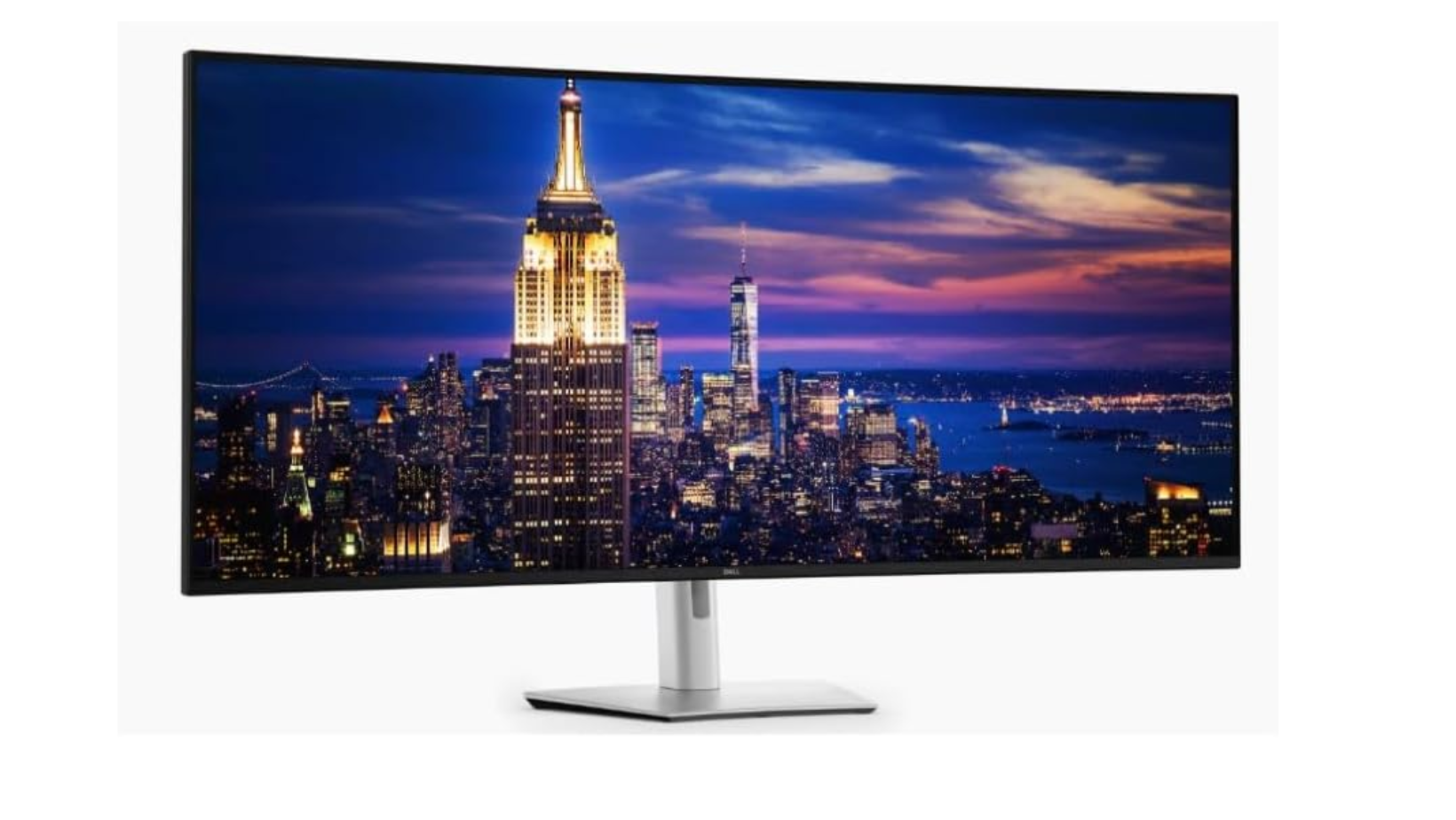
Best for: Replacing a multi-monitor setup with one large display
The Dell UltraSharp 52 U5226KW is the screen I use every day. Its uninterrupted workspace and built-in hub keep several applications, computers, and accessories manageable. I haven’t had problems with blurry text or color fringing, although it isn’t designed for serious HDR. Dell’s official specifications confirm the details below.
Key specs:
- 51.5-inch curved IPS Black panel
- 6144 × 2560 resolution at 120Hz
- Thunderbolt 4 with up to 140W charging
- 2.5Gb Ethernet, KVM, and picture-by-picture
Pros: Huge workspace, sharp text, and excellent built-in connectivity.
Cons: Expensive, physically imposing, and limited to 400 nits without proper HDR.
Dell UltraSharp 40 U4025QW
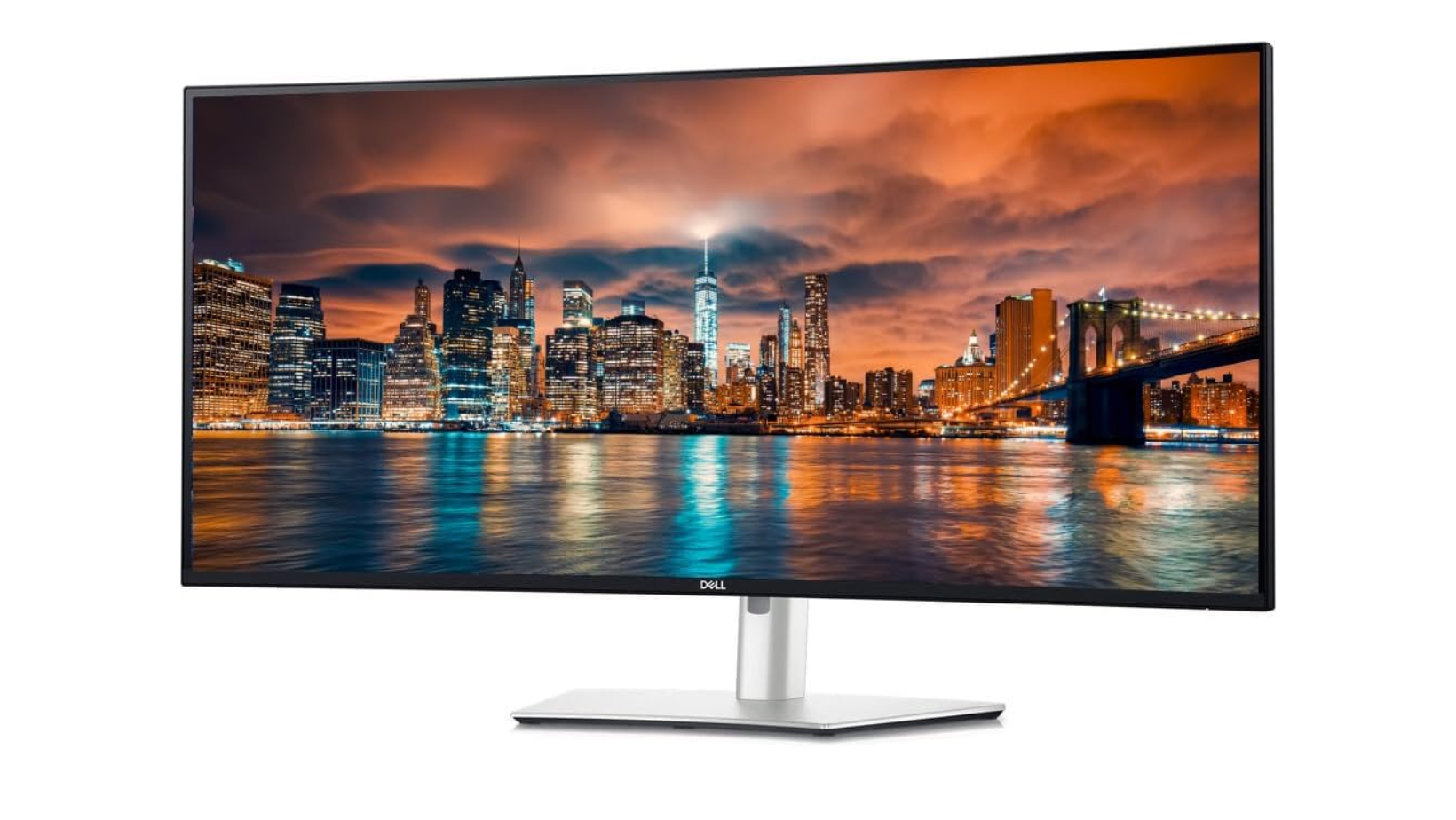
Best for: Getting the ultrawide experience in a more manageable size
The Dell UltraSharp 40 U4025QW follows the same approach in a smaller body. I’ve used it for months, and it provides enough width for several windows without dominating the room. Its Thunderbolt hub also suits a laptop-based desk.
Key specs:
- 39.7-inch curved IPS Black panel
- 5120 × 2160 resolution at 120Hz
- Thunderbolt 4 with up to 140W charging
- KVM, Ethernet, and built-in USB hub
Pros: A strong balance of workspace, text clarity, and connectivity.
Cons: Still large, with less working room than the 52-inch model.
The LG UltraFine 40U990A is a close alternative with a 40-inch 5K2K IPS Black panel, 120Hz refresh rate, Thunderbolt 5, and 96W charging, according to LG specifications.
Apple Studio Display XDR
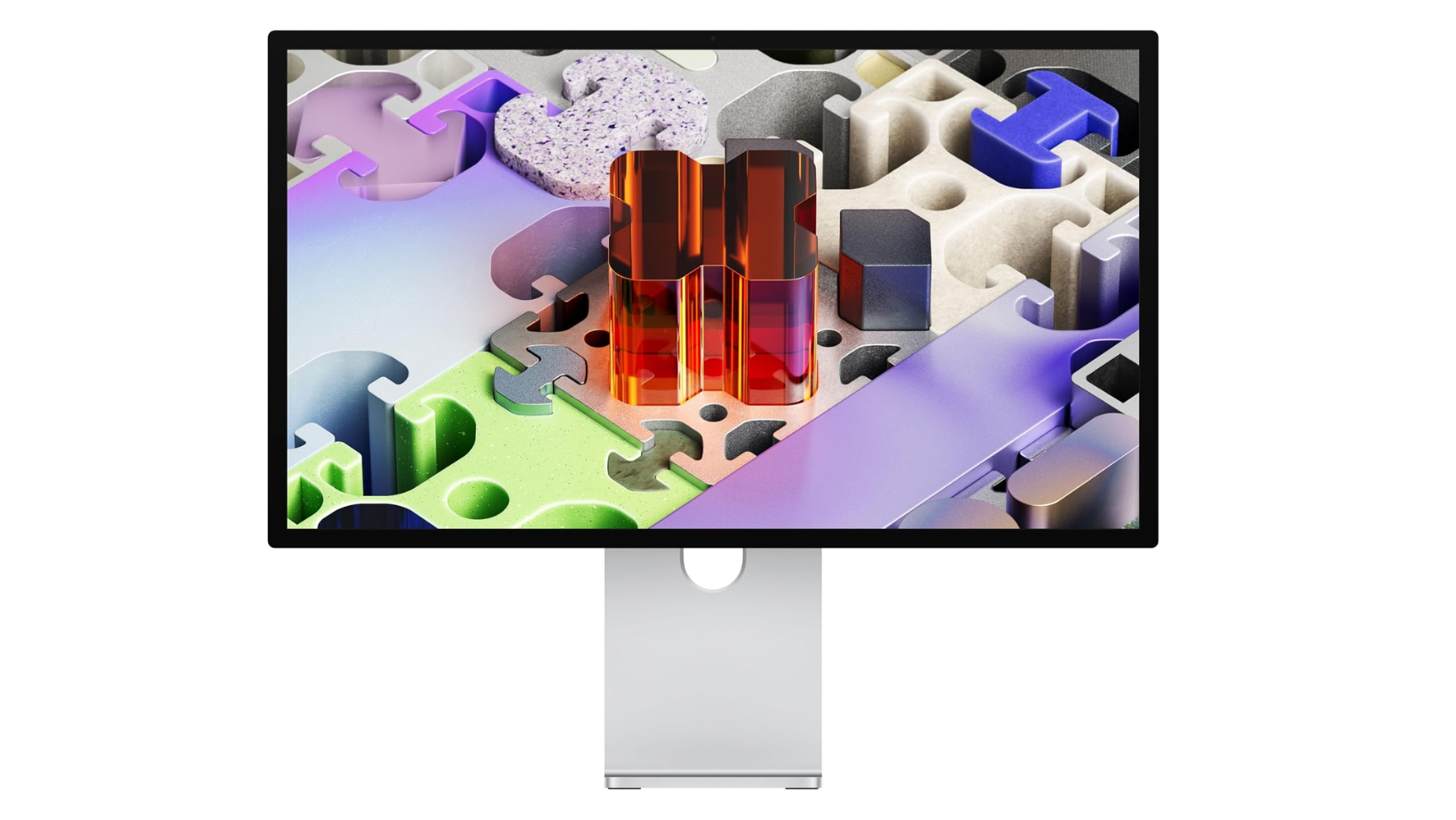
Best for: Mac users doing color-critical creative work
The Apple Studio Display XDR suits people who value Mac integration, accurate color, and high pixel density. I’ve seen it hands-on, and it’s impressive, but other monitors provide more display area for the money. Apple’s technical specifications position it as a specialized professional display.
Key specs:
- 27-inch 5K Mini LED panel
- 5120 × 2880 resolution at 218 PPI
- 120Hz Adaptive Sync
- 2,304 dimming zones and up to 2,000 nits peak HDR
- Thunderbolt 5 and reference modes
Pros: Very sharp text, strong HDR, and close Mac integration.
Cons: High price, limited physical workspace, and fewer benefits for non-Apple users.
Meirro Pro
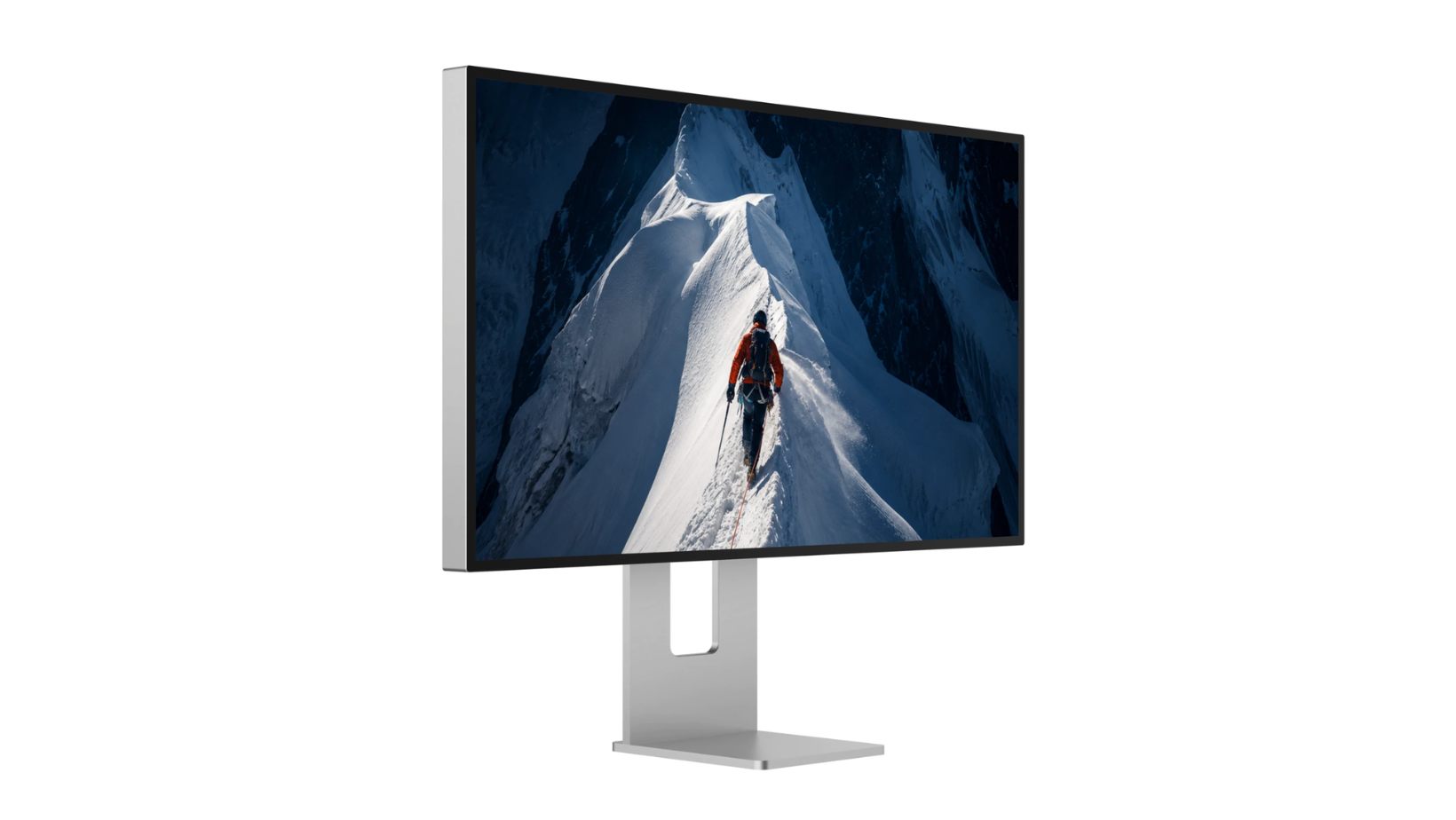
Best for: A sharp 32-inch 6K display at a lower entry price
The Meirro Pro appeals to Mac and high-PPI monitor users. I’ve reviewed it, and its strength is Mac-style sharpness without Apple’s pricing. Its manufacturer specifications also support creative work.
Key specs:
- 32-inch Nano IPS Black panel
- 6144 × 3456 resolution at 224 PPI
- 60Hz refresh rate
- 98% DCI-P3 and 99% Adobe RGB coverage
- USB-C with 96W charging
Pros: Excellent pixel density, broad color coverage, and an included stand.
Cons: Limited to 60Hz, with slower hub connections and less familiar support.
The Kuycon G32P uses a similar 32-inch 6K IPS Black panel, but it usually costs more and has lower quoted brightness.
LG UltraGear 39GX950B
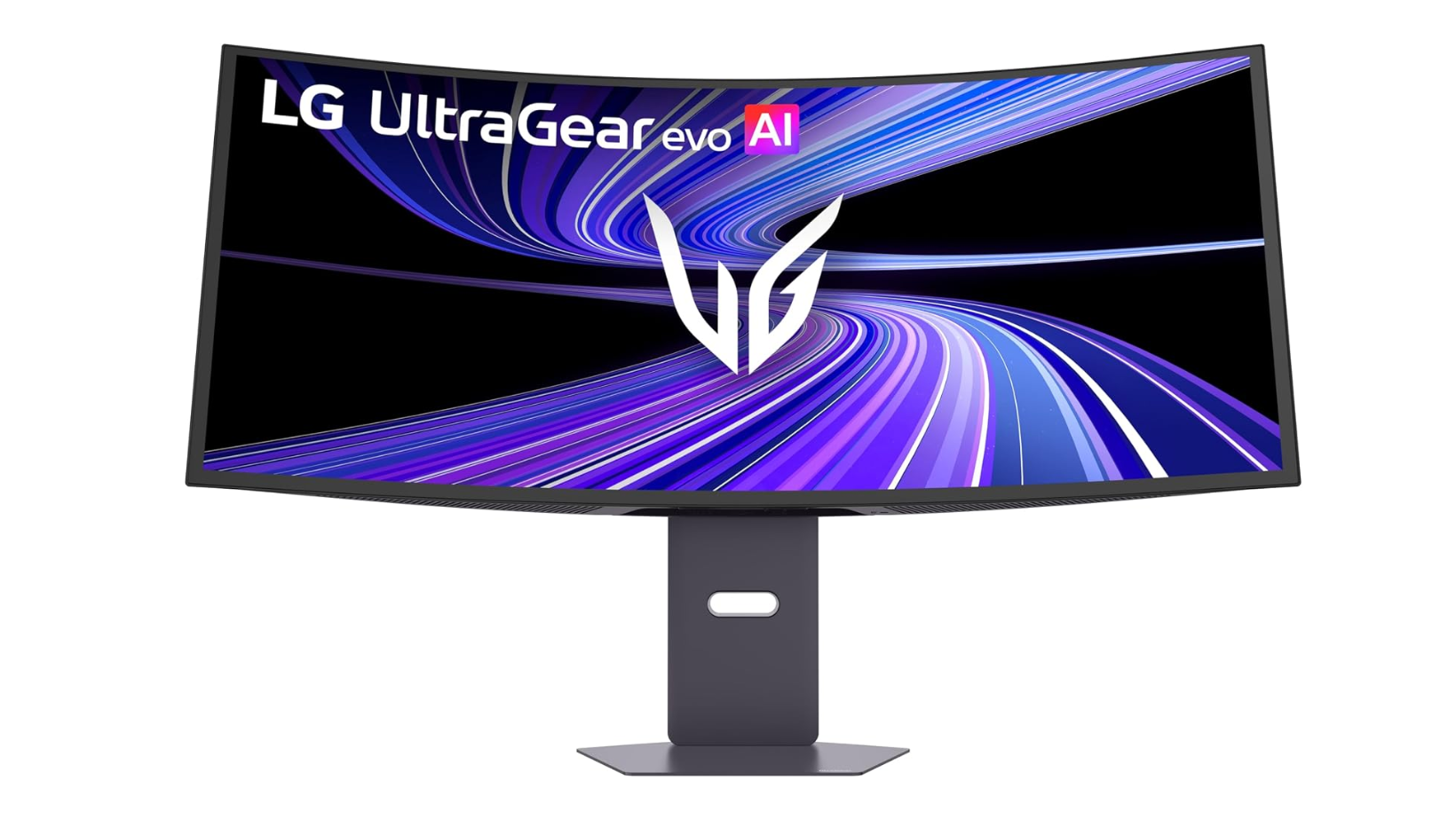
Best for: Working during the day and gaming in the evening
The LG UltraGear 39GX950B is the crossover option I’d consider for work and gaming. Its pixel density addresses the softer text found on many older OLED ultrawides, while dual refresh modes favor resolution or speed. The numbers below come from LG’s product page.
Key specs:
- 39-inch curved Tandem OLED panel
- 5120 × 2160 resolution at roughly 143 PPI
- 165Hz native or 330Hz lower-resolution mode
- DisplayPort 2.1 and USB-C
Pros: Sharp OLED image, high refresh rate, and strong gaming performance.
Cons: Burn-in needs consideration, and the curve won’t suit every creative workflow.
Samsung Odyssey Neo G9 57
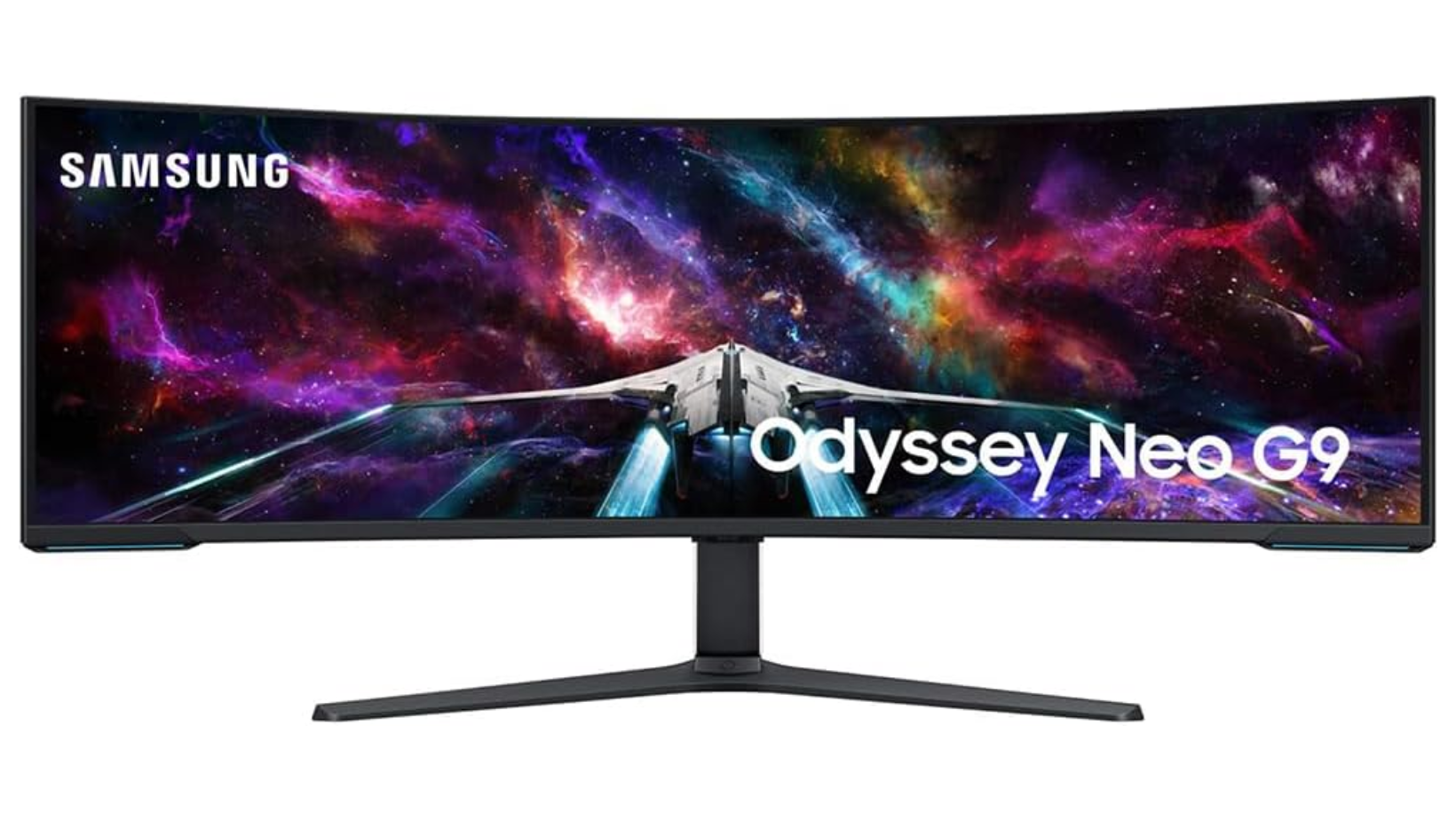
Best for: Maximum multitasking space and a deeply curved display
The Samsung Odyssey Neo G9 57 was my daily monitor before the Dell. It provides the width of two 32-inch 4K displays without a center bezel, and its 1000R curve keeps the edges easier to see. Samsung’s product page confirms its specifications.
Key specs:
- 57-inch 1000R curved Mini LED panel
- 7680 × 2160 Dual UHD resolution
- Refresh rate up to 240Hz
- DisplayPort 2.1 and picture-by-picture support
Pros: Enormous workspace, sharp image, and excellent gaming capability.
Cons: Very large, demanding to drive, and missing the Dell’s Thunderbolt hub.
The smaller MSI MPG 341CQR QD-OLED X36 is another option when 57 inches is excessive. Its official specifications list a 34-inch QD-OLED panel, 3440 × 1440 resolution, 360Hz refresh rate, and RGB stripe layout.
Can a TV work as a productivity monitor?
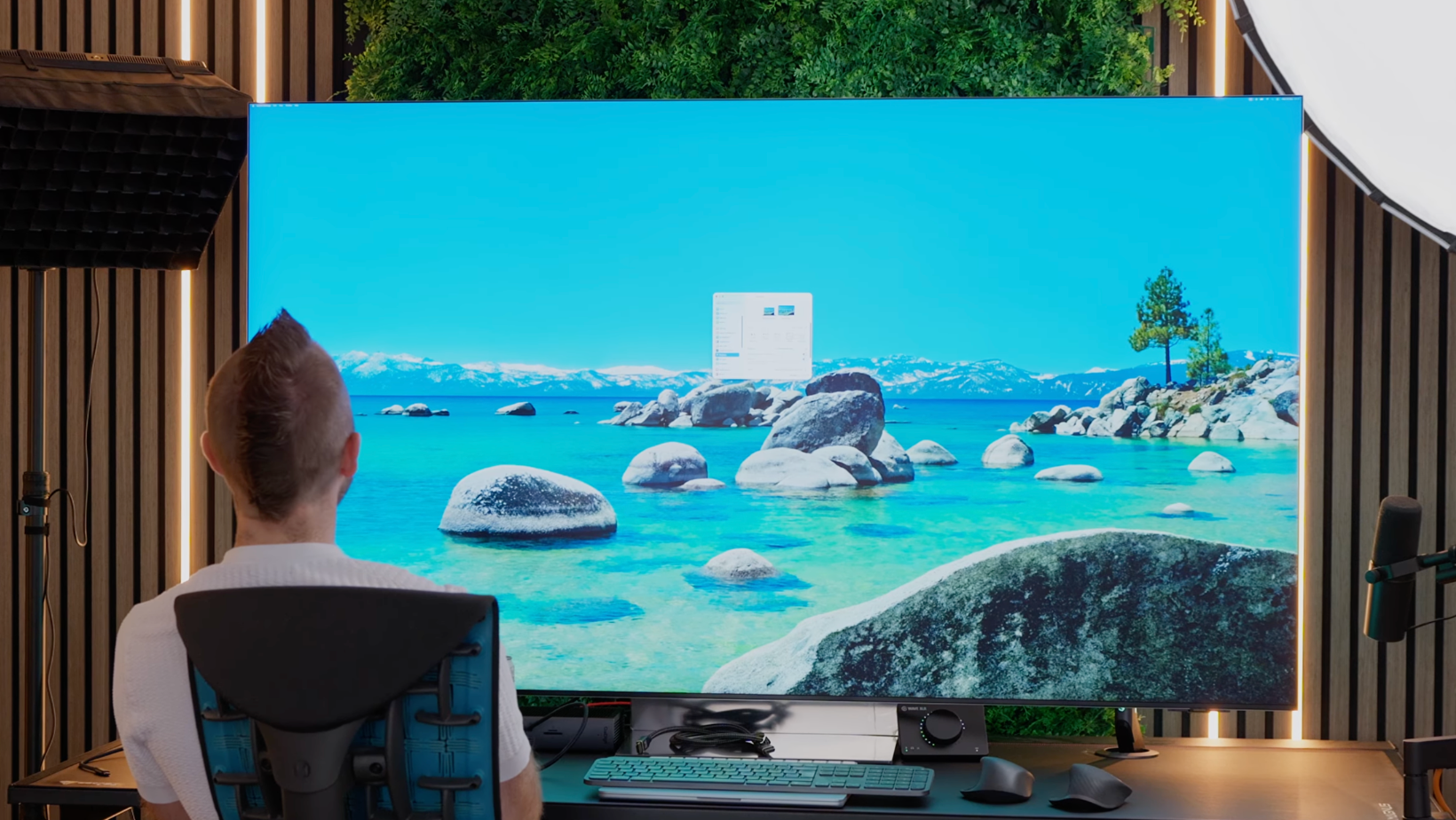
I’ve tried both 4K and 8K TVs as monitors. A large 4K TV can offer good value per inch, but text loses sharpness above 50 inches at desk distance.
My 65-inch 8K setup reached roughly 136 PPI, so text looked sharp, but its physical size created other problems. That TV monitor experiment made it clear that resolution alone doesn’t make a television practical for desk work.
Spending smarter on a productivity monitor
A single large monitor may replace several screens, docks, and cables. Previous-generation flagships can also offer good value because monitor technology usually changes more slowly than phones. The Samsung Odyssey Neo G9 57 is one example worth watching for a discount.
With used LCD monitors, check for dead pixels, backlight problems, unevenness, port damage, and remaining warranty coverage. Used OLED requires more caution because its history may be unclear.
Ask for usage hours and inspect full-gray and full-white screens for burn-in. Manufacturer-refurbished stock can provide a discount while retaining clearer warranty and return terms.
Watch the full monitor guide
The video shows the physical scale of each display, which helps when a 40-inch and 52-inch ultrawide look similar in a specification list.
Pick the screen that fits your work
The right monitor should give you useful space without sacrificing sharp text or comfort. Prioritize PPI for reading and coding, color accuracy for creative work, higher refresh rates for gaming, and connectivity for multi-device setups.
Then use your desk size, computer support, and budget to narrow the options.
For more honest tech experiments and updates on the best monitors for productivity, join Experiments in Progress.
Frequently asked questions
What monitor size is best for productivity?
A 27-inch or 32-inch display fits many desks without requiring much head movement. A 40-inch ultrawide can replace two smaller screens, while 52-inch and 57-inch models suit deeper desks and several large windows. Measure your available width and viewing distance before deciding.
Is an OLED monitor good for productivity?
OLED works well when the same monitor also handles gaming, photos, or video. It provides excellent contrast and fast response. Look for improved text rendering, use the panel-care features, and confirm that the warranty addresses burn-in before displaying static applications all day.
Is an ultrawide better than two monitors?
An ultrawide provides an uninterrupted workspace, fewer cables, and flexible window sizing. Two monitors can be angled independently, and one can be replaced without losing the entire setup. Your preferred application layout and need for physical separation should decide between them.
What pixel density is good for a productivity monitor?
Around 140 PPI can look sharp at desk distance, while 218 or 224 PPI provides Mac-style density. Screen size, viewing distance, operating-system scaling, and subpixel layout also affect text clarity, so PPI shouldn’t be judged on its own.
Is 4K enough for a productivity monitor?
4K is usually enough on a 27-inch or 32-inch screen. It becomes less convincing when stretched across a very large panel because the lower pixel density can make text look rough up close. Screen size and viewing distance are as important as resolution when comparing the best monitors for productivity.
