


Bigger screens can make work faster, but the largest or fastest monitor won’t always be the one you’ll enjoy using every day. The LG UltraGear evo lineup makes that clear, with three premium displays that take very different approaches to the same job.
A Georgia Tech paper cites research showing that people completed typical office tasks 12% faster on a large display. Still, screen size only tells part of the story when panel type, pixel density, and your available desk space can completely change the experience.
In this blog, I’ll compare picture quality, everyday usability, and gaming performance.
Disclosure: LG sponsored the original video after I’d already reviewed all three monitors. The comparisons and conclusions here reflect what I found during those reviews.
LG UltraGear evo at a glance
The range includes a sharp 27-inch Mini LED monitor, a 39-inch ultrawide OLED, and a massive 52-inch VA display. They share a 5K-class resolution, fast refresh rates, and USB-C charging, but they feel completely different in daily use.
My overall pick is the 39GX950B for its balance of image quality, usable size, and productivity. The 27GM950B favors text clarity and smaller desks, while the 52G930B favors scale, speed, and immersion.
What the three monitors share
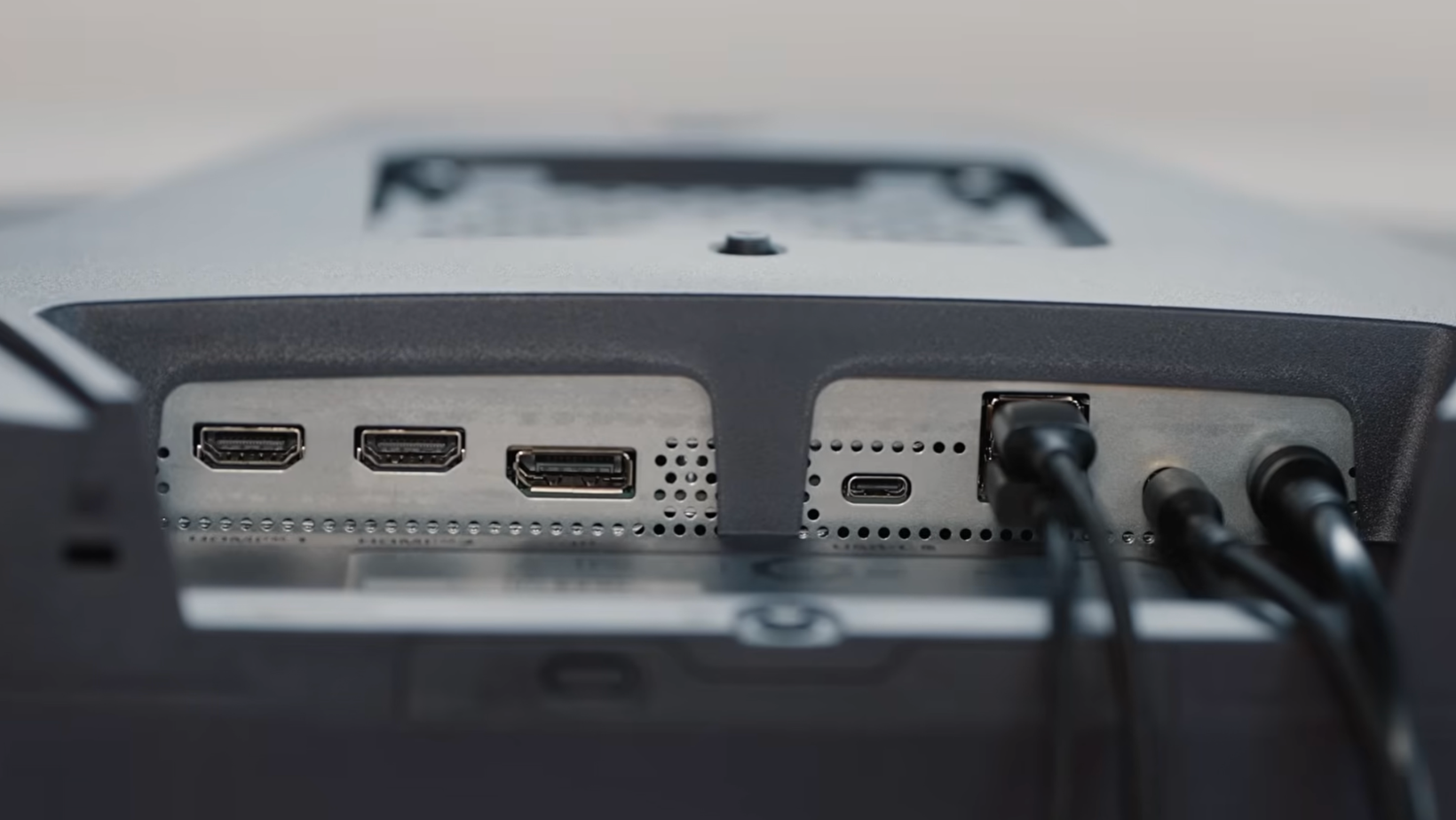
LG has kept several features consistent across the range, so the main decision comes back to panel type, physical size, and resolution density.
The same core connections
All three monitors include DisplayPort 2.1, HDMI 2.1, and USB-C with up to 90W power delivery. A compatible laptop can send video while receiving power through one cable.
USB-C labels can hide major differences in speed and display support. My USB-C comparison explains what to check when a laptop, dock, or cable doesn’t behave as expected.
The 27GM950B and 39GX950B use DisplayPort 2.1 with UHBR20 support. Your graphics card, cable, and chosen input still need to support the mode you want.
No built-in hardware KVM
None includes a traditional hardware KVM switch tied to the monitor’s USB ports. LG offers a software-based network KVM feature, but switching between a work laptop and gaming PC may still require a separate USB switch or compatible dock.
AI features vary by model
The 27GM950B and 39GX950B include AI upscaling and AI sound, while the 52G930B leaves them out. Upscaling can help when a lower-powered device or Nintendo Switch supplies a lower-resolution image. A high-end PC can usually handle scaling through its graphics hardware, so I’d treat this as an extra.
The panels change everything
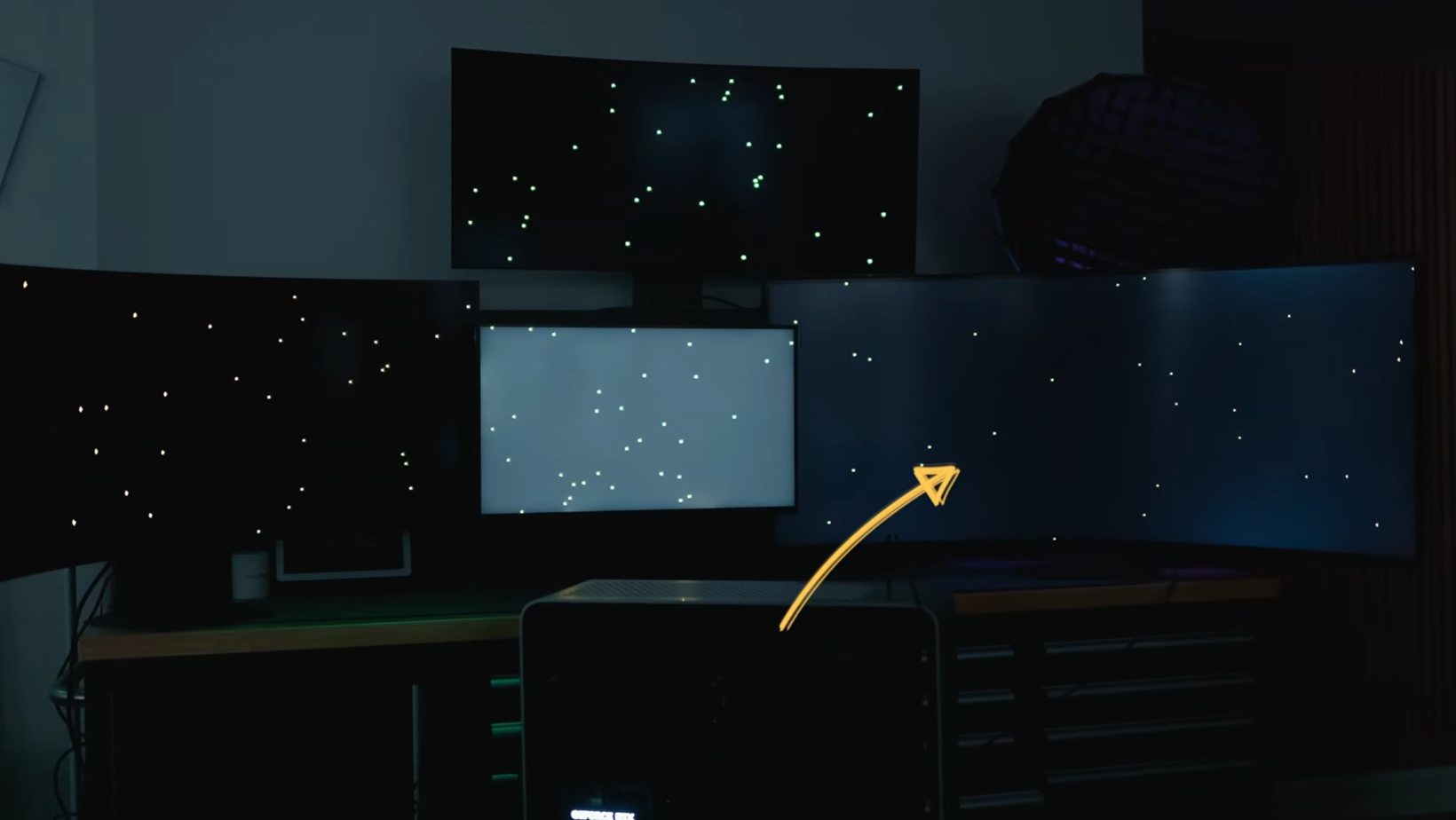
Panel choice affects contrast, brightness, text clarity, motion, and long-term ownership. If you want a deeper explanation of the underlying tradeoffs, my panel comparison covers Mini LED and OLED in more detail.
Mini LED favors brightness and clarity
The 27GM950B uses a Hyper Mini LED panel with 2,304 local dimming zones. It gets bright, and its 5K resolution reaches 218 pixels per inch. Text looks extremely sharp on a Mac or PC.
Mini LED doesn’t produce per-pixel blacks like OLED. Bright objects on dark backgrounds can create halos, and local dimming may cause flicker. Turning it off makes black levels look grayer.
OLED favors contrast and response
The 39GX950B uses LG’s fourth-generation Tandem OLED panel. Individual pixels can switch off for deep blacks, while the 0.03ms response time keeps motion crisp.
OLED carries a risk of permanent image retention when static desktop elements stay visible for long periods. Changing frame rates can also cause VRR flicker, which matters more if the screen spends all day showing apps and toolbars.
VA favors size without burn-in
The 52G930B uses a VA panel with a claimed 4,000:1 contrast ratio. It can’t match OLED’s blacks or response time, but there’s no OLED burn-in concern. Its 240Hz native refresh rate also avoids a resolution switch.
Spreading 5120 x 2160 pixels across 52 inches results in 108 PPI, so text looks softer at normal desk distance. This panel suits gaming at a little more distance.
Choosing your LG UltraGear evo monitor
Each monitor gets the basics right, but there’s no single model that leads in every category. Here’s how they compare after spending time with all three.
LG 27GM950B
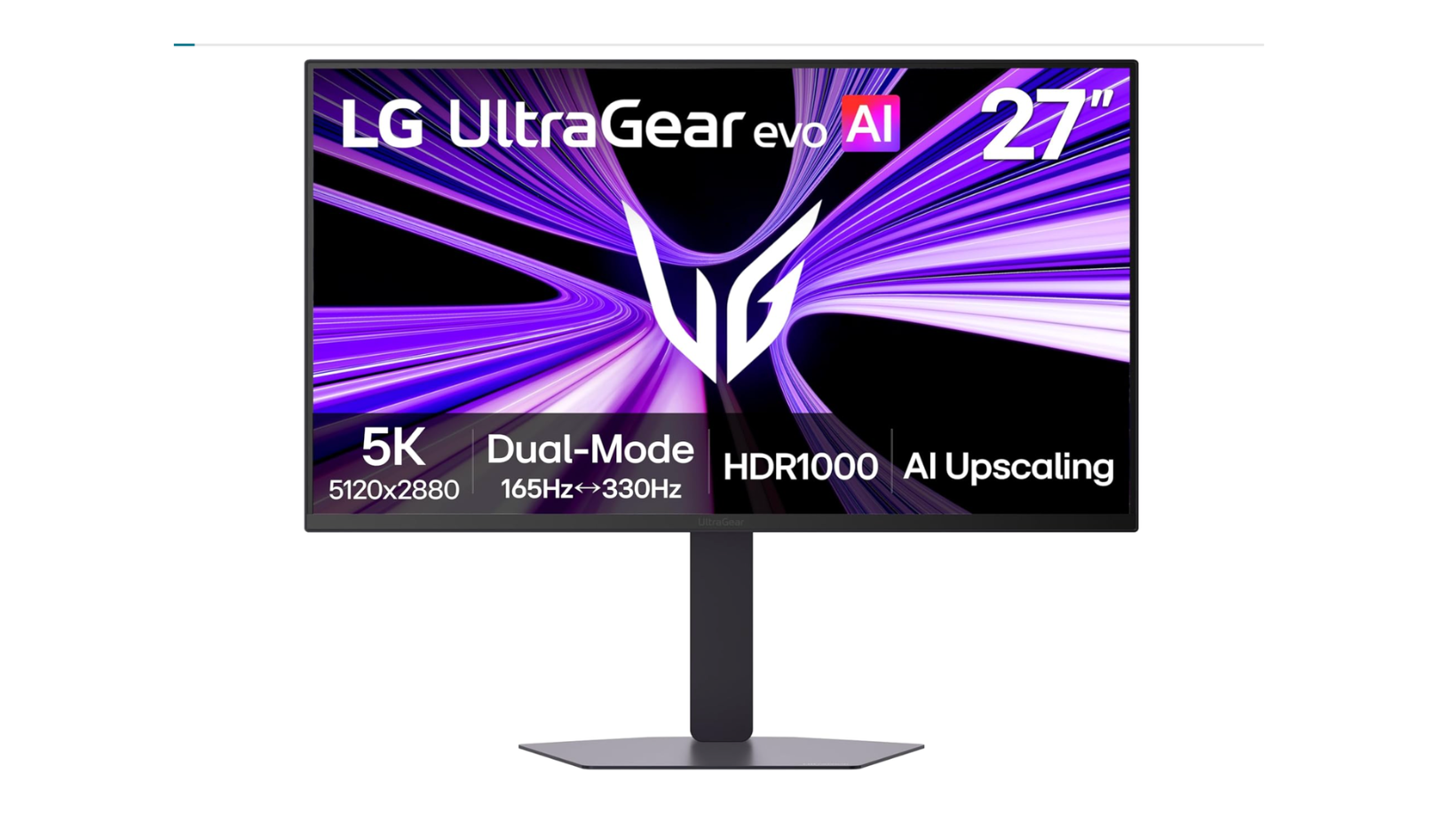
Best for: Mac users, smaller desks, bright rooms, and anyone who values sharp text
The LG 27GM950B is the most practical option here. Its flat 27-inch screen matches the Studio Display’s headline resolution and 218 PPI density, then adds a 165Hz refresh rate and 330Hz QHD mode.
I tested it with an M4 MacBook Air, M4 MacBook Pro, and M3 Max MacBook Pro. Each ran at 5120 x 2880 and 144Hz with variable refresh rate. Text looked razor sharp, even in a bright room.
Blooming can appear around bright elements on dark backgrounds. My sample also showed glitching before a firmware update fixed it. LG’s product page advises owners to install the latest firmware.
Key specs:
- 27-inch flat Hyper Mini LED panel
- 5120 x 2880 resolution at 218 PPI
- 165Hz at 5K or 330Hz at QHD
- 1ms response time
- DisplayHDR 1000 and 99% DCI-P3
- DisplayPort 2.1, HDMI 2.1, and USB-C with 90W charging
Pros: Exceptionally sharp text, high brightness, compact size, no OLED burn-in risk, and strong PC gaming features.
Cons: Blooming and local dimming artifacts can be distracting, while its native contrast is lower than OLED or VA.
LG 39GX950B
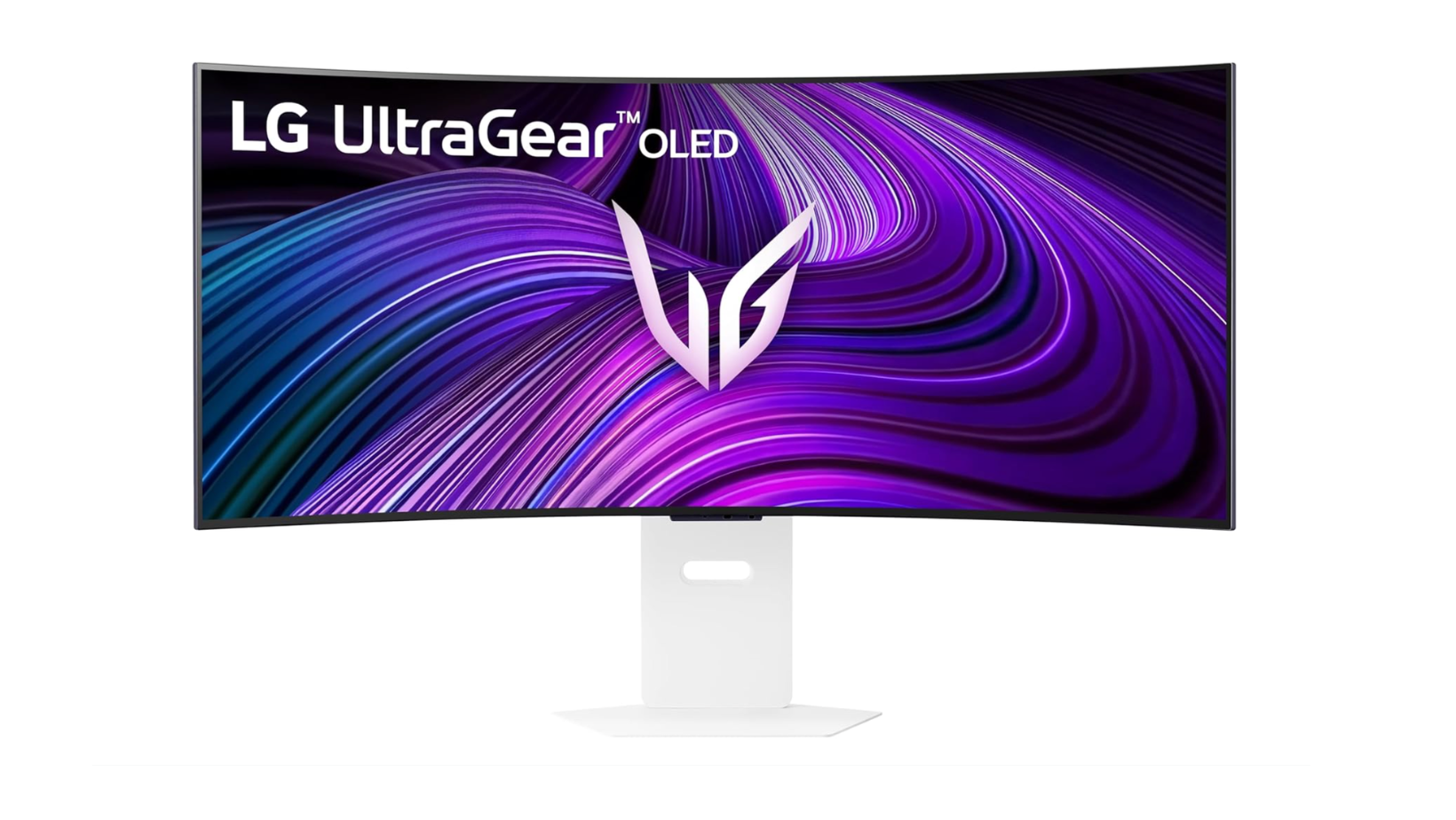
Best for: People who split their monitor time between productivity and gaming
The LG 39GX950B is my favorite of the three for a mixed setup. Its 39-inch 21:9 screen adds useful horizontal room without taking over the desk, and its 1500R curve feels gentler than LG’s older 45-inch OLED.
Its 5120 x 2160 resolution works out to 143 PPI, so text looks sharper than on the older 45-inch model. The Tandem OLED panel delivers the strongest picture here. I measured roughly 1,350 nits in a 10% window.
It runs at 165Hz natively or 330Hz at a lower resolution. Its speakers improved after a firmware update, but I’d still use separate speakers or headphones.
Key specs:
- 39-inch 1500R Tandem OLED panel
- 5120 x 2160 resolution at 143 PPI
- 165Hz native or 330Hz at a lower resolution
- 0.03ms response time
- DisplayHDR True Black 500 and 99.5% DCI-P3
- DisplayPort 2.1, HDMI 2.1, and USB-C with 90W charging
Pros: Excellent contrast and color, sharp text for an ultrawide OLED, manageable curve, fast response, and a useful size for work.
Cons: Static desktop use brings a burn-in risk, VRR flicker can appear in games with uneven frame rates, and the matte finish won’t suit everyone.
LG 52G930B
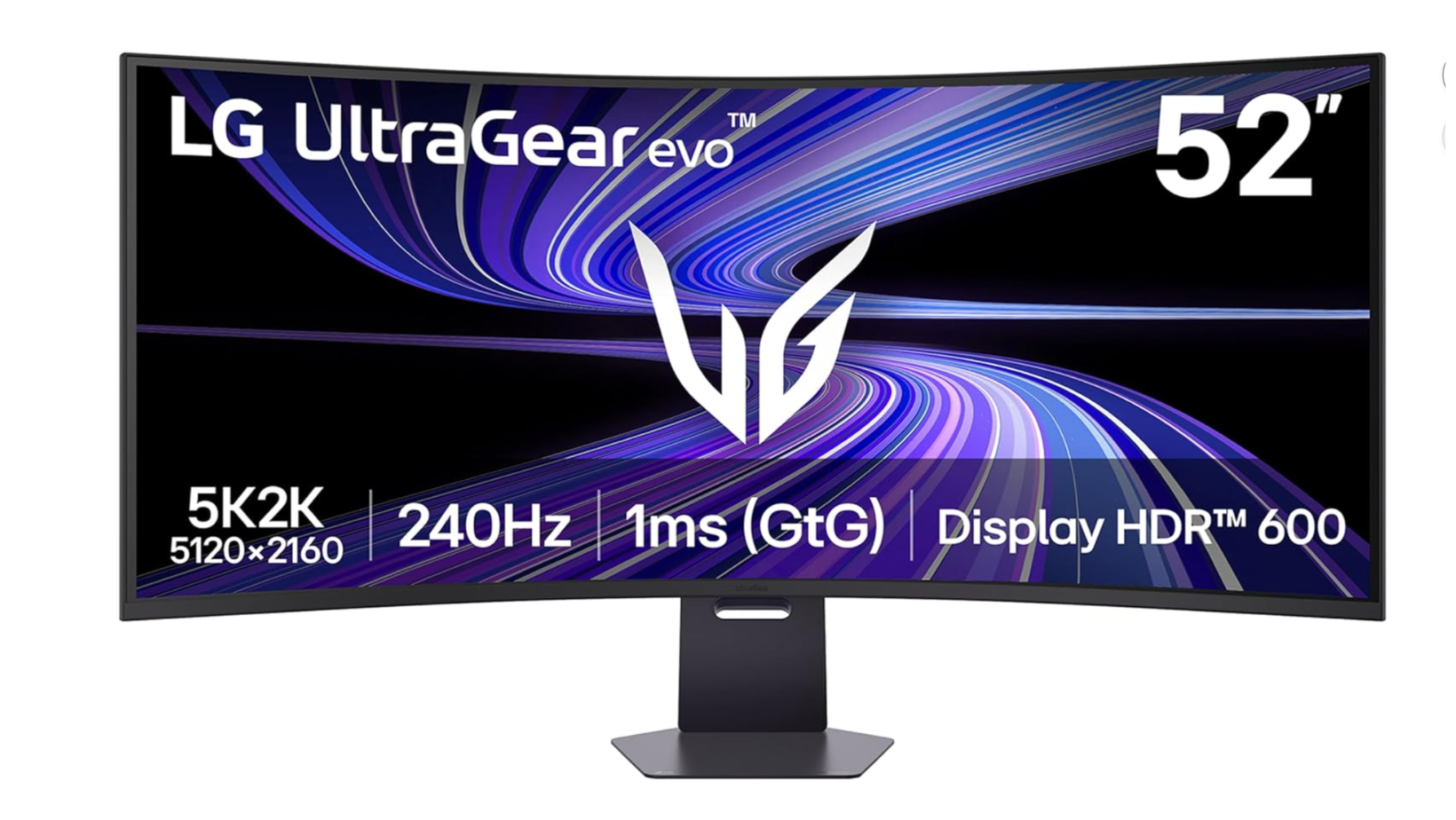
Best for: Sim racing, flight games, and players who want the largest possible view
The LG 52G930B is the biggest and fastest model here. Its 52-inch 21:9 screen and 1000R curve fill your view, which works especially well for driving and flight setups.
It runs at 5120 x 2160 and 240Hz without lowering the resolution. The VA panel avoids OLED burn-in, and a compatible PlayStation 5 can use 120Hz, HDR, and variable refresh rate.
Size creates the main challenge. Tom’s Hardware testing puts it at about 37 pounds, and its 108 PPI density makes text look softer. You’ll need a deep, sturdy desk or dedicated gaming rig.
Key specs:
- 52-inch 1000R VA panel
- 5120 x 2160 resolution at 108 PPI
- 240Hz native refresh rate
- 1ms response time
- DisplayHDR 600 and 95% DCI-P3
- DisplayPort 2.1, HDMI 2.1, and USB-C with 90W charging
Pros: Huge and immersive picture, fast native refresh rate, strong VA contrast, and no OLED burn-in risk.
Cons: Demands substantial desk space, has softer text, uses more power, and can’t match the 39-inch OLED’s picture quality.
Where the older 45-inch model fits
A discounted OLED alternative
The LG 45GX950A-B remains worth considering at a meaningful discount. Its 44.5-inch OLED panel runs at 5120 x 2160, with 165Hz and 330Hz modes.
Its 800R curve is more aggressive, and 125 PPI makes text softer than on the 39-inch model. I’d still take it over the 52G930B in many setups unless you prioritize 52 inches, native 240Hz, or no burn-in risk.
Pick around your setup
Start with screen size
Measure your desk first. The 27-inch model fits a normal monitor position, the 39-inch needs more width, and the 52-inch needs far more depth and viewing distance.
Check your graphics hardware
A 5K or 5K2K monitor asks a lot of a graphics card at high refresh rates. Confirm that your GPU and output support your planned resolution and connection. Dual-mode settings increase refresh rate by lowering resolution.
Think about daily work
Gaming impact doesn’t always translate into comfortable office use. Pixel density matters for text, OLED can retain static content, and Mini LED may show blooming in high-contrast desktop scenes.
Choose the compromise that fits
The right screen should match the way you use your desk. Prioritize the 27-inch model for crisp text, brightness, and a compact footprint. Look at the 39-inch OLED when you want a strong balance of workspace, contrast, and gaming speed. Reserve the 52-inch VA model for a large setup where immersion and 240Hz gaming matter more than desktop sharpness.
The LG UltraGear evo range gives you three genuinely different options rather than three sizes of the same monitor. Pick the panel limitation you’re most comfortable with, check that your desk and graphics card can handle it, and compare current prices before buying.
For more practical tech advice and notes on what I’m testing, sign up for my Experiments in Progress newsletter.
Frequently asked questions
Which LG UltraGear evo monitor is best overall?
The 39GX950B is my overall pick because it combines OLED picture quality, a useful ultrawide size, sharp 143 PPI text, and strong gaming performance. The 27GM950B is a better fit for smaller desks or Mac users who prioritize pixel density.
Is the 27GM950B a Studio Display alternative?
It can be a compelling alternative for someone who wants a 27-inch 5K screen with USB-C charging and faster gaming features. The experience isn’t identical, and the Mini LED local dimming can create blooming that Apple’s standard Studio Display doesn’t use.
Is the 39GX950B good for productivity?
Yes. Its 5120 x 2160 resolution provides plenty of horizontal work space, while 143 PPI keeps text relatively sharp. People who leave static apps open all day should still account for OLED burn-in risk.
Is the 52G930B too large for a desk?
It can be for a typical desk. The 52-inch panel, 1000R curve, and roughly 37-pound weight suit a deep, sturdy surface or a dedicated gaming cockpit. Measuring your viewing distance and desk depth before ordering is a good idea.
Do these monitors include a KVM switch?
They don’t include a traditional hardware KVM switch. LG provides a software-based network KVM option, but anyone who wants one-button switching between two computers may still need a separate USB switch or compatible dock.
