


I didn't need another monitor. That's what I told myself.
The 57-inch Samsung Odyssey G9 has been sitting on my desk for two years, and it's been tough to beat. The 40-inch Dell monitor I reviewed last year came close for different reasons. But as soon as I saw the Dell 52 inch Thunderbolt monitor announced, I knew I had to buy one.
So I spent £2,560 (about $2,899.99 in the US) of my own money to find out if this massive display could finally claim a permanent spot on my desk. And after weeks of testing, I can say this much: if you spend most of your day being productive and only game occasionally, this might be the best all-around monitor you can buy in 2026.
But there are trade-offs, and you need to know about them before spending this kind of money.
What You Get for $2,899.99
The Dell UltraSharp U5226KW is a 52-inch 6K (6144×2560) IPS Black curved monitor with a 120Hz refresh rate and a Thunderbolt 4 dock built into the back. That resolution works out to 129 pixels per inch, which is sharp enough for productivity work without being overkill.
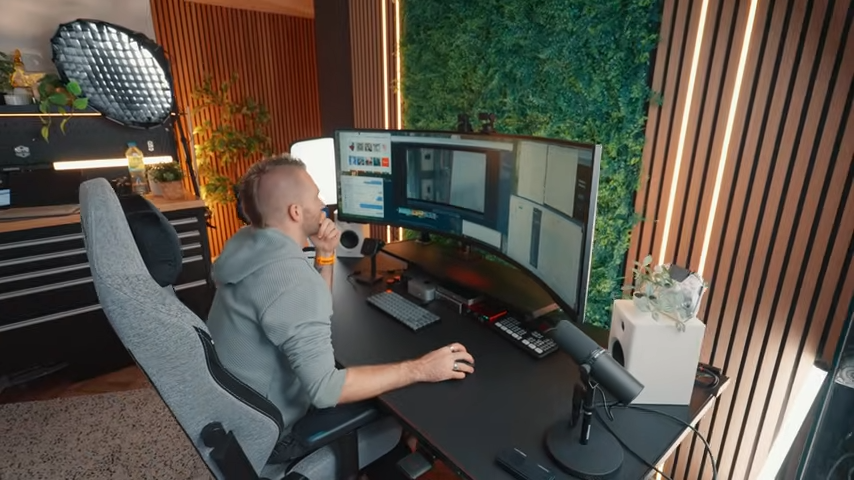
The curve is 4,200R, which is barely noticeable. It's shallower than the 40-inch Dell model, and from my sitting position, it basically looks flat. I would have preferred a deeper curve like the Samsung G9, especially at this size, but Dell went for a lighter curve to maintain color accuracy for professional use.
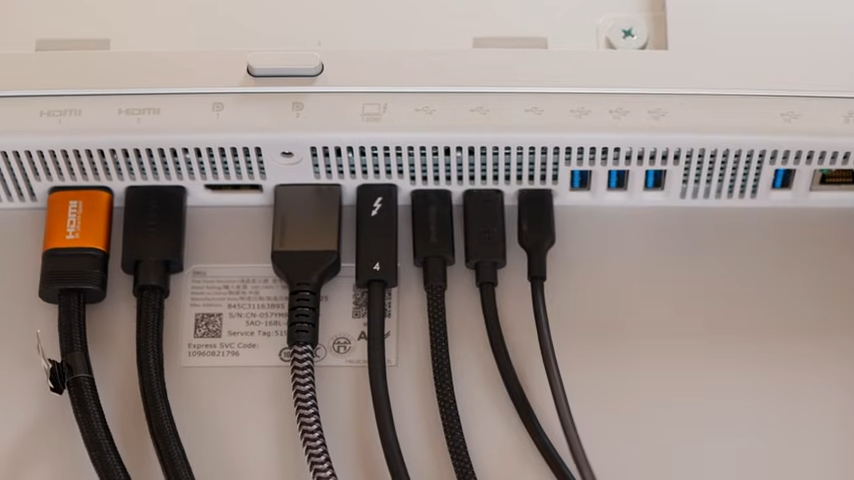
The connectivity is where this monitor earns its price tag. You get:
- 140W Thunderbolt 4 upstream port
- 2x HDMI 2.1 ports
- 2x DisplayPort 1.4 ports
- 4x USB-A 3.2 Gen 2 ports (10Gbps)
- 2x USB-C downstream ports with 27W power delivery each
- 2.5 Gigabit Ethernet port
- Pop-down tray with additional USB ports for charging and quick device access
Dell also includes a power cable, 1.8-meter DisplayPort cable, HDMI 2.1 cable, 2-meter Thunderbolt 4 cable, and a 1-meter USB-A to C cable in the box. That last cable is needed for the KVM features, and Dell only includes one. So if you're planning to connect multiple machines, you'll need to buy more.
As a side note, most of these cables are also dangerously short if you're using a monitor arm, so you’ll want to budget for longer replacements.
The Unboxing Experience Is TV-Sized
The box for this monitor is absolutely massive. You can do this with one person if you're using the included stand, but I'd recommend two people just to be safe. At 52 inches, this is more of a TV unboxing experience than a monitor.
I mounted mine on a Secret Lab monitor arm, which fits this monitor perfectly. The instructions mention attaching plates to the back for VESA mounting, but we couldn't find them in the box. We concluded they come with Dell's branded monitor arm instead. We just mounted the monitor directly to the VESA plate, and it works fine. Depending on your mount, you might need standoffs to give yourself more room.
Design That Gets Out of the Way
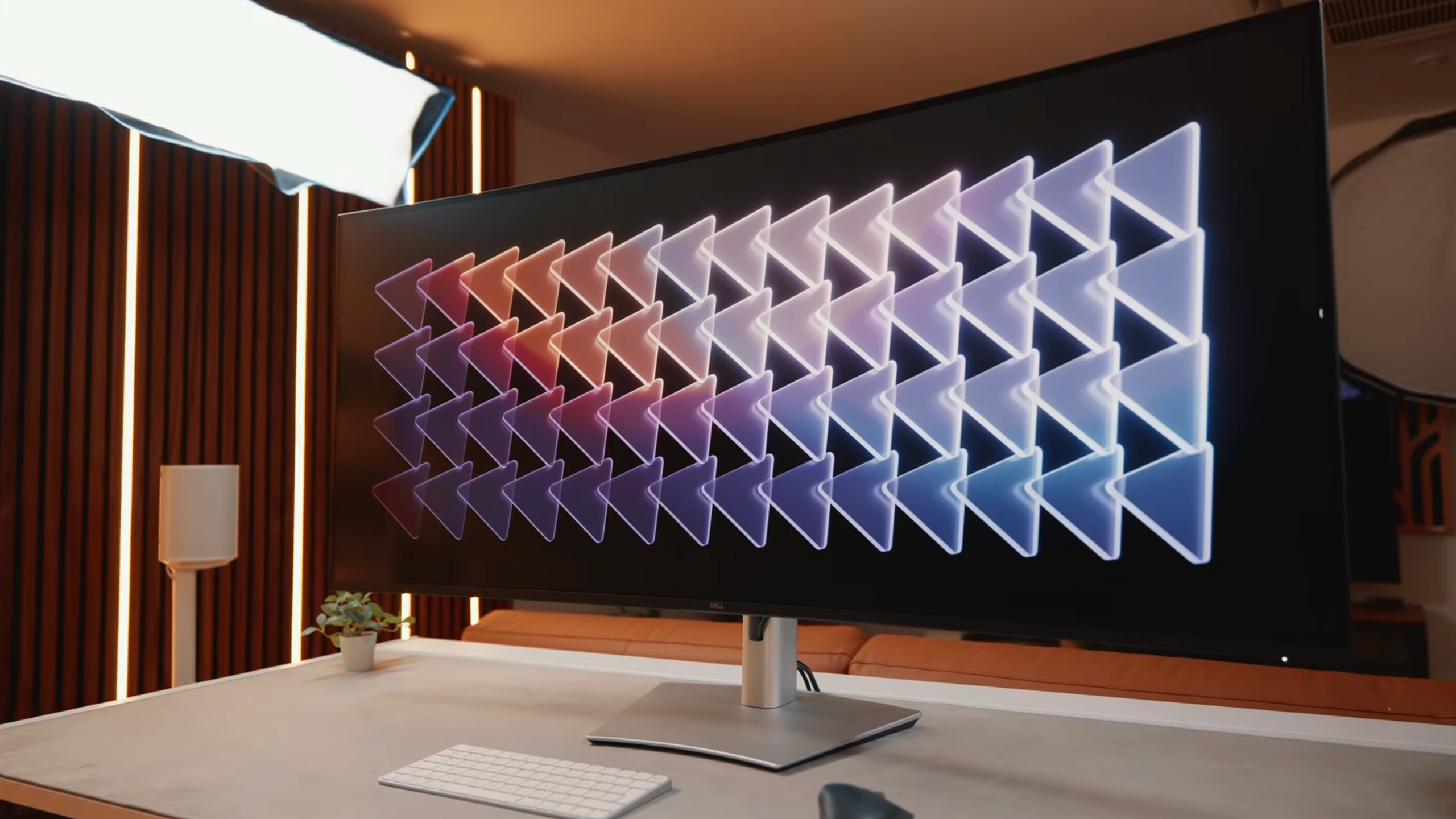
Dell absolutely nailed the design with this monitor. It’s a super clean, sleek, and has a metallic off-white color on the back and even bezels all around. The bottom bezel is slightly thicker to make room for the Dell logo, but otherwise, everything is symmetrical.
There are no bold design elements, no vents, no lines, no curves. It's not trying to be anything but functional, and I love that. If you want to jazz up your desk with lighting, there's tons of space on the back to mount accessories.
The stand is okay. It has basic cable management and a footprint that doesn't intrude on your desk space. You can adjust height, tilt, and swivel, but there's no pivot. I wish it was lower profile (a 65-inch LG TV has a lower profile than this stand), which is one reason I prefer using a monitor arm to reclaim the space underneath.
The screen controls are on the back right side, and Dell absolutely smashed it with the on-screen display menu. There's no laggy smart interface, no live TV features, no Xbox game streaming. Just a clean, fast interface with quick access to everything you need. You can set custom shortcuts to your most-used features, and there's support for DDC/CI, so you can adjust settings from software without touching the controls.
The Connectivity Is *Chef's Kiss*
This is the best-connected monitor I've ever used. Here’s why.
140W Thunderbolt Power + Proper Dock Replacement
The Thunderbolt 4 hub delivers 140W of power, which is enough to charge most laptops. The 2.5 gig Ethernet port gives you fast wired networking. And the four USB-A ports and two USB-C downstream ports mean you can connect an audio interface, webcam, keyboard and mouse dongles, and still have ports left over. If you need more, just add a USB hub.
Built-In KVM That Actually Works
The KVM functionality supports up to four sources. You have three USB-C uplink ports for three machines, and the Thunderbolt port acts as the fourth. This works really well. I have my audio interface, webcam, and dongles connected to the monitor, and I can switch between my MacBook Air and gaming PC without unplugging anything.
The Ethernet Quirk You Should Know About
There is one issue with the Ethernet port compared to the 40-inch model. On the smaller display, you could hardwire the 2.5 gig Ethernet to a specific input. On the 52-inch model, you can only lock it to the Thunderbolt input or tie it to the KVM. When it's tied to the KVM, the Ethernet connection switches with your USB devices.
This creates a problem if you're transferring files or accessing storage via both USB and network. When you switch inputs, both the USB devices and network connection get lost. The solution is to connect each device directly to your network and not rely on the monitor's Ethernet port. It's a minor annoyance, but worth knowing about.
A Couple Small Misses
I also wish the USB-A ports were USB-C, since most of my devices are USB-C now. And it would have been nice to have a headphone jack so I could wire my speakers directly to the monitor. But I have a USB audio interface, so that's not a dealbreaker for me.
Picture Quality and the Brightness Issue
The IPS Black panel delivers great color accuracy for professional use. It's better than the Samsung G9's mini LED panel, with less blooming and haloing around bright objects on dark backgrounds. You can calibrate it if you're fussy about colors, but out of the box, it's very good.
Text looks crisp at my normal sitting distance of about 2 feet. The 129 PPI isn't retina-level, but it's sharp enough that I can't see individual pixels during regular use. Mac scaling works perfectly with no blurring.
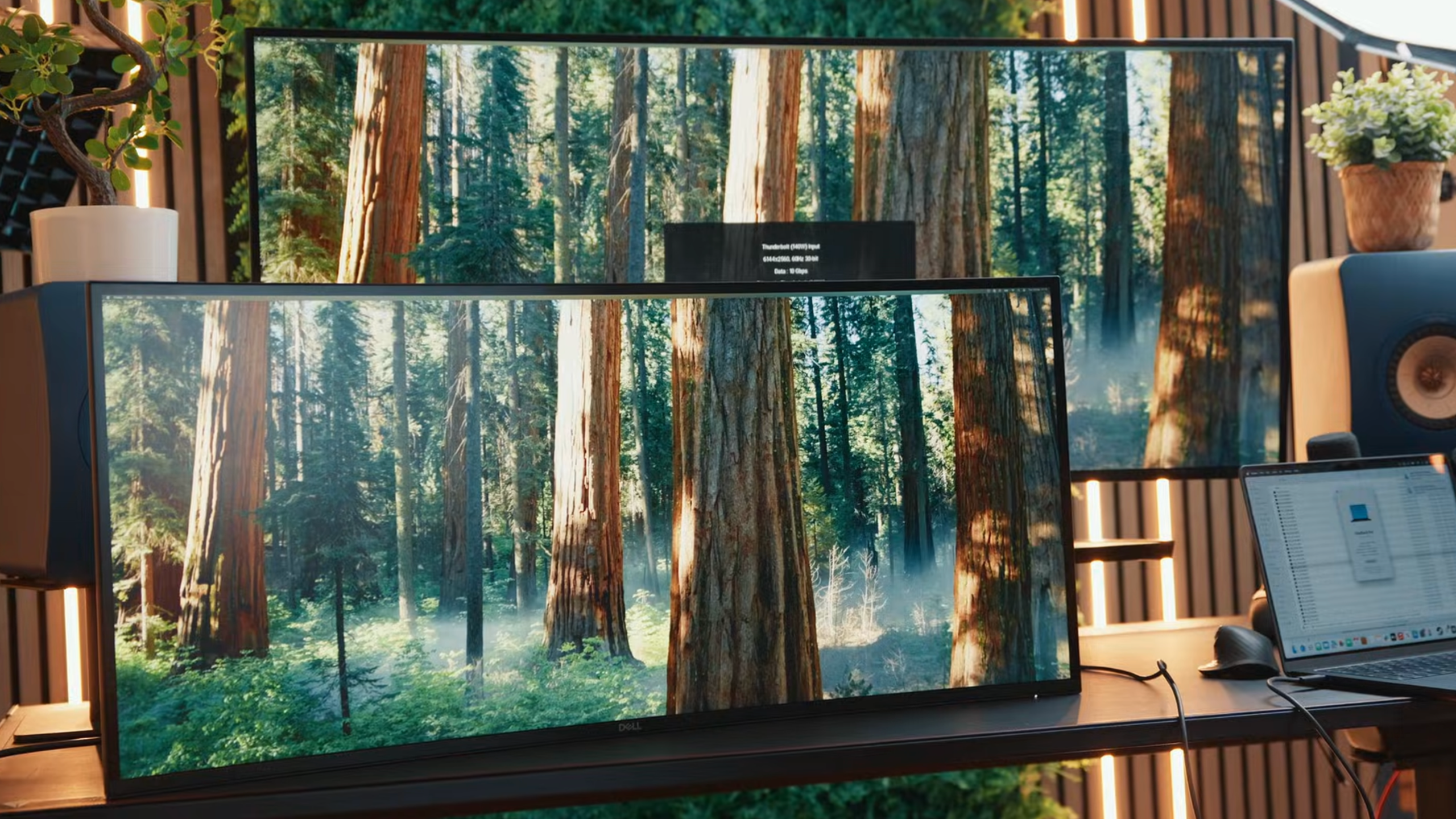
The anti-glare coating is light, which Dell chose to avoid affecting color reproduction. It's not a glossy screen, but it's also not an aggressive matte coating. Reflections can be distracting depending on the angle and how bright your environment is (and the shallow curve doesn't help here). In my opinion, a deeper curve might help reduce reflections at the edges.
It’s also worth mentioning that I disabled the auto brightness feature immediately. It was aggressive out of the box, and the light sensor is on top of the monitor, so it gets triggered by overhead lights or light bars. I set the brightness to 75-80%, and it's been comfortable in our relatively bright studio with lots of windows and lights.
Picture-by-Picture Modes Are Insane
Dell went all-in on picture-by-picture functionality. You can partition the screen in multiple ways to run different sources simultaneously. I can game on part of the screen and have streaming software or chat on another section. You can't center a display in the middle of the screen if you want proper 4K resolution, but the flexibility is still impressive.
This is where the 52-inch size really shines for multitasking. You can have a web browser, code editor, and terminal all visible at once without feeling cramped. The extra vertical space compared to the 57-inch G9 makes a difference for applications that benefit from height.
That said, I'm still figuring out the trade-offs. Losing the width but gaining the height has been challenging with some applications. My web browser wants more vertical space, but then I have a gap underneath that I'm trying to fill. It's an adjustment.
Gaming Performance: Not the Main Event
Let's be clear: this is not a gaming monitor.
The response time is 8 milliseconds in normal mode and 5 milliseconds in fast mode. Coming from the Samsung G9 or the 45-inch LG UltraGear with 0.03ms response times, the difference is quite noticeable. The overall experience isn't bad, but if you plan to finish work for the day and then game until the early hours of the morning, you should look at alternatives.
The Warranty Matters at This Price
Dell includes a three-year warranty with premium support. That means 24/7 support, advanced replacement within two business days, and a two-day commitment to repair following remote diagnosis.
When you're spending $2,899.99 on a monitor, that warranty is reassuring. My interactions with Samsung support have been okay to questionable at times, and Dell's warranty gives me confidence that if something goes wrong, it'll get handled.
My Final Verdict: Who The Dell 52 Inch Thunderbolt Monitor Is For
Before you drop nearly three grand on a monitor, it’s worth being honest about how you actually use your desk.
Here’s a quick look at who (in my opinion) the Dell 52” Thunderbolt monitor works best for and who might want to consider alternatives.
Dell 52" Thunderbolt Monitor: Is It Right for You?
At the end of the day, this monitor is not for everyone. But if you live in spreadsheets, timelines, terminals, and browser tabs all day, it might be exactly what your desk has been missing.
