


I’ve spent years moving between Apple, Google, and Samsung devices, and Samsung may be the worst at showing you what its ecosystem can do. Some of its most useful features are buried deep in the menus. You could own the right devices for years and never find them.
Most of these features are easy to miss, and Samsung keeps adding more through One UI and app updates. A setting you overlooked last year might now connect your devices in a way that saves you time every day.
The Samsung ecosystem gets interesting when your phone, tablet, TV, laptop, Watch, and Buds stop acting like separate products. They can share controls, files, cameras, alerts, and routines. You don’t need all of them, either. Two devices are enough to use many of these Samsung tips and tricks.
In this guide, I’ll show you 21 hidden features that can make your phone, tablet, TV, Watch, Buds, laptop, and even your washing machine work better together.
What is the Samsung ecosystem?
The Samsung ecosystem is the set of Samsung devices and apps that work together through your Samsung account. It includes Galaxy phones, tablets, TVs, watches, and appliances.
SmartThings, Samsung Find, Samsung Pass, and Connected Devices link everything. You can copy text between devices or type on your phone with a laptop keyboard. You can also use a tablet as a second screen and see appliance alerts on your TV.
You don’t need every Samsung product to use the Samsung Galaxy ecosystem. A phone and one other device already unlock useful features. Some need the same Samsung account, Wi-Fi, Bluetooth, up-to-date software, or certain hardware. Your menus may look a little different from mine.
Let’s start with the features that offer the quickest payoff.
Start with these hidden Samsung features
These first six features have the broadest appeal. Most take only a few minutes to set up, and several work with two devices you may already own.
1. Calibrate your Samsung TV with your phone
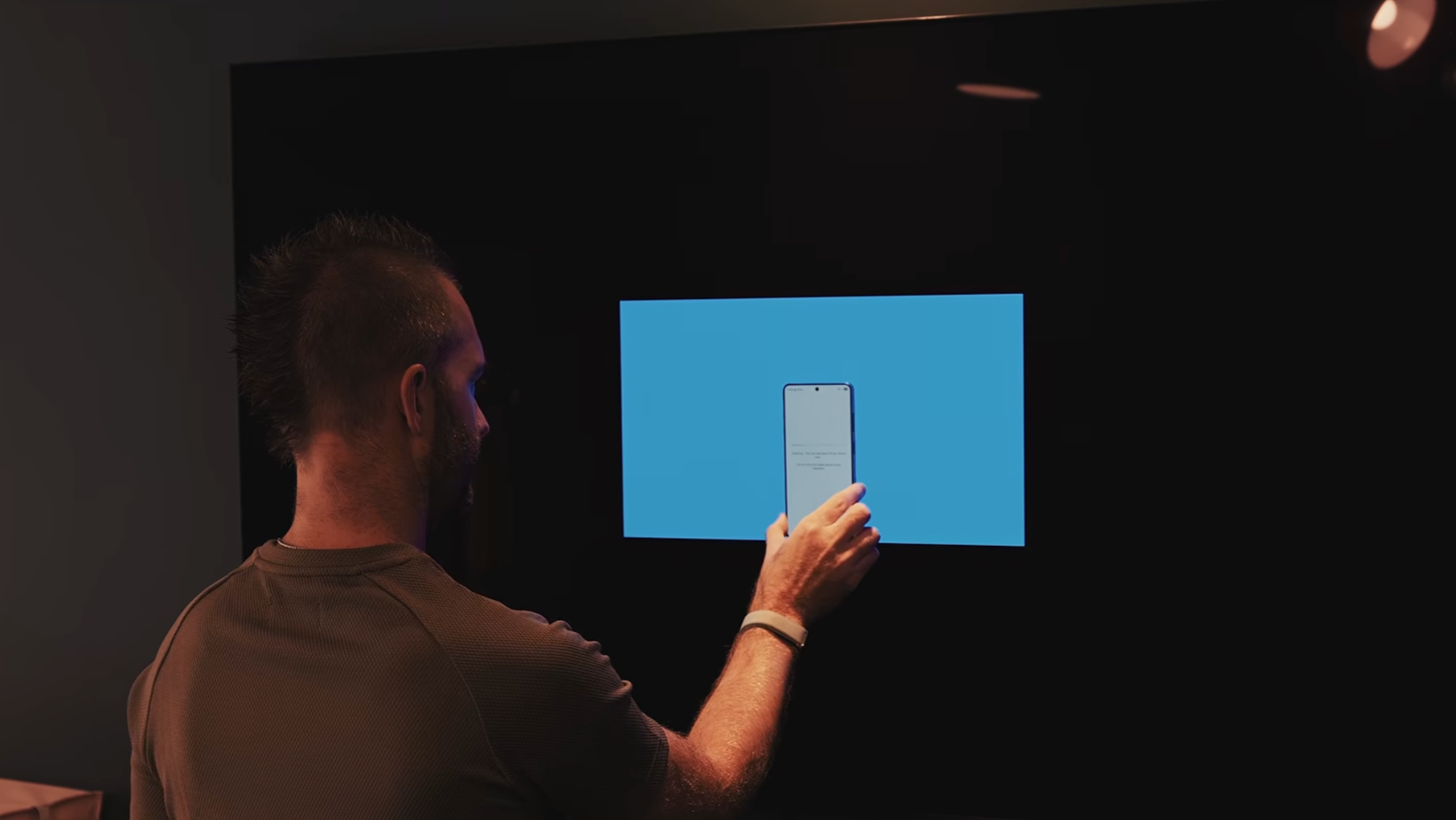
Samsung Smart Calibration uses your phone’s camera to adjust the picture on a Samsung Smart TV that supports it. Open the TV in SmartThings and choose Smart Calibration. Basic mode takes seconds. Professional mode takes a few minutes but makes finer changes.
Not every TV has Professional mode. If yours does, Samsung suggests a dark room and a steady phone. A basic phone tripod keeps it steady. The modes are compared in the Smart Calibration guide.
2. Mute your TV when calls come in
SmartThings Companion can mute a TV, projector, or speaker when you make or receive a call. It can even pause certain robot vacuums.
Open SmartThings and look for Companion apps under the menu. The controls depend on your hardware. Open the SmartThings Companion app to see which call actions your devices support. For a closer look at routines, I compared SmartThings and Google Home.
3. Use your Galaxy phone as a webcam
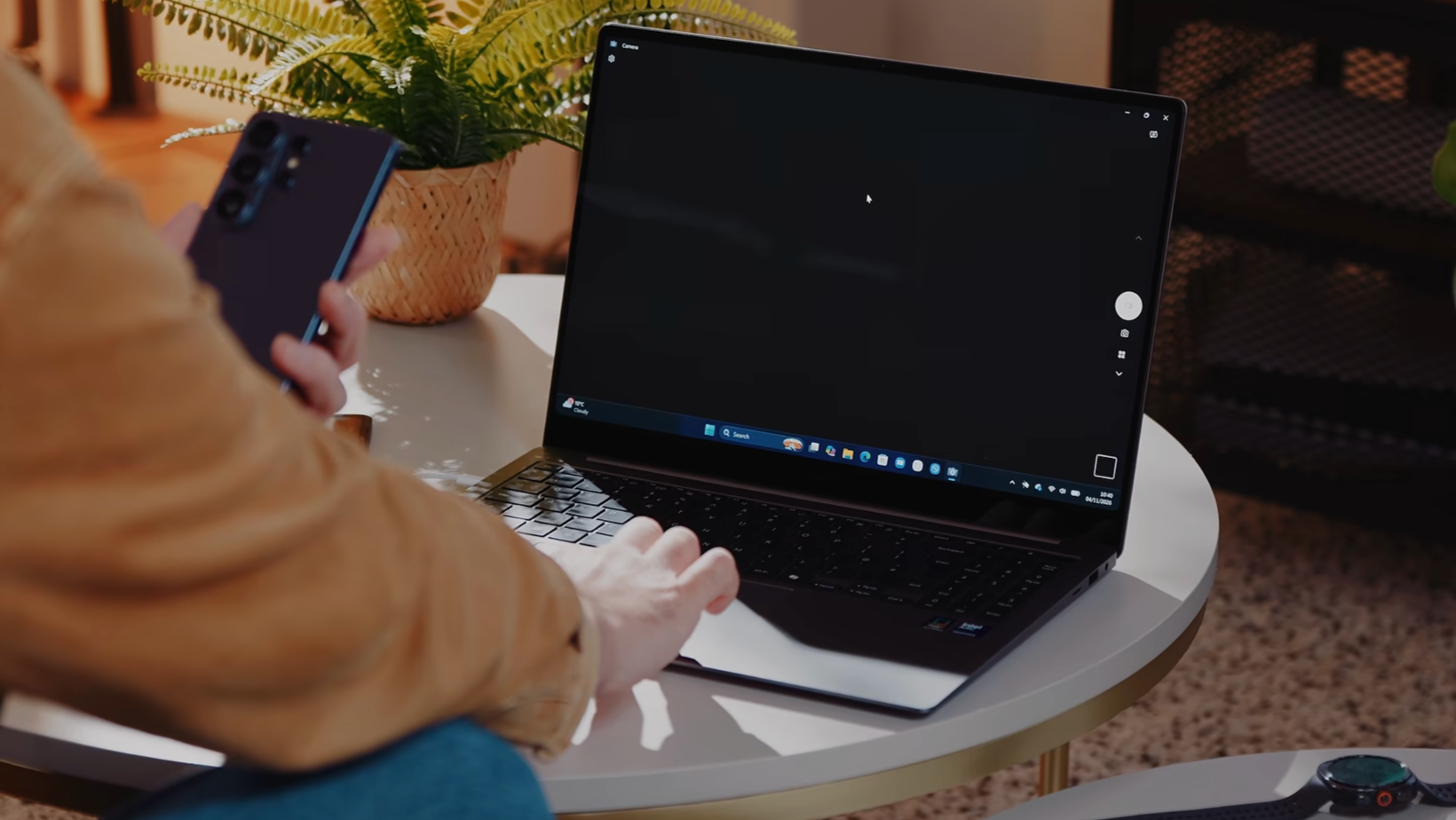
The Samsung Galaxy S26 series can work as a wired webcam with no extra app. Plug in a reliable USB-C data cable and tap the USB notification. Pick Webcam, then choose your phone in your video-call app.
Other Galaxy phones may use Camera Share with a Galaxy Book or tablet. Some work through Windows Phone Link. Not every Galaxy phone has the wired option. Setting up a new phone? These are the Galaxy S26 settings I'd change first.
4. Turn your Galaxy Tab into a second screen
Samsung Second Screen turns a Samsung Galaxy Tab into a wireless Windows display. Open Second Screen in the tablet’s Quick Panel. On the PC, press Windows + K, then pick the tablet. You can mirror the computer or extend the desktop.
A small tablet stand makes this feel like a normal two-screen setup. Use the extra space for email, notes, or reference material. Samsung spells out what you need in its Second Screen instructions. I compare both options in my iPad vs Samsung tablet guide.
5. Stop your phone and Watch buzzing together
Getting the same alert on your phone and Samsung Galaxy Watch gets old fast. Open Galaxy Wearable. Go to Watch settings, then Notifications, then Phone notifications on Watch. Smart device selection sends the alert to the device you’re using, so only one buzzes.
You can switch back to Always show on both if you prefer. Samsung's Watch notification guide walks through both options.
6. Mirror your phone with Tap View
Tap View mirrors a Galaxy phone on a Samsung TV that supports the feature. Gently tap the phone against the side of the TV. Tap Sound moves audio in a similar way.
Open SmartThings. Go to Menu, then Settings, and turn on Tap View and Tap Sound. Keep both devices on the same Wi-Fi, then tap lightly. You’re trying to trigger the phone’s motion sensor, not test how strong the TV is.
Make everyday Galaxy tasks faster
The next group removes small, repeated jobs across your phone, tablet, and earbuds. None sounds life-changing alone. Together, they make your devices feel connected.
7. Open the hidden Galaxy Buds menu
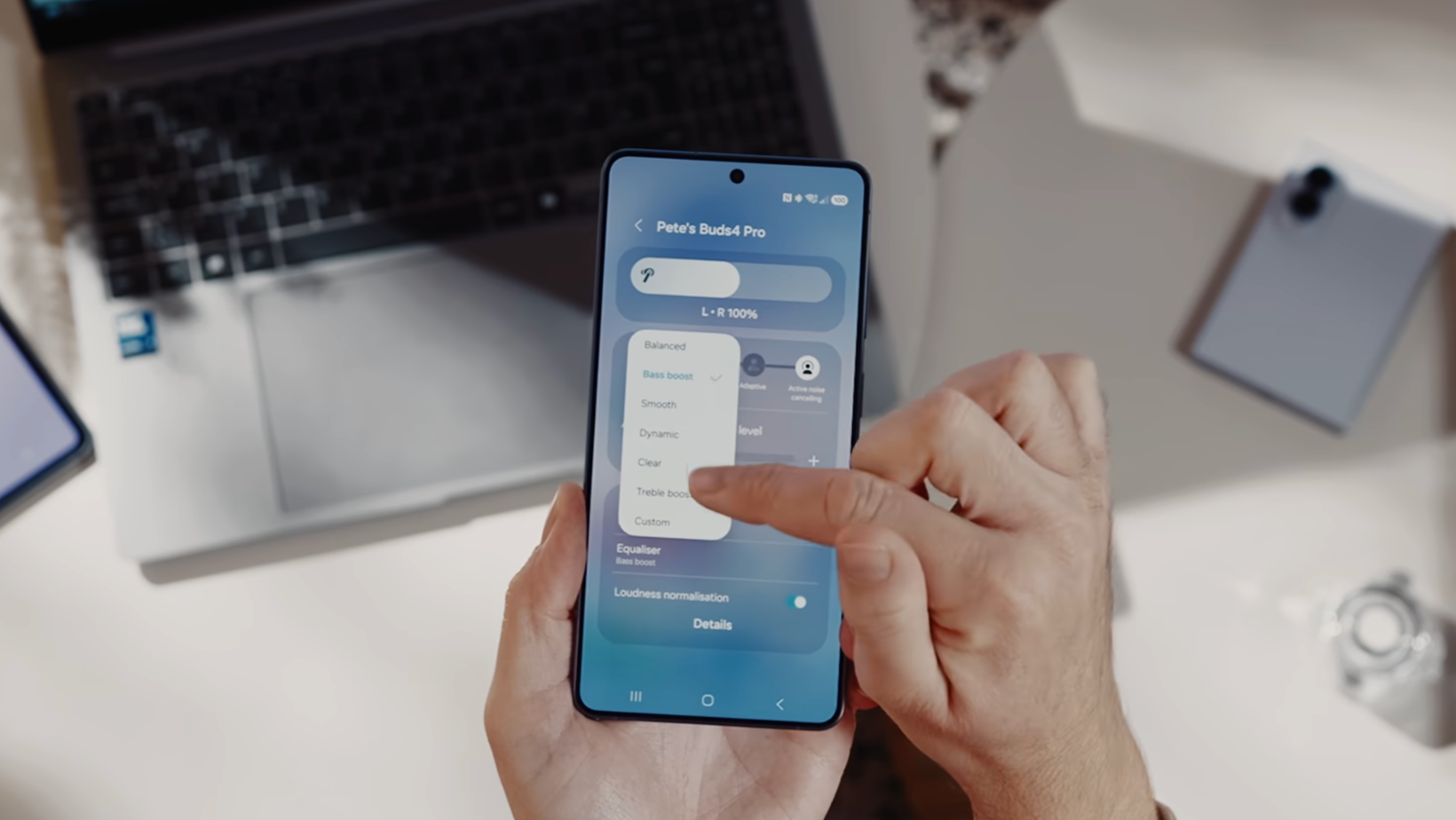
With Samsung Galaxy Buds connected, hold the volume slider in the Quick Panel. You may see sound settings for each app and 360 Audio controls.
The available options depend on your Buds model and One UI version. My Galaxy Buds tips and hidden features post has more settings to try.
8. Sync logins with Samsung Pass
Samsung Pass now lives inside Samsung Wallet on supported devices. It can save passwords, passkeys, addresses, and payment details. It fills them in after a face or fingerprint check.
Turn on sync if you want the same saved information on your other Galaxy devices. Autofill doesn’t work in every app or website.
9. Copy and paste across Galaxy devices
Shared Clipboard lets you copy text or an image on one Galaxy device and paste it on another. Open Settings, then Connected devices. Turn on Continue apps on other devices on both screens.
The devices need the same Samsung account, Wi-Fi, Bluetooth, and current software. Continue Apps can also reopen Samsung Internet pages and Samsung Notes. It saves you from emailing links to yourself.
10. Get left-behind alerts for Galaxy Buds
Open Samsung Find in Galaxy Wearable and turn on Notify when left behind. If the Buds are nearby, you can make them ring. You can pick the left or right earbud. Take them out of your ears first because the sound is loud.
Stuck on the controls? The lost Galaxy Buds guide has the full list. The same app can track a Galaxy SmartTag2 attached to luggage or keys.
11. Let Galaxy Buds switch devices automatically
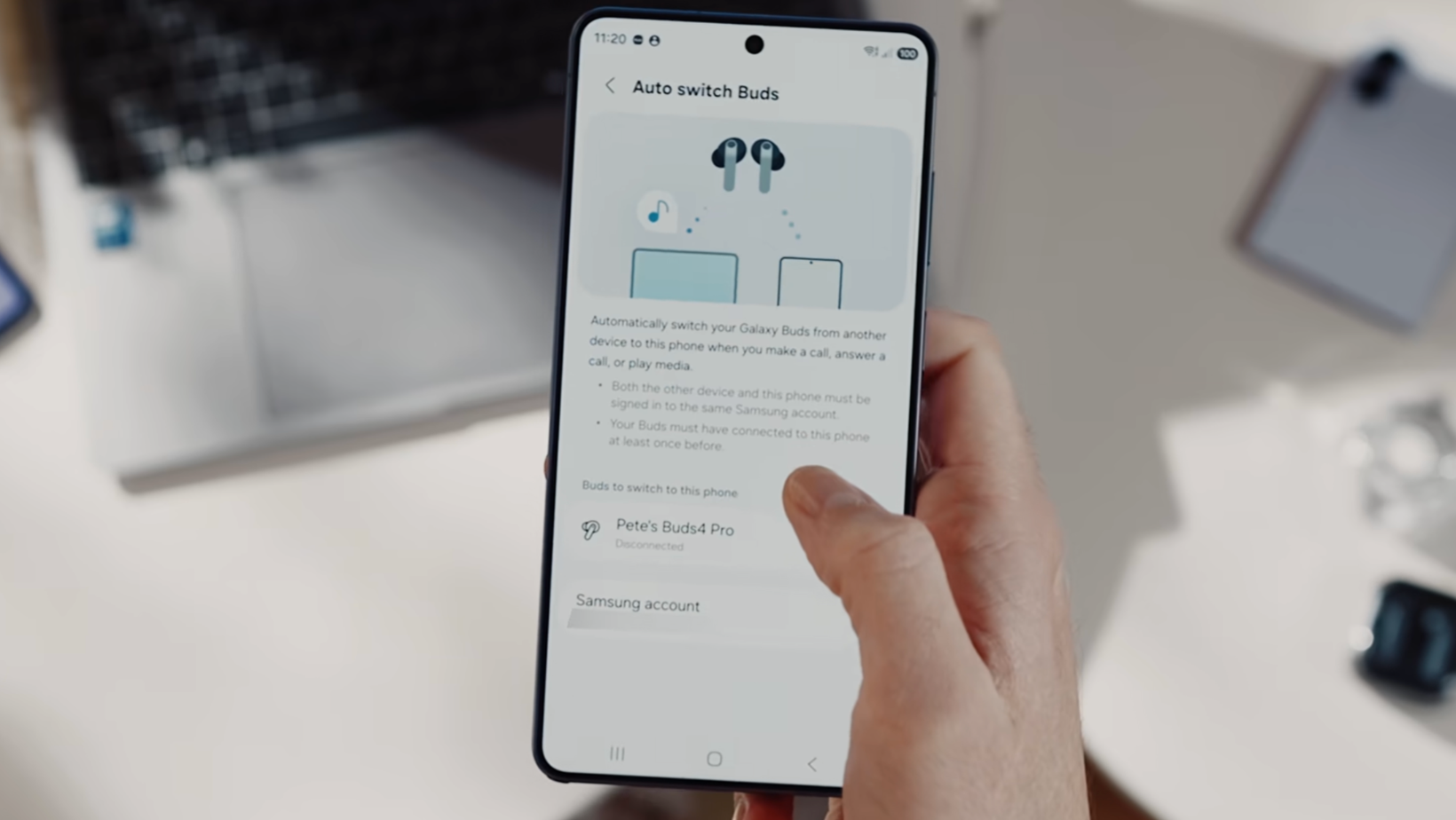
Auto Switch moves Galaxy Buds between devices on one Samsung account. Say you’re watching a video on your tablet. When a call comes in, the Buds switch to your phone.
Go to Settings, then Connected devices, and find Auto Switch Buds. Pair the earbuds with both devices. Then turn on the option for your phone and tablet. Some Buds models don’t have it.
12. Use Nearby Devices as your shortcut hub
Nearby Devices shows the Samsung devices around you. Open it from the Quick Panel. Then tap or drag devices together to see what they can share.
Depending on your setup, you may see Quick Share, Storage Share, or Multi Control. Phones and tablets usually need One UI 7 or later. Samsung keeps the current requirements on its Connected Experience page.
Get more from your Galaxy Watch and Tab
Once your phone is paired with a tablet, Watch, or Buds, you can stop reaching for the phone every time something happens.
13. Take calls and texts on your Galaxy Tab
Go to Settings, then Connected devices, then Call and text on other devices. Sign in to the same Samsung account on your phone and tablet. Then pick which devices get calls and messages.
Calls usually need both devices on the same Wi-Fi. Texts may also work over mobile data. Some carriers and models don’t allow it. If messages don’t show up, Google Messages has its own Text on Galaxy devices option.
14. Use Galaxy Watch as a camera remote
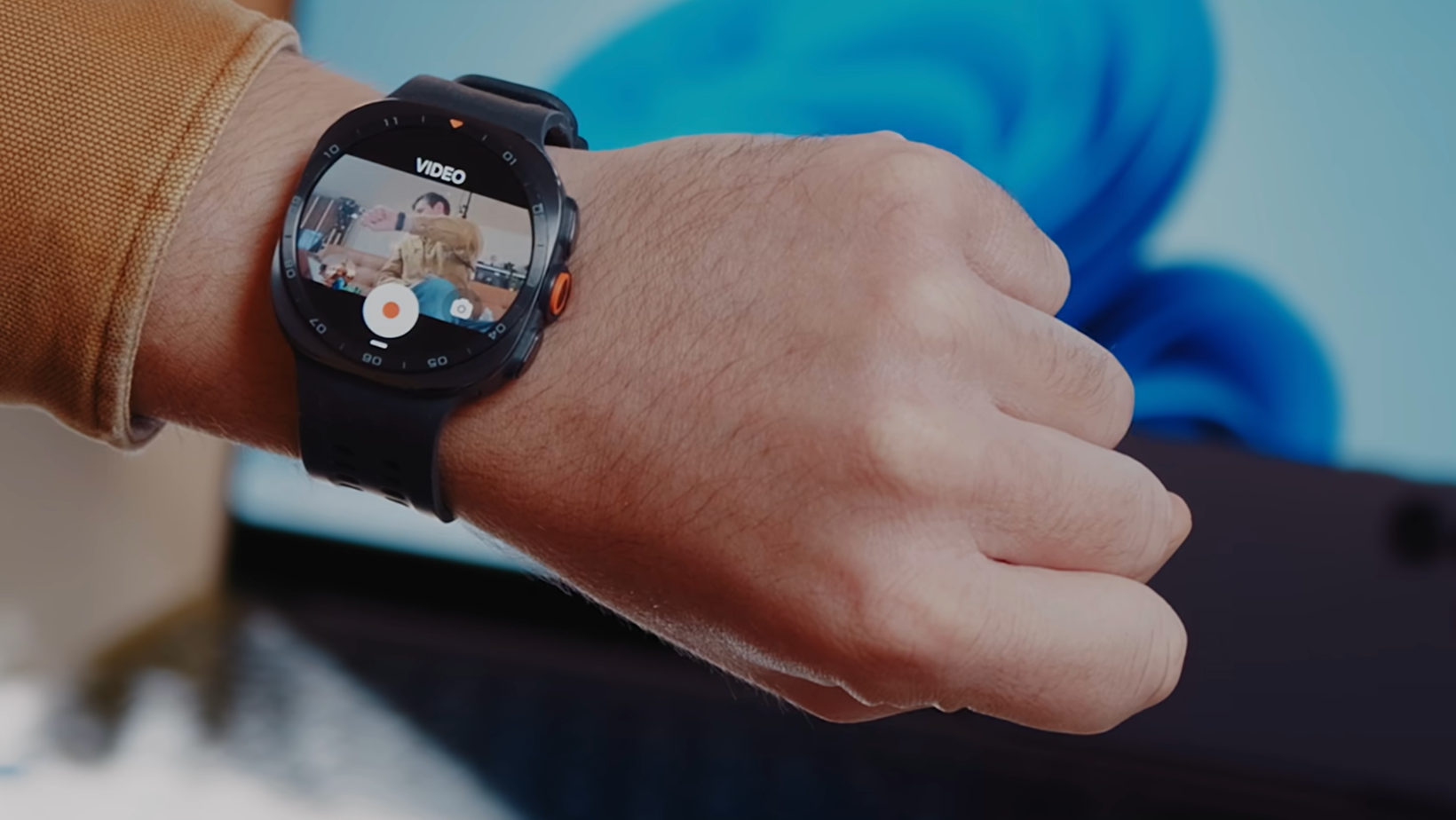
Open Camera Controller on the Watch. Your phone camera will launch. You can see a live preview, take the photo, set a timer, and switch between the front and rear cameras.
On some models, open Galaxy Wearable. Go to Watch settings, then Buttons and gestures, and turn on double pinch. Then pinch twice to take a photo. It’s great for group shots or filming alone with your phone on a tripod. Some camera modes still need to be controlled on the phone.
15. Control Galaxy Buds from your Watch
The Buds Controller app lets a Watch control noise canceling, ambient sound, touch controls, and battery details. It’s useful at the gym or on a walk. You don’t need to pull out your phone.
The exact controls depend on your Watch and Buds models.
16. Hear live translations through Galaxy Buds
Connect Galaxy Buds that support the feature to a Galaxy AI phone and open Interpreter. Choose Listening mode, pick the languages, and tap the microphone. Download any needed language packs before you travel.
You hear the translation in the Buds, and a transcript shows on your phone. It’s useful for following a talk or a chat. Quality and language support vary, though. I wouldn’t use it in place of a human interpreter for something important.
Turn Galaxy Book into your control center
If you have a Samsung Galaxy Book, the Samsung ecosystem starts to feel much deeper here. These features are different from Samsung DeX. DeX gives a Galaxy phone a desktop-style view. I have a separate guide on how to set up Samsung DeX.
17. Update every Galaxy Book app once
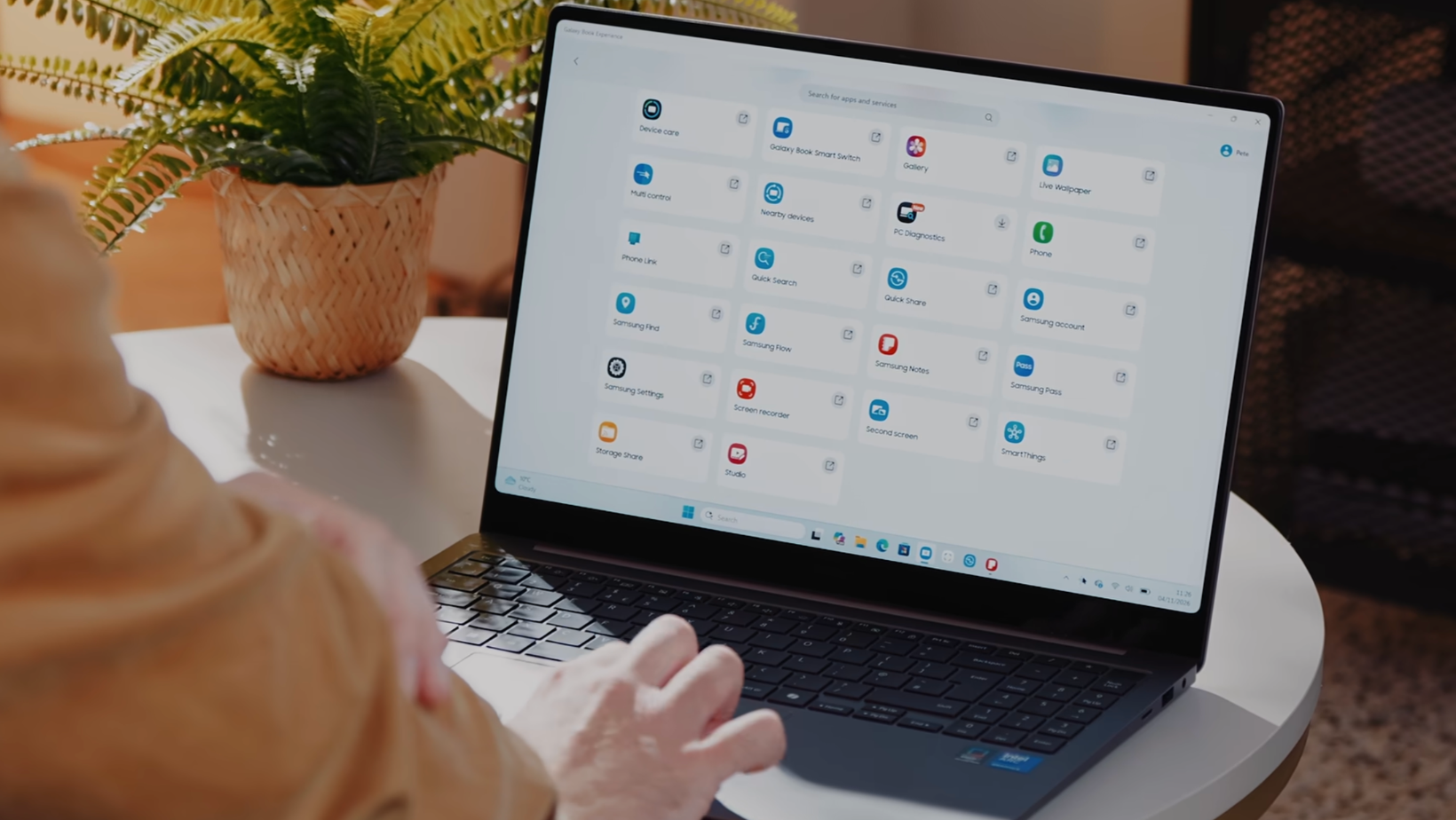
Open Galaxy Book Experience and update the included Samsung apps. Sign in and open each one at least once.
Multi Control, Second Screen, and Quick Share need separate apps on some devices. Doing this now can save you from setup problems later.
18. Control every screen with Samsung Multi Control
Samsung Multi Control lets a Galaxy Book keyboard and trackpad control a Galaxy phone or tablet. Turn on Wi-Fi, Bluetooth, and Multi Control. Then, in Samsung Settings, line up the screens the way they sit on your desk.
Move the cursor off the edge of one screen, and it shows up on the next. You can also copy and paste between devices and move files. If you’re controlling a phone from a tablet, a Bluetooth mouse gives you the pointer you’ll need.
19. Browse your phone files with Storage Share
Storage Share shows your Galaxy phone or tablet inside File Explorer on some Galaxy Books. Open Samsung Settings, then Connected devices, then Storage Share. Pick the device you want.
Your phone or tablet needs One UI 7 or later. Link to Windows is the backup if Storage Share isn’t available. Either option is faster than moving files by hand.
Finish with the weirdly useful features
These last two need specific devices, but they show how far Samsung has taken connected features.
20. Stretch Galaxy Ring battery with your Watch
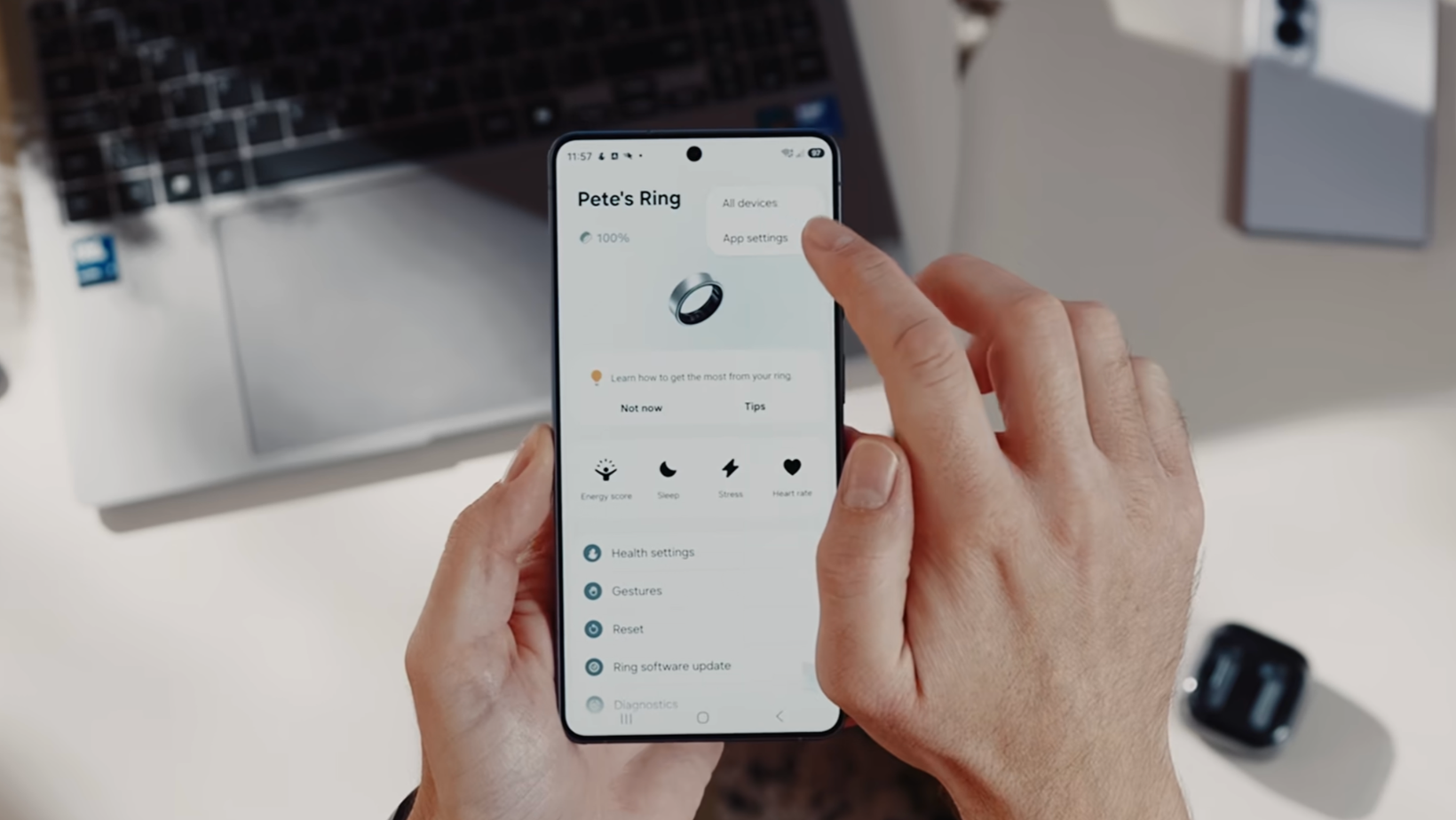
Pair your Samsung Galaxy Ring and Galaxy Watch to the same phone and wear them together. There is nothing else to turn on. Samsung Health won’t record the same data twice, and some Ring sensors can switch off to save power.
Samsung says this can extend Ring battery life by up to 30 percent. If the Watch battery dies, tracking resumes on the Ring. You'll find the details in Samsung's Ring and Watch guide. My long-term smart ring comparison shares more of my experience.
21. Put washing machine alerts on your TV
Connect a Samsung smart washing machine and TV to SmartThings. On the TV, open SmartThings. Go to Settings, then Notifications, and turn on washing machine alerts. A message can appear when the cycle ends, or the machine reports an error.
The TV alert steps are in the SmartThings washing machine guide. This sounds silly until it saves you a walk across the house to check if the laundry is done.
Which feature will you switch on first?
The Samsung ecosystem works best when it removes small annoyances between devices. You don’t need the whole lineup. Pick two or three features that fit your setup. Start there.
Samsung adds new features through One UI and app updates. After a big update, check Connected Devices, SmartThings, Galaxy Wearable, and Galaxy Book Experience again. Older devices won’t get every feature.
How many were you already using, and is there a Samsung feature I missed?
For more real-world tech experiments and buying decisions, you can join my Experiments in Progress newsletter.
Samsung FAQs
Here are quick answers to common questions about Samsung’s connected features.
What does the Samsung ecosystem include?
The Samsung ecosystem is the set of Samsung products and apps that work together. That includes Galaxy phones, TVs, watches, and appliances. Many features need only two products. Both may need the same account, Wi-Fi, Bluetooth, and up-to-date software.
Which devices work in the Samsung Galaxy ecosystem?
Many Samsung products work together. That includes Galaxy phones, tablets, Galaxy Books, Buds, Watches, Rings, TVs, monitors, and SmartThings appliances. What you get depends on your model, region, software, and account. Check the requirements for the feature you want.
How do I use Samsung Multi Control?
Turn on Multi Control, Wi-Fi, and Bluetooth on each device. Then sign in to the same Samsung account on a Galaxy Book, open Samsung Settings, then Connected devices. Line up the screens the way they sit on your desk. Then move the cursor off the edge of one screen to reach the next.
Can I use Samsung Second Screen with any Windows PC?
No. Second Screen needs a Galaxy Tab that supports it and a Windows PC that can connect to wireless displays. Supported tablet models and software versions vary. Keeping both devices close and on the same Wi-Fi usually works best.
Do Samsung ecosystem features work with non-Samsung devices?
Some do. Link to Windows connects Galaxy phones to Windows PCs, and SmartThings works with many other brands. Samsung’s most connected features usually need Galaxy or Samsung hardware. Some only work with certain models.
