


I use a laptop every day, but carrying one can be a massive hassle. Sometimes I only need to clear an inbox, finish a Google Doc, or sit through a video call. Dragging a heavy bag through a crowded train for that feels ridiculous.
Most Galaxy owners already have a desktop interface in their pocket without realizing it. Plug a compatible phone into a bigger screen, and it switches into Samsung DeX setup, with resizable windows, a taskbar, and proper mouse support. That sounds like a novelty until you're sat in front of a spare monitor and suddenly have a very usable little desk setup.
Here's what you need, how I'd connect it, and the settings that stop it feeling like a blown-up phone screen.
What you need for Samsung DeX
You need four things: a compatible Galaxy device, a display, a connection method, and a keyboard and mouse. The device is the bit worth checking first. Samsung keeps an up-to-date list on Samsung's DeX compatibility and setup page, because support can change with the model, region, carrier, and software version.
Recent Galaxy S phones, Z Fold devices, and supported Tab S models are the obvious places to look. If you are using an S22 Plus, you have a good example of why the feature is worth knowing about. Connect the phone to an external display, keyboard, and mouse, then get on with browser work, email, files, and video without hunting for a laptop.
For peripherals, I'd start with a Bluetooth keyboard and mouse. The Logitech MX Keys Mini keeps the desk compact, and the Logitech MX Anywhere 3S is a good fit if you want a small mouse that doesn't need a perfect mouse mat. I wouldn't try to work from the phone screen as a trackpad all day. You can do it, but you won't enjoy it.
Connect your phone easily with the Samsung DeX setup
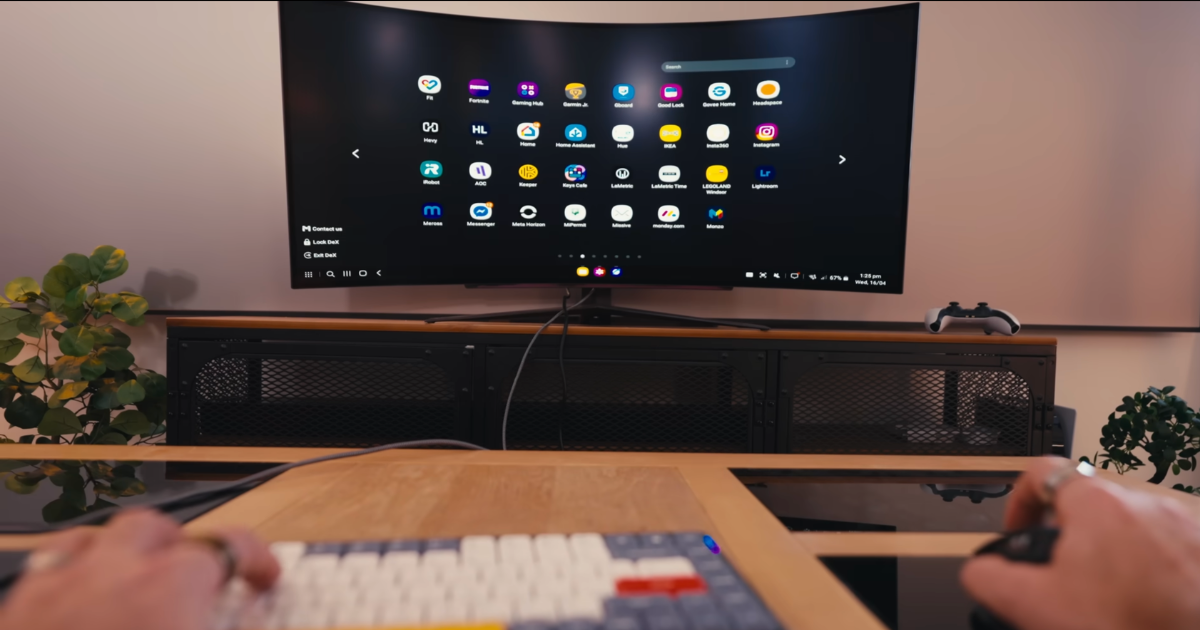
A wired Samsung DeX setup is where I'd start. A USB-C-to-HDMI cable, a direct USB-C monitor connection, or a USB-C hub all work, provided your phone and adapter support video output. Plug the phone in, switch the display to the right input, and choose DeX when the prompt appears. It takes less time than finding a laptop charger.
A hub makes more sense if you're building a proper desk setup. The Anker 565 11-in-1 USB-C Hub has HDMI, USB ports, Ethernet, and power pass-through in one box, so it's a natural potential affiliate option for a monitor, keyboard, mouse, and charger setup. Check the exact port support before buying it, because not every USB-C cable or adapter carries video.
Wireless DeX works with a compatible Miracast TV or monitor, and something like the Samsung Smart Monitor M8 can keep the whole setup much tidier. I'd use wireless DeX for browsing, streaming, or a quick document edit.
For longer typing sessions, spreadsheets, or anything that needs a precise mouse, a cable is less annoying.
Make DeX feel less annoying
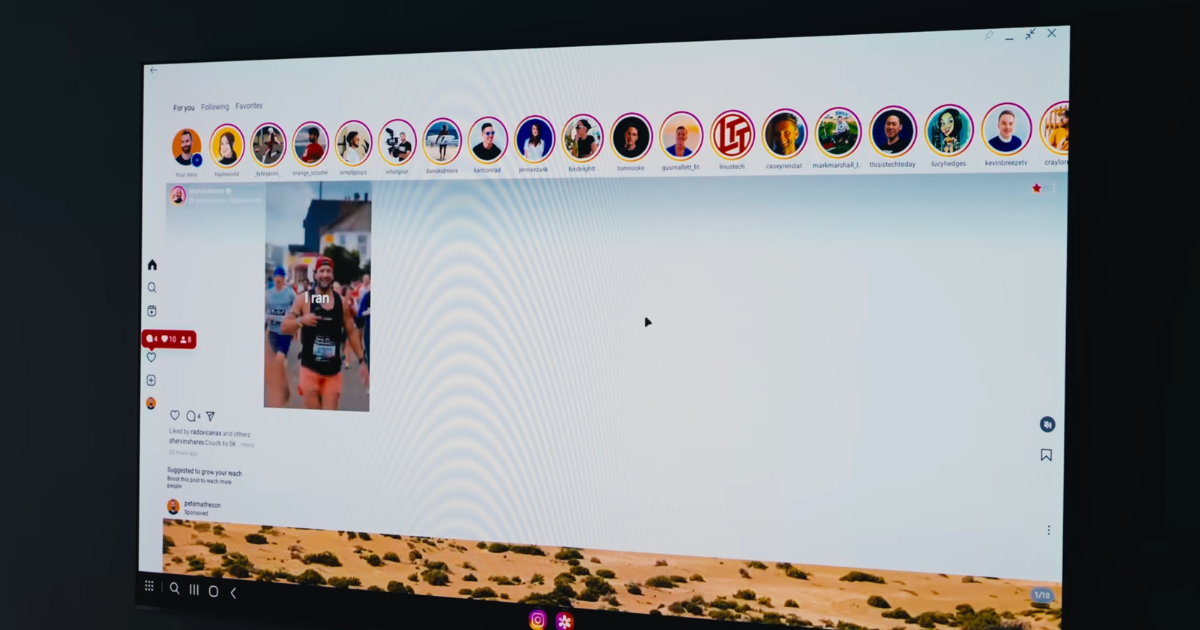
The first time you open Samsung DeX setup, it can look great for about thirty seconds. Then the icons are huge, the audio is coming out of the phone, and the mouse moves like it's underwater. I change three things before doing anything useful.
Get the display looking sharp
If text looks fuzzy or everything looks massive, open DeX settings and check display resolution and scaling. The monitor should run at its native resolution wherever the phone, cable, and display allow it. A 4K monitor set up badly can look worse than an older 1080p one set up properly.
Send sound to the right place
It’s absurdly easy to start a video on a big screen and have the audio still playing through the phone's tiny speaker. Open the quick settings panel and select the monitor, TV, or Bluetooth headphones as the audio output before you start working. It saves the awkward moment where everyone in the room hears your YouTube video before you do.
Make the mouse behave
A Bluetooth mouse usually feels painfully slow by default. Head into the mouse and trackpad settings, increase the pointer speed, then give yourself five minutes with it before changing it again.
You want the pointer quick enough to move across a big screen without having to sweep your whole arm across the desk.
Fix DeX problems before they derail you
Most DeX problems are boring connection issues, not a broken phone. I would work through these checks in order before buying a new cable or blaming the monitor.
When the DeX prompt never appears
First, check that the Galaxy device supports DeX and that its software is current. Then look at the phone screen after you connect it. Some devices may show a choice between DeX and screen mirroring, and it is easy to tap the wrong one while setting things up in a rush.
Just disconnect, reconnect, and choose DeX deliberately.
When the monitor stays black
Check the monitor input before doing anything dramatic. HDMI 1 and HDMI 2 look almost identical when you're tired. Then try a direct cable connection if you started with a large hub, and make sure the adapter supports video output rather than charging only. USB-C is handy, but the label does not tell you everything.
When wireless DeX feels slow
Wireless is convenient until the cursor lags behind your hand. A strong Wi-Fi connection and a compatible Miracast display matter, but there is no getting around the fact that a wired connection is steadier. If you're trying to write for a few hours, use a cable and stop fighting it.
When the battery falls too fast
Running a desktop layout while powering a larger display uses battery. That is expected. A powered hub or monitor that can charge the phone at the same time makes a big difference, provided the exact phone and adapter support power delivery.
Know where DeX really fits
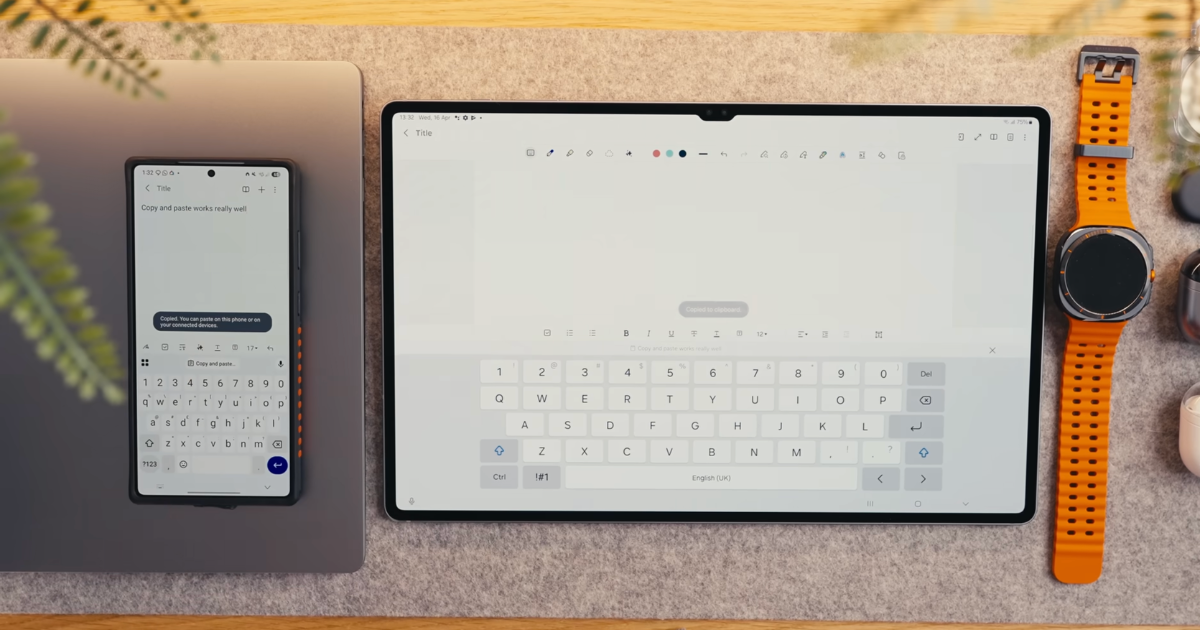
Samsung DeX is brilliant for email, browser work, YouTube, Google Docs, Slack, and basic multitasking. If most of your day happens in web apps, you might not miss a laptop for a short trip or a simple workday.
But there are limits. You won't run Premiere Pro, complex Excel macros, or every specialist desktop app from a phone. Some websites still behave better on a full computer. But that doesn't make DeX pointless. It makes it a very useful tool for the jobs it actually handles well.
It can feel even more useful on a Samsung tablet if you want the flexibility of a touchscreen when you're out and a desktop-style layout when you get back to a monitor. That is a much more realistic use case than pretending your phone has to replace every computer you own.
Make your desk lighter with the right Samsung DeX setup
Samsung DeX makes the most sense when you already have the parts sitting around. All you need is a compatible Galaxy device, a spare monitor, and one decent cable. You don't need a complicated setup to make it useful.
Just start with the wired route, sort the display and audio settings, then see whether it covers the work you actually do.
Want more tech tips? I share the setups, accessories, and small fixes that make everyday tech less irritating in my newsletter Experiments in Progress.
FAQs
Does Samsung DeX work on a PC?
Samsung DeX for PC is no longer supported on Galaxy phones running One UI 7 or later. For the most useful Samsung DeX setup now, use an external monitor, TV, or Samsung Smart Monitor instead. If you only want phone notifications, messages, and photos on a Windows PC, Samsung recommends using Link to Windows.
Does Samsung DeX drain the battery?
Yes. Samsung DeX can drain the battery faster because your phone is running a desktop-style interface on a larger display. A powered USB-C hub or monitor with power delivery is the better setup if you plan to work for more than a quick email session.
Can you use your phone while using Samsung DeX?
Yes. You can keep using your Galaxy phone while Samsung DeX runs on an external display. That means you can answer calls, check notifications, or reply to a message on the phone while a document, browser, or video stays open on the monitor.
Is wireless Samsung DeX good enough for work?
Wireless Samsung DeX is good enough for browsing, streaming, quick edits, and light desk work. For longer writing sessions, spreadsheets, video calls, or anything that needs precise mouse movement, a wired Samsung DeX setup is less annoying and usually more reliable.
What do you need for a Samsung DeX setup?
A Samsung DeX setup needs a compatible Galaxy phone or tablet, an external display, a connection method, and a keyboard and mouse. The easiest setup is a wired USB-C-to-HDMI cable or USB-C hub connected to a monitor, with Bluetooth accessories for typing and navigation.
