


I used to be a two-monitor person. Two screens, two stands, two power cables, and a strip of plastic bezel cutting right through the middle of everything I was trying to focus on. It worked. Kind of. But every time I dragged a window across that gap, or hurt my eyes switching between brightness levels, I had this nagging feeling that my setup wasn’t as helpful as I had told myself.
So I switched to an ultra-wide monitor. That was five years ago, and I haven't gone back.
That said, I want to be straight with you. An ultrawide isn't the right move for everyone. There are some trade-offs, and if you're currently running dual screens and it’s working for you, this might not be the upgrade you think it is. But if something about your current setup is frustrating you, there's a good chance this is why.
Here's what changed when I made the switch, what I'd buy if I were starting fresh today, and where ultrawides still fall short.
Why I Was Done With Dual Monitors
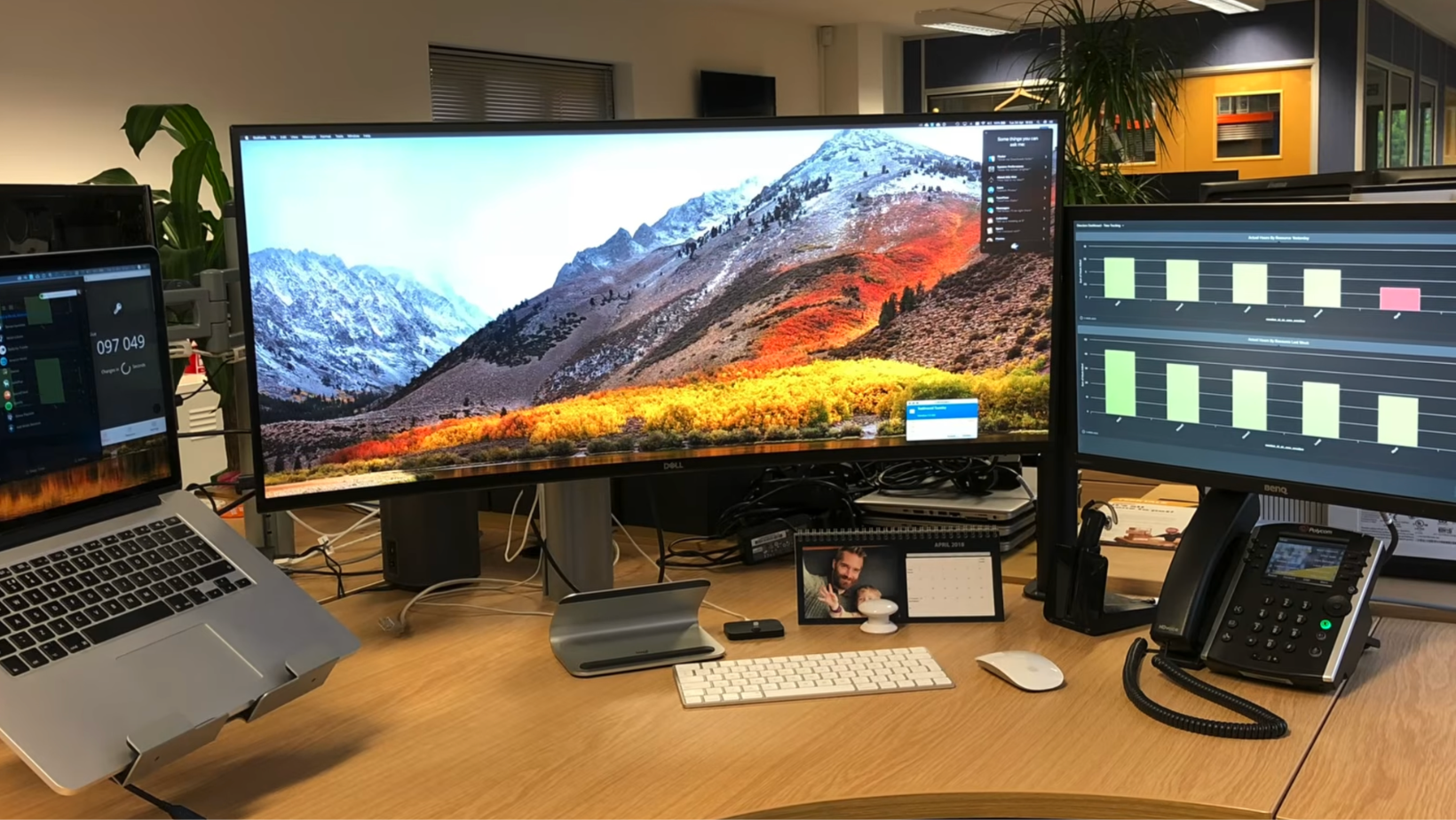
The bezel gap is the obvious one, but it wasn't what pushed me over the edge. It was the organization. With two separate screens, I had no real system. My main monitor had whatever I was actively working on, and my second screen became a dumping ground. Slack was in one corner, a browser tab I'd forgotten about, and maybe a YouTube video I'd paused three hours ago. It looked busy without being productive.
The desk situation didn't help either. Two stands and two power cables were eating up my space and just felt cluttered. I'd cable-managed the whole thing twice, and it still looked like a mess from the side.
The bigger problem was the mental overhead. Switching between two screens sounds like multitasking, but a lot of the time it was just context-switching. I was moving my eyes and attention back and forth without getting more done (plus, the monitors weren’t from the same batch, so my brain was always adjusting to the slight changes in color).
I was busy, sure, but not productive.
What Five Years on an Ultrawide Taught Me
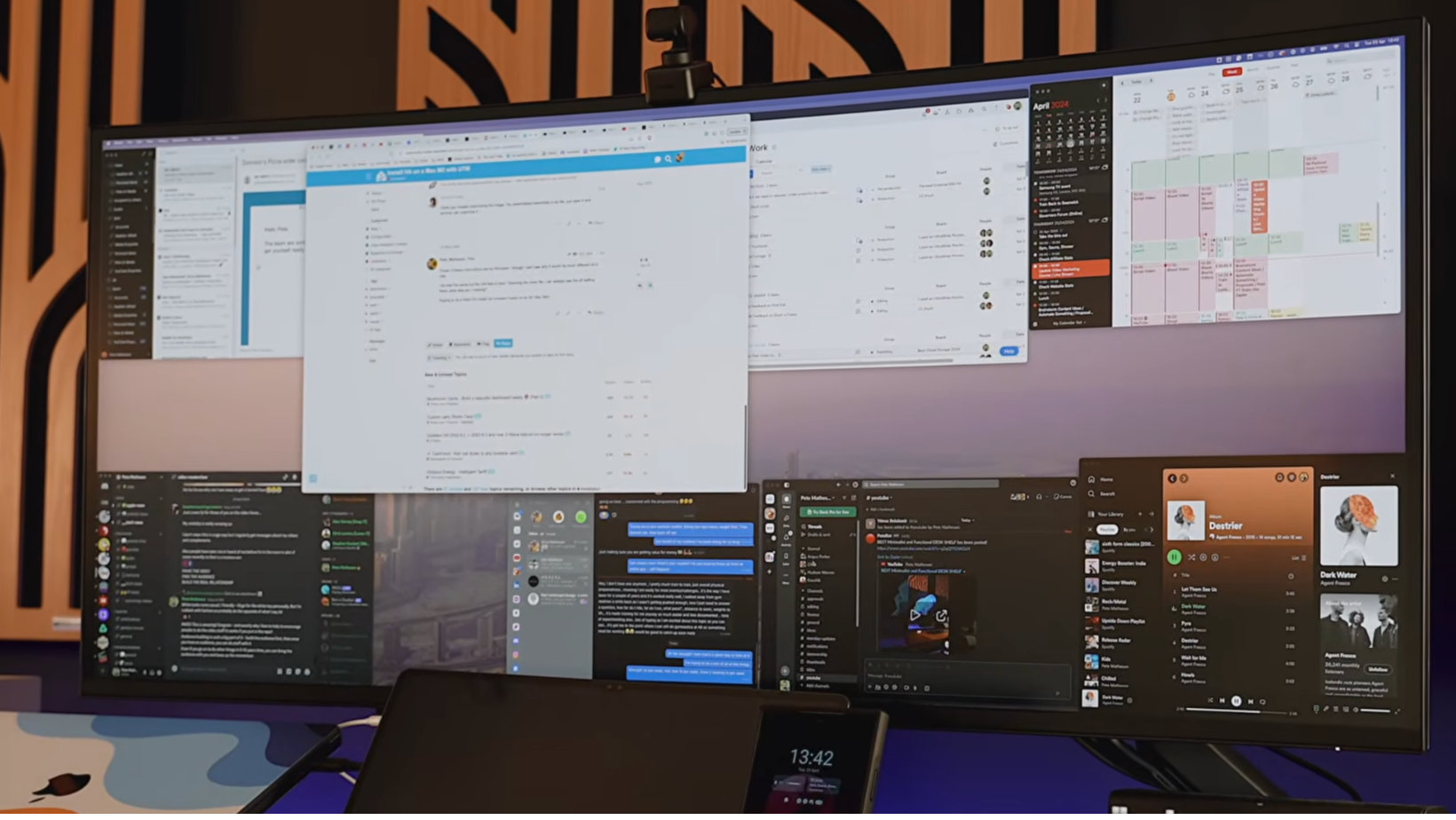
Switching to an ultra-wide monitor cleaned up my desk, but I was also surprised by how it changed up my work.
I Was Forced to Be Organized
With one continuous display, I had to be intentional about how I arranged my workspace. I couldn't just throw something on the second screen and forget about it. Everything lived in one view, which meant I had to decide what deserved to be visible. That sounds like a small thing, but in practice it made a real difference to how focused my sessions felt.
I Stopped Losing Time to Setups
The friction of a dual monitor setup adds up. Dragging windows across a bezel gap, resizing things that don't quite fit, and hunting for the tab you moved to the other screen ten minutes ago. None of it is a big deal on its own, but it all chips away at your flow. On an ultrawide, everything sits in one place. You set your layout once, and it stays there.
Multitasking Became Waaaay Easier
This is the one I feel most in daily use. Having a video timeline, a reference window, and a browser open side by side (without any of them feeling cramped) makes multitasking a breeze. Same with having a code editor and documentation open at the same time, or running a call while keeping your notes visible. The extra horizontal space means you don’t have to choose what to close.
The Downsides (And There Are Some)
I want to be honest here because I think a lot of ultrawide coverage glosses over the frustrating bits.
Game Support Is Still Hit or Miss
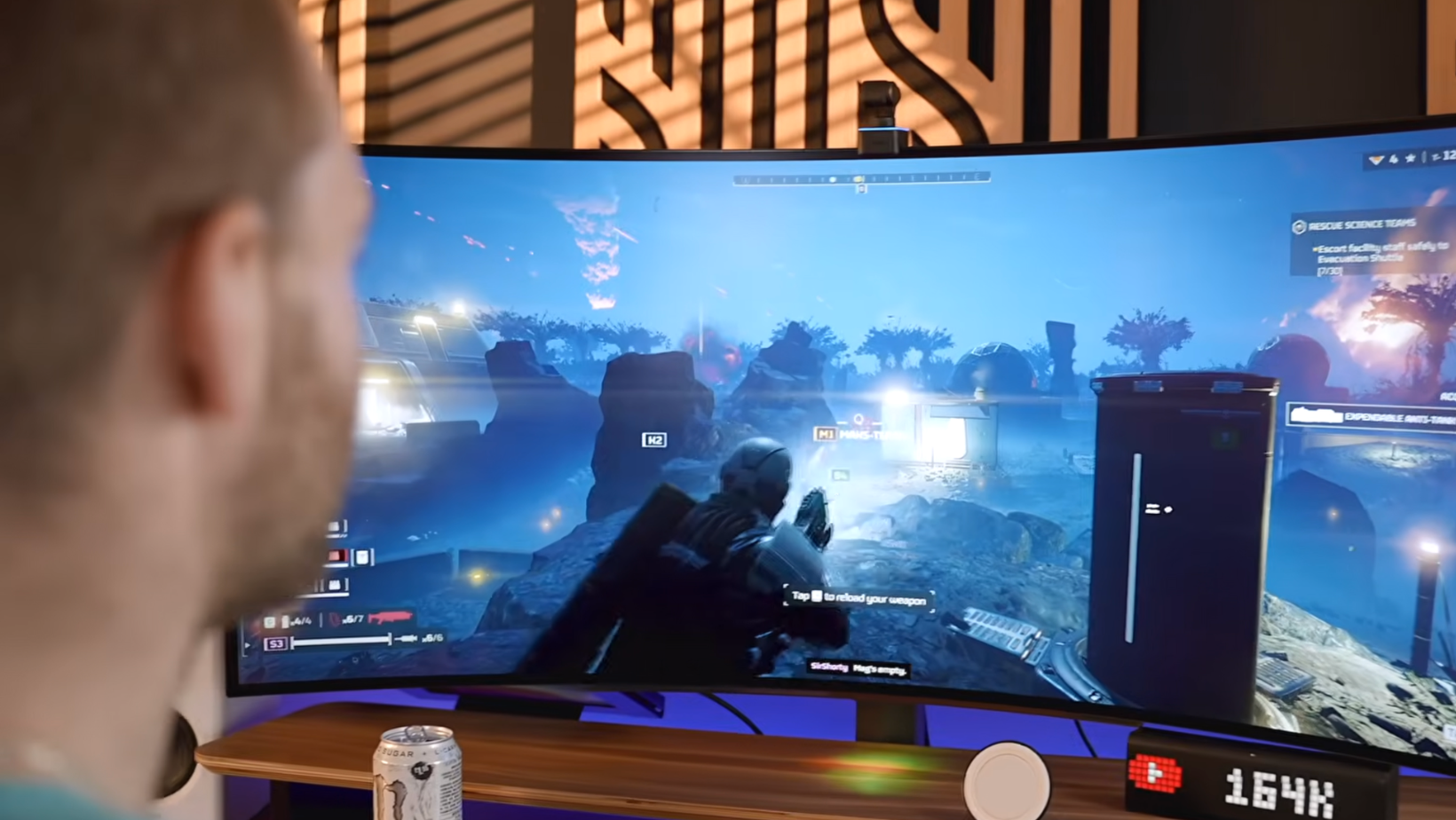
Not every game handles ultrawide resolutions well. Around a third of titles still don't support 21:9 natively, which means you either get black bars on the sides or a stretched image that looks wrong. Immersive single-player games, racing sims, and open-world titles tend to look incredible. Fast-paced competitive games are more of a mixed bag, and some developers just haven't prioritized ultrawide support.
Screen Sharing Is Really Annoying
It’s not something you think about until you have to share your screen in an important meeting. When you share your full desktop on Zoom, Teams, or Google Meet, most of the people you're presenting to are on standard 16:9 screens, so they see your content squeezed into a thin horizontal strip with black bars top and bottom. You can work around it by sharing individual windows instead of your whole screen, but it's an extra step every time.
Your GPU Needs a Word With You
Gaming at ultrawide resolutions can demand more GPU power than a standard 16:9 display, especially at 5120x2160 or higher. If your GPU is a couple of generations old, it's worth checking whether it can handle the resolution you're looking at before you commit. This matters more for gaming than for productivity work, but it's worth knowing upfront either way.
The Ultrawides I'd Recommend
If you're ready to make the switch, these are the options I'd point you toward - depending on how you use your setup.
For productivity and creative work, the Dell 40" UltraSharp is what's on my desk right now. The color accuracy is excellent for all-day work, the connectivity is solid, and it's wide enough to run a proper multi-window layout without anything feeling squeezed. If you're in documents, video timelines, or browser tabs most of the day, this is the one.
For gaming, the LG 45" UltraGear is hard to beat. It's a 21:9 OLED panel running at 240Hz with a 0.03ms response time - which is about as fast as panels get right now. Games that support ultrawide look genuinely stunning on it, and the OLED contrast makes a noticeable difference compared to IPS panels.
If you want to go further, the Samsung 49" Odyssey Neo G9 is a super ultrawide. It has a 32:9 aspect ratio, which is the equivalent of two 27-inch monitors merged into one panel with no bezel in between. It's a lot of screen, and it's super useful for sim gaming or anyone who wants maximum workspace. The Samsung 57" Odyssey Neo G9 takes that even further - I've spent time with it on my desk, and it's absurd in the best way.
For mounting any of these properly, I use the Secretlab Monitor Arm, which handles monitors up to 57 inches without any wobble.
For more on specific monitors, I've covered the Dell 52" Thunderbolt Monitor and the best monitors for gaming in detail if you want to go deeper.
My Verdict After Five Years in Ultra Wide Land
If you spend most of your day at a desk, an ultra wide monitor is one of those upgrades that feels bigger in practice than it looks on paper. The desk cleanup and cable situation are nice. But what I didn't expect was how much the organization and focus benefits would matter. Having one intentional workspace instead of two screens pulling my attention in different directions genuinely changed how productive my days feel.
For pure competitive gaming, the answer is more nuanced. Ultrawide is great for immersive titles, but if reaction time and refresh rate are everything for you, a high-end 16:9 gaming monitor might still be the better call.
For everyone else, especially anyone who's felt that low-level frustration with their current dual setup without being able to put their finger on why, switching to an ultra-wide monitor is probably the fix you've been looking for.
FAQs
Does an ultra wide monitor replace two monitors?
For most workflows, yes. A 34-inch or 38-inch ultrawide gives you enough horizontal space to run two windows side by side comfortably, without a bezel gap between them. Super ultrawide options like the Samsung 49-inch are literally the equivalent of two 27-inch monitors merged into one panel. The main exception is if you rely on a vertical portrait-mode screen as your second display - you can't replicate that with an ultrawide.
Are ultra wide monitors good for gaming?
It depends on what you're playing. Immersive single-player games, racing titles, and open-world games look incredible on an ultrawide - the wider field of view adds a lot. The caveat is that roughly a third of games still don't support ultrawide resolutions natively, which means black bars or stretched visuals in those titles. For competitive multiplayer, some players prefer a standard 16:9 display with a faster response time.
What's the difference between ultrawide and super ultrawide?
Ultrawide monitors run at a 21:9 aspect ratio - typically 34 to 38 inches wide. Super ultrawide monitors run at 32:9, which is the equivalent of two 16:9 displays side by side. The Samsung 49-inch Odyssey Neo G9 is a good example of super ultrawide. More screen real estate, but you'll need more desk space and a more capable GPU to drive it well.
Do you need a special stand for an ultra wide monitor?
Most ultrawides come with a stand, but a proper monitor arm is worth it for anything over 34 inches. A good arm lets you adjust height, tilt, and depth properly, which matters more at larger sizes. The Secretlab Monitor Arm handles monitors up to 57 inches and has been rock solid for me.
Is an ultra wide monitor worth it for video editing?
In my experience, yes. The extra horizontal space means a wider timeline without constantly scrolling, and you can keep your editing software and reference panels open side by side without either feeling cramped. A color-accurate option like the Dell UltraSharp is a particularly good fit for this kind of work.
