


There’s a good chance you already think your stuff is backed up. iCloud is switched on, Google Photos is doing its thing, and maybe you’ve copied a few folders onto an SSD. Everything looks safe.
The problem is that those tools don’t always give you the kind of backup you think they do. I ran an IT support business for more than 10 years, and this is where people got caught out. Their files were in the cloud right up until something was deleted, damaged, or no longer recoverable.
So, I’m going to show you how to back up your data using cloud services, external drives, and your own home server, without turning this into an IT exam.
Disclosure: Incogni sponsored the original video. The backup methods and other services covered here are based on my own experience and research.
How to back up your data at a glance
I’m calling these options levels because each adds more control, cost, or effort. It’s my way of comparing the choices, not an official IT system. Level 5 is where most people will land, using a mixture that fits their devices and budget.
The highest level isn’t automatically the right one. A simple backup that runs every day beats an incredible home server you forget to maintain.
Cloud storage can fool you
Syncing copies every mistake
Okay, so let’s start with the familiar option. Cloud storage is brilliant at keeping files available everywhere. Take a photo on your iPhone, and it appears on your Mac. Add something to Google Drive, and it’s waiting on your work computer.
The same system also copies your mistakes. Delete a photo from iCloud Photos and that deletion syncs to your other connected Apple devices. Move a Google Drive file to Trash, and it starts its own countdown.
Apple lets you recover deleted iCloud Drive files for up to 30 days, and Google Drive normally keeps files in Trash for 30 days. Miss that window and a separate backup may be your only way back.
Now, iCloud Backup can restore an iPhone. The confusing part is that information already syncing through iCloud usually isn’t included in that device backup. That’s why iCloud Photos and Google Drive shouldn’t hold your only copies. My cloud storage comparison goes further into retention and privacy across the main services.
The cloud still earns its place
I’m not saying you should cancel everything and drag around a suitcase of hard drives. Cloud storage works quietly, expands a phone’s available space, and may cover the whole family.
Here’s the catch. You keep paying, prices can change, and moving several terabytes elsewhere becomes a massive job. Privacy varies too.
Cloud storage makes sense as one part of your backup plan. I wouldn’t make it the whole plan.
The 3-2-1 rule is pretty simple
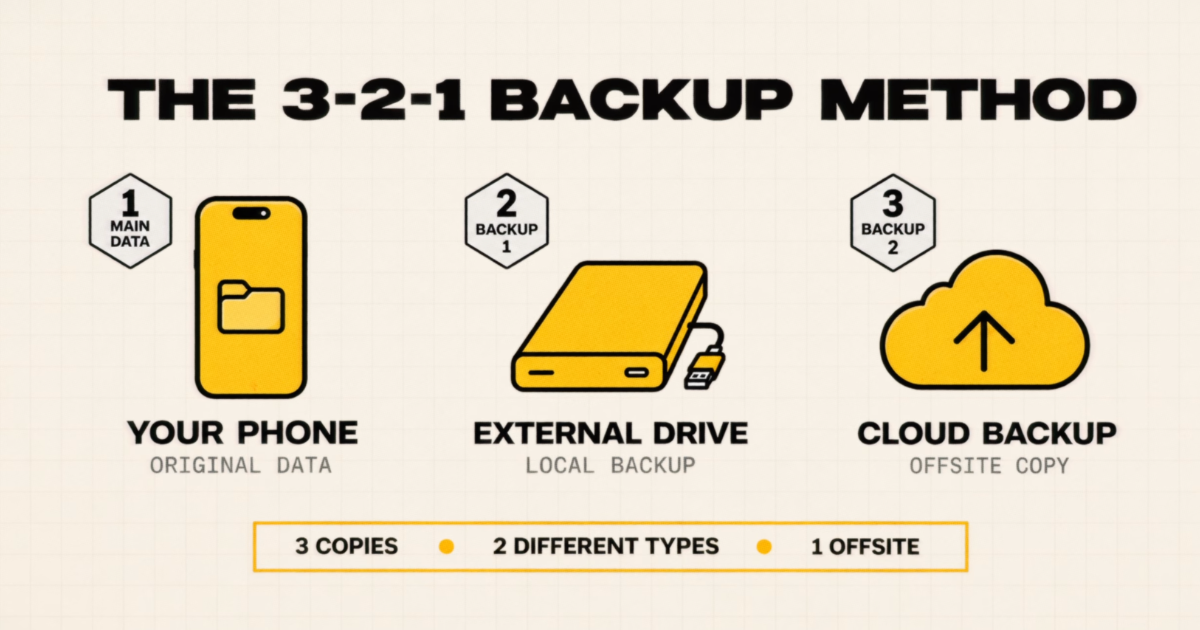
This sounds like one of those technical rules that needs a diagram, but it really doesn’t. Before deciding how to back up your data, remember three numbers:
- Keep three copies of anything important.
- Store them on two types of media.
- Keep one copy somewhere else.
Your device holds the first copy. A drive, NAS, or backup service holds the second. The last one needs to survive the same fire, flood, theft, or hardware failure.
The Library of Congress recommends using at least two storage types, keeping copies in different places, and moving personal collections to newer storage every five to seven years.
So, one SSD beside your computer isn’t enough. One cloud account isn’t enough either. Put those two together with the original device, and you suddenly have a proper 3-2-1 setup.
How to back up your data locally
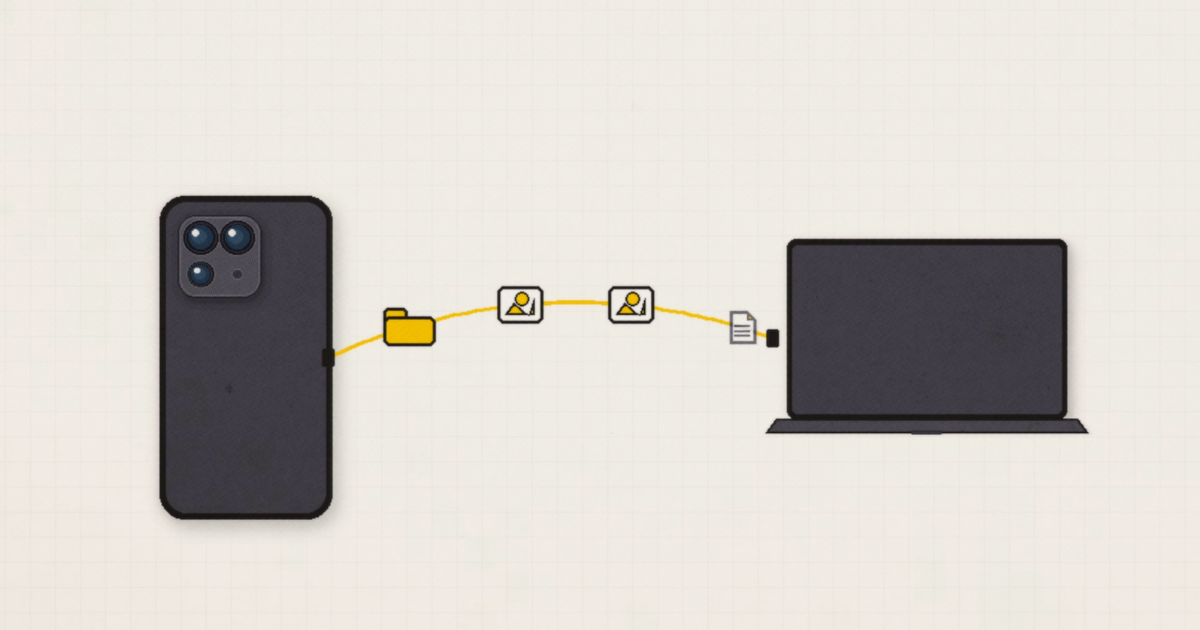
Level 2 is where you start taking more control. If you already own a computer and external drive, you may not need to buy anything to get started.
Back up an iPhone
Connect an iPhone to a Mac, and it appears in Finder. On Windows, use Apple Devices or iTunes on an older setup. Choose the backup option and create a local copy.
I’d turn on encrypted local backup before starting. It protects the copy with a password and includes information an unencrypted backup may miss. Save that password somewhere secure because Apple can’t recover the backup without it.
Back up a Samsung phone
Samsung Smart Switch can back up a Galaxy phone through its desktop software or directly to supported external storage. Connect the drive, open Smart Switch, and choose the data you want to copy.
When I tested a direct SSD backup, I didn’t see an encryption option. Current versions can offer encryption through a password or Samsung account, so check the settings on your phone instead of assuming it’s already switched on.
Other Android phones can usually copy files manually, although a basic copy may miss messages, app data, or settings.
The annoying part is remembering
Two drives, with one stored elsewhere, can tick every 3-2-1 box and remove the monthly cloud bill.
But now you’re in charge. You have to run the backup, check the space, and swap the off-site copy. Drives can fail or sit unchecked for years. This setup works if you’ll keep up with it.
Backup apps do the remembering
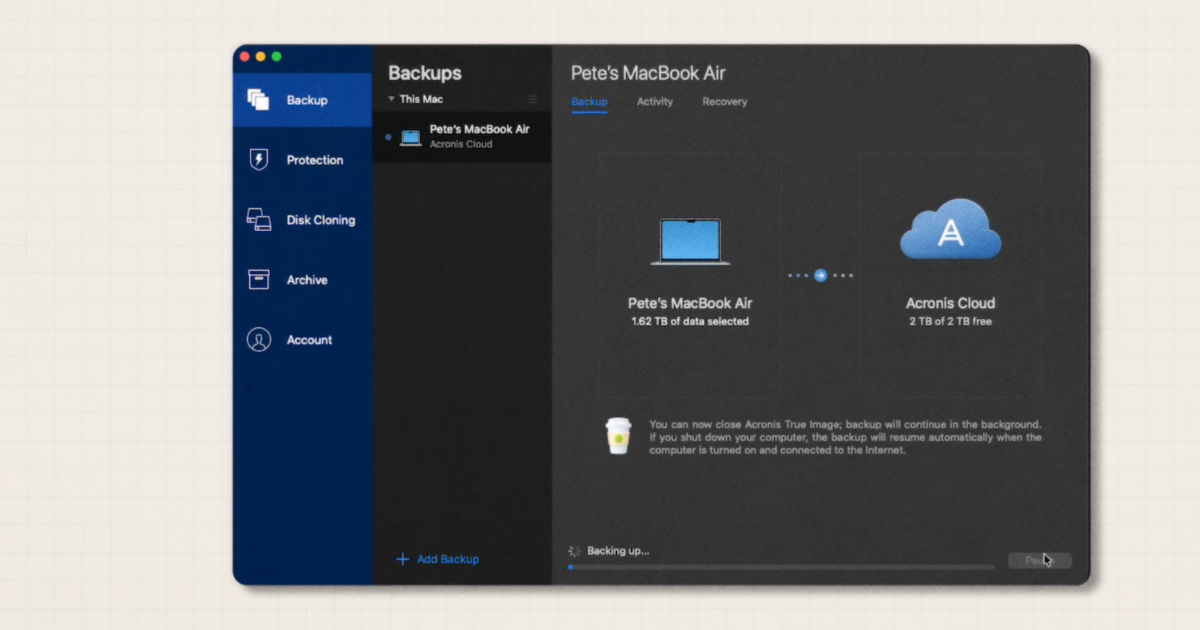
Level 3 makes life easier. A dedicated app can run on a schedule, keep older versions, and restore more than one synced folder. You’ll probably add a subscription, but you won’t have to remember every backup.
Acronis does almost everything
Acronis True Image can copy selected files or create an image of an entire Mac or PC, including its operating system, apps, settings, and data. You can send those backups to an external drive, network location, or Acronis cloud storage.
It also gives you retention controls, encryption, malware protection, and ransomware protection. That’s useful for several jobs and possibly overkill for storing photos.
IDrive keeps the price low
If Acronis sounds like too much, IDrive Personal is a simpler option for backing up computers and mobile devices. It supports scheduled backups, older file versions, and a private encryption key you control.
IDrive promotes 5TB for $4.98 for the first year, followed by the standard annual price. There is a catch hiding in the terms: you currently need proof of an eligible competing backup subscription. The price is still impressive, but I’d pair it with a local copy.
Backblaze quietly gets on with it
Then there’s Backblaze Computer Backup, which copies user files from one Mac or PC along with connected external drives. The current personal plan costs $99 per year for unlimited storage.
I use it to protect my Apple Mac mini home server. It runs in the background, and I don’t have to decide which folder deserves space. One important limitation is that Computer Backup doesn’t directly cover a NAS. For that, you’ll need something such as Backblaze B2, Synology C2, IDrive, or a second NAS.
A quick privacy detour

There’s another type of data sitting online that you didn’t upload yourself. Search your name with your city, and you may find an old address, phone number, or something else you’d rather keep private.
The original video was sponsored by Incogni Unlimited. It sends recurring removal requests to more than 420 data brokers, and its Exposure Scanner shows where your information appears. Use code PETE for 60% off annual plans, with a 30-day money-back guarantee.
Home servers are where it gets fun
Okay, now we’re into Level 4. This takes more work, but you can create something that feels a lot like your own private cloud.
When I started my IT business, a home lab could mean a rack full of equipment. Today, an old computer, Mac mini, or small NAS can do the job without taking over a room.
Turn an old computer into a server
I use the Mac mini with 4TB and 8TB external SSDs attached. It runs Immich for photos, Plex for media, Home Assistant, and several other services. Backblaze then handles the off-site copy.
Immich gives you mobile uploads, albums, memories, and local face recognition on hardware you control. It feels like your own Google Photos.
Immich still needs a backup. Its photo files and database both need recoverable copies, or you’re back at Level 1 with different hardware.
A NAS makes storage easier
NAS stands for network-attached storage. It’s a box of drives your devices reach over the network, usually with apps for computer and phone backups.
I use Synology for business storage, and it’s been solid and reliable. My Synology NAS setup uses its backup apps to send another copy to cloud storage. I wasn’t impressed when Synology tried pushing customers toward its own branded drives, although that decision was later rolled back.
I avoided UGREEN NAS devices for a while because the company was new to this category. I now have two of them here, and both have been very good. UniFi also makes a strong option, but I’d mainly recommend it to someone already using the wider UniFi ecosystem.
The exact model needs to fit your capacity, drive bays, apps, and network speed. I wouldn’t add a model-specific affiliate recommendation without confirming the hardware shown in the video.
RAID won’t save everything
RAID sounds more intimidating than it is. A two-bay NAS can use RAID 1 to mirror files across both drives. If one fails, the other keeps going. Four 4TB drives in RAID 5 provide roughly 12TB of usable capacity while reserving one drive’s worth for redundancy.
That’s useful, but RAID mainly protects you when a drive fails. It can’t rescue the whole NAS after theft, fire, malware, or accidental deletion. The box still needs another local or off-site copy.
Pick the setup you’ll use
So where does that leave you? Cloud storage paired with a proper backup service is the easiest option. Two external drives give you more control and fewer ongoing fees, but you have to remember them. A NAS or home server gives you the most freedom and asks the most from you in return.
My own setup is a mixture. I pay for iCloud, Google One, Homey Backup, Synology cloud storage, and Backblaze because family devices, business footage, and my home server all have different needs. There’s no prize for squeezing everything into one service.
Make recovery the deciding factor
The smartest way to back up your data is the one that keeps more than one recoverable copy and runs regularly enough to stay useful. Start with the 3-2-1 rule, choose a level you’ll maintain, and try restoring a file before trusting the setup with years of photos and documents.
For more practical tech advice, buyer guides, and notes on what I’m testing, subscribe to my Experiments in Progress newsletter.
Frequently asked questions
Is iCloud a real backup?
iCloud Backup creates a copy of iPhone information that isn’t already syncing to iCloud. However, iCloud Photos and iCloud Drive also sync changes across devices. A separate copy gives you more protection after the 30-day recovery window closes.
What does the 3-2-1 rule mean?
Keep three copies of important data across two storage types, with one copy held somewhere else. A computer, external drive, and cloud backup can meet the rule when each contains a recoverable copy.
Is one external SSD enough?
No. It gives you a second copy, but the SSD can fail, be damaged, or disappear with your computer. Add another drive stored elsewhere or an off-site cloud backup.
Is a NAS the same as backup?
No. A NAS stores files and may use RAID to survive a drive failure, but deletion, malware, theft, or physical damage can still affect the whole system. Back up the NAS somewhere else.
How often should backups run?
Base the schedule on how much data you could comfortably lose. Daily automatic backups make sense for frequently changing work and photos. Weekly may be enough for files that change less regularly. Test a restore occasionally so you know the copies work.
