


I update my iPhone the second a new iOS drops. And the very next thing I do is spend twenty minutes turning half the new features off.
Every year, Apple adds more background processes, more tracking, and more notifications turned on by default. They want to show off what the software can do. But in practice, that can leave your battery flat by lunchtime and your lock screen looking like a noticeboard nobody cleared. It is frustrating.
There are a few iOS 26 settings to change if you want your phone to last longer, interrupt you less, and keep more of your data to itself. Here is what I turn down, what I leave alone, and what is worth changing before you spend money trying to fix a Settings problem.
Start with these iOS 26 settings to change
Apple doesn't make the useful toggles obvious. Many sit three menus deep, and their names don't tell you what they affect. I start with the settings most likely to annoy you every day: background activity, interruptions, storage, and privacy.
1. Keep location access specific
Start with Location Services. Go to Settings, then Privacy & Security, then Location Services, and look at the apps with Precise Location switched on. Maps and ride-hailing apps have a reason to know exactly where you are. A retail app, wallpaper app, or casual game usually doesn't.
I set most of those apps to While Using the App and turn Precise Location off unless the feature needs it. Then open Tracking and decide if you want apps to ask permission to track activity across other companies' apps and websites. It’s not a magic performance switch, but it’s an important privacy choice.
2. Stop background activity working overtime
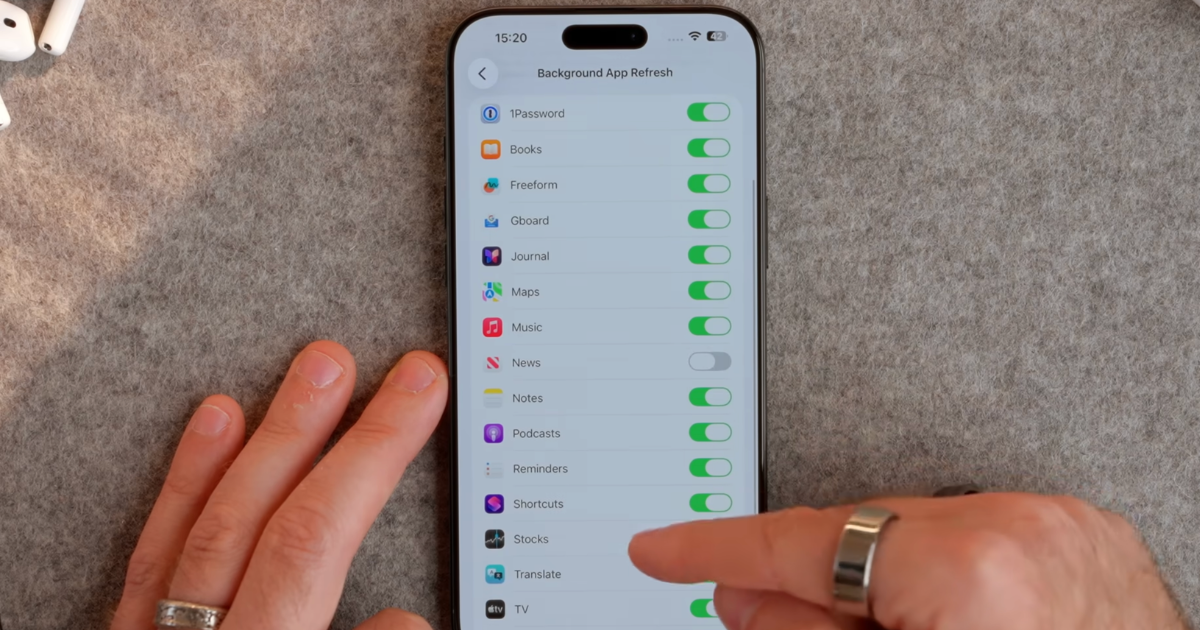
This is the first thing I check after a major update. Go to Settings, then General, then Background App Refresh. Email, Maps, and a messaging app might deserve to refresh in the background. Social apps competing to preload content while the phone is in your pocket don't.
I turn Background App Refresh off for the apps I don't need updated until I open them. Then I check Power Mode. On iPhone 15 Pro or later, Adaptive Power can limit background activity and lower screen brightness when your usage is higher than usual. The Verge's look at Adaptive Power explains the detail. Apple says it works automatically once enabled, which is the point.
These iOS 26 settings to change are more useful than buying another charger before you know what is draining the phone. If a charging setup is genuinely the problem, Apple MagSafe Charger (1 m) and Anker 3-in-1 Cube with MagSafe are natural affiliate options for a desk or bedside table. They will not fix a noisy app refreshing all day.
3. Batch notifications that can wait
Your phone doesn't need to light up every time somebody reacts to a message in a group chat you muted six months ago. Go to Settings, tap Notifications, then Scheduled Summary. You can choose the apps that belong in the summary and when it arrives.
I leave calls, messages from close family, calendar reminders, and anything time-sensitive alone. News alerts, store promotions, social apps, and most delivery updates can wait for a batch later in the day. It keeps the useful stuff visible without letting a handful of apps dictate your attention.
4. Make the lock screen less noisy
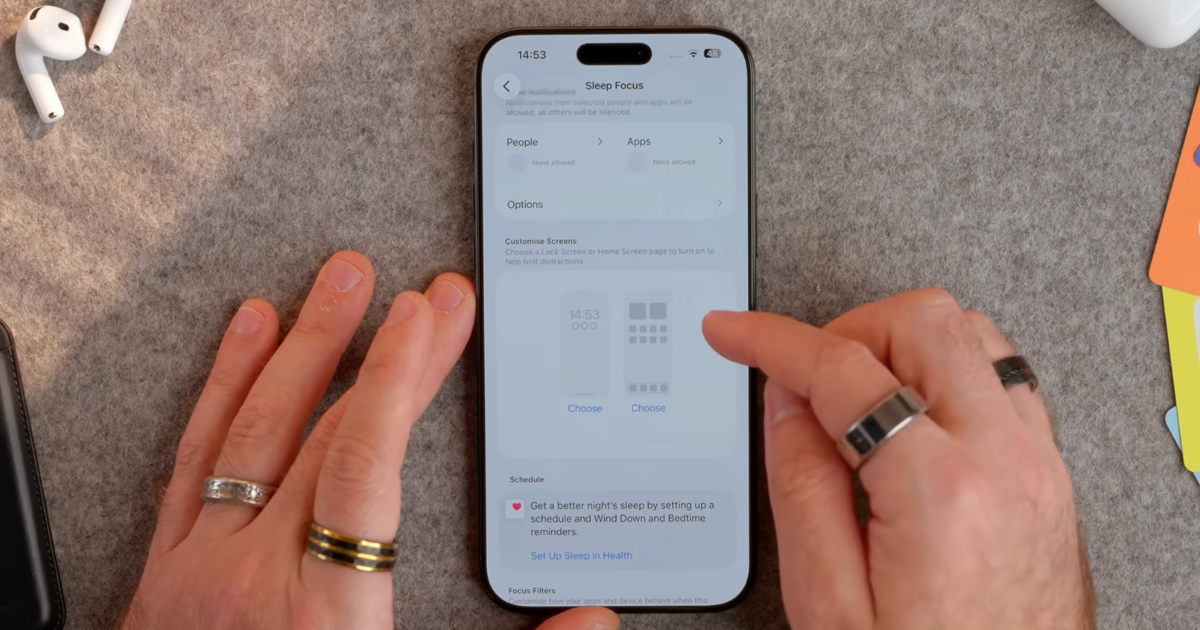
The lock screen can become a feed before you have even unlocked the phone. Open Settings, tap Notifications, then Show Previews. If your phone is often on a desk or in a meeting, When Unlocked is a sensible middle ground. The notification still arrives, but its content is hidden from anyone passing by.
I also remove notifications from apps that don't earn that space. A shopping app doesn't need a permanent route to the lock screen. If you are not sure which apps have become a time sink, check your screen time on iPhone. It shows the apps you open out of habit.
5. Save storage before it disappears
Camera settings are easy to ignore until you try to record a video and find you have no space left. Go to:
- Settings
- Tap Camera
- Tap Formats
- Switch to High Efficiency if your phone is still set to Most Compatible.
High Efficiency uses HEIF for photos and HEVC for video, which take up less storage than older JPEG and H.264 formats.
If you move files into older Windows software, Most Compatible can save a little hassle. For everyday photos, videos, Messages, and social posts, High Efficiency makes more sense.
6. Put useful controls within reach
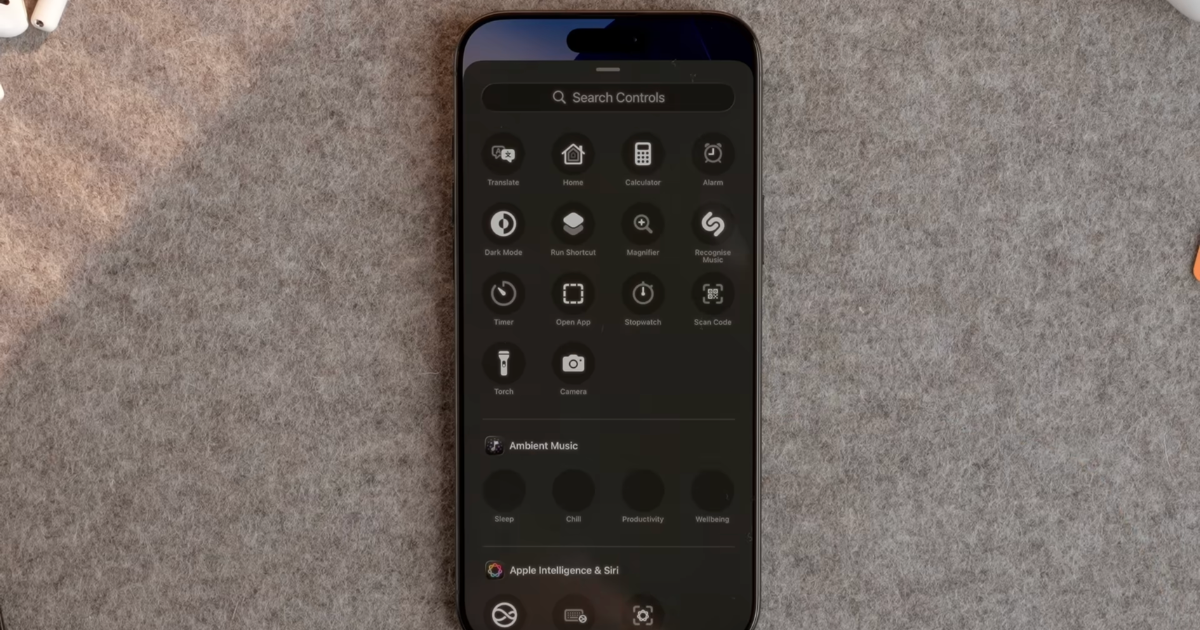
Control Center got more flexible in iOS 26, once you clear out the bits you never touch. Apple lets you add, remove, resize, rearrange, and group controls, so there’s no reason to keep the factory layout. I move Low Power Mode, Screen Recording, Dark Mode, and the controls I use most to the first page.
That helps when you are walking through an airport or trying to save the last bit of battery before a train. You should not have to hunt through Settings to turn on a feature you use every week. If you are working through these iOS 26 settings to change on an older device, this is one of the quickest wins.
7. Make Siri work on your terms
Siri is a bigger part of iOS 26, but that doesn't mean every Siri feature belongs in your daily setup. Go to Settings and open Apple Intelligence & Siri. Then decide how you want to trigger it. I use the side button more often than a voice command, so I don't need every voice-based option turned on.
If you use Siri for timers, messages, and smart home controls while cooking, voice activation makes sense. If you rarely use it, keep the setup simple and use the side button. My iOS 26 overview covers the larger Siri changes before you spend time on features you may not use.
8. Clear apps you no longer use
The final stop is App Store settings. Turn on Offload Unused Apps if you are close to filling your storage. It removes an unused app but keeps the documents and data. When you need it again, download it and pick up where you left off.
I would still delete apps that have become clutter. Offloading is good for something you need once a year, like an airline or parking app.
Make your iPhone less demanding
The right iOS 26 settings to change depend on how you use your phone, but the defaults don't need to win. A few careful switches can cut background activity, hide interruptions that don't deserve your attention, and make the phone feel more useful.
I spend a lot of time pulling apart the tech choices that get buried behind marketing and menu screens. For more practical setup advice that doesn't talk down to you, subscribe to Experiments in Progress.
FAQs
Which iOS 26 settings should I change first?
The best iOS 26 settings to change first are Background App Refresh, Location Services, Scheduled Summary, lock screen notification previews, and camera storage settings. These are the settings most likely to affect battery life, privacy, storage, and how often your phone interrupts you during the day.
Does Adaptive Power work on every iPhone?
No. Adaptive Power does not work on every iPhone. Apple lists Adaptive Power for iPhone 15 Pro or later, so older models still need the old-school fixes: Low Power Mode, Background App Refresh controls, lower screen brightness, and fewer apps running wild in the background.
Will High Efficiency camera files work everywhere?
High Efficiency camera files work well across current Apple devices and most modern apps, but they may cause issues with older software that expects JPEG photos or H.264 videos. If you still move files into older Windows software, test a few HEIF and HEVC files before switching your whole camera setup.
Can I undo iOS 26 settings changes later?
Yes. You can undo these iOS 26 settings changes at any time because they are built into the iPhone Settings app. If an app suddenly needs precise location, background refresh, notification previews, or live alerts, you can switch that setting back on in the same menu.
Do iOS 26 settings improve battery life?
Changing iOS 26 settings can improve battery life if background activity, location access, notifications, or screen brightness are draining your phone. The biggest wins usually come from limiting Background App Refresh, using Low Power Mode or Adaptive Power, reducing unnecessary location access, and cutting notifications that never needed your attention in the first place.
