


Setting up a new phone always starts with the same temptation. You sign in, restore your latest backup, and hope everything lands exactly where it was before. I’ve done that plenty of times, but every backup can bring old apps and forgotten settings along for the ride. Every few years, I prefer to wipe the slate clean and start again.
That’s what I’ve done with the iPhone 18. I’ve completed the opening setup, signed in to my Apple Account, and set up Face ID. Now I’m at the Home Screen with a phone that still feels like Apple’s phone rather than mine.
The first jobs go well beyond choosing a wallpaper. A few settings affect your battery, privacy, camera quality, and how often the phone interrupts you. Others save seconds every day, which soon adds up.
In this blog, I’ll take you through the settings I change first, the ones I leave alone, and a few features that are easy to miss.
What should you do first with an iPhone 18?
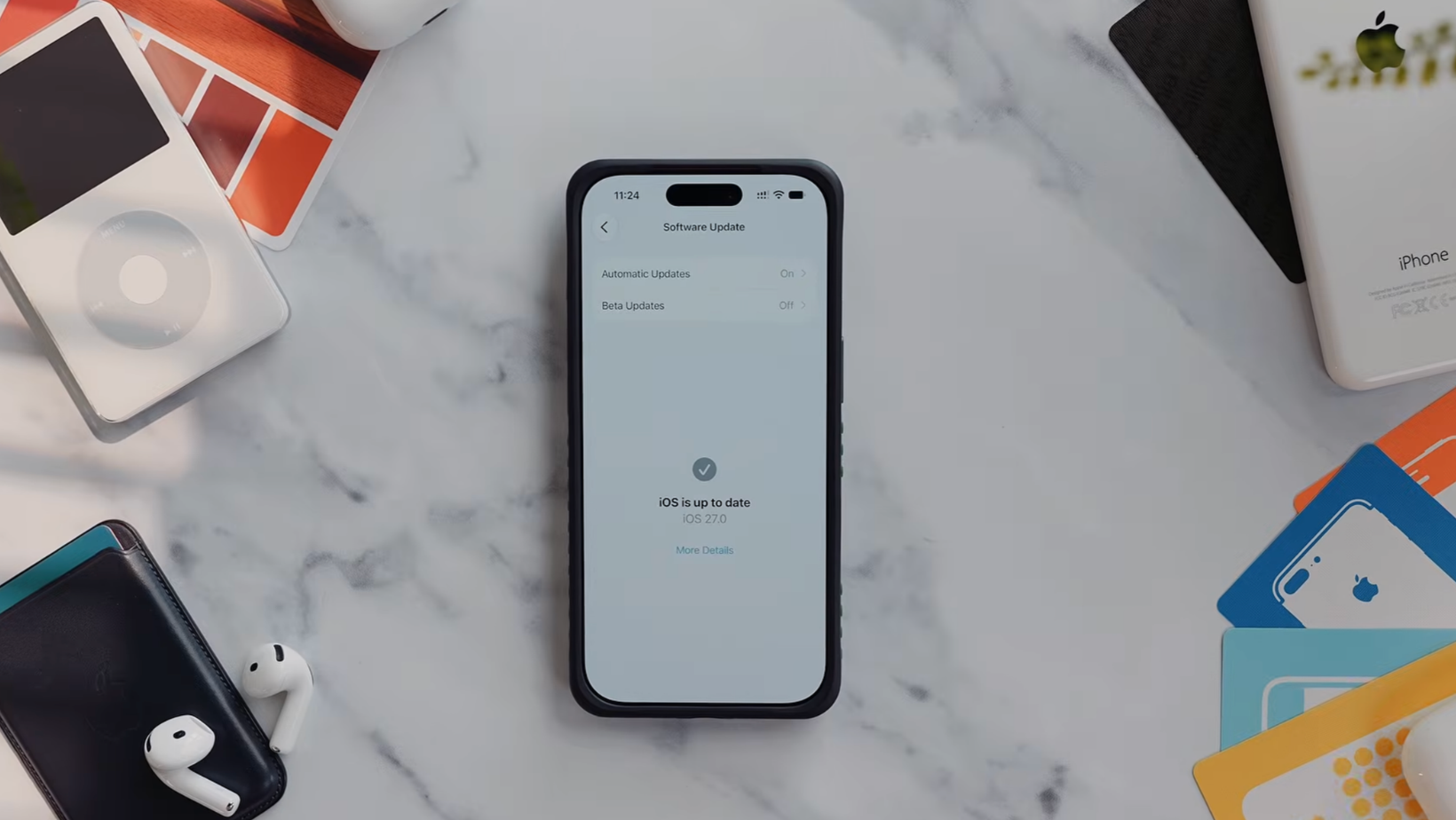
The first thing you should do is install the latest version of iOS. Open Settings, tap General, and choose Software Update. If an update is waiting, start it before you go much further.
Launch-day downloads can take a while. Let it run in the background as you work through the other settings, then stop when the phone needs to restart.
This guide starts after Apple’s opening setup. If you want to bring everything across, my guide to setting up a new iPhone with Quick Start covers that process.
Your phone may spend its first few days indexing photos, messages, and email. Some Siri features may feel incomplete until that finishes.
If Settings still shows Finish Setting Up Your iPhone, open it and complete anything you skipped earlier.
Watch my full iPhone 18 setup
The full video shows every menu on screen, along with the settings I use and the choices I skip.
Protect the phone before anything else
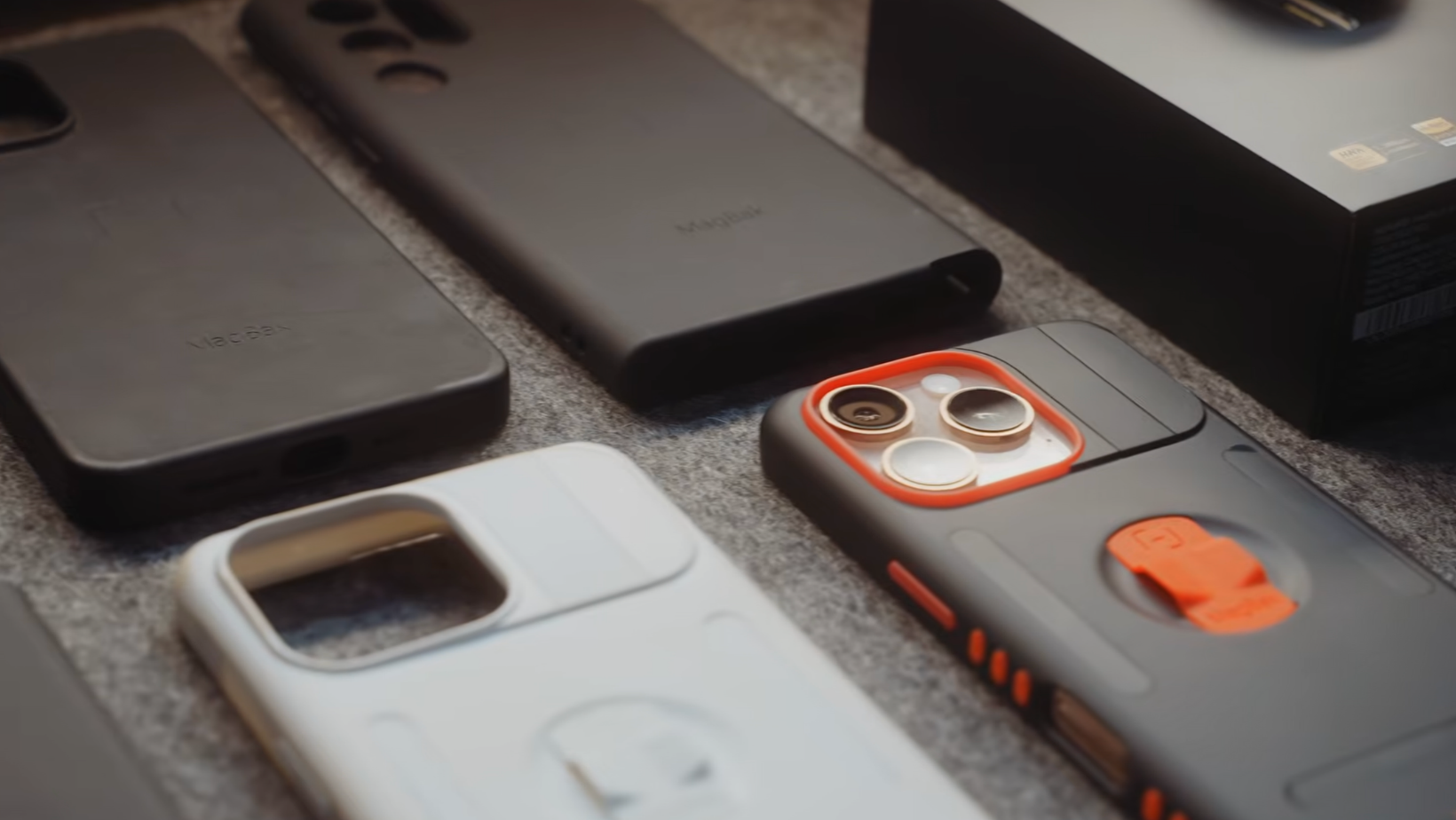
This is an expensive phone, so I’d rather protect it before it meets a pavement. I’ve recommended the MagBak Elite case for years, and MagBak sponsors the channel.
The raised edges and finger loop make it easy to hold one-handed. Plus, Pinky Pillow is a small but genuinely comfortable touch, and the kickstand pulls double duty with a strong magnetic back that snaps onto everything I own. MagBak makes my favorite magnetic smart wallet too. You can get 15% off through my MagBak link or with code 15PETE.
Get Siri and daily tools ready
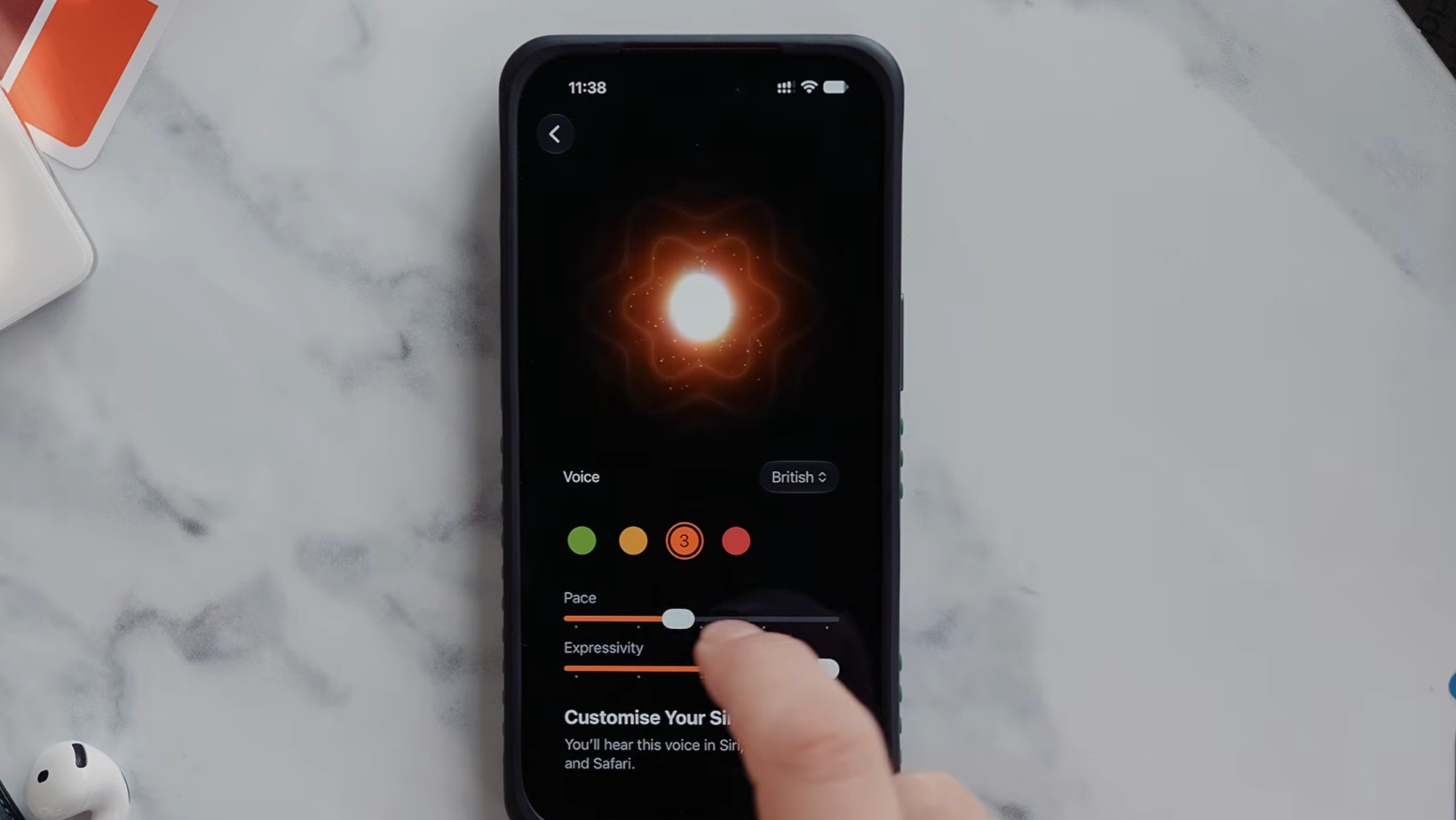
Make Siri useful from the start
Open Siri in Settings. Choose the language and voice, then adjust the pace and expressivity. I keep both around four or five for faster answers that still sound natural.
If the ChatGPT extension is available, sign in with your account. I’d turn on Automatically Send Messages too, so Siri doesn’t repeat an entire message before sending it.
Add every inbox to Apple Mail
Siri can work with accounts connected to Apple Mail. Under Settings, Apps, Mail, and Mail Accounts, add the inboxes you want available. You can keep using another email app while Mail helps Siri search supported messages.
Set up passwords before other apps
Under General and Autofill & Passwords, check that your password manager can fill passwords and passkeys. If you use 1Password, Keeper, or Bitwarden, select it under Set Up Codes In too. Install it before your other apps so it’s ready for every sign-in.
In the App Store, tap your profile picture, Apps, and My Apps. Start the downloads and leave them running in the background.
Fix typing and default apps
Under General and Keyboard, add Gboard or another option. Tap the globe to move between keyboards. I disable stickers because I hit them by mistake.
I use Text Replacement for my address and affiliate links. Each shortcut starts with “z” so I don’t trigger it by mistake.
Under Apps and Default Apps, choose your preferred email app, browser, password manager, keyboard, and supported messaging app.
Lock down backups and private data
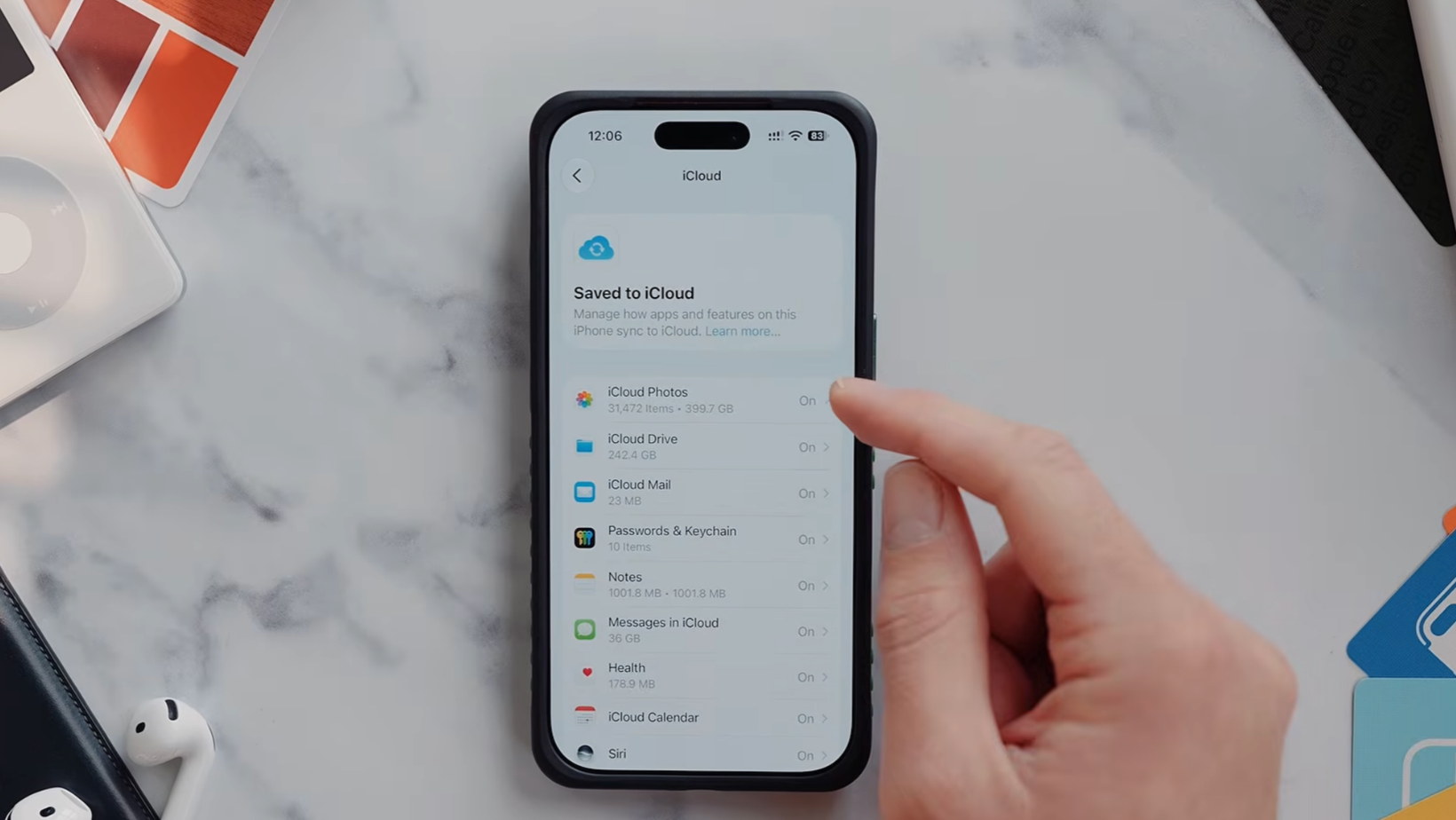
Check iCloud sync and backups
Tap your name, then open iCloud. The free plan includes 5GB, so check your space and what’s syncing. In Photos, choose full local originals or optimized storage.
Open iCloud Backup and check that it’s active. Mobile-data backups make sense only if your plan has room for them.
Turn on stronger cloud protection
Advanced Data Protection extends end-to-end encryption to more of your iCloud data, and I think it's worth the extra step. Apple walks you through setting a recovery contact or key in its own instructions, and I'd genuinely double-check that before moving on. Lose every recovery method and even Apple can't get that data back for you.
The Electronic Frontier Foundation’s iPhone encryption guide explains the trade-off. Apple stopped offering the feature to new UK users. I enabled it earlier, so I can’t turn it off and expect to get it back.
If the option appears on your iPhone 18, open your Apple Account, tap iCloud, and follow the prompts. Keep any recovery key outside iCloud.
Secure the device itself
Under Face ID & Passcode, check Stolen Device Protection. By default, the extra protections apply when you’re away from familiar locations. Choose Always if you want the same security checks at home and work too.
Hold an app icon and choose Require Face ID or Require Passcode. In Photos, choose Hide to move an image into the locked Hidden collection.
Open Emergency SOS and add your emergency contacts before moving on.
Make the phone work your way
Fix display and attention settings
Open Display & Brightness to choose Light, Dark, or Automatic appearance and change Auto-Lock.
Under Face ID & Passcode, Attention-Aware Features can keep the screen awake when you’re looking at it.
Build a useful Home Screen
Hold an empty area until the icons move. Pick up one app, tap others with another finger, and move the group together.
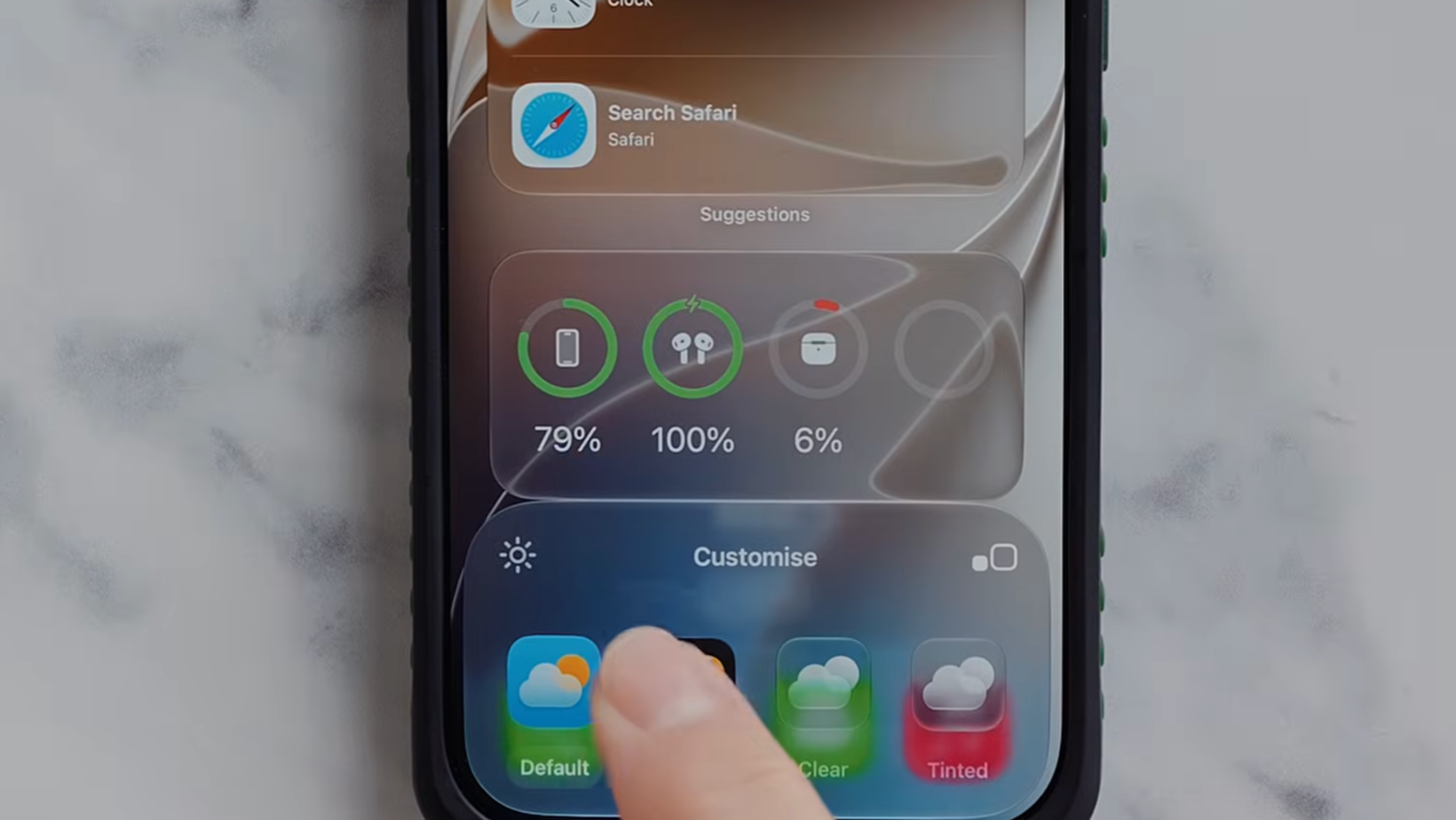
The same screen lets you add widgets. A Smart Stack rotates several widgets in one space. Missing one? Wait for its app to finish installing.
Transparent Liquid Glass icons make apps harder for me to find, so I prefer standard or dark icons.
Personalize the Lock Screen
Hold the Lock Screen to resize the clock, add widgets, change the bottom shortcuts, or adjust the depth effect.
Apple has weather, astronomy, and emoji wallpapers. I use Photo Shuffle for pictures of my wife and kids. It can reposition the subject and place the clock behind it.
Map buttons and Control Center
I keep Camera Control on the camera and use the Action Button for Google Gemini. The side button handles Apple Pay and Siri. My Lock Screen has the flashlight and an Instagram Story shortcut, with widgets adding more options.
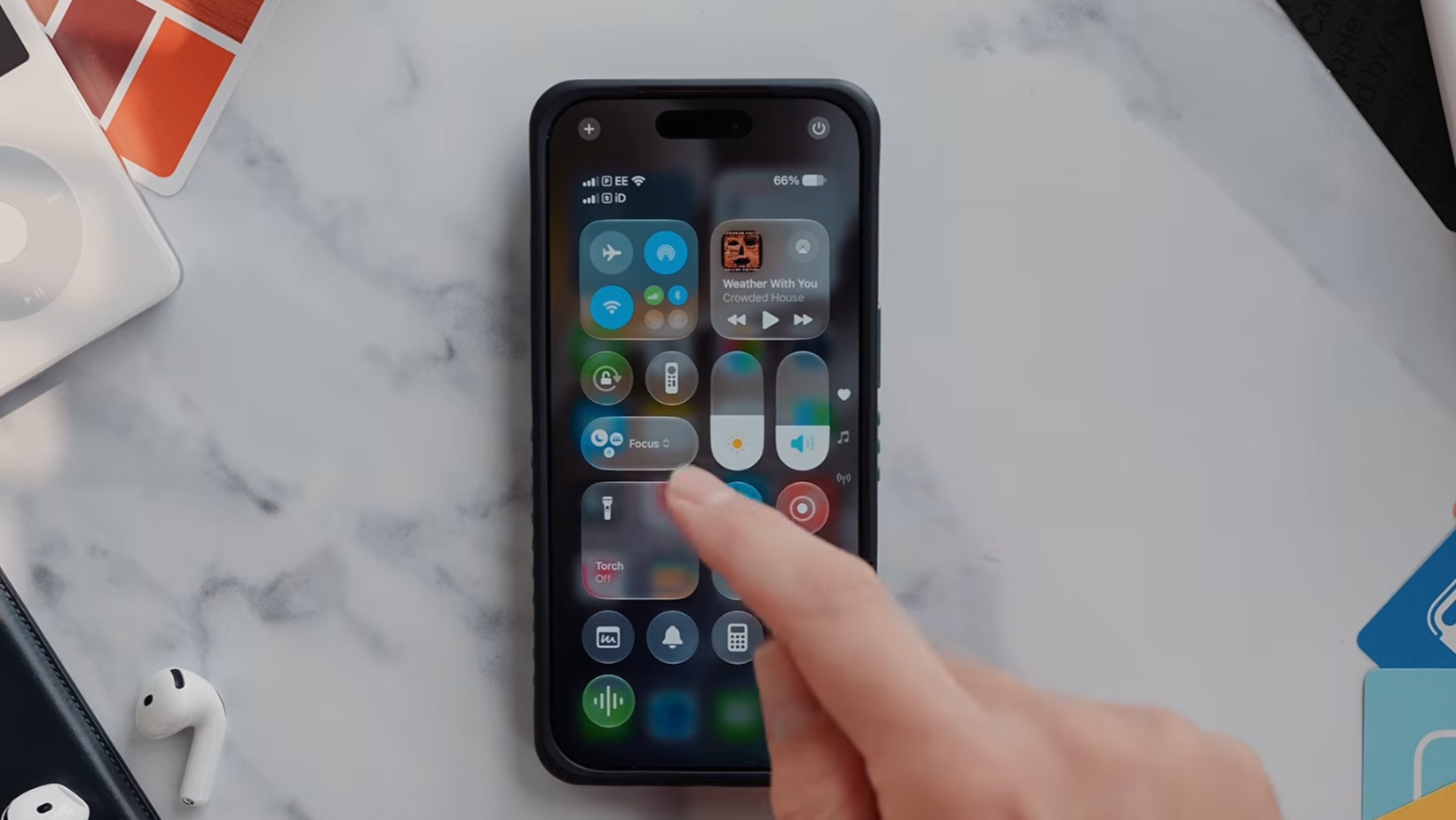
Swipe down at the top right to open Control Center, then hold to edit it. Mine includes Screen Recording, Apple TV controls, smart-home buttons, Calculator, alarms, and Claude. Hold brightness or volume for more options.
Control Focus, calls, and alerts
Build Focus modes around real routines
Focus modes can change notifications and the screens you see. I have setups for work, family time, sleep, and the gym.
I let each Focus allow only the people and apps I actually want to hear from, with a different Home Screen loaded for each one. Filters decide what supported apps show me while that Focus is on. Mine kick in automatically by time, location, or app, and carry across every Apple device I own.
Intelligent Breakthrough and Silencing try to spot urgent alerts. Test it before using it during Sleep Focus. Repeated calls can break through too, including spam.
Set up Messages and calls
Under Settings, Apps, and Messages, choose if you want to share your name and photo. Shared with You can surface links and recommendations inside supported Apple apps.
Open Phone, turn on Wi-Fi Calling if supported, and choose which Apple devices receive calls or alerts. I set unknown callers to Ask Reason for Calling and turn on Filter Unknown Callers. It works far better than the older version.
Cut notification overload
Use Scheduled Summary for alerts that can wait. I add news and finance apps, then set Show Previews to When Unlocked.
Remove alerts that add nothing. I switch off most social media notifications. My earlier guide to iOS settings to change covers more ways to reduce background activity.
Fix the camera before filming
Set everyday video quality
My phone arrived at 1080p and 30 fps. I changed the iPhone 18 to 4K at 30 fps because that matches our YouTube projects. Faster frame rates create much larger files.
Where available, I set slow motion to 4K at 120 fps and Cinematic mode to 4K at 30 fps. I turn on Grid and Level too. Disabling Require Screen On lets Camera Control open the camera with one press.
Use pro formats with care
If your model offers ProRAW, ProRes, Log, or JPEG-XL Lossless, use them when you plan to edit. They can fill your storage very quickly.
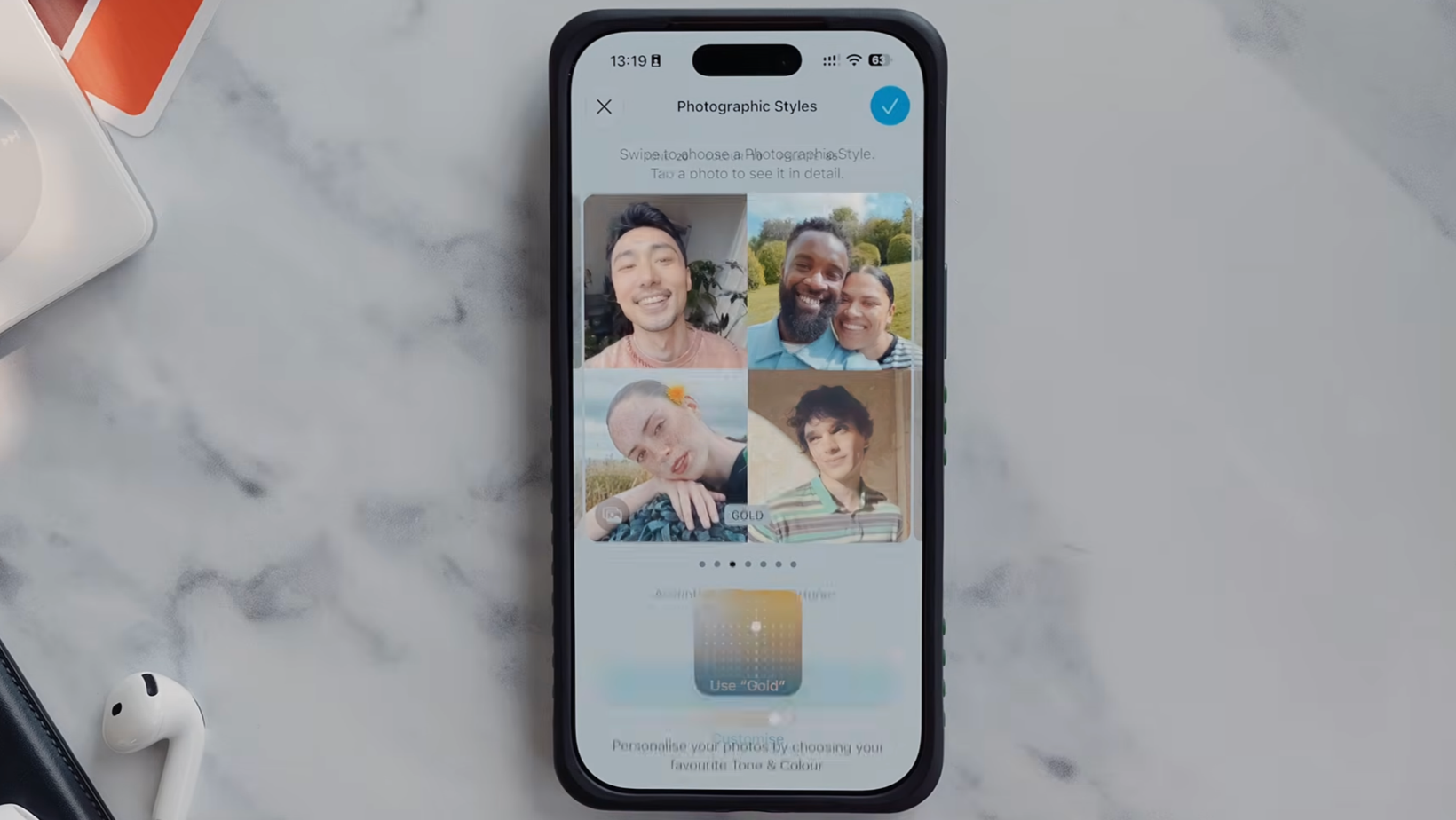
Photographic Styles give you a different look without the same storage hit.
Stretch the battery without ruining it
Protect long-term battery health
Open Battery, turn on Battery Percentage, and check Optimized Battery Charging. It can hold at 80% overnight, then finish near the time it expects you to wake up.
The prediction may be wrong on a new phone or during travel. Give it more time or change the setting until your schedule settles down.
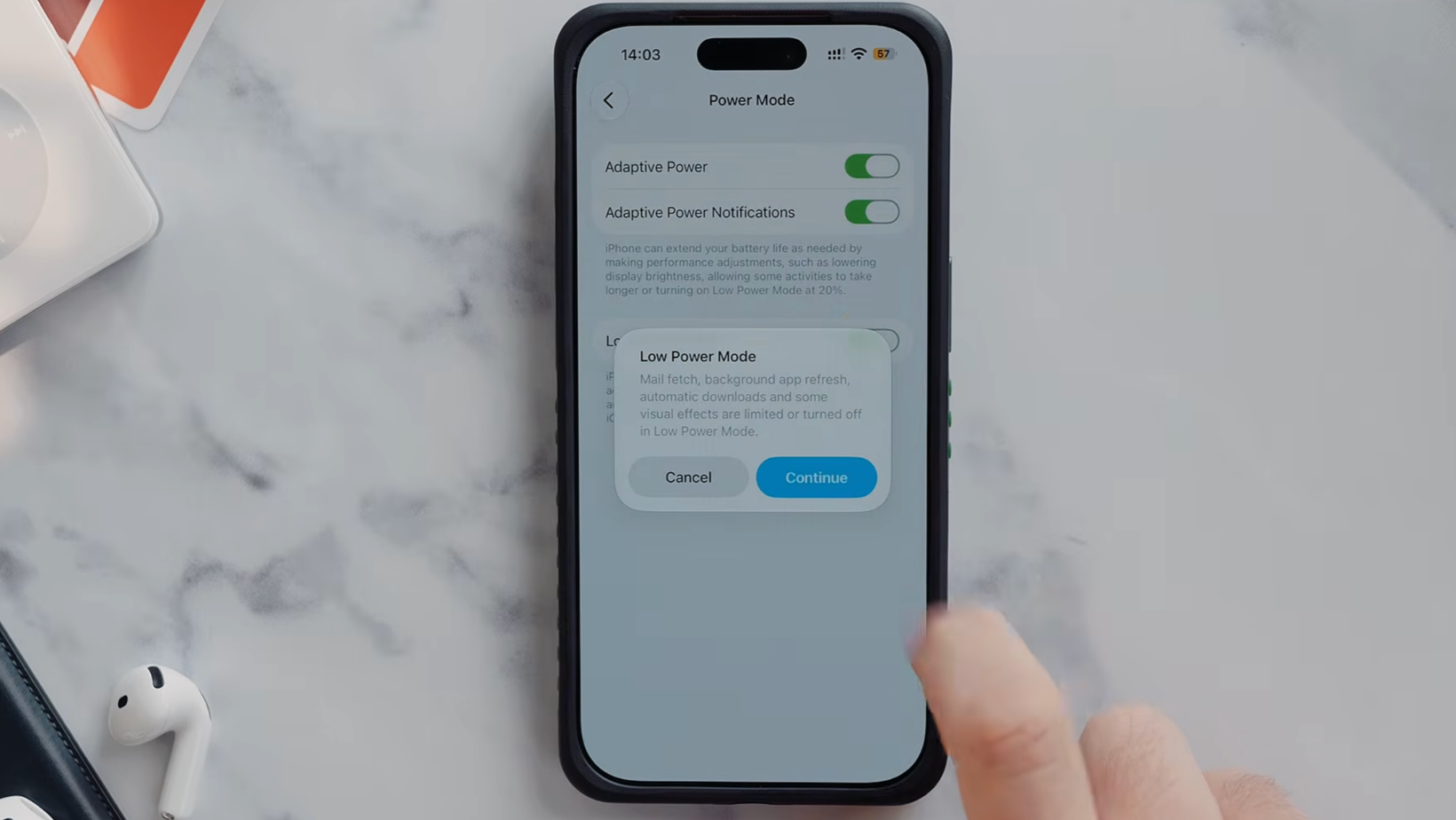
Adaptive Power can reduce activity on heavier days. Low Power Mode goes further. My wife leaves it on much of the time and rarely notices, though people who love the highest refresh rate probably will.
Reduce daily battery drain
Under General, switch off Background App Refresh for apps that can wait until you open them.
Under Mobile Service, choose 5G Auto or 4G/LTE to reduce power use. Turning off the Always-On Display can help too. Add Low Power Mode to Control Center for quicker access.
Three bonus settings worth using
Use an Accessibility Shortcut
Open Accessibility, then Accessibility Shortcut, and assign an action to a triple press of the side button. I use Reduce White Point for dark rooms when the lowest brightness still feels too bright.
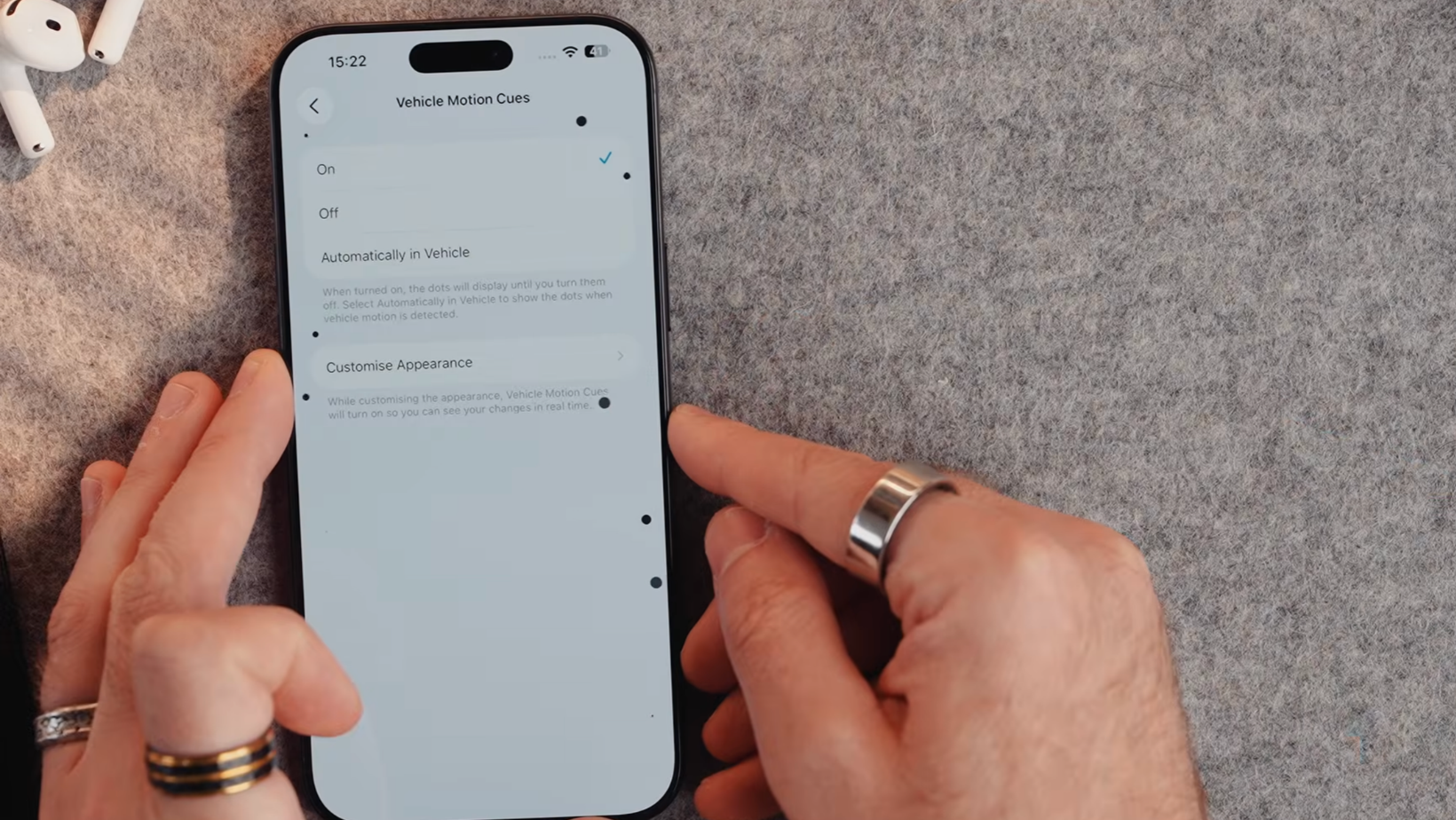
Turn on Vehicle Motion Cues
Under Accessibility and Motion, I turned Vehicle Motion Cues on for my wife, who gets queasy looking at her phone in a moving car. It can start when the phone detects that you’re in a vehicle.
Set an Express Travel Card
Open Wallet & Apple Pay and choose an Express Travel Card. I've got mine set to my local transit card, so I can tap straight through the gate without unlocking my phone first.
Keep tuning it after day one
Your iPhone 18 should now feel less like a factory setup and more like your own phone. I've updated the software, protected your data, improved the camera, and cut back the alerts. Your preferences may change once you’ve lived with it for a week, so come back and adjust anything that gets in your way.
I’ve got a full accessories video coming soon. For more practical tech tests and the choices I make behind the scenes, join the Experiments in Progress newsletter.
Frequently asked questions
Should I set up iPhone 18 as new?
Starting as new leaves old apps and forgotten settings behind. Restoring a backup is faster if you want a close copy of your previous phone. I start fresh every few years, not with every upgrade.
Which settings save the most battery?
Start with Background App Refresh, 5G Auto, Always-On Display, and Adaptive Power. Low Power Mode saves more, but it can reduce display performance and pause background work.
Should I use Advanced Data Protection?
Advanced Data Protection adds end-to-end encryption to more iCloud categories. Use it if it’s available and you’re comfortable keeping a recovery key or choosing a trusted recovery contact.
What camera quality should I choose?
I use 4K at 30 fps for everyday video because it gives me good quality without the huge files created by faster frame rates. ProRes, Log, and ProRAW make more sense when you plan to edit the files afterward.
Can I change the default iPhone apps?
Yes. Open Settings, Apps, then Default Apps. You can choose supported alternatives for email, browsing, passwords, keyboards, messaging, and other categories. The available choices depend on which apps you’ve installed.
